
Do you need to read what people are saying during the call, or keep a transcript to review later? In Zoom those are different features. Since May 18, 2026, Zoom no longer lets you save or download closed captions; to keep speech-to-text from a meeting you now need Meeting transcript. Cloud recordings still have their own audio transcript, delivered as a VTT file. This guide shows how to turn on each one, where the files go, how to download and edit them, and what to do when the transcript doesn't appear.
Table of contents
- What is Zoom transcription?
- Requirements for Zoom transcription
- Pick the right feature before checking your plan
- Check your app and languages
- How to turn on and save a Meeting transcript in Zoom
- Enable Meeting transcript in the Zoom web portal
- Start or request a transcript during a meeting
- Save the transcript as a TXT file
- How to create an audio transcript from a Zoom cloud recording
- Turn on Cloud recording and Create audio transcript
- Record to the cloud and wait for two processing steps
- How to view, edit and download a Zoom transcript
- Find and view the transcript after the meeting
- Edit the transcript
- Download the transcript: VTT vs. TXT
- Zoom transcription not working or unavailable: causes and fixes
- You can't see Transcript in the meeting
- You can't save the TXT file
- No VTT after a cloud recording
- My Notes says "Transcript is unavailable"
- The transcript is in the wrong language or full of errors
- Alternatives when Zoom's built-in transcript isn't enough
- How to improve Zoom transcript accuracy
- Prepare the audio and manage speakers
- Proofread the transcript before using it
- Privacy when transcribing and sharing
- FAQ
- Does Zoom have transcription?
- Is Zoom transcription free?
- Where are Zoom transcripts saved?
- Does a local (computer) recording create a transcript?
- Can participants download the transcript?
- How do I turn off transcription in Zoom?
- Why does Zoom say "Transcript is unavailable"?
- How long are transcripts kept?
- Conclusion
- Official sources checked
Read along live only: use automated captions. Zoom keeps about three minutes of scroll-back.
Keep the text from a meeting: use Meeting transcript; if allowed, save it as a TXT file to your computer.
Review and edit after the meeting: use Cloud Recording with audio transcription; the output is a VTT file.
What is Zoom transcription?
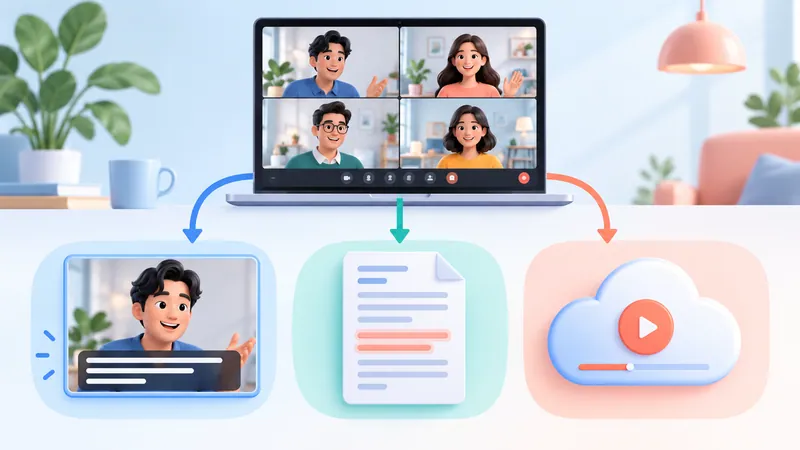
Zoom transcription is the umbrella term for several Zoom features that turn speech into text. They have different purposes, permissions and storage locations, and turning one on does not turn on the others.
| Feature | Use it to | Can you save it? | Main output |
|---|---|---|---|
| Automated captions | Read subtitles live | No, not since May 18, 2026 | On-screen only (and during recording playback) |
| Meeting transcript | Keep speech-to-text during and after the meeting | Yes, if the host/admin allows it | TXT saved during the meeting; host can manage it after, depending on settings |
| Cloud recording audio transcript | Transcribe a cloud recording | Yes | VTT file, viewable and editable on the web |
Meeting summary (Zoom's AI-generated recap) is a summary, not a full transcript. If you need both, you can use the summary for quick review and the transcript for exact wording. To start one and find it after the call, see our Zoom AI meeting summary guide. For the bigger picture of what a transcript contains and how teams use it, see our guide to meeting transcripts.
Requirements for Zoom transcription
Pick the right feature before checking your plan
Automated captions: enabled by default on paid accounts; must be allowed in meeting settings. Step-by-step: how to turn on captions in Zoom.
Meeting transcript: requires a Pro, Business or Enterprise account. Admins manage it at account or group level; individual users can change it if the admin hasn't locked it.
Cloud recording audio transcript: requires a Pro, Business, Education or Enterprise account, with both Cloud recording and audio transcription turned on.
Zoom's prerequisites don't list the free Basic plan for transcripts, so most free users rely on a third-party tool (see the alternatives section below). Admins can also lock settings, limit who can view or save transcripts, or auto-delete them, so hosts and participants on the same plan may see different options.
Check your app and languages
Update Zoom Workplace to at least Zoom's current minimum version on Windows, macOS, Linux, Android or iOS.
Interface language, spoken (transcription) language and caption translation language are three separate settings.
Cloud recording audio transcripts support 19 languages, including English and Spanish. Automated captions cover about 49 languages and dialects. Support for a language is not a promise of accuracy for every accent, so test names and jargon.
How to turn on and save a Meeting transcript in Zoom

Enable Meeting transcript in the Zoom web portal
Sign in to the Zoom web portal.
Go to Settings > Meeting > In Meeting (Advanced). Admins find the same toggle under Admin Center > Settings (account level) or in a group's settings.
Turn on Meeting transcript.
Optionally allow participants to view the transcript during the meeting, and choose who can save it to their computer.
If the toggle is greyed out or shows a lock icon, ask your admin.
Admins can also auto-generate transcripts for all meetings (or meetings that have a summary), add a custom disclaimer, let hosts view and delete transcripts after the meeting, and set a number of days before transcripts are deleted. The Allow saving of transcripts to computer by option can be limited to the host, host and co-hosts, non-guest participants, specific IP ranges or everyone. Grant the minimum access you need rather than letting everyone download.
Start or request a transcript during a meeting
The host clicks More > Transcript in the meeting controls. The transcript starts filling the side panel.
A participant can click More > Transcript > Request transcription; the host gets a prompt to accept or decline.
To stop, the host hovers over the Transcript icon in the top-right corner and clicks Stop transcription. There is an option to delete the transcript generated so far.
Save the transcript as a TXT file
Open More > Transcript.
At the bottom of the transcript panel, click Save transcript (only visible if your role is allowed to save).
Click View in Folder (Finder on macOS) to open the TXT file.
Default locations, according to Zoom:
Windows:
C:\Users\[Username]\Documents\ZoommacOS:
/Users/[Username]/Documents/ZoomLinux:
home/[Username]/Documents/Zoom
A missing save button is usually a permissions or settings issue, not a captions problem.
Ignore old "Save Captions" tutorials: since May 18, 2026, captions are view-only. To keep speech-to-text, use Meeting transcript.
How to create an audio transcript from a Zoom cloud recording
Turn on Cloud recording and Create audio transcript
Sign in to the Zoom web portal.
Go to Settings > Recording (shown as Recording & Transcript on some accounts).
Turn on Cloud recording.
Under the advanced cloud recording settings, check Create audio transcript and save.
If the option is locked at account or group level, individual users can't turn it on. Audio transcripts are created only for cloud recordings, not for local recordings saved to your computer.
Record to the cloud and wait for two processing steps
Tell participants the meeting will be recorded and transcribed, and get consent where the law requires it.
In the meeting, click Record > Record to the Cloud.
End the meeting and wait for the email saying the recording is ready.
The audio transcript can finish later; Zoom sends a separate email when it's available.
Don't assume the transcript is missing just because the video is there. Processing time depends on the length of the recording and system load.
How to view, edit and download a Zoom transcript
Find and view the transcript after the meeting
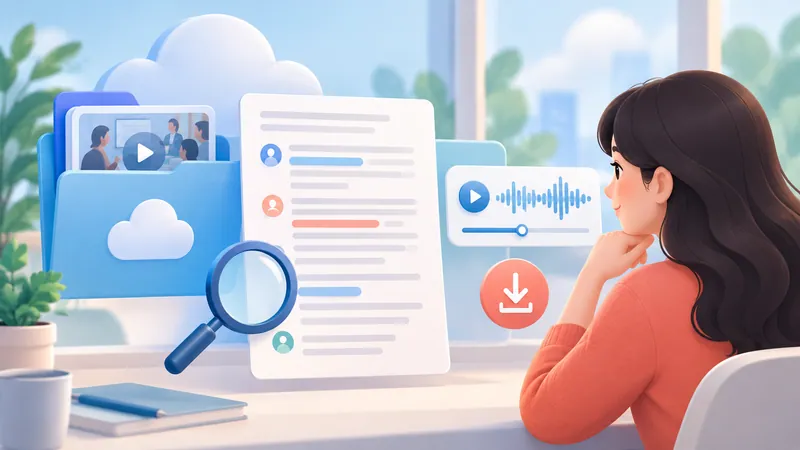
Sign in to the Zoom web portal with the recording owner's account or an account with access.
Open Recordings & Transcripts (or Recordings).
Select Cloud recordings.
Find the meeting by date or topic.
Click the recording thumbnail to open the player with the transcript panel.
Timestamps let you match each line to the audio. They don't prove the speaker was identified correctly. To search for a keyword, download the file and search it in your text editor.
Edit the transcript
Open the recording with an account that has edit rights.
In the transcript panel, click the pencil icon next to the line you want to change.
Re-listen to the audio and correct the text.
Click the check mark to save.
Prioritize names, amounts, deadlines and terminology. Hypothetical example: the transcript says "$15,000" but the speaker said "$50,000". Always re-listen before correcting.
Editing a downloaded file does not update the copy in Zoom.
Download the transcript: VTT vs. TXT
Quick path: Zoom web portal > Recordings & Transcripts > Cloud recordings > your meeting > Audio transcript > Download.

Summarize your meetings & videos automatically with NoteMeeting
Google Meet, Zoom, YouTube, Podcast — all in one extension.
The VTT file opens in any text editor or word processor.
| Format | What it is |
|---|---|
| VTT | The cloud recording audio transcript: text plus timestamps, also usable as subtitles. |
| TXT | Plain text; usually the Meeting transcript you saved during the call. |
Zoom won't necessarily give you both formats for the same meeting. For clean text, keep the original, copy the content and strip the timestamps. Renaming a file extension is not converting the format. To download the video and audio files of the same cloud recording, or to get them from a shared link, see how to download a Zoom recording.
Zoom transcription not working or unavailable: causes and fixes
"Transcript unavailable" in Zoom can come from four different features, and the fix depends on which one you are using. Find the message or symptom you see in the table, then go to the matching section below.
| What you see | Feature | Most likely cause | Where to fix it |
|---|---|---|---|
| No Transcript button under More, or the setting is greyed out | Meeting transcript | Off by default, Basic (free) account, or locked by an admin | Web portal: Settings > Meeting > In Meeting (Advanced) > Meeting transcript |
| Transcript ran in the meeting but Save transcript is missing | Meeting transcript | Allow saving of transcripts to computer by excludes you | Host or admin changes the saving permission |
| "Transcript is being generated", then "Transcript is unavailable" in My Notes | My Notes | Processing problem reported by many users since July 2026, or a transcript setting turned off | My Notes settings and the Meeting transcript setting (see the My Notes section below) |
| Cloud recording finished but there is no transcript file | Cloud recording audio transcript | Create audio transcript was off before recording, or processing is not finished | Web portal: Recordings & Transcripts, signed in as the recording owner |
You can't see Transcript in the meeting
Open More and look for Transcript there.
Check that Meeting transcript is enabled in the web portal.
Make sure the setting isn't locked by an admin and your app is up to date.
On a Basic (free) account, the feature isn't available.
If you're a participant, request transcription from the host.
You can't save the TXT file
Check the Allow saving of transcripts to computer by setting. Admins can restrict saving to the host, host and co-hosts, internal participants or a specific IP range. Turning on captions won't help, because captions no longer have a download option.
No VTT after a cloud recording
Confirm the meeting was recorded to the cloud, not locally.
Check that Create audio transcript was on before recording started.
Sign in as the recording owner and wait for processing to finish.
Make sure the recording has audible speech and the right source language.
If everything looks right and the option still isn't there, contact Zoom Support with the Meeting ID and meeting time, and don't post sensitive data in public forums.
My Notes says "Transcript is unavailable"
My Notes showing "Transcript is unavailable" after a meeting is a known pattern: since July 2026, many users on the Zoom Community My Notes forum report that the live transcript works during the meeting, the note then shows "Transcript is being generated", and it switches to "Transcript is unavailable". Some say the transcript appeared one or two days later; others say it never did. Zoom has not published a fix in its support articles, so work through these checks:
In the web portal, confirm Enable My Notes and Transcribe my meetings with My Notes are on, as required by Zoom's My Notes article.
Check the Meeting transcript setting under Settings > Meeting > In Meeting (Advanced), including Automatically generate transcripts for. A Zoom employee on the Community forum pointed users to this setting in August 2026 after Zoom changed its transcript settings; Zoom's My Notes article itself does not say the two are linked.
Ask whether the host stopped My Notes transcription. Hosts can stop transcription in My Notes for one participant or for everyone, and a stopped note will not keep transcribing.
Give Zoom access to your microphone and system audio; My Notes needs both. In the Zoom web app, full audio capture works only in Chrome or Edge.
Do not delete the note while you wait. Deleting a note in My Notes also deletes its transcript.
If the transcript is still missing, open a ticket with Zoom Support and include the meeting ID and time.
Until the issue is fixed for your account, do not rely on My Notes alone for a meeting you cannot repeat. Run a second capture: save a Meeting transcript as TXT during the call, record to the cloud with Create audio transcript on, or use a separate transcription tool that keeps the text on your device.
The transcript is in the wrong language or full of errors
For cloud recordings, the owner can use Change Language to set the correct source language and have Zoom reprocess the audio. This won't fix every error; you still need to check names, numbers, negations and crosstalk against the audio.
Alternatives when Zoom's built-in transcript isn't enough
Native transcription covers most needs on paid plans, but there are common gaps: you're on the free Basic plan, you only have a local recording, you're a participant without save rights, or you want AI notes that work the same across Zoom, Google Meet and Teams.
Browser extension, no bot: the NoteMeeting Chrome extension transcribes Zoom meetings you join in the browser, plus Google Meet and Teams, and produces an AI recap without adding a bot to the call. Tell the other participants you are recording.
Meeting bots: tools such as Otter or Fireflies join as a participant and transcribe; some organizations block them.
Upload a local recording: run the MP4 or M4A through file transcription software. See our comparison of the best transcription software. To turn a downloaded Zoom transcript into a summary with Google's AI, see how to use Gemini with a Zoom transcript.
For a broader roundup, see the best AI meeting note takers.
How to improve Zoom transcript accuracy
Prepare the audio and manage speakers
Use a microphone that picks up your voice clearly and test the distance before the meeting.
Cut background noise, room echo and sound from other devices.
Use headphones if your speakers feed back into the mic.
Check your connection to avoid choppy audio.
Take turns, speak at a moderate pace, and say names and numbers clearly.
Not every headset beats a laptop mic. Pick whichever sounds clearer in a quick test.
Proofread the transcript before using it
Keep an untouched original for reference.
Re-listen using the timestamps.
Check names, numbers, dates, decisions and tasks.
Mark [inaudible] instead of guessing.
Save the edited version separately for sharing.
If several people shared one mic, check speaker labels too. When you turn a transcript into meeting minutes, keep paraphrase separate from verbatim speech and don't present a paraphrase as a direct quote.
Privacy when transcribing and sharing
Explain why you're recording and transcribing, and get consent where required. Several US states, including California, Florida and Pennsylvania, require all parties to consent.
Limit access; use authentication, passcodes and download permissions.
Redact identifying details in shared copies.
Follow your organization's retention and deletion policy.
Don't paste sensitive transcripts into outside tools without approval.
Replacing names with codes isn't real anonymization if the context still identifies people. Don't use an unverified transcript as the only basis for an important decision. Zoom's security information is on the Zoom Trust Center.
A transcript keeps the words in the language they were spoken. If you need participants to read or hear a translation during the call, see our Zoom translation guide.
FAQ
Does Zoom have transcription?
Yes. Zoom offers live automated captions, Meeting transcript (savable as TXT) and audio transcripts for cloud recordings (VTT). Each is enabled separately and depends on your plan and admin settings.
Is Zoom transcription free?
Not on the free Basic plan. Meeting transcript needs a Pro, Business or Enterprise account, and cloud recording transcripts need Pro, Business, Education or Enterprise. Free users typically use a third-party tool instead. Decide whether you need live reading, a TXT file or a VTT download before comparing plans.
Where are Zoom transcripts saved?
Meeting transcripts you save during a call go to Documents/Zoom on Windows, macOS and Linux. Cloud recording transcripts stay in the Zoom web portal under Recordings & Transcripts > Cloud recordings, where you can download the VTT.
Does a local (computer) recording create a transcript?
No. Local recordings don't generate the cloud VTT. Save a Meeting transcript during the call, or run the local file through a transcription tool your organization allows. This also applies to breakout rooms, which can only be captured with a computer recording; see how to record and transcribe Zoom breakout rooms.
Can participants download the transcript?
Yes, if the admin and host allow it. Viewing during the meeting, saving the TXT, managing transcripts afterwards and downloading the VTT from a shared recording are separate permissions. For recording rather than transcribing as a participant, see recording a Zoom meeting when you're not the host.
How do I turn off transcription in Zoom?
During a meeting, the host hovers over the Transcript icon and clicks Stop transcription (optionally deleting what was captured). To stop it permanently, turn off Meeting transcript or Create audio transcript in the web portal settings. If the transcription comes from a bot such as Otter or Fireflies, or from someone's My Notes, follow our guide to removing a notetaker from Zoom. If you are a participant who just saw the notice, our guide to what "this meeting is being transcribed" means in Zoom shows which feature started it and who gets the text.
Why does Zoom say "Transcript is unavailable"?
In My Notes, "Transcript is unavailable" usually appears after the note finishes processing; users have reported it widely since July 2026, and the transcript sometimes shows up one or two days later. Check your My Notes and Meeting transcript settings, make sure the host did not stop My Notes transcription, and contact Zoom Support if it does not return. For Meeting transcript and cloud recordings, the cause is usually a setting that was off before the meeting started.
How long are transcripts kept?
There's no single answer. Admins can set how many days Meeting transcripts are kept, and cloud recording retention policies can delete the audio transcript along with the recording. Check your organization's settings.
Conclusion
Use captions to read along live, Meeting transcript to keep speech-to-text from the call, and the cloud recording audio transcript when you need to review, edit or download a VTT afterwards. The key 2026 change is that captions can no longer be saved; if you want a file, you need the right transcript type and the right permissions. For transcripts on other platforms, see how to get a Google Meet transcript, and if you need to turn audio from outside Zoom into text, start with our guide to speech-to-text.
Official sources checked
Saving closed captions in a meeting (May 18, 2026 change notice)
Checked in October 2026. Menus and permissions can differ by plan, region and admin policy.