
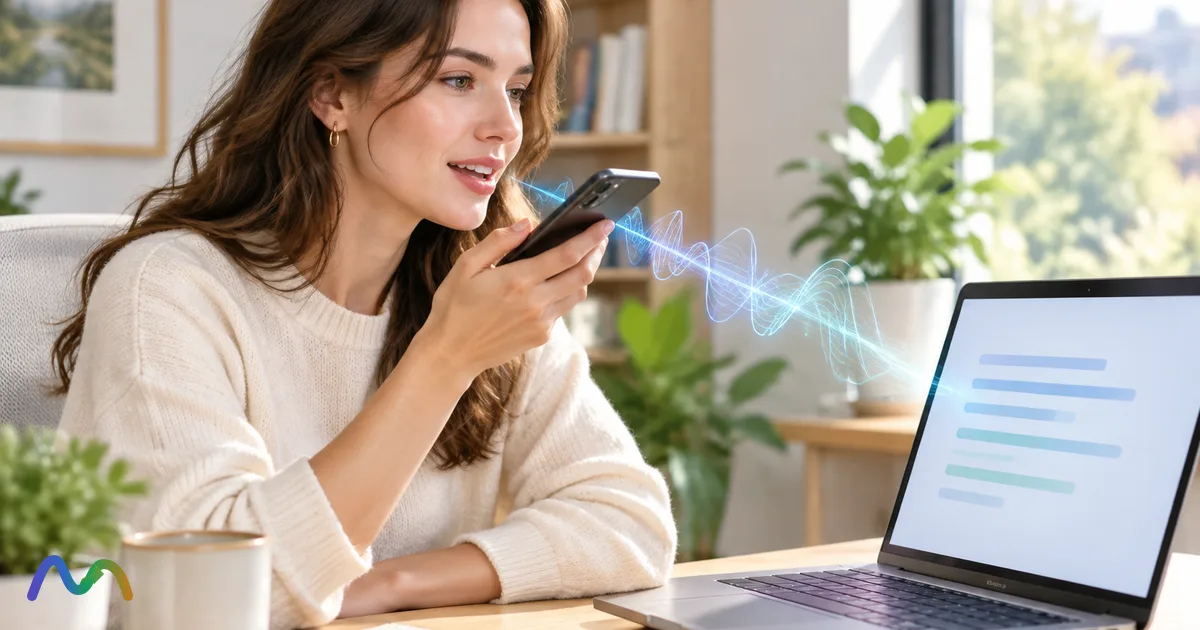
The best dictation software is usually the one already built into where you write. Start with Apple Dictation on a Mac or iPhone, Windows voice typing or Voice Access on a PC, Gboard on your phone, and Google Docs Voice Typing or Word Dictate if you live in one editor. Pay for a tool like Wispr Flow only when you dictate across many apps and want AI to clean up filler words and formatting. If you mainly talk through ideas and want them turned into drafts or a searchable notes library, look at Letterly and Voicenotes.
Table of contents
- Best dictation software at a glance
- Dictation vs. transcription vs. AI rewriting vs. voice control
- Dictation and voice typing: speaking to write
- Transcription: turning speech or recordings into a record
- AI cleanup and AI rewriting: editing after recognition
- Voice control: operating the computer by voice
- 8 things to check before you pay for dictation software
- 1. Device, language, and where the text goes
- 2. Does it meet your privacy requirements?
- 3. What works offline?
- 4. Does the text keep your meaning?
- 5. Live text or text after each phrase?
- 6. Can you edit and format by voice?
- 7. Custom vocabulary and snippets
- 8. Is the total cost worth the time saved?
- The best dictation apps, reviewed by use case
- 1. Apple Dictation: start here on Apple devices
- 2. Windows Voice Access: free dictation plus hands-free control
- 3. Gboard: free voice typing on your phone
- 4. Google Docs Voice Typing: best if you write in Google Docs
- 5. Microsoft Word Dictate: best for people who draft in Word
- 6. Wispr Flow: AI dictation in any app
- 7. Letterly: speech to structured notes and drafts
- 8. Voicenotes: a voice notes library you can search and chat with
- 9. Monologue: context-aware dictation for Apple users
- 10. Dragon Professional Anywhere: managed dictation for organizations
- Also worth a look
- Which dictation app should you try first?
- How to test a dictation app before you pay
- Step 1: Set dealbreakers and tasks
- Step 2: Build a realistic test script
- Step 3: Compare under the same conditions
- Step 4: Log errors by impact, and total time
- Step 5: Fix what's fixable, then retest
- Step 6: Decide with test results, price, and policy
- How to get better accuracy from any dictation app
- Fix the mic and room before switching apps
- Speak in complete thoughts and learn the commands
- Prepare vocabulary and check limits before long sessions
- Review for meaning, not just spelling
- Conclusion: choose the tool that cuts editing, not just the fastest one
- FAQ
- What is the best free dictation software?
- Is there dictation software that works fully offline?
- What is the best dictation software for Mac?
- What is the best dictation software for Windows?
- How do I know if an app stores my voice data?
- Why does AI rewriting change what I meant?
- What's the difference between dictation and transcription?
No single app wins for everyone. A good dictation tool has to understand your voice, put text where you actually need it, and not cost you more time in corrections than it saves. Judge each one on the total time to usable text: speaking, waiting, reviewing, fixing, and moving the text to its destination.
This guide covers live dictation and voice notes. If you need to transcribe recordings or multi-speaker meetings, you also need file import, speaker labels, and timestamps; see our guide to transcription software or the best AI meeting note takers instead.
How we built this list: this is desk research based on official product pages, help docs, and current independent reviews, not a head-to-head lab test run by NoteMeeting. Because accuracy depends heavily on your accent, microphone, language, and device, we do not assign accuracy scores without a shared test set. Prices and limits were checked on official pages in October 2026 and change often.
Best dictation software at a glance
This is a shortlist by job, not an accuracy ranking.
| Tool | Best for | Platforms | Price (USD, Oct 2026) | Works offline? |
|---|---|---|---|---|
| Apple Dictation | Free dictation on Apple devices | iPhone, iPad, Mac, Apple Watch | Free, built in | On supported devices and languages (on-device on Apple silicon Macs) |
| Windows Voice Access | Free dictation plus hands-free PC control | Windows 11 (22H2 and later) | Free, built in | Yes, uses on-device recognition |
| Gboard | Voice typing on your phone | Android, iOS | Free | Depends on device and language pack |
| Google Docs Voice Typing | Writing inside Google Docs | Web, in Chrome | Free | No |
| Microsoft Word Dictate | Writing inside Word | Word for Windows, Mac, web, mobile | Included with Microsoft 365 | No, needs internet |
| Wispr Flow | AI dictation in any app, cross-platform | Mac, Windows, iOS, Android | Free (2,000 words/week on desktop); Pro $15/mo or $12/mo billed yearly | No, cloud processing |
| Letterly | Turning rambling speech into structured drafts | Web, iOS, Android, Mac, Windows | Free to start; paid subscription (check in-app pricing) | Can record offline; check processing |
| Voicenotes | Building a searchable voice-notes library you can query | Desktop, web, iOS, Android, watchOS, Wear OS | Free (100 min/week); Pro $9/user/mo | No |
| Monologue | Context-aware dictation in the Apple ecosystem | Mac, iPhone, iPad, Apple Watch | Free (1,000 words); Pro $15/mo or $144/yr | Local transcription option on Mac |
| Dragon Professional Anywhere | Organizations that need managed, professional dictation | Windows (incl. Citrix/VDI), plus iOS/Android mobile app | Subscription, quote-based | No, cloud-hosted on Azure |
Sources: official pages for Wispr Flow, Voicenotes, Monologue, Letterly, Dragon Professional Anywhere, Microsoft and Apple support docs, plus Zapier's dictation roundup. Always re-check pricing before you subscribe.
These tools solve different parts of the speech-to-text workflow, so they are not all direct substitutes. And none of these sources fully evaluates accuracy for non-native accents or mixed-language speech: test with your own voice. For sensitive content, read the data policy before you dictate anything real.
Dictation vs. transcription vs. AI rewriting vs. voice control
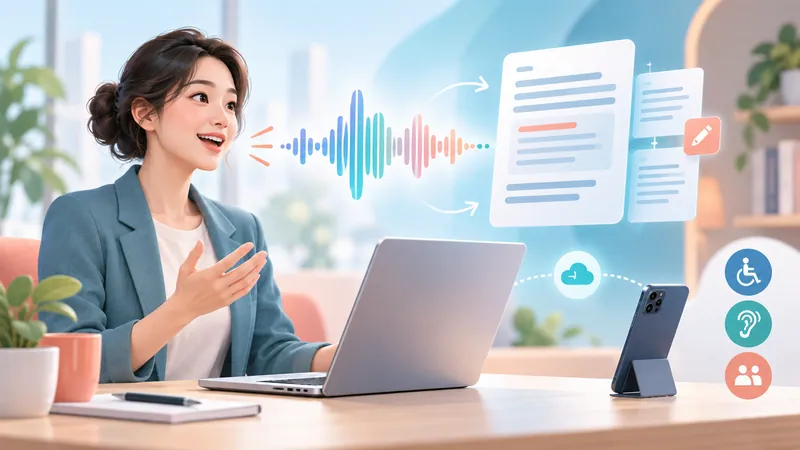
Speech-to-text is the underlying capability. The terms below describe what you use it for, and one app can do several of them.
Dictation and voice typing: speaking to write
Dictation means you speak and the software types. Input is deliberate speech through a microphone; output lands in a document, email, chat box, or form field. Apple Dictation, Gboard, Google Docs Voice Typing, Word Dictate, and Wispr Flow all do this, but where they type and how they process differ.
Some tools show words as you speak; others return text after you finish a phrase. That is a difference in when you see output, not proof of accuracy. Live display does not mean "no AI," and post-phrase processing does not always mean rewriting.
Transcription: turning speech or recordings into a record
Transcription can be live or from an existing file. For meetings, interviews, or audio files you usually need more than a voice input box:
Import of audio or video files, or meeting capture.
Reliable handling of long recordings.
Speaker labels (speaker diarization).
Timestamps so you can jump back to the audio.
Export in the format you need (TXT, DOCX, SRT, VTT).
A "Speaker 1" label only separates turns; it does not mean the software knows who the person is. If this is your main need, don't pick a tool just because it "has speech-to-text." Read our explainer on meeting transcripts first.
AI cleanup and AI rewriting: editing after recognition
After recognizing words, many apps now clean up or rewrite them. Know how much the tool changes so you know whether the output still fits its purpose.
| Level of processing | What changes | What to check |
|---|---|---|
| Near-verbatim transcript | Tries to keep your words, with light normalization | Misheard, dropped, or substituted words. Never assume it is fully correct. |
| Punctuation, filler removal, formatting | Makes text easier to read | Did it drop meaningful words, merge sentences wrongly, or change a negation? |
| Rewrite, summarize, restructure | Changes structure, wording, or level of detail | Did it add ideas, drop conditions, change numbers, or shift tone? |
These are not quality tiers. A tidy email draft can be more useful than a verbatim transcript, but it should never be used as a quote. AI hallucination (output containing details you never said) is a real risk with rewriting modes: fluent text can still be wrong.
Voice control: operating the computer by voice
Voice control covers actions like opening apps, moving between fields, selecting and correcting text, and clicking interface elements. Windows Voice Access is the clearest example on this list. Check three kinds of commands separately:
Punctuation commands: "period," "comma," "new line."
Editing and formatting commands: select a word, replace text, make a list, bold.
Control commands: open an app, switch windows, click a button.
Good recognition does not guarantee you can finish a task without a mouse or keyboard. If hands-free use is a requirement (for accessibility or RSI), test control as its own task.
8 things to check before you pay for dictation software
1. Device, language, and where the text goes
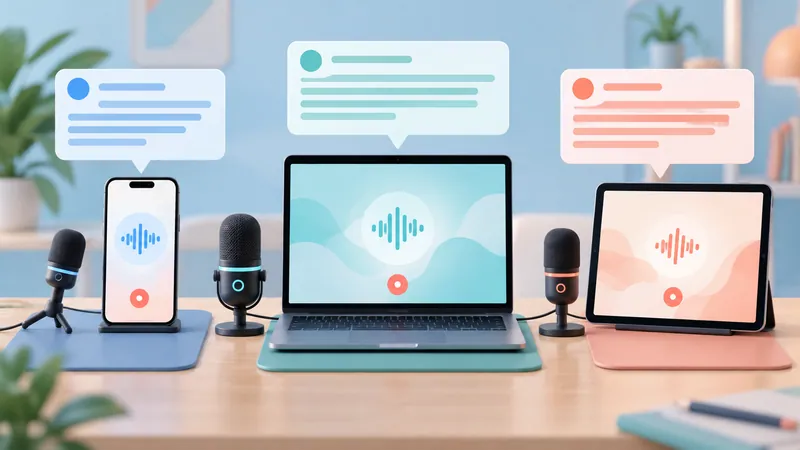
The first filter is simple: the tool must work where you write, in the language you speak. Dictation can live in the operating system, inside one app, in a mobile keyboard, or in a third-party tool that types into any app. These are delivery models, not "basic" versus "pro" tiers.
"Cross-platform" does not mean it types into every text field, and the same app can have different features on desktop and mobile. If you have an accent, switch languages mid-sentence, or use lots of jargon, test recognition, punctuation, line-break commands, and AI cleanup in the apps you really use (email, Slack, your CMS), not just in the vendor's demo.
2. Does it meet your privacy requirements?
For work or sensitive content, privacy can rule a tool out before accuracy matters. Find answers to these in the vendor's docs:
Does audio, text, or screen context leave the device?
What is stored, for how long, and where?
Is your content used to train models, and can you opt out?
Does deleting a note delete the audio and copies too?
Do personal, team, and enterprise plans have different terms?
Which permissions does it need: microphone, keyboard, accessibility, screen recording?
On-device recognition does not mean the whole workflow is local. AI rewriting or note sync may still go to a server. Compliance claims need reading in scope: a SOC 2 Type II report audits defined controls; it is not a guarantee of safety. In healthcare, look for a signed BAA (Wispr Flow offers one on its Growth plan). If you record other people, check consent rules: many US states require all-party consent, and GDPR applies to EU personal data.
3. What works offline?
Separate each function: recognition, AI cleanup, sync, and search. Microsoft says Word Dictate needs a reliable internet connection, and Google Docs Voice Typing does not work offline. Windows Voice Access uses on-device speech recognition, and Apple silicon Macs can process general dictation on the device. The reliable test: finish setup, turn off Wi-Fi, and try the exact feature and language you need. One device's result only tells you about that configuration.
4. Does the text keep your meaning?
Output quality depends on language, accent, speaking pace, microphone, background noise, names, jargon, and session length. Don't just count typos. Flag errors that change meaning: a dropped "not," a wrong name, amount, date, or unit. One of those matters more than ten punctuation slips. If you want a number for this, learn how word error rate is calculated, but remember WER treats every word equally.
With AI tools, check whether you can see the pre-rewrite text, adjust how much it intervenes, or undo it. Polished text is not the same as correct text.
5. Live text or text after each phrase?
Live output lets you spot errors early, though words may keep shifting as the model revises. Post-phrase output makes you wait but can hand back a cleaner draft. Word Dictate shows text as you talk; Wispr Flow inserts text after you finish speaking. If you often dictate names or numbers and confirm them immediately, live view helps. If you speak in complete thoughts, measure whether the wait is repaid by fewer edits.
6. Can you edit and format by voice?
Depending on the job, test punctuation, new lines, lists, formatting, and select/delete/replace. Word Dictate supports punctuation, formatting, list, and editing commands; Voice Access goes further into navigation and clicking. Commands vary by product, version, and language. Someone dictating short emails does not need the command set of someone who cannot use a mouse, so don't pay for capabilities you won't use.
7. Custom vocabulary and snippets
Custom vocabulary (a personal dictionary) helps the engine recognize names and terms. Snippets insert saved blocks of text from a trigger phrase. They solve different problems. Wispr Flow, Monologue, and Superwhisper all offer a custom dictionary. If the same term keeps failing, add it and re-read the same passage; customization is only worth paying for if it cuts errors in your real work.
8. Is the total cost worth the time saved?
Separate built-in tools, free tiers with limits, and paid subscriptions. Before paying, check word, minute, or note caps, device limits, AI features, and monthly vs. annual pricing. Real cost also includes reviewing, fixing, copy-pasting, and repairing AI mistakes. A fast app that forces you to copy text into another window can be slower than the tool already in your editor. Pay only when a tool removes a specific bottleneck, clearly, across several tests.
The best dictation apps, reviewed by use case
1. Apple Dictation: start here on Apple devices
Apple Dictation is the first thing to try if you want to dictate messages, emails, or notes without installing anything. It runs on iPhone, iPad, Mac, and Apple Watch, but features vary by device and OS version.
On a Mac, turn it on in System Settings > Keyboard > Dictation, then start it with the microphone key, your shortcut, or Edit > Start Dictation. Apple says Apple silicon Macs can process general dictation on the device, there is no timeout, and auto-punctuation is available in supported languages. Zapier rates it very fast but limited for professional workflows; in practice that means few editing commands and no AI cleanup.
Try it first for everyday tasks. Move on only when you can name a specific feature it lacks. For setup on phones, see our guide to speech-to-text on iPhone and Android.

Summarize your meetings & videos automatically with NoteMeeting
Google Meet, Zoom, YouTube, Podcast — all in one extension.
2. Windows Voice Access: free dictation plus hands-free control
Windows Voice Access is worth evaluating when you need more than speech to text: you want to operate the PC by voice. It is available in Windows 11 version 22H2 and later and uses on-device speech recognition, so it works without internet. It replaces the older Windows Speech Recognition.
Don't confuse two features:
Windows voice typing (
Windows + H): quick dictation into the current text field.Voice Access: a broader system for dictation, navigation, clicking, and custom voice shortcuts.
For accessibility use, your test should include opening the right app, moving to a field, selecting a mistake, fixing it, and finishing the task. If you still need the mouse for one required step, it doesn't cover your workflow. Zapier notes it is sensitive to microphone quality and background noise, so test with the mic you'll actually use.
3. Gboard: free voice typing on your phone
Gboard suits texts, short emails, and mobile form fields. It is free, supports many languages, and works as a keyboard in any compatible app, so you don't need to dictate in a separate app and copy text over. Features differ between Android and iOS, and between phone models (Pixel phones get extra voice typing features), so don't assume an Android feature exists on your iPhone.
Gboard solves text input on a phone. It is not a notes library with search or AI Q&A. If your real problem is finding what you said last week, look at Voicenotes instead.
4. Google Docs Voice Typing: best if you write in Google Docs
If most of your writing happens in Docs, open Tools > Voice typing (or press Ctrl + Shift + S / Cmd + Shift + S) in Chrome. It is free, needs internet, and keeps drafting, reviewing, and editing in one place. It also works in Google Slides speaker notes.
Pick it when Docs is the final destination. If you constantly move text into email, chat, or a CMS, count the copy-paste time and consider a system-wide tool. We cover setup, voice commands, and fixes in our dedicated Google Docs Voice Typing guide.
5. Microsoft Word Dictate: best for people who draft in Word
Word Dictate makes sense if you already work mainly in Word and pay for Microsoft 365. Text appears as you speak, and it supports voice commands for punctuation, formatting (bold, italics, alignment), lists, comments, and editing. Microsoft lists 15 fully supported languages plus around 30 in preview.
The benefit is staying in Word to finish the draft, not proof that it recognizes speech better than everything else. It needs a reliable internet connection and doesn't help when you write in other apps. Check access on the exact Word surface (desktop, web, mobile) and account you'll use.
6. Wispr Flow: AI dictation in any app
Wispr Flow is the best-known standalone AI dictation app in 2026 and appears near the top of most current roundups. It types into any text field on Mac, Windows, iOS, and Android, removes filler words, fixes formatting, adapts tone to the app you're in, and supports a personal dictionary and snippets.
Pricing (October 2026): Free with 2,000 words per week on desktop and 1,000 on mobile; Pro is $15/month or $12/month billed yearly with unlimited dictation; Growth ($23/month or $18/month yearly) adds SSO and org-wide HIPAA enforcement with a BAA. Zapier also notes SOC 2 Type II compliance.
Trade-offs: processing happens in the cloud, text arrives after you finish a phrase, and Zapier reported accuracy issues during long continuous dictation. Writing a long document in short bursts is not the same as talking nonstop for ten minutes, so test the way you actually work. Always check that cleanup kept your conditions, numbers, and tone.
| Criterion | Wispr Flow | Word Dictate |
|---|---|---|
| Where it types | Any app with a text field | Inside Word (and supported Microsoft surfaces) |
| When text appears | After each phrase | While you speak |
| Why choose it | AI cleanup, dictionary, snippets, cross-app use | Live text and formatting commands in your document |
| Internet | Required | Required |
| Cost | Free tier; Pro $12-15/mo | Included with Microsoft 365 |
| Test carefully | Meaning after cleanup, long sessions, target apps | Access, commands, and language on your version |
If you work mostly in Word, try Dictate before adding Wispr Flow. Skip Wispr Flow if offline use is mandatory, your data policy forbids cloud processing, or the free built-in tool already works.
7. Letterly: speech to structured notes and drafts
Letterly fits a "talk first, organize later" style. You can see the original transcript alongside the AI rewrite, which helps for notes, email drafts, to-do lists, and developing ideas. The official site lists iOS, Android, Mac, Windows, and web, with dictation inside apps like Gmail, Slack, and Notion, audio and video file transcription, 90+ languages, and custom rewrite styles. It is free to start, with a paid Pro subscription; prices differ by store and billing period, so check current pricing in the app before you subscribe.
Zapier found transcript organization limited, so if you plan to store a lot, test search and management too, not just the first draft. When reviewing a rewrite, compare main points, conditions, negations, numbers, and names. Letterly is great for drafts; it is not a reason to skip review.
8. Voicenotes: a voice notes library you can search and chat with
Voicenotes suits people whose main need is capturing ideas and finding what they said later. You record notes, then search, ask questions, or generate content from your library. The free plan includes 100 transcription minutes per week with 30-day history; Pro is $9/user/month with unlimited minutes and audio import; Enterprise ($24/user/month) adds SSO and is SOC 2 Type II certified with no model training on user data.
Note that Voicenotes retired its meeting bot on April 30, 2026 in favor of on-device recording, so older reviews describing a calendar bot are out of date. When you use AI answers, go back to the source note before relying on a key point.
9. Monologue: context-aware dictation for Apple users
Monologue adapts its output to the app you're in (coding prompts, team chat, email) and combines dictation, voice notes, and bot-free meeting notes. It runs on Mac, iPhone, iPad, and Apple Watch, offers offline transcription and local models on Mac, a custom dictionary, and 100+ languages. Free covers 1,000 dictation words and 10 notes; Pro is $15/month or $144/year.
Older roundups call it Mac-only; that is no longer accurate. Before using it at work, check which screen or accessibility permissions it needs, what data is sent to the cloud in each mode, and whether you can turn context capture off. Local transcription does not make AI formatting local too.
10. Dragon Professional Anywhere: managed dictation for organizations
Dragon, now owned by Microsoft, is the long-standing name in professional dictation. Dragon Professional Anywhere is the cloud-hosted business edition: it runs on Microsoft Azure, supports Windows including Citrix and VMware virtual desktops, adds the Dragon Anywhere mobile app for iOS and Android, and is sold by subscription to sectors like financial services, insurance, social services, and law enforcement. Healthcare teams typically evaluate the separate Dragon Medical One.
Treat it as a procurement project, not a quick buy. Organizations should confirm:
Deployment environment and device support.
Licensing model and user administration.
Integration with your line-of-business apps.
Specialist vocabulary requirements.
Data handling, residency, and support.
Total cost of ownership, including rollout and training.
Don't mix up features across Dragon editions, and pilot it in the real working environment before committing. A good result on one laptop does not prove fit for the whole organization.
Also worth a look
Superwhisper: privacy-focused dictation with offline, on-device models on macOS, Windows, iOS, and Android, plus custom vocabulary and tone modes. A good pick if cloud processing is a dealbreaker.
Otter.ai and other meeting tools: if you need to capture conversations rather than dictate, see our comparison of AI meeting note takers.
Developers: if you're building speech features into a product, compare APIs in our guide to real-time speech-to-text.
Which dictation app should you try first?
| Your situation | Try first | When to look further |
|---|---|---|
| Quick input on Apple devices | Apple Dictation | It misses your language, target app, or the cleanup you want. |
| Phone input | Gboard or your phone's built-in keyboard | You need to organize notes, not just type: try Letterly or Voicenotes. |
| Mostly Google Docs | Google Docs Voice Typing | You constantly move text to other apps. |
| Mostly Word | Word Dictate | You need to dictate outside Microsoft apps. |
| Many apps, want filler words cleaned up | Wispr Flow | Offline, privacy, or cost requirements rule it out. |
| Talk through ideas, get a draft | Letterly | You need verbatim text: keep the audio and verify. |
| Searchable voice notes library | Voicenotes | You need full meeting or file transcription. |
| Context-aware dictation on Mac/iPhone | Monologue | You can't accept its permissions or data flow. |
| Must be fully offline | Windows Voice Access, Apple Dictation, or Superwhisper | Your language isn't supported on-device. |
| Hands-free Windows control | Windows Voice Access | Required commands, apps, or language aren't supported. |
| Organization-wide rollout | Dragon Professional Anywhere and managed alternatives | Only commit after confirming deployment, data, support, and licensing. |
How to test a dictation app before you pay
Example: someone uses a Mac and an iPhone, writes emails, drafts documents in Word, and takes notes on the phone. They speak English with occasional product names and acronyms, and want to know if AI cleanup is worth paying for. A sensible shortlist is Apple Dictation, Word Dictate (if their Microsoft 365 account supports it), and Wispr Flow for cross-app use. This is a hypothetical to show the method, not a test result.
Step 1: Set dealbreakers and tasks
Before installing anything, write down:
The language(s) you actually speak, including jargon and code-switching.
The two or three places you write most.
Whether offline use is required.
Whether sending data to a server is acceptable.
Whether you need verbatim text or a view before rewriting.
Any task that must be completed hands-free.
Drop tools that fail a dealbreaker before comparing accuracy. Use fake names and content for testing, not client data. Define concrete tasks such as "draft an email," "write two paragraphs in Word," and "capture an idea on the phone."
Step 2: Build a realistic test script
| Element | Sample content to include |
|---|---|
| Negation | "Do not send the final version until I confirm." |
| Names | "Priya Raman," "Northwind Logistics" (fictional) |
| Numbers and units | "$1,450," "250 ml," "3.5 percent" |
| Dates | "August 12, 2027" |
| Jargon | "CRM," "API," "Q3 OKRs," "data sync" |
| Structure | A heading, two paragraphs, and a three-item list |
| Natural speech | A passage with filler words and a self-correction |
For the self-correction, try: "Send the draft on Tuesday... actually, make that Wednesday, but don't send the final yet." Check whether the output keeps the corrected day and the "don't send the final" condition. Use each app's own punctuation commands rather than forcing one phrasing on every tool. If you write long documents, add one continuous run and one run split into short passages.
Step 3: Compare under the same conditions
Two or three candidates are easier to track than six. Keep the device, microphone, position, and room constant where possible, and read at a similar pace. Do a quiet baseline run, then a run with typical background noise. In the first pass, keep raw output to see errors; in the second, work normally (fix and move the text) to measure real effort. If results are close or one run looks off, repeat it.
Step 4: Log errors by impact, and total time
| What to record | How to check |
|---|---|
| Works where you write | Types directly, or needs copy-paste? |
| Names and jargon | Words wrong, dropped, or substituted |
| Numbers, units, negation | Flag separately any error that changes meaning or a decision |
| Punctuation and structure | Paragraphs, lists, formatting correct? |
| AI intervention | Which ideas were added, dropped, or reworded? |
| Time | Actual time to finish, including waits and major fixes |
| Manual actions | How many times you needed mouse or keyboard |
| Long sessions and noise | How results changed vs. the baseline |
For sequential workflows: Total time = speaking + processing wait + review/fix + moving text to its destination. For live tools, measure from start until the text is ready to use; don't double-count processing that happened while you spoke. Compare against typing or the free tool you already use, and don't turn errors in one short passage into an accuracy percentage for the product.
Step 5: Fix what's fixable, then retest
Same term keeps failing: add it to the custom dictionary.
Errors in noise: move the mic closer or try another mic.
Meaning changed after rewriting: reduce or turn off the rewrite mode.
Too much copy-paste: reconsider whether the tool fits where you write.
Still reaching for the mouse: test control commands, not just recognition.
Change one variable per run. And remember: if the blocker is a policy that forbids cloud processing, better recognition won't fix it.
Step 6: Decide with test results, price, and policy
Stick with the free tool if it gets the job done and the paid one doesn't clearly reduce effort.
Consider paying if it fixes a real bottleneck, results repeat across runs, and it meets your data rules.
Hold off if accuracy for your accent or language, privacy, or a must-have feature is still unclear.
You don't need one tool for everything. Keep the built-in option for quick input and use a paid tool only where it clearly pays off. Avoid stacking overlapping subscriptions without knowing which job each one removes.
How to get better accuracy from any dictation app
Fix the mic and room before switching apps
Confirm the app is using the right microphone and has permission; with several audio devices connected, input may come from the wrong one. Keep the mic at a steady distance, out of the path of breath, fans, or wind. A wired USB headset often beats a Bluetooth headset's mic, but compare on your own hardware by re-reading the same script.
Speak in complete thoughts and learn the commands
Speak naturally and pause between ideas rather than racing. With post-phrase tools, dictate in complete chunks instead of one long monologue. Say names, numbers, and units carefully. If a command gets typed as words, check the app's docs and mode before blaming recognition; commands differ by app and language.
Prepare vocabulary and check limits before long sessions
Add names and terms that keep failing, then test them in full sentences. Before an important session, check usage caps, connection, draft saving, and recovery. Don't assume the app keeps recording or auto-saves if the connection drops.
Review for meaning, not just spelling
Prioritize names, amounts, dates, units, negations, and quotes. Compare rewritten text against the original transcript or audio. If you need verbatim text, keep the recording where permitted; even a raw transcript is not automatically correct.
Conclusion: choose the tool that cuts editing, not just the fastest one
The best dictation software fits your device, your workspace, and how much AI intervention you accept. Start with what's built in; add AI cleanup, a notes library, or voice control only when that's the job you actually need done. Next step: pick one tool you already have and one candidate that targets a specific bottleneck, run the same script through both, and compare meaning-changing errors, editing effort, and total time. If the new tool clearly wins, check its pricing, limits, and data policy before you subscribe.
FAQ
What is the best free dictation software?
For most people, the built-in options: Apple Dictation on Mac and iPhone, Windows voice typing or Voice Access on Windows 11, Gboard on Android, and Google Docs Voice Typing in Chrome. Wispr Flow, Voicenotes, and Monologue also have free tiers with weekly or total caps.
Is there dictation software that works fully offline?
Yes, with caveats. Windows Voice Access uses on-device recognition, Apple silicon Macs can process dictation on the device, and Superwhisper and Monologue (on Mac) offer local models. AI rewriting and sync features usually still need the internet. Test by turning off Wi-Fi and dictating in your language.
What is the best dictation software for Mac?
Start with Apple Dictation. If you need AI cleanup across apps, try Wispr Flow or Monologue; if cloud processing is off the table, try Superwhisper's local models.
What is the best dictation software for Windows?
Windows voice typing (Windows + H) for quick input and Voice Access for hands-free control are free. Word Dictate is the natural choice for Word users, and Wispr Flow for AI dictation across apps. Organizations with formal requirements should evaluate Dragon Professional Anywhere.
How do I know if an app stores my voice data?
Read the privacy policy and terms. Look for whether data trains models, how long audio and text are kept, whether deleting a note deletes server copies, and whether team plans differ. On-device recognition doesn't guarantee that later steps, like AI summaries, stay on the device.
Why does AI rewriting change what I meant?
Rewriting models try to make text fluent and professional, which can over-paraphrase: dropping conditions, altering numbers, or adding words you never said (hallucination). Don't use rewritten text as an official record or a quote without checking it against the original transcript or audio.
What's the difference between dictation and transcription?
Dictation is you speaking deliberately so the software types into a text field. Transcription converts recordings or meetings, often with long audio, multiple speakers, speaker labels, timestamps, and export. For meeting notes, pick a tool built for transcription rather than a voice keyboard.