
If you can't record on Google Meet, one of five conditions is almost always the cause: your plan doesn't include recording, your admin turned it off, your role in the meeting doesn't allow it, you're on an unsupported device (iPhone or iPad), or Google Drive is unavailable to the account that would store the file. This guide shows how to check each one in order, what to do when you genuinely aren't eligible, and how to make sure the recording you do get has both picture and sound.
Table of contents
- Key takeaways
- Why can't I record on Google Meet? Check these 5 things in order
- Which Google plans include Meet recording?
- Who can record a Google Meet?
- Record button missing vs. greyed out: fix by symptom
- How to start and stop a recording once you're eligible
- On a computer
- Recording captions and transcripts
- Recording Google Meet on Android, iPhone, and iPad
- Not eligible? 3 alternatives (and what they don't change)
- Built-in screen recorders (Windows, macOS)
- Chrome extensions and meeting recorders
- OBS Studio for full control of video and audio
- Which method should you choose?
- Where are Google Meet recordings saved?
- Recording not found?
- Recording has no sound or echoes
- Consent and privacy checklist before you record
- FAQ
- Can I record Google Meet with a free Gmail account?
- Can I record a Google Meet if I'm not the host?
- My admin enabled recording, but I still can't record. Why?
- Does Google Meet notify people when a meeting is recorded?
- Does Google Meet record my whole screen?
- How long can a Google Meet recording be?
- Sources
For a straight step-by-step walkthrough, see how to record a Google Meet. For other platforms, see our guides to recording Microsoft Teams meetings and Zoom transcription.
Key takeaways
Free Gmail accounts and Business Starter don't include Google Meet recording; it's on Business Standard and up, Enterprise, Education Plus, Workspace Individual, and Google One plans with 2 TB or more.
Even on an eligible plan, the admin must allow recording, and the host's settings decide whether you can press the button.
Native recording works on a computer or Android device, not on iPhone or iPad, and not inside breakout rooms.
Recordings go to the organizer's Google Drive, not necessarily yours, and stop automatically at 8 hours.
Third-party recorders capture your screen; they don't give you Meet's recording permission or remove the need for consent.
Why can't I record on Google Meet? Check these 5 things in order
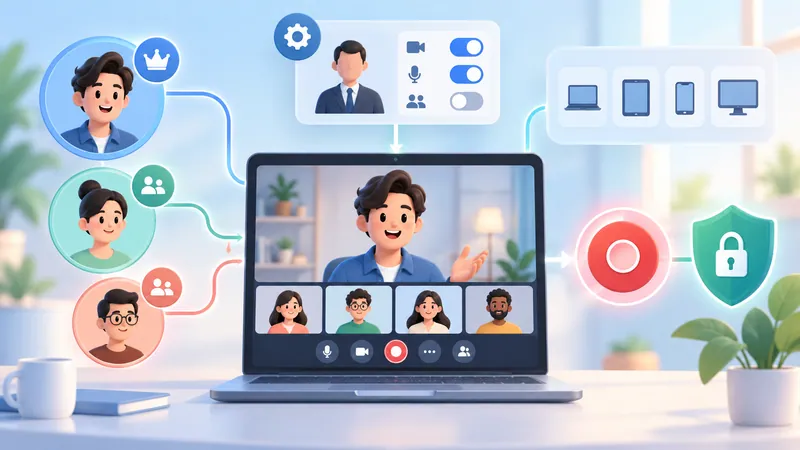
Work through these from top to bottom. Each check rules out a whole class of causes, so you don't waste time updating apps when the problem is your license.
Right account. Make sure you joined with your work or school account, not a personal Gmail signed in on the same browser. Click your profile photo in Meet to confirm.
Plan includes recording. See the plan list below. If yours isn't on it, no setting will make the button appear.
Admin allows recording. On Workspace, an administrator controls recording in the Google Admin console under the Meet video settings. Google says changes can take up to 24 hours, though they typically apply sooner.
Your role allows it. The host's organization and Host Management settings decide who can press Record (see the table below).
Supported device and context. You need a computer or the Android Meet app, you can't be in a breakout room, and Drive must be enabled for the account that stores the file.
Which Google plans include Meet recording?
According to Google's Meet Help (checked October 2026), recording is available on:
Business Standard and Business Plus
Enterprise Starter, Standard, Plus, and Enterprise Essentials; Essentials
Education Plus and the Teaching and Learning Upgrade
Workspace Individual
Google One plans with 2 TB or more of storage
Not included: free personal Gmail, Business Starter, and Education Fundamentals or Standard (where teachers, staff, and students can't record their own meetings). Plan names change, so check the official page rather than relying on the plan name alone.
Who can record a Google Meet?
Having an eligible license yourself isn't enough. Google states that participants can only record a meeting if the host has permission to record. If the meeting was organized by an ineligible account, your own license doesn't help.
| Your role | Can you start recording? | Notes |
|---|---|---|
| Host / organizer | Yes, if plan and admin allow | Most reliable way to record |
| Co-host | Yes | Includes co-hosts promoted from outside the host's organization |
| Participant in the host's organization | Only if Host Management is off | With Host Management on, ask the host to make you a co-host |
| Guest from another organization | Generally no | Unless promoted to co-host |
| Teacher / co-teacher (Classroom meeting) | Yes, on eligible Education plans | Education Fundamentals and Standard can't record |
Record button missing vs. greyed out: fix by symptom
A missing button and a disabled one point to different problems.
| Symptom | Likely cause | Fix |
|---|---|---|
| No Recording option anywhere | Ineligible plan or admin has recording off | Upgrade, or ask your admin to enable Meet recording |
| Button visible but greyed out | Your role isn't allowed, or the organizer can't record | Ask the host to record or make you a co-host |
| No option on phone | You're on iPhone or iPad | Join from a computer or Android device |
| Disabled mid-meeting | You're in a breakout room | Return to the main room; breakout rooms don't support recording |
| Recording won't start or save | Drive disabled, file creation blocked, or storage full | Ask the admin to enable Drive/file creation; free up the organizer's storage |
| Missing on a recurring meeting that used to work | The original organizer's account was disabled | Create a new Calendar event with a new meeting code |
Google's troubleshooting page lists a few more edge cases: the button can be missing if you joined only to present from a second device while already in a conference room, or if the meeting was created from a room device or Chrome plugin instead of Calendar. Updating the Meet app doesn't unlock a plan that doesn't include recording.
How to start and stop a recording once you're eligible
On a computer
Join the meeting from a browser with the right account.
Tell participants why you're recording and get any consent you need.
In the bottom right, click Meeting tools and choose Recording.
Optionally choose to include captions and pick the caption language.
Click Start recording, then confirm with Start.
Wait for the recording indicator before the important part begins.
To finish, open Meeting tools → Recording → Stop recording and confirm.
A recording stops automatically after 8 hours in total, or when everyone leaves. The file isn't available instantly; it needs processing time after you stop.
Recording captions and transcripts
Captions are only saved in the recording if you choose that option when you start. Turning on captions to read during the call doesn't save them.
 Try NoteMeeting Free →
Summarize your meetings & videos automatically with NoteMeeting
Google Meet, Zoom, YouTube, Podcast — all in one extension.
Transcripts are a separate feature with their own control under Meeting tools, or an option offered alongside recording. They're saved as a Google Doc in the meeting's Drive folder on supported plans and languages. See how to get a Google Meet transcript and how to turn on Google Meet captions.
Recording Google Meet on Android, iPhone, and iPad
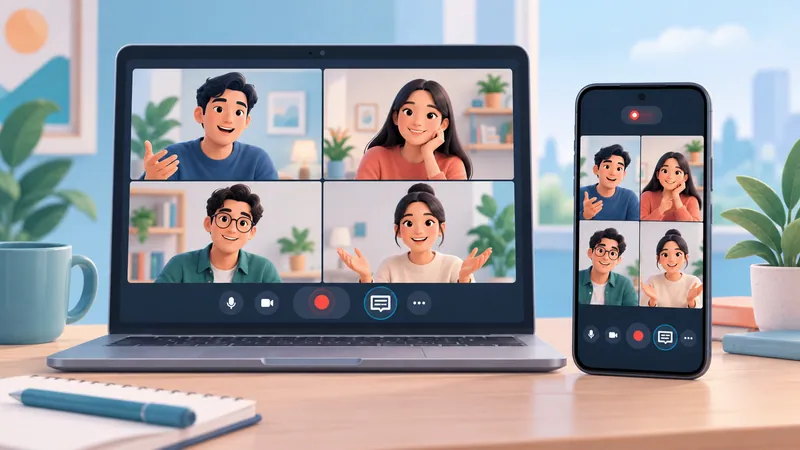
Android supports native recording if your account, the organizer, and the meeting settings qualify. In the Meet app, tap More → Tools → Record → Start. Depending on your plan, you can include captions or a transcript. Participants are notified when recording starts and stops.
Google doesn't list iPhone or iPad as supported devices for recording. iOS Screen Recording can capture the screen, but call audio may be limited by the app or the operating system. Test it and listen back, or switch to a computer or Android device when you need a reliable recording.
Not eligible? 3 alternatives (and what they don't change)
Outside tools record what's on your device. They don't grant Meet recording permission, don't trigger Meet's recording notice, and don't replace asking for consent. Use only tools your organization allows.
Built-in screen recorders (Windows, macOS)
Windows: Snipping Tool (on versions with video recording) lets you choose Record → New, select the Meet window area, and check the audio source. Xbox Game Bar (Windows + G) captures the active window but doesn't let you pick a region.
macOS: press Command + Shift + 5, select the area, review Options, and click Record. The built-in recorder may not capture system audio, so other participants can be missing.
Your microphone captures you; system audio captures everyone else. Record a 20 to 30 second test and listen for both sides. Our guide to screen recording Google Meet with audio covers system-audio setup for each OS.
Chrome extensions and meeting recorders
A tab-recording extension is different from a service that sends a bot into the meeting. Before using either:
Check the developer, the permissions requested, and the data policy (including whether your audio is used to train AI).
Select the Meet tab or connect the service as instructed.
Enable tab audio if offered, and check the microphone too.
Run a test and confirm how files are saved and exported.
These are quick to set up and some add transcripts or summaries, such as the NoteMeeting extension. Common limits are free-tier minutes, export formats, and the fact that data is uploaded to the vendor's servers. Compare options in our roundup of Google Meet note-taking extensions.
OBS Studio for full control of video and audio
OBS Studio is free and open source, and suits you if you want separate control of video and audio sources.
Download OBS from the official site and install it.
Create a Scene and add a window or display capture under Sources.
Add your microphone.
Add desktop or application audio to capture other participants.
Watch the Audio Mixer meters, record a test, and listen back.
Click Start Recording, then Stop Recording when done.
Source names and audio capture differ between Windows and macOS; check the OBS Knowledge Base if a source is missing. Wear headphones and avoid capturing the same audio twice.
Which method should you choose?
| Method | Choose it when | Check first |
|---|---|---|
| Meet recording | Your plan and role allow it | License, admin setting, host permission, organizer's Drive |
| Built-in screen recorder | You need a quick, basic capture | Both sides of the audio are recorded |
| Chrome extension or recorder | You want tab capture plus transcript or notes | Free-tier limits, data policy, org approval |
| OBS Studio | You need control over video and audio sources | Audio sources, CPU load |
Where are Google Meet recordings saved?
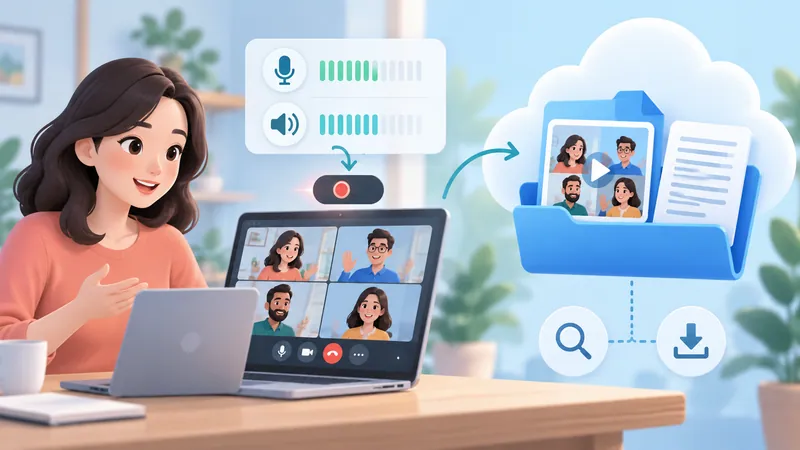
Native recordings go to the meeting organizer's Google Drive, in the Google Meet folder with a subfolder per meeting. They don't land in the Drive of whoever pressed Record by default.
The organizer and the person who started the recording get an email with the link once processing finishes. The link is also added to the Calendar event.
Starting July 2026, Google moves the old Meet Recordings folder into the new Google Meet folder and renames it Legacy Meet Recordings.
Open the video in Drive and use Download or Share if you have access. Share with specific people rather than "anyone with the link."
Screen recorders and OBS save to a local folder; extensions save wherever the vendor stores files.
Recording not found?
Confirm recording actually started, then check the organizer's Drive and email rather than your own. If the meeting just ended, the file may still be processing. If the organizer's Drive is full, the recording may fail to save, so check storage and your organization's quota before the next meeting.
Recording has no sound or echoes
With screen recorders, diagnose by symptom:
You're audible, others aren't: system or tab audio isn't being captured.
Others are audible, you aren't: check the microphone source and its OS permission.
Echo or doubled audio: use headphones and remove the duplicate source.
In OBS, check each meter in the Audio Mixer and listen to a test. With native Meet recording, a silent speaker usually wasn't unmuted or audible in the meeting itself.
Consent and privacy checklist before you record
Tell people why you're recording, who will see it, and how long it's kept.
Get consent where required. In the US, roughly a dozen states, including California, Florida, Illinois, Pennsylvania, and Washington, generally require everyone's consent; GDPR applies to EU participants. Meet's automatic notice may not satisfy every obligation.
For third-party tools, check storage location, access, deletion, and whether data is used for AI training.
Don't use unapproved tools for sensitive meetings.
Wear headphones, run a test, and silence personal notifications.
Check disk or Drive space, power, and your connection beforehand.
FAQ
Can I record Google Meet with a free Gmail account?
Not with Meet's built-in recorder; free Gmail doesn't include it. You can use a screen recorder, OBS, or an extension if everyone agrees and your setup captures both your mic and system audio. Upgrading to Workspace Individual or a Google One 2 TB+ plan adds native recording.
Can I record a Google Meet if I'm not the host?
Sometimes. Co-hosts can record, and people in the host's organization can record when Host Management is off, provided the organizer is allowed to record. An outside recorder can capture your screen, but it doesn't give you permission; you still need consent. Zoom works differently; see how to record a Zoom meeting as a participant.
My admin enabled recording, but I still can't record. Why?
Settings can take time to reach your account, so try again later and rejoin. Then check your role in this specific meeting, whether the organizer's account is eligible, whether you're in a breakout room, and whether Drive and file creation are enabled for you.
Does Google Meet notify people when a meeting is recorded?
Yes, for native recording: participants see a notice when recording starts and stops. Outside tools don't necessarily trigger that notice, so you need to tell people yourself.
Does Google Meet record my whole screen?
No. Native recording captures the active speaker and anything presented in the meeting, not every window on your computer. If you present your entire screen, or use a screen recorder, content outside the meeting can end up in the file.
How long can a Google Meet recording be?
Up to 8 hours in total per meeting. After that, recording stops automatically, and you'd need to start a new one.