
Google Meet's built-in recording is one of those features that's deceptively gated — it works beautifully if your account has it, and it doesn't exist at all if it doesn't. This guide walks through both paths: how to use the native recorder when you have it, and the legitimate free alternatives that work on a personal Gmail. We'll also cover how to record on iPhone and Android, what to do when the record button is missing, and the consent rules that matter before you press start.
Table of contents
- Key takeaways
- Can you record a Google Meet?
- Google Meet recording requirements
- Which Google Workspace plans include recording?
- Who can start a recording?
- What to check before you press record
- How to record a Google Meet on desktop (native)
- Step-by-step
- How to know recording is active
- How to stop and save
- Where to find Google Meet recordings
- In Google Drive
- In Gmail
- In Google Calendar
- Recording on Android and iPhone
- Android (native recording — eligible plans only)
- iPhone (screen recording workaround)
- Mobile limitations
- How to record a Google Meet without a paid Workspace plan
- Option 1 — Built-in OS screen recording
- Option 2 — OBS Studio (free, cross-platform)
- Option 3 — AI meeting tools (works on free Gmail)
- Quick comparison
- Can a participant record without host permission?
- Native: no
- Screen recording: yes, technically
- The professional answer
- Troubleshooting: "I can't see the record button"
- Native recording vs screen recording: which to use
- Privacy and consent
- Pre and post-recording checklist
- Before
- After
- Frequently asked questions
- Can a free Gmail account record a Google Meet?
- Can a participant record a Google Meet without host permission?
- How long until the recording appears in Google Drive?
- Can I record a Google Meet on my phone?
- Why don't I see the record button in Google Meet?
- Can I download the recording from Google Drive?
- Conclusion
Key takeaways
Native recording in Google Meet requires a paid Google Workspace tier (Business Standard or higher) or a Google One plan with 2 TB or more, plus the host's permission. Free Gmail accounts without one of these cannot record natively.
Recordings are saved automatically to the organizer's Google Drive in the "Google Meet" folder, with a link emailed to the host within minutes of the meeting ending.
If your account doesn't include native recording, free alternatives exist: built-in screen recorders (Windows, macOS, iOS), OBS Studio, and AI meeting tools that work on any Google account.
Regular participants usually cannot trigger native recording. The host and co-hosts can, and when Host management is off, so can other people in the host's organization. Screen recording without notification raises legal and consent issues, especially in two-party-consent jurisdictions.
Can you record a Google Meet?
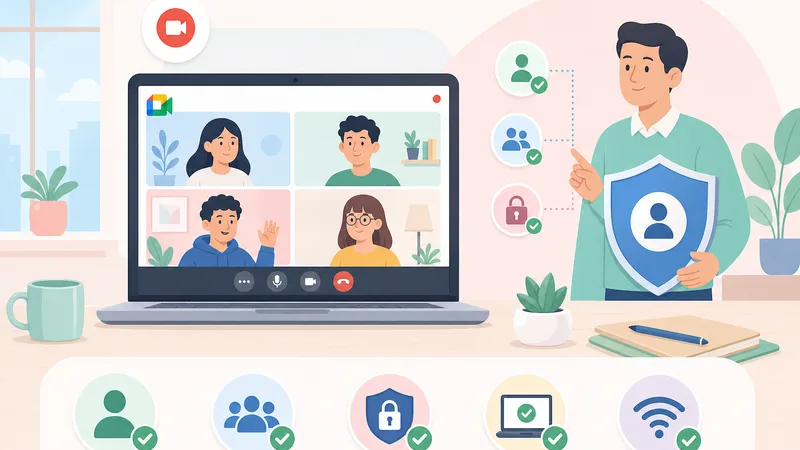
Short answer: yes, with a paid Google Workspace plan that includes recording or a Google One plan with 2 TB or more. The host and co-hosts can start it (and other people in the host's organization when Host management is off). A free personal Gmail account without a 2 TB+ Google One plan can't natively record Google Meet.
If your account doesn't include the feature, you have two legitimate alternatives: screen recording (built-in tools on every major OS) or third-party AI tools that capture audio and produce transcripts plus summaries. Each is covered below.
Google Meet recording requirements
Which Google Workspace plans include recording?
Native Google Meet recording is available on these plans (as of 2026):
Business Standard and up
Business Plus
Enterprise (all tiers)
Education Plus and Teaching & Learning Upgrade
Workspace Individual (paid personal plan)
Google One plans with 2 TB or more of storage (personal accounts)
Free Gmail (without a 2 TB+ Google One plan), Workspace Business Starter, and Education Fundamentals do not include native recording. If you're not sure which tier your organization is on, ask your Workspace admin or check at admin.google.com → Billing.
Who can start a recording?
The meeting host and co-hosts can start or stop recording. If Host management is off, anyone from the host's organization can record too, but only if the host's account has permission to record. Guests from outside the organization can record only if they are made co-hosts. Even on a tier that supports recording, your admin can disable the feature for some or all users via the Admin console.
What to check before you press record
Notify participants. Google Meet shows an in-call indicator when recording starts, but a verbal heads-up first is better etiquette and a legal requirement in some jurisdictions.
Storage. Recordings can be 100MB+ per hour. Make sure the host's Drive has space.
Network. Recording happens server-side, but a stable connection from the host avoids dropped segments.
Audio source. Test that participants joining by phone or external device are audible — these are the channels most likely to be missing in the final recording.
How to record a Google Meet on desktop (native)
The steps are identical on Windows, macOS, Linux, and ChromeOS — Google Meet runs in the browser and the UI doesn't change.
Step-by-step
Start or join the meeting as the host (or a co-host).
Click the Meeting tools icon in the bottom-right.
Select Recording.
Click Start recording.
A consent dialog appears — confirm to begin recording. The system also notifies all participants in the call that recording has started.
Select a caption language before you start if you want the captions kept with the video; here is how to save Google Meet captions from a recording.
How to know recording is active
A red REC indicator appears at the top-left of every participant's screen. This is intentional and cannot be hidden — Google designed it as a transparency cue.
How to stop and save
To stop, click Meeting tools → Recording → Stop recording, or simply leave the meeting (recording stops automatically when all participants leave). Google then processes the file. Within 10–30 minutes, the host receives an email with a link to the recording in Drive.
Where to find Google Meet recordings
In Google Drive
Recordings are saved to the organizer's Drive in a folder called Google Meet (located at My Drive → Google Meet), with a sub-folder for each meeting. Since July 2026, older recordings live in Legacy Meet Recordings inside that folder. The file is named with the meeting title and date — e.g., Q3 Marketing Review (2026-05-09 09:30 GMT-7).
In Gmail
Google sends two emails when a recording is ready: one with a link to play the video, and (if AI Companion is enabled) one with a summary and transcript link. Search Gmail for "meet recording" if you can't find them.
In Google Calendar
If the meeting was tied to a calendar event, the recording link appears as an attachment on the event. This is the easiest way to find recordings for recurring meetings.
Recording on Android and iPhone
Android (native recording — eligible plans only)
If your Workspace or Google One plan supports recording, the Android Meet app has the same capability as desktop:
Join the meeting as host or co-host.
Tap More options, then Tools.
Tap Recording.
Confirm to start. Stop the same way.
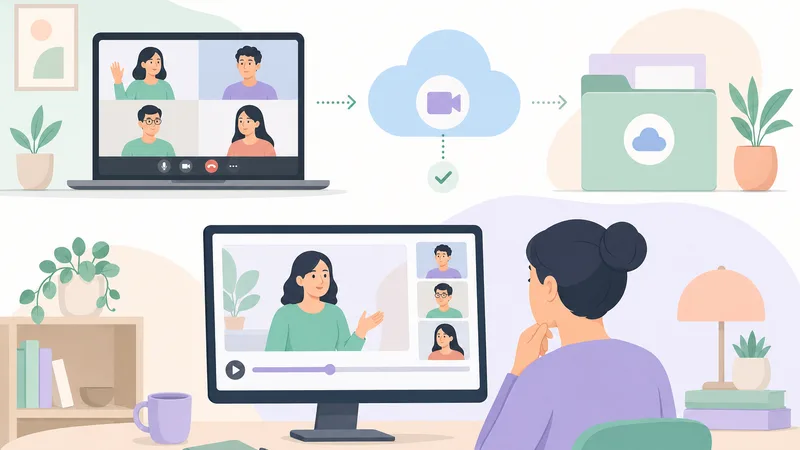
The recording is saved to the host's Drive, identical to desktop.
iPhone (screen recording workaround)
iOS Google Meet does not have a native record button — Google hasn't shipped it. The standard workaround is iOS's built-in Screen Recording:
Open Settings → Control Center and add Screen Recording to your active controls.
In the meeting, swipe down from the top-right to open Control Center.
Long-press the Screen Recording icon, choose Microphone On (otherwise other participants' audio won't be captured), and tap Start Recording.
To stop, tap the red status bar at the top of the screen and confirm.
 Try NoteMeeting Free →
Summarize your meetings & videos automatically with NoteMeeting
Google Meet, Zoom, YouTube, Podcast — all in one extension.
The video saves to Photos.
This captures both Meet's audio output and your microphone. It's a legitimate technique but always notify participants you're recording — Google Meet won't show a recording indicator to others when you use OS-level screen recording.
Mobile limitations
Mobile recordings are higher overhead — battery drain, storage on the device, no automatic Drive upload. For meetings longer than 30 minutes, recording from a desktop or using a third-party AI tool tends to be more reliable.
How to record a Google Meet without a paid Workspace plan
Three legitimate paths exist if your account doesn't include native recording:
Option 1 — Built-in OS screen recording
Every modern OS has a screen recorder built in. Free, no install, works on any Google Meet account.
Windows 10/11: Press Win + Alt + R to open Game Bar capture (Windows 11) or use Snipping Tool (Windows 11 22H2+) → Record. Includes mic and system audio.
macOS: Press Cmd + Shift + 5, choose Record Entire Screen or Record Selected Portion, click Options to enable microphone. Click Record.
iOS: Use Control Center Screen Recording (covered above).
Android: Pull down from the top of the screen, tap Screen record (built into Android 11+). Choose audio source (device + mic).
Option 2 — OBS Studio (free, cross-platform)
OBS Studio is a free, open-source recorder used by streamers and educators. More setup than the built-in OS tools, but produces higher-quality recordings, supports multiple audio sources, and exports to a range of formats. Available for Windows, macOS, and Linux at obsproject.com.
Option 3 — AI meeting tools (works on free Gmail)
Tools designed for capturing meetings work regardless of your Workspace tier — they record audio, transcribe, and produce summaries. Most are free at lower volumes:
Otter.ai — strongest English transcription; joins meetings as a bot or captures locally.
Fathom — generous free tier with unlimited recording on Google Meet.
Notta — multilingual support including Asian languages.
NoteMeeting — Chrome extension built specifically for Google Meet; no bot in the call, free tier available.
Quick comparison
Method |
Cost |
Output |
Best for |
|---|---|---|---|
Native (Workspace) |
~$12+/user/mo |
Video + audio in Drive |
Hosts on paid plans |
OS screen recording |
Free |
Local video file |
One-off recordings |
OBS Studio |
Free |
High-quality video |
Educators, content creators |
AI meeting tool |
Free–$15/mo |
Audio + transcript + summary |
Recurring meetings, async sharing |
Can a participant record without host permission?
Native: no
Google Meet only exposes native recording to the host, co-hosts, and (when Host management is off) people in the host's organization. There's no user-facing way for a participant to trigger native recording. Browser extensions that claim to "unlock" recording for participants violate Google's terms of service and aren't reliable.
Screen recording: yes, technically
OS-level screen recording works regardless of your role in the meeting — it's recording your screen, not the meeting itself. But "technically yes" doesn't mean "ethically or legally yes." Two real concerns:
Two-party consent jurisdictions. California, Florida, Pennsylvania, Massachusetts, Washington, and several other U.S. states require all participants to consent to recording. The EU under GDPR has similar requirements. Recording without consent in these jurisdictions can be a criminal offense, not just a civil matter.
Etiquette and trust. Even where it's legal, surprise recording erodes trust. A simple "I'd like to record this for my notes — does anyone object?" at the start of the meeting handles both concerns.
The professional answer
If you need a record of a meeting and you're not the host, ask. If recording isn't possible, an AI meeting tool that captures audio with the host's awareness (and ideally consent) is far better than covert screen recording. Take notes first; record only when both legal and agreed.
Troubleshooting: "I can't see the record button"
The most common reasons:
Wrong plan. If you're on Business Starter, Education Fundamentals, or free Gmail without a 2 TB+ Google One plan, recording isn't available. Check your tier or escalate to your admin.
Admin has disabled recording. Even on a tier that supports it, Workspace admins can turn off recording for some or all users. Ask your IT team to enable it at Admin console → Apps → Google Workspace → Google Meet → Meet video settings.
You're not the host or co-host. Only the host and co-hosts can start recording, unless Host management is off and you're in the host's organization. If you're attending someone else's meeting, ask them to record (or to make you a co-host).
You're on iPhone. Native recording isn't available on iOS Meet — use Screen Recording instead.
You're using an outdated app or browser. Update Google Meet's mobile app or your desktop browser to the latest version.
Native recording vs screen recording: which to use
Factor |
Native recording |
Screen recording |
|---|---|---|
Cost |
Requires paid Workspace or Google One 2 TB+ |
Free on every OS |
Quality |
High (Google's servers) |
Limited by your hardware |
Audio capture |
All participants automatically |
Whatever your device hears |
Storage |
Auto-saved to Drive |
Local, you manage it |
Notification to participants |
Yes (red REC indicator) |
None — you must announce |
Who can do it |
Host + co-hosts only |
Anyone on the call |
If you have native recording, use it — it's better in every dimension except cost. If you don't, screen recording is a fine fallback for one-off needs; an AI tool is better for recurring meetings.
Privacy and consent
Always notify. Google Meet shows a recording indicator for native recording, but verbal notification at the start is best practice. For screen recording, you have to announce it manually.
Two-party consent jurisdictions. If any participant is in California, Florida, Pennsylvania, Massachusetts, Washington, several other U.S. states, or the EU/UK, you need affirmative consent from all participants. Default to all-party consent for international calls.
Storage. Recordings contain identifiable speech. Treat them like any other piece of personal data — least-privilege access, retention policies, secure sharing.
Sharing. Use Drive's sharing controls deliberately. Don't post recording links in public Slack channels or all-company emails unless that's truly the intended audience.
Pre and post-recording checklist
Before
Verify your account supports native recording, or pre-set up your screen recorder.
Notify participants — verbally and via the meeting agenda.
Confirm Drive storage is sufficient (each hour ~100MB+).
Make sure your microphone source is correct (system audio + mic for screen recording).
After
Confirm the recording landed in Drive (or saved locally).
Trim the start and end if there's pre-meeting chatter.
Set sharing permissions deliberately — restricted vs. anyone-with-link.
Send the link to attendees plus anyone who needs it; archive after the relevant follow-up window.
Frequently asked questions
Can a free Gmail account record a Google Meet?
Not natively, unless the account has a Google One plan with 2 TB or more of storage. Other free accounts have to use OS screen recording, OBS Studio, or a third-party AI meeting tool.
Can a participant record a Google Meet without host permission?
Not via Google Meet's native record button. It's limited to the host, co-hosts, and (when Host management is off) people in the host's organization, and only works if the host has permission to record. A participant can use OS screen recording, but always notify the room first; in two-party-consent jurisdictions, you legally must.
How long until the recording appears in Google Drive?
Typically 10–30 minutes after the meeting ends. Long meetings (90+ minutes) can take up to an hour to process. The host receives an email with the link as soon as it's ready.
Can I record a Google Meet on my phone?
On Android, yes if your Workspace or Google One plan supports recording — same UI as desktop. On iPhone, there's no native record button; use iOS Screen Recording (Control Center → Screen Recording, with microphone enabled).
Why don't I see the record button in Google Meet?
Most likely you're not on a Workspace or Google One plan that includes recording, your admin has disabled it, you're not the host or co-host, or you're on iOS (which doesn't have a native record button). Check each in turn.
Can I download the recording from Google Drive?
Yes. Open the file in Drive, click the three-dot menu, and select Download. The file is an MP4. Anyone with view access to the recording can download it unless the host has disabled the download option.
Conclusion
Recording a Google Meet is straightforward when you have native recording — three clicks and the file lands in Drive. When you don't, the right answer is rarely "give up": OS screen recording, OBS Studio, or an AI meeting tool covers the gap and keeps everything legitimate. Whatever path you take, the rule that matters most is the one most often forgotten — tell participants you're recording, and respect the consent rules in their jurisdiction.