
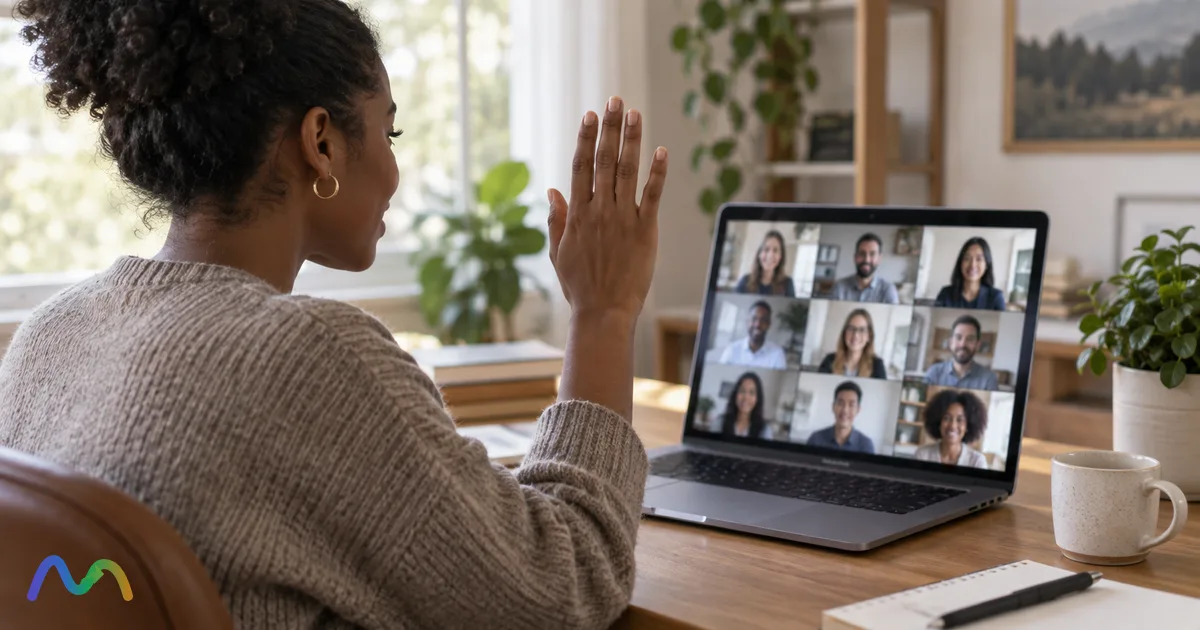
A Zoom participant cannot start Zoom's own recorder alone, but the host can open it up in three documented ways: click Participants > More next to your name > Allow Record (you then record to your computer, on any plan including free Basic), make you a co-host (co-hosts can start a cloud recording or a computer recording), or schedule the meeting with automatic cloud recording and join-before-host turned on, so the recording starts when the first participant arrives. With Zoom's recorder, everyone sees a recording indicator, and a cloud recording always lands in the host's account, not yours. The only route that skips the host is your computer's own screen recorder: Xbox Game Bar and the Windows 11 Snipping Tool can capture other people's voices, while the Mac Screenshot toolbar only can from macOS 27 onward. Zoom shows no notice for those tools, so telling people and getting consent is up to you.
Table of contents
- What can you record in Zoom if you're not the host?
- How to get recording permission from the host
- Can a participant request recording permission in Zoom?
- Can a co-host record a Zoom meeting?
- How to record a Zoom meeting when the host isn't there
- Local vs cloud recording: which one can a participant get?
- Can you record a Zoom meeting as a participant on iPhone or Android?
- Do built-in screen recorders capture other people's audio in Zoom?
- Does Zoom notify others if you record with a screen recorder?
- Is it legal to record a Zoom meeting without the host's permission?
- Only need what was said? Get a transcript instead of a recording
- Record button missing as a participant: causes and fixes
- FAQ
- Can participants record a Zoom meeting?
- Can I record a Zoom meeting without the host knowing?
- If I record as a co-host, do I get the recording?
- Can I record a Zoom meeting with audio as a participant?
- Can I record a Zoom meeting on a free account as a participant?
What can you record in Zoom if you're not the host?
What you can record in a Zoom meeting depends on your role, not on your own Zoom plan. A regular participant has no recording rights by default; the host, a co-host, or the host's scheduled settings decide everything. The table below combines what Zoom's support articles say about each role, checked on October 4, 2026.
| Your role or setup | What you can record | Where the file goes | Who is notified |
|---|---|---|---|
| Participant (default) | Nothing with Zoom's recorder. Clicking Record can send a permission request if the host's account allows requests | No file | The host sees your request |
| Participant with Allow Record | Computer (local) recording in the Zoom desktop app for Windows, macOS or Linux | Your own computer, in the default Zoom recording folder (video .mp4 plus audio-only .m4a) | You get a notice when permission is granted; everyone sees the recording indicator; dial-in callers hear a recording message |
| Co-host | Cloud recording or computer recording, but not both at once; the host can turn off co-host computer recording | Cloud: only in the host's recordings list. Computer: the co-host's own computer | Same recording indicator and consent notice as any Zoom recording |
| Alternative host or scheduler (host absent) | Can start the meeting and record it | Computer recording: their own computer. Cloud recording: the meeting owner's account | Same as above |
| Anyone joining first, when the host set automatic cloud recording and join-before-host | The meeting is recorded automatically; you do not press anything | The host's cloud recordings page | Participants see the recording notice when they join a session that is already being recorded |
| Participant on iPhone, iPad or Android | No computer recording at all. Cloud recording only as a licensed host or co-host on a paid account | The host's cloud recordings | Same as above |
| Participant using an OS screen recorder | Whatever your screen and audio settings capture | Your computer (for example Videos\Captures on Windows) | Nobody: Zoom shows no notice, so you have to tell people |
| Participant using Zoom My Notes | A personal transcript, not a recording (on desktop) | Your My Notes, not shared automatically | A My Notes icon appears next to your name in the Participants panel |
Sources for the table: Zoom's articles on starting a computer recording, roles in a Zoom meeting, starting a cloud recording, starting recordings without the host and My Notes. The host's side of recording, including shortcuts and file formats, is covered in our guide on how to record a Zoom meeting.
How to get recording permission from the host
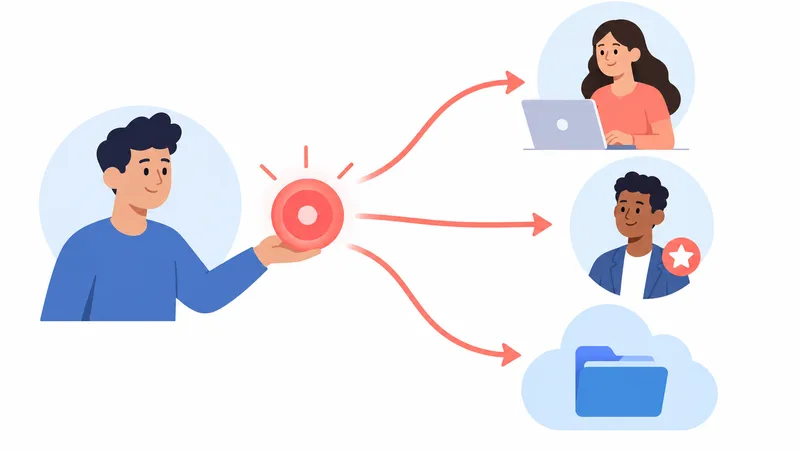
The cleanest way for a participant to record a Zoom meeting is to ask the host for recording permission, because you then use Zoom's own recorder and get the same .mp4 and .m4a files the host would. Recording permission works on every Zoom plan, including free Basic, but only in the Zoom desktop app for Windows, macOS or Linux. The host grants it during the meeting:
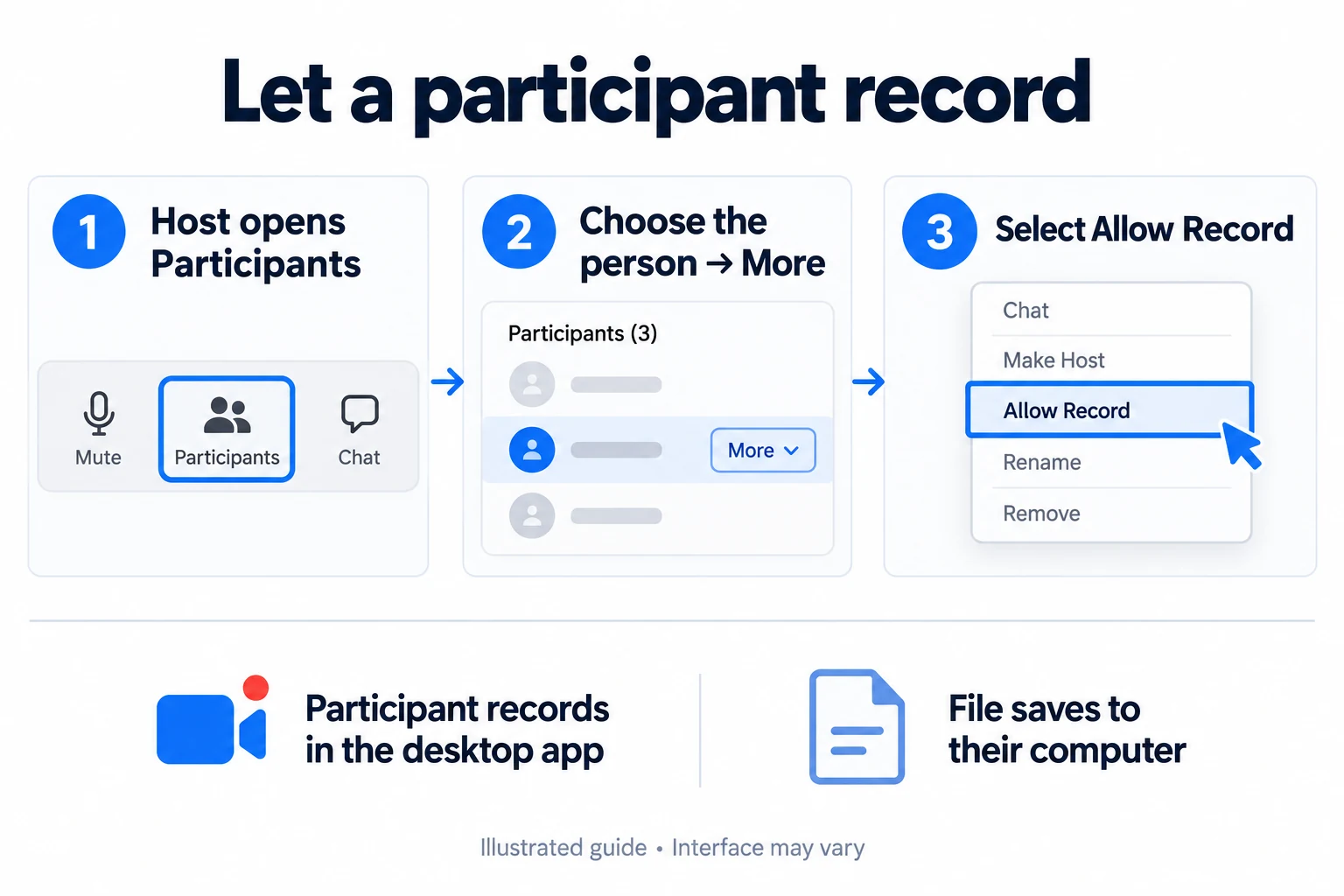
- The host clicks the Participants icon in the meeting toolbar.
- The host hovers over your name and clicks More.
- The host clicks Allow Record. You receive a notification, and the Record button in your toolbar becomes active.
- You click Record. A recording indicator appears in the top-left corner for everyone.
The host can take the permission back at any time with More > Forbid Record. Recording permission lasts for that meeting only, so for a weekly class or team call it is simpler for the host to make you a co-host each time or to share the host's own recording.
In a class or workshop with small groups, the host can give one participant per room this permission before opening the rooms, as explained in recording Zoom breakout rooms.
Can a participant request recording permission in Zoom?
Yes, if the host's account allows it. In the Zoom web portal, under Settings > Recording > Record to computer files, there is an option called Who can request host permission to record? with three checkboxes: internal meeting participants, external meeting participants, and meeting participants with specified domains, as described in Zoom's article on enabling computer recording. Each group also has an Auto approve their permission requests checkbox. When your group is allowed, clicking Record sends the host a request to approve or deny; when it is not, the host has to grant permission manually from the Participants panel.
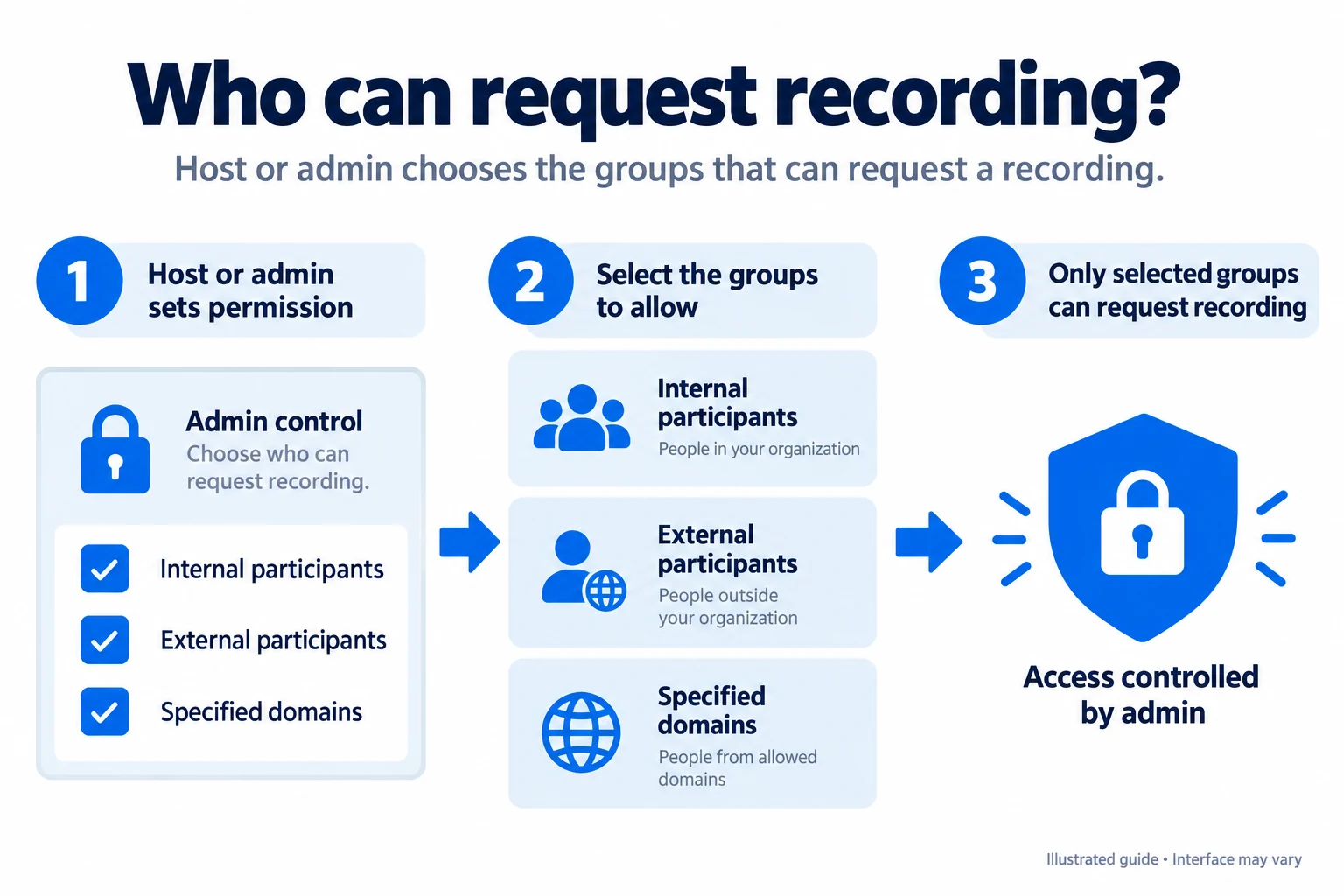
If those options are greyed out in the host's settings, an admin has locked them at the group or account level, and only the admin can change them. On company and school accounts, that lock is the most common reason a willing host still cannot let you record.
Can a co-host record a Zoom meeting?
Yes. A Zoom co-host can start both a cloud recording and a computer recording, according to Zoom's roles table, with three conditions worth knowing before you ask to be made co-host:
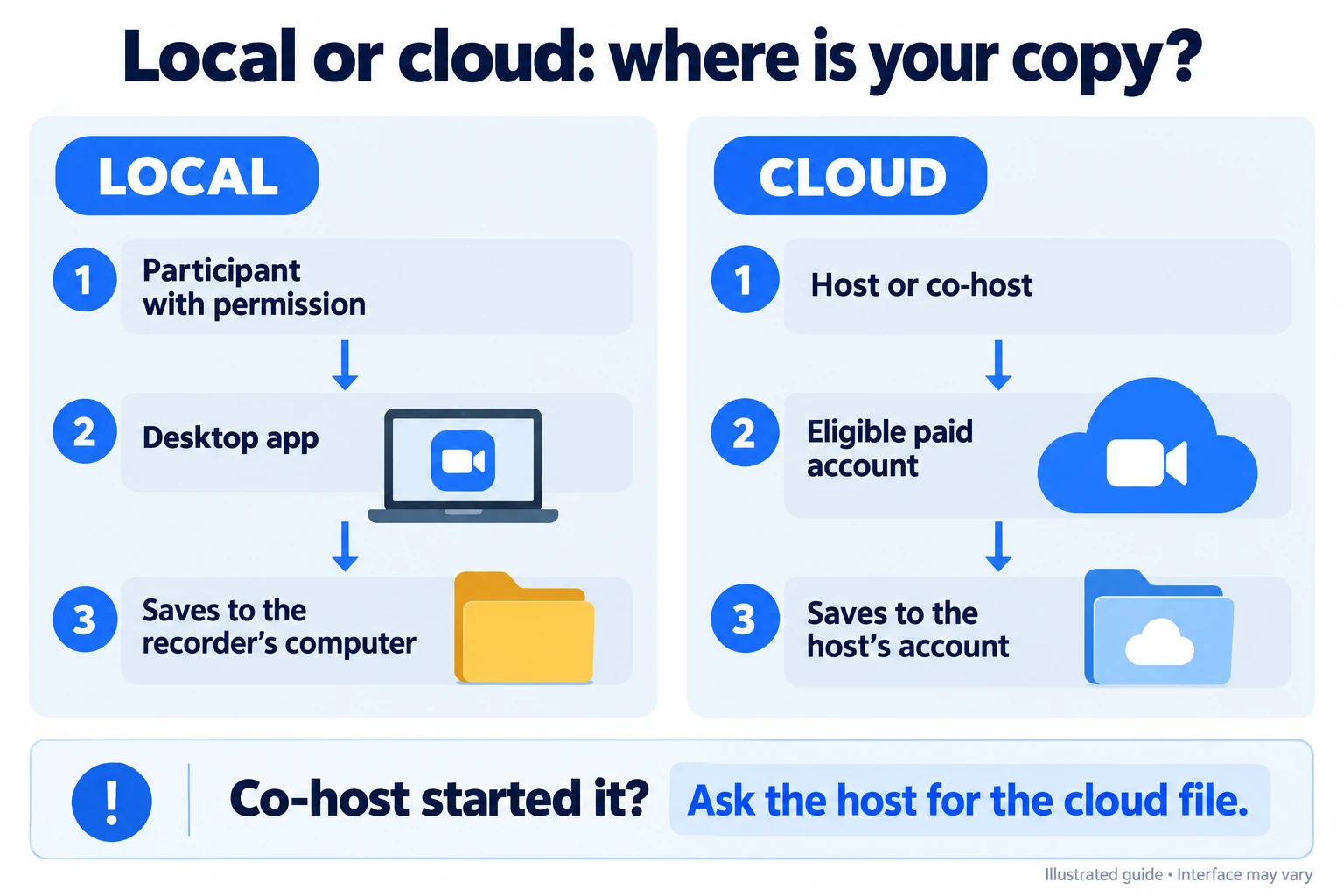
- A cloud recording started by a co-host belongs to the host. Zoom states that recordings started by co-hosts only appear in the host's list of recordings, so the co-host has to ask the host for the file or a share link afterwards.
- Cloud recording needs a paid, licensed account (Pro, Business or Enterprise) with cloud recording turned on. If the meeting runs on a free Basic account, the co-host can only record to their computer.
- Cloud and computer recording cannot run at the same time. Once a host or co-host starts one type, the other cannot be started, and the host can switch off a co-host's computer recording.
The host has to promote you during the meeting: Zoom does not let a host assign co-hosts in advance. If the host wants you to start the meeting and record without them, the right role is alternative host, which is set when the meeting is scheduled.
How to record a Zoom meeting when the host isn't there
A Zoom meeting can be recorded without the host present only if the host prepared it in advance; a participant cannot start Zoom's recorder in an empty meeting. Zoom's article on starting recordings without the host describes two setups:
- Automatic cloud recording plus join before host. The host turns on cloud recording, schedules the meeting with Automatically record meeting set to In the cloud, and allows participants to join before the host. When the first participant joins, the recording starts on its own and is saved to the host's recordings page. The scheduler labels the join option Allow participants to join anytime in Zoom's automatic recording article, while the older article says "join before the host"; it is the same idea.
- Computer recording needs a person with rights. Automatic computer recording only starts when the host launches the meeting from the Zoom desktop app. Without the host, someone must be the alternative host, or have scheduling privilege for the host (they join as alternative host automatically), to start a computer recording.
You also cannot record a Zoom meeting you do not attend: every recording option on the participant side, from Allow Record to a screen recorder, needs you in the meeting at the time. If you will miss a talk, ask the host to record it to the cloud and share the link.

Summarize your meetings & videos automatically with NoteMeeting
Google Meet, Zoom, YouTube, Podcast — all in one extension.
Local vs cloud recording: which one can a participant get?
A participant can only ever hold a Zoom computer (local) recording; a Zoom cloud recording always sits in the host's account. The practical differences:
| Computer (local) recording | Cloud recording | |
|---|---|---|
| Who can start it | Host, co-host (unless the host turned it off), participant with Allow Record | Host and co-host only |
| Plan needed | Any, including free Basic | Paid licensed account (Pro, Business, Enterprise); Pro includes 10 GB per license |
| Apps | Zoom desktop app on Windows, macOS, Linux only | Desktop app, Zoom web app, iOS and Android |
| Where it ends up | The computer of the person who recorded | The host's account, even when a co-host pressed Record |
If you need your own copy of a cloud recording, the host has to share or download it for you; finding and opening the files is explained in where Zoom recordings go. Free Basic meetings end after 40 minutes, per Zoom's pricing page, and any recording stops with them.
Can you record a Zoom meeting as a participant on iPhone or Android?

Not with Zoom's recorder. Zoom states that it is not possible to record locally from an iOS or Android device, and that cloud recording on mobile needs a Pro, Business, Education or Enterprise account and a licensed user with host or co-host privileges, per Zoom's mobile cloud recording article. Allow Record has no effect on a phone, because it only enables computer recording.
The phone's own screen recorder is the only other option, and it is unreliable for calls. Apple's iPhone guide says some apps might not allow you to record audio or video, and Google's Android guide only says you can choose whether to record audio, without promising call audio. Record a 30-second test with a friend before a meeting that matters, or join from a computer.
Do built-in screen recorders capture other people's audio in Zoom?
Some do and some do not. The tools that record "system audio" capture what your computer plays, which in a Zoom call means the other participants' voices; tools that only record the microphone capture your voice and little else (unless your speakers are loud enough for the mic to pick them up, which sounds poor). This is what the official pages say:
| Built-in tool | How to start | Captures other participants' audio? | Saved to |
|---|---|---|---|
| Xbox Game Bar (Windows 10/11) | Windows + Alt + R; Windows + Alt + M toggles the mic | Yes, when its audio setting is All (game, mic, apps, system) | Videos\Captures, as MP4 |
| Snipping Tool (Windows 11) | Windows + Shift + R, select an area, Start | Yes, in version 11.2307.44.0 or later, which added PC audio and microphone recording | Saved automatically; Microsoft's guide does not name the video folder, so check the app's settings |
| Screenshot toolbar (Mac) | Shift + Command + 5 | Only on macOS 27 Golden Gate or later, with Include System Audio. Earlier versions: microphone only | Desktop by default, or the Save to location chosen in Options |
| QuickTime Player (Mac) | File > New Screen Recording | Apple documents a microphone choice only, not system audio | Where you save it |
| iPhone, Android screen recorder | Control Center or Quick Settings | Not guaranteed; apps can block audio or video capture | Photos or gallery |
Sources: Microsoft's Xbox Game Bar recording guide, Snipping Tool guide and Snipping Tool audio announcement, and Apple's Mac screenshots and screen recordings guide. Start Game Bar with the Zoom window active, since Microsoft describes it as recording a clip of a game or app.
On a Mac older than macOS 27, the built-in tools will not capture the other participants cleanly. The workaround is a third-party recorder that supports system audio capture; whichever you use, make a short test recording with a friend before a real meeting.
Does Zoom notify others if you record with a screen recorder?
No. Zoom's notices belong to Zoom's own recorder: when a Zoom recording starts, everyone sees a recording indicator in the top-left corner, dial-in callers hear a message, and, if the account uses the consent disclaimer, participants are asked to stay or leave when a recording starts or when they join a recorded session, per Zoom's consent disclaimer article. Zoom does not document any feature that detects Game Bar, the Mac Screenshot toolbar or other screen recorders, so nobody in the meeting is told.
That silence is exactly why consent matters more, not less. The other people in the meeting have no way of knowing, so the only fair approach is to say so in the chat or out loud at the start ("I'm recording this for my notes, any objections?") and stop if someone objects.
Is it legal to record a Zoom meeting without the host's permission?
It depends on where the participants are, and the host's permission and the participants' consent are two different things. In the United States, federal law allows recording when one party to the conversation consents, and you count as that party (18 U.S.C. § 2511(2)(d)). Several states are stricter: the Reporters Committee for Freedom of the Press lists 11 that generally require consent from everyone: California, Delaware, Florida, Illinois, Maryland, Massachusetts, Michigan (with a narrower rule), Montana, New Hampshire, Pennsylvania and Washington. When people join from different states, the same guide advises assuming the stricter law applies.
Outside the US, privacy and data protection laws often treat a recording of people as personal data, so check the rules where the participants are. On top of the law, employers, schools and clients often have their own recording policies, and breaking them can cost you a job or a course even when no law is broken. This is general information, not legal advice; ask your organization or a lawyer for anything sensitive.
Only need what was said? Get a transcript instead of a recording
Many participants who search for a way to record a Zoom meeting actually need notes or minutes, not a video file. A transcript is lighter, searchable, and easier to get as a participant. Three options:
- Zoom's Meeting transcript. Since late May 2026, Zoom transcripts are off by default and the host or admin decides who can view them during the meeting and who can save them afterwards; participants can request access, per Zoom's captions and transcript changes. Captions can no longer be saved after the meeting. Setup is covered in our Zoom transcription guide.
- Zoom My Notes. With your own Pro, Business or Enterprise account (or a My Notes standalone license), you can use My Notes in someone else's meeting if the host permits transcription; you can send the host a request from the My Notes panel. The notes are yours and are not shared automatically, but a My Notes icon shows next to your name, and the host can stop your transcription.
- A meeting notes tool on your own device. NoteMeeting transcribes the meeting from your side without adding a bot to the participant list. It runs as a Chrome extension when you join Zoom in the browser (Zoom web app), and the NoteMeeting Desktop App, included from the Pro plan, works with the installed Zoom desktop app by capturing your computer's audio. You get a live transcript and an AI summary that you download; NoteMeeting does not store the audio on its servers, and it does not record video or download Zoom recordings. Tell the other participants you are transcribing, just as you would for a recording.
For turning the text into something usable, see how to write meeting minutes, or Zoom's built-in option in our Zoom AI meeting summary guide (which only the host or a co-host can start).
Record button missing as a participant: causes and fixes
A missing or inactive Record button almost always means one of the conditions above is not met. Match the symptom:
| What you see | Likely cause | Fix |
|---|---|---|
| No Record button, or Record asks for permission | You are a participant without recording rights | Ask the host for Allow Record or co-host |
| Clicking Record does nothing for you, and the host can't find a request | Your group is not allowed under "Who can request host permission to record?" | The host grants Allow Record manually from Participants |
| Host clicked Allow Record, but you are on a phone or in the browser | Computer recording only works in the Zoom desktop app on Windows, macOS or Linux | Rejoin from the desktop app |
| Host can't find Allow Record, or the setting is greyed out | Computer recording or participant permissions are off, or locked by an admin | The host turns on Record to computer files; if locked, only the admin can change it |
| You are co-host but only see one recording type | The meeting is on a free account (no cloud), the host disabled co-host computer recording, or the other type is already running | Ask the host which type to use; stop the running one first |
| Your screen recording has no voices from other people | The tool records the microphone only | Use Game Bar with audio set to All, Snipping Tool with PC audio on, or macOS 27 with Include System Audio |
If you mainly need the content of Zoom meetings you don't host, try NoteMeeting: the free trial covers 1 hour of audio for transcripts and summaries, enough to test it on a real call, and paid plans start at $6 a month on the NoteMeeting pricing page (the Desktop App for the installed Zoom app needs Pro, $22 a month). It gives you text, not a video recording, and the people in the meeting should still be told.
FAQ
Can participants record a Zoom meeting?
Only with the host's help. The host can grant Allow Record for a computer recording, make the participant a co-host, or schedule automatic cloud recording. Without that, Zoom's Record button does not work for a participant.
Can I record a Zoom meeting without the host knowing?
With Zoom's recorder, no: everyone sees a recording indicator and the host must have granted rights. An external screen recorder does not trigger any Zoom notice, but recording people without telling them can break all-party consent laws and workplace rules, so tell the people in the meeting.
If I record as a co-host, do I get the recording?
Only if it is a computer recording, which saves to your own computer. A cloud recording started by a co-host appears only in the host's recordings list, so you have to ask the host to share it.
Can I record a Zoom meeting with audio as a participant?
Yes, with Allow Record the Zoom desktop app saves a video file with audio and a separate audio-only .m4a file. With a screen recorder, you need a tool that captures system audio, such as Xbox Game Bar with audio set to All, otherwise only your own voice is recorded.
Can I record a Zoom meeting on a free account as a participant?
Yes. Zoom computer recording works from the free Basic plan up, so once the host grants Allow Record you can record in the desktop app without paying. What decides it is the host's recording settings. Meetings hosted on Basic end after 40 minutes.