

Yes, Zoom has a built-in AI meeting summary, called Meeting summary; it was part of Zoom AI Companion until Zoom retired that name in June 2026 and now sits under Zoom AI. Paid plans from Pro up get unlimited summaries, and Zoom's pricing page lists 3 hosted meetings per month on the free Basic plan, although Zoom's support article names only Pro and higher. Only the host or a co-host can start it: hover over the Zoom AI icon in the top-right corner of the meeting window, check Meeting summary, and click Start Zoom AI. After the meeting, the summary arrives by email and is saved under Summaries in the Zoom web portal, in Zoom Chat and in Zoom Hub.
Table of contents
- Is Zoom AI Companion still a thing?
- Which Zoom plans include meeting summaries?
- How to turn on Zoom meeting summary in settings
- How to start a Zoom meeting summary during a meeting
- How participants ask for a summary
- What participants see while Zoom AI is summarizing
- How to get your Zoom meeting summary after the meeting
- Zoom meeting summary templates and a sample layout
- How to turn a Zoom meeting summary into meeting minutes
- Is Zoom's AI meeting summary accurate?
- Why your Zoom meeting summary is missing
- Not the host or on Zoom Basic? Your options
- Ask the host to share it
- Use Zoom My Notes
- Use NoteMeeting on your own computer
- FAQ
- Is the Zoom AI meeting summary free?
- Do I need ZoomMate for meeting summaries?
- Can Zoom write meeting minutes automatically?
- Does the Zoom meeting summary work on mobile?
| Zoom plan (checked October 4, 2026) | Meeting summaries | Who can start one | Where it is delivered |
|---|---|---|---|
| Basic (free) | 3 hosted meetings per month on the pricing page; meetings capped at 40 minutes | Host, co-host | Email, Summaries page |
| Pro, Pro Plus | Unlimited | Host, co-host; participants can only send a request | Email, Zoom Chat, Summaries page, Zoom Hub |
| Business, Business Plus, Enterprise plans | Unlimited; an admin can lock or turn it off | Host, co-host; participants can only send a request | Same as Pro; an admin can limit sharing to email only |
| ZoomMate add-on | Not required for summaries | Does not change the conditions above |
Is Zoom AI Companion still a thing?
Zoom AI Companion is the former name of the AI features in Zoom Workplace, including meeting summaries. In its June 24, 2026 announcement, Zoom said these features stay built in and included with eligible paid plans, now named for what they do. If you are looking for the old AI Companion settings, they are under Settings > Zoom AI in the web portal, and the in-meeting button is the Zoom AI icon. ZoomMate, launched the same day, is a separate paid add-on, not the new name for AI Companion.
Which Zoom plans include meeting summaries?
The Zoom meeting summary is available to licensed users on Zoom Workplace Pro or higher, according to Zoom's Using Meeting Summary with AI article. Zoom's pricing page adds "Meeting summaries (for 3 hosted meetings per month)" to the free Basic plan and "Unlimited meeting summaries" to Pro. If a free account shows no Zoom AI icon, that disagreement is the likely reason.
Three limits apply on every plan: breakout room discussions are not summarized, AI features may be unavailable in select regions and industries, and on company accounts an admin can turn the feature off. The Zoom meeting summary covers 33 languages, including English, Spanish, French, Japanese, Hindi and Vietnamese, per Zoom's AI language list, and is written in the language most participants spoke. To keep a record of each room instead, see how to record Zoom breakout rooms.
How to turn on Zoom meeting summary in settings
The Zoom meeting summary must be enabled in the Zoom web portal before the in-meeting button works, as described in Zoom's article on enabling meeting summary:
- Your own account: profile picture > Settings > Zoom AI > Meeting > turn on Meeting summary with AI.
- The whole company: Admin Center > Settings > Zoom AI > Meeting > Meeting summary with AI.
- A group of users: Admin Center > Users > Groups > select the group > Edit product settings > Zoom AI > Meeting, then click the lock icon if users should not change it.
If the Meeting summary with AI toggle is greyed out, an admin has locked it at the group or account level, and only that admin can unlock it.
Three sub-settings decide most of what happens next. Auto-start summarizes every meeting you host without anyone clicking a button. Automatically share summary with sets the recipients: only the host; the host, co-hosts and alternative hosts; the host and invitees in your organization; or all invitees, including external people. Set default meeting summary language fixes the output language when your meetings mix languages. Admins can also add live summaries, a custom disclaimer and auto-deletion.
How to start a Zoom meeting summary during a meeting
Only the host and co-hosts can start or stop a Zoom meeting summary. The steps are almost the same on desktop and mobile:
- Start the meeting in the Zoom app for Windows, macOS, Linux, Android or iOS.
- Hover over (on mobile, tap) the Zoom AI icon in the top-right corner.
- Check or toggle on Meeting summary. If you also want a transcript afterwards, turn on Generate transcript (desktop) or Retain meeting transcript (mobile).
- Click Start Zoom AI.
Desktop versions older than 6.7.5 put the AI features in the bottom toolbar, and Zoom Rooms use More > Start Summary. Zoom does not document starting a summary from the Zoom web app, so hosts should use the installed app.

How participants ask for a summary
A participant hovers over the Zoom AI icon and clicks Ask host to start Zoom AI; the host gets the request in the meeting. If the feature is off in the host's settings, the request goes to an admin instead, and on Business plans and higher the change only applies from the next meeting.
What participants see while Zoom AI is summarizing
While a Zoom meeting summary is running, the diamond-shaped Zoom AI icon changes color so everyone knows AI is active. Zoom states it does not use customer meeting content to train AI models, but the transcript is sent to AI models that may be third-party. For every transcription notice and who can stop each one, see what it means when a Zoom meeting is being transcribed.
How to get your Zoom meeting summary after the meeting
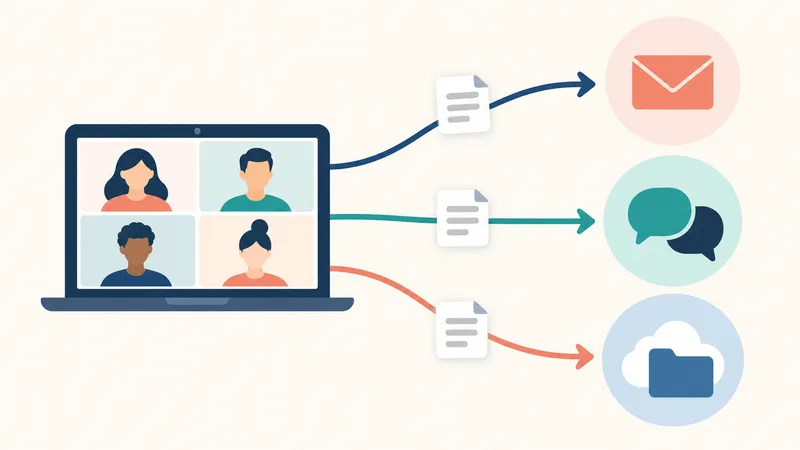
The Zoom meeting summary is generated after the meeting ends and delivered to four places:
- Email: the subject line matches the meeting topic; the host's copy includes an Edit Summary Here link.
- Zoom Chat: if the meeting allows chat before and after, open the Chat tab, select the group chat named after the meeting, find the message from Zoom Meetings and click View Details.
- Web portal: profile picture > My account > Summaries, with My Summaries for meetings you hosted and Shared with me for the rest.
- Zoom Hub: alongside your docs and recordings.
Only the host can edit, share or delete a Zoom meeting summary from the Summaries page. A participant receives it automatically only if the host shared it with a group that includes them and they were signed in to Zoom during the meeting; anyone who receives it can forward it.
If nobody started Zoom AI during the meeting, Zoom's support articles describe no way to create a summary from scratch afterwards. Turning on Auto-start prevents that gap for meetings you host.
Zoom meeting summary templates and a sample layout
Meeting summary templates change the structure of a Zoom meeting summary to fit the meeting type. Zoom's templates article lists more than 15 predefined templates, including General, Dynamic, One-on-one, Stand up, Brainstorm, Project update, Next steps, Q&A, Customer success and Lecture summary. The host picks one when scheduling under Zoom AI > Meeting summary template, or changes it after the meeting to regenerate the summary.

Summarize your meetings & videos automatically with NoteMeeting
Google Meet, Zoom, YouTube, Podcast — all in one extension.
The templates article requires a Business, Business Plus, Enterprise or Education account and desktop app 6.4.0 or later (custom templates also need ZoomMate), while the pricing page lists "custom meeting summary templates (8 per month)" under Pro, so check your own Zoom AI settings.
Zoom describes the default General template as a quick recap with next steps and an organized summary. A summary built on it follows this skeleton:
- Quick recap: a short paragraph on what the meeting covered and decided.
- Next steps: action items, usually with the person responsible.
- Summary: topic-by-topic sections with the main points under each heading.
To turn that output into a recap people will read, see how to summarize a meeting; to turn it into formal minutes, see the next section.
How to turn a Zoom meeting summary into meeting minutes
A Zoom meeting summary is a good first draft of meeting minutes, but it is not minutes on its own: it records what was discussed and the next steps, while formal minutes also need the attendee list, the exact decisions or motions, who approved them and when the minutes were confirmed. The gap is easiest to see side by side:
| Minutes element | In the Zoom meeting summary? | Where to get it |
|---|---|---|
| Meeting title, date and time | Yes, from the meeting details | The summary header or the Summaries page |
| Attendees and absentees | No | Zoom usage reports: Analytics & Reports > Usage reports > Meeting and webinar history (Pro and higher); absentees from the invite list |
| Topics discussed | Yes, as topic-by-topic sections | The summary itself |
| Decisions and motions, worded exactly | Partly: decisions are paraphrased | Check against the transcript, which exists only if the host turned on Generate transcript |
| Action items with owner and deadline | Usually owner; deadlines only if someone said one | The Next steps section, then confirm deadlines with each owner |
| Approval of the minutes | No | Your own process: circulate the draft and record who approved it |
Five steps turn the summary into minutes:
- Before the meeting, pick a template that matches the meeting (for example Next steps or Project update) and turn on Generate transcript so you can check wording later.
- After the meeting, open the summary from Summaries in the web portal. Only the host can edit it in Zoom, so copy it into your minutes document if someone else writes the minutes.
- Add the attendee list from the meeting and webinar history report and mark absentees from the invitation.
- Rewrite each decision in plain, exact language and check names, numbers and negations against the transcript; AI summaries most often slip on who agreed to what.
- Turn the next steps into an action table with owner, deadline and status, then circulate the draft for approval.
For the format itself, use our meeting minutes template and the guide on how to write meeting minutes; for the action table, see how to write action items.
Is Zoom's AI meeting summary accurate?
A Zoom meeting summary is usually good enough as a first draft and not reliable enough to send unchecked. Accuracy depends on audio quality, crosstalk, accents, jargon, names and numbers, so no single accuracy figure applies to your calls. University IT teams that roll out the feature say the same: UC Irvine's Zoom guide warns that AI output may be inaccurate or incomplete and asks hosts to review and proofread summaries before sharing them beyond the host.
A 30-minute test on one of your own meetings tells you more than any review:
- Pick a real internal meeting of 20 to 30 minutes with at least 3 speakers.
- Before reading the summary, write your own answer key: decisions, action items, owners, deadlines, numbers and names.
- Run the Zoom meeting summary, plus any other tool you want to compare on the same meeting, with speakers on headsets.
- Score each summary against the key: missed decisions, wrong owners, wrong dates, misspelled names, and anything stated that nobody said.
- Repeat with a harder meeting, such as a client call or one with heavy technical terms or a second language.
Whatever the result, read the summary before it goes to clients or into formal meeting minutes, and copy action items into your tracker yourself.
Why your Zoom meeting summary is missing
Most missing Zoom meeting summaries come from four causes: an ineligible plan, a locked setting, not being the host, or not being in the group the summary is shared with.
| Symptom | Likely cause | Fix |
|---|---|---|
| Toggle greyed out in the web portal | Admin locked the setting | Ask the admin to unlock it |
| No Zoom AI icon in the meeting | Plan not eligible or Basic allowance used, feature off in settings, outdated app, or Zoom web app | Enable it in settings, update the desktop app and use it |
| Meeting summary option cannot be clicked | You are not the host or a co-host | Click Ask host to start Zoom AI, or ask for co-host |
| Participants got no email | Shared with host only, not signed in, or joined via a forwarded link | Host opens Summaries > Share |
| Summary in the wrong language | Most speakers, or the default, used another language | Set the default meeting summary language |
| "A summary and next steps could not be generated due to insufficient transcript" | Little speech, poor audio, very short meeting or delayed processing, per Zoom Community staff | Wait and check again; use headsets next time |
Since late May 2026 the meeting transcript is no longer on by default, per Zoom's May 2026 transcript FAQ, and regenerating a summary with another template relies on that transcript. To turn it on, see our Zoom transcription guide.
Not the host or on Zoom Basic? Your options
When you are not the host, the Zoom meeting summary depends on the host's plan and sharing settings. There are three ways around that.
Ask the host to share it
Message the host before the call to turn on Auto-start and share with invitees, or click Ask host to start Zoom AI during the meeting. This is free, but it fails when the host is on Basic and out of summaries, when the client's company has AI turned off, or when the host shares only with themselves. The same applies to recordings: a cloud recording always sits in the host's account, as explained in recording a Zoom meeting without being the host.
Use Zoom My Notes
My Notes is Zoom's personal note-taking feature: you open it yourself, Zoom adds a transcript, and the notes stay private to you. Zoom's My Notes article requires Pro, Business, Enterprise or a standalone My Notes subscription (the pricing page lists 3 uses per month on Basic). It also runs in the Zoom web app, but the host can stop My Notes transcription for any participant. If My Notes or its "Take notes" prompt opens when you don't want it, see how to turn off Zoom's note taker and remove notetaker bots. If your notes need to end up in Google Docs, read whether Gemini can take notes in a Zoom meeting and what it can and can't hear.
Use NoteMeeting on your own computer
NoteMeeting gives you a transcript and an AI summary right after the call without host rights, on any Zoom plan, and without adding a bot to the participant list. It handles English and Vietnamese transcription well, useful if you meet Vietnamese-speaking colleagues or clients. Zoom in the browser needs the NoteMeeting Chrome extension (how to install Chrome extensions); the installed Zoom desktop app needs the NoteMeeting Desktop App, included from the Pro plan. Limits: the free trial is 1 hour of audio for transcripts and summaries, then a paid plan (see NoteMeeting pricing); NoteMeeting does not store the meeting audio on its servers, so you download the files yourself; there is no mobile app; and the summary stays with you rather than going to the whole meeting.
With any tool, tell the other participants that you are transcribing, especially clients and candidates; recruiters can see AI note takers for recruiters. For a side-by-side of bot-based and bot-free tools, see the best AI meeting note takers.

FAQ
Is the Zoom AI meeting summary free?
Partly. Zoom's pricing page lists meeting summaries for 3 hosted meetings per month on the free Basic plan, whose meetings are limited to 40 minutes, while Zoom's support article lists Pro and higher as the requirement. Unlimited summaries start with Zoom Workplace Pro.
Do I need ZoomMate for meeting summaries?
No. ZoomMate is a separate AI add-on launched in June 2026. Zoom says meeting summaries remain built into Zoom Workplace and included with eligible paid plans.
Can Zoom write meeting minutes automatically?
Not complete minutes. The Zoom meeting summary drafts the topics, decisions and next steps automatically, but it has no attendee list, paraphrases decisions and has no approval record. Add attendees from the usage report, check decisions against the transcript and circulate the draft for approval.
Does the Zoom meeting summary work on mobile?
Yes. In the Zoom app for Android or iOS, the host taps the Zoom AI icon, turns on Meeting summary and taps Start Zoom AI. Delivery is the same as on desktop.
Related Zoom guides: how to record a Zoom meeting, where Zoom recordings go, Zoom translation and Zoom vs Google Meet. If you often join Zoom calls you don't host, try NoteMeeting with the 1-hour trial on your next meeting and compare its summary with Zoom's using the test above.