

To remove a notetaker bot such as Otter, Fireflies or Read from a Zoom meeting, the host or a co-host opens Participants, clicks the More (...) icon next to the bot's name and selects Remove; by default a removed participant cannot rejoin that meeting. If the bot is your own and keeps auto-joining, turn off auto-join inside that tool (Otter, Fireflies, Read, Calendly and Fathom each have one setting for it) and remove its app from Zoom under My Library in the Zoom App Marketplace. If the "note taker" is Zoom's own My Notes or AI meeting summary, there is no bot to kick out: switch off Auto-start My Notes, the My Notes voice activity pop-up, or the meeting summary auto-start in your Zoom settings. Every step below was checked against Zoom's and each vendor's help pages on October 4, 2026.
Table of contents
- Which notetakers show up in Zoom, and where do you turn each one off?
- Situation A: how do you remove a notetaker bot from your Zoom meeting?
- Stop a second bot from joining the same meeting
- Decline the request before the bot starts recording
- Can you remove a notetaker if you are not the host?
- How do you stop AI notetakers from joining your Zoom meetings in the future?
- Situation B: how do you stop your own notetaker from auto-joining Zoom?
- Situation C: how do you turn off Zoom's own note taker?
- Zoom note taker keeps popping up: turn off the "Take notes" prompt
- Turn off the Zoom AI meeting summary auto-start
- Stop a participant's My Notes transcription as the host
- Does removing a notetaker delete what it already recorded?
- How to take meeting notes without a bot in the participant list
- FAQ
- Can a notetaker join a Zoom meeting without being admitted?
- Can participants remove a bot from a Zoom meeting?
- Why does the notetaker keep joining after I removed it?
- Is it rude to remove someone's AI notetaker?
- How do I remove a notetaker in Google Meet or Microsoft Teams?
| What you see | What it is | Who can stop it | Go to |
|---|---|---|---|
| A participant tile called "Otter Notetaker", "Fireflies Notetaker", "Read", "Calendly Notetaker" or "[Name]'s Fathom Notetaker" in a meeting you host | A third-party bot someone else (or you) invited | Host or co-host from the Participants panel; often any participant through a chat command | Situation A |
| Your own Otter, Fireflies, Read, Calendly or Fathom bot joins every meeting on your calendar | Auto-join from a calendar connection you set up | You, in that tool's settings and in the Zoom App Marketplace | Situation B |
| A "Take notes" pop-up, a My Notes panel that opens by itself, or a Zoom AI summary that starts on its own | Zoom's built-in My Notes or Meeting summary with AI | You in Zoom settings; the host for other people's My Notes transcription | Situation C |
Which notetakers show up in Zoom, and where do you turn each one off?
Each notetaker announces itself differently in a Zoom meeting, and each one is switched off in a different place. The table below maps the seven most common ones, from each vendor's own help center, so you can identify what is in your meeting and go straight to the right setting. Vendor menus change often, so the official link is in the last column.
| Notetaker | How it shows up in a Zoom meeting | What any participant can do | Where the owner turns off auto-join | Official help |
|---|---|---|---|---|
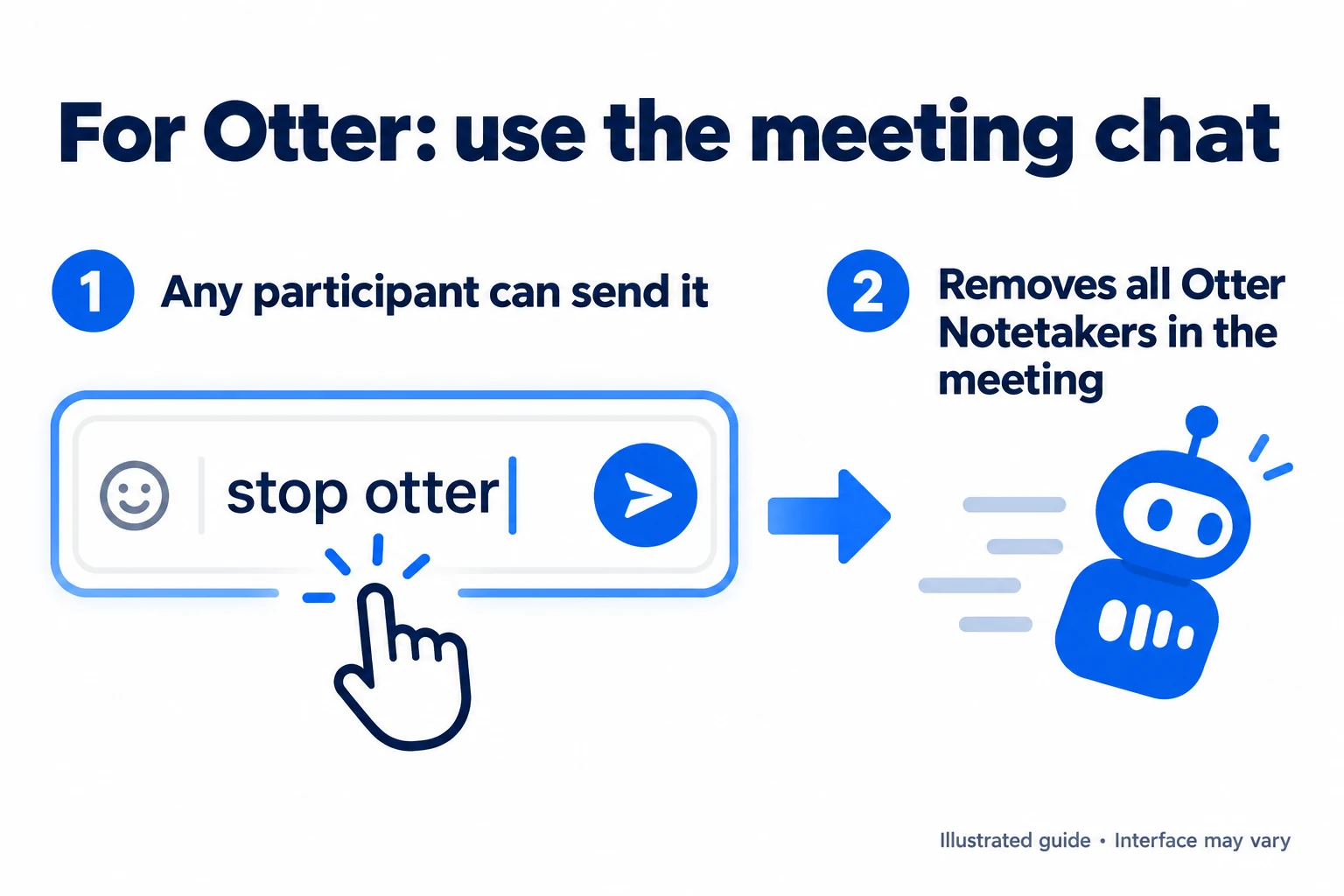
| Otter | Separate participant (Otter Notetaker); can post a link to the live notes in chat | Type stop otter in the meeting chat; this removes all Otter Notetakers in the meeting | Integrations > Meetings tab > Default auto-join settings > Meetings I manually select | Otter Help |
| Fireflies | Separate participant named Fireflies Notetaker | Type /ff leave in the meeting chat | Settings > Recording & Privacy > turn off Auto-record meetings, or choose "Only when I invite [email protected]" | Fireflies guide |
| Read (Read AI) | Own participant tile; usually asks to be admitted, and posts a chat notice naming who invited it | Type Read stop (leaves, keeps a report) or Opt out (leaves and deletes the data) | Account Settings > Meeting Recording > Auto-Join Preferences > turn off Auto-join meetings | Read Help Center |
| Calendly Notetaker | Joins at the start time; the host sees "[Name]'s Calendly Notetaker is requesting to record this meeting" with Approve or Decline | Type /stop in the meeting chat | Settings > Notetaker > toggle off; admins: Settings > Notetaker > Access > "No one" | Calendly Help |
| Fathom | Participant named "[Name]'s Fathom Notetaker" by default; records only while its owner is in the call | No chat command documented; ask the host to remove it or the owner to stop recording | Settings > auto-record drop-down > No Meetings | Fathom Help |
| Zoom My Notes | No participant tile; the Transcription icon lights up when someone transcribes with My Notes | Nothing; only the host can stop other people's My Notes transcription | Zoom app Settings > Meetings & webinars > Auto-start My Notes off | Using My Notes |
| Zoom meeting summary with AI | No participant tile; the Zoom AI icon changes color while AI features run | Nothing; participants can only request it, the host or co-host stops it | Web portal Settings > Zoom AI > Meeting > Auto-start when meetings start off | Using Meeting Summary with AI |
The chat commands are vendor features, not Zoom features, and they only work while the vendor supports them. Calendly notes that some Zoom admin settings block chat messages from non-human participants, in which case the bot's consent message and the response to /stop do not appear.
Situation A: how do you remove a notetaker bot from your Zoom meeting?

A notetaker bot in Zoom is a normal participant from Zoom's point of view, so the host or a co-host removes it the same way as any person. The steps come from Zoom's article on managing participants:
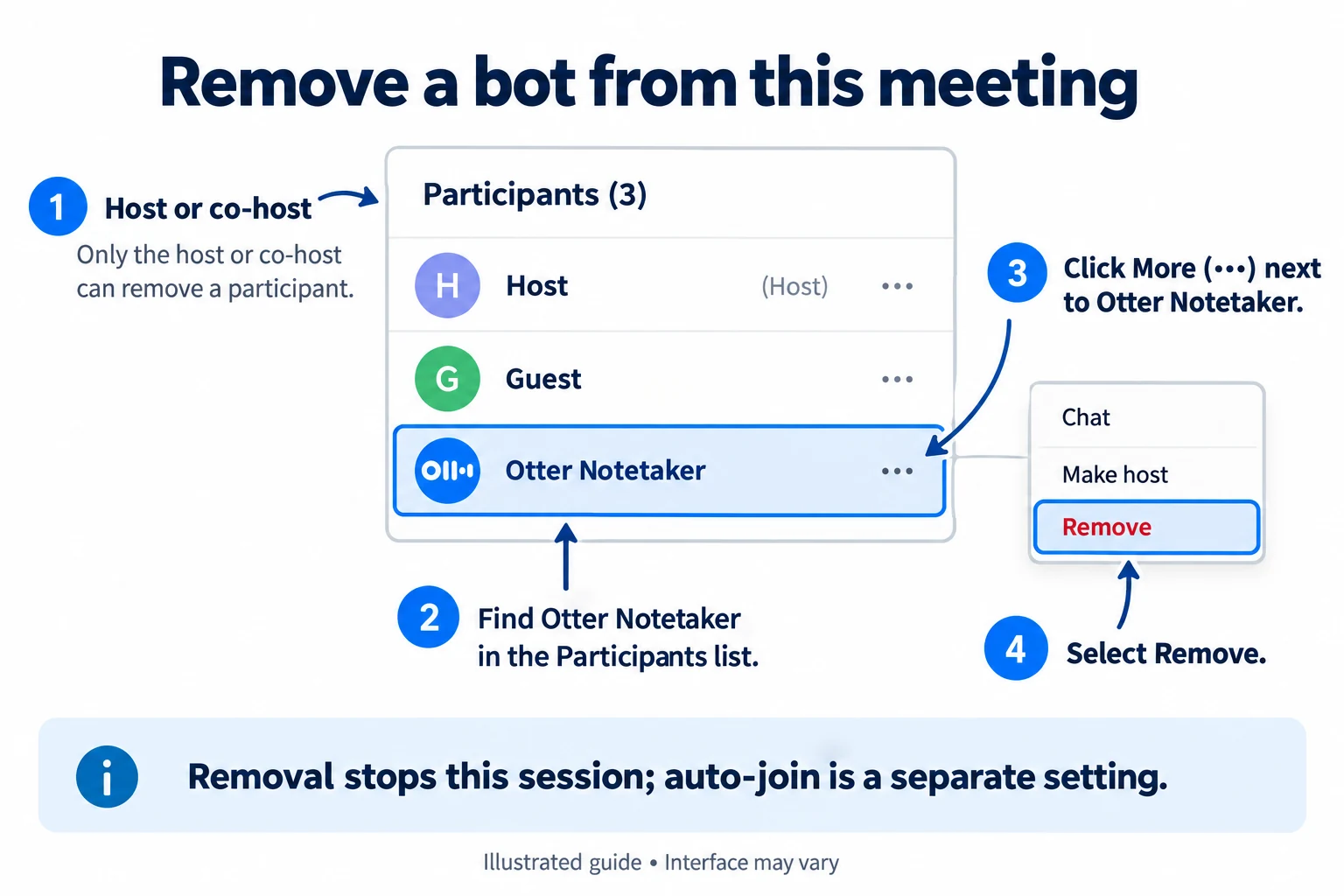
- In the meeting toolbar, click Participants (on Android or iOS, tap More, then Participants).
- Find the bot, for example "Fireflies Notetaker" or a tile with your guest's name followed by "Notetaker".
- Hover over the name and click the More (...) icon (on mobile, tap the name).
- Select Remove.
A removed participant cannot rejoin the same Zoom meeting with the same email address, unless the host account has Allow removed participants to rejoin turned on under Settings > Meeting > In Meeting (Basic), according to Zoom's rejoin article. The removal applies to that session only; the same bot can come back to your next meeting if its owner still has auto-join on.
Stop a second bot from joining the same meeting
After removing a bot, the host or a co-host can close the door for the rest of the session from Host tools (called Security in older versions and in the Zoom web app), per Zoom's in-meeting security article:
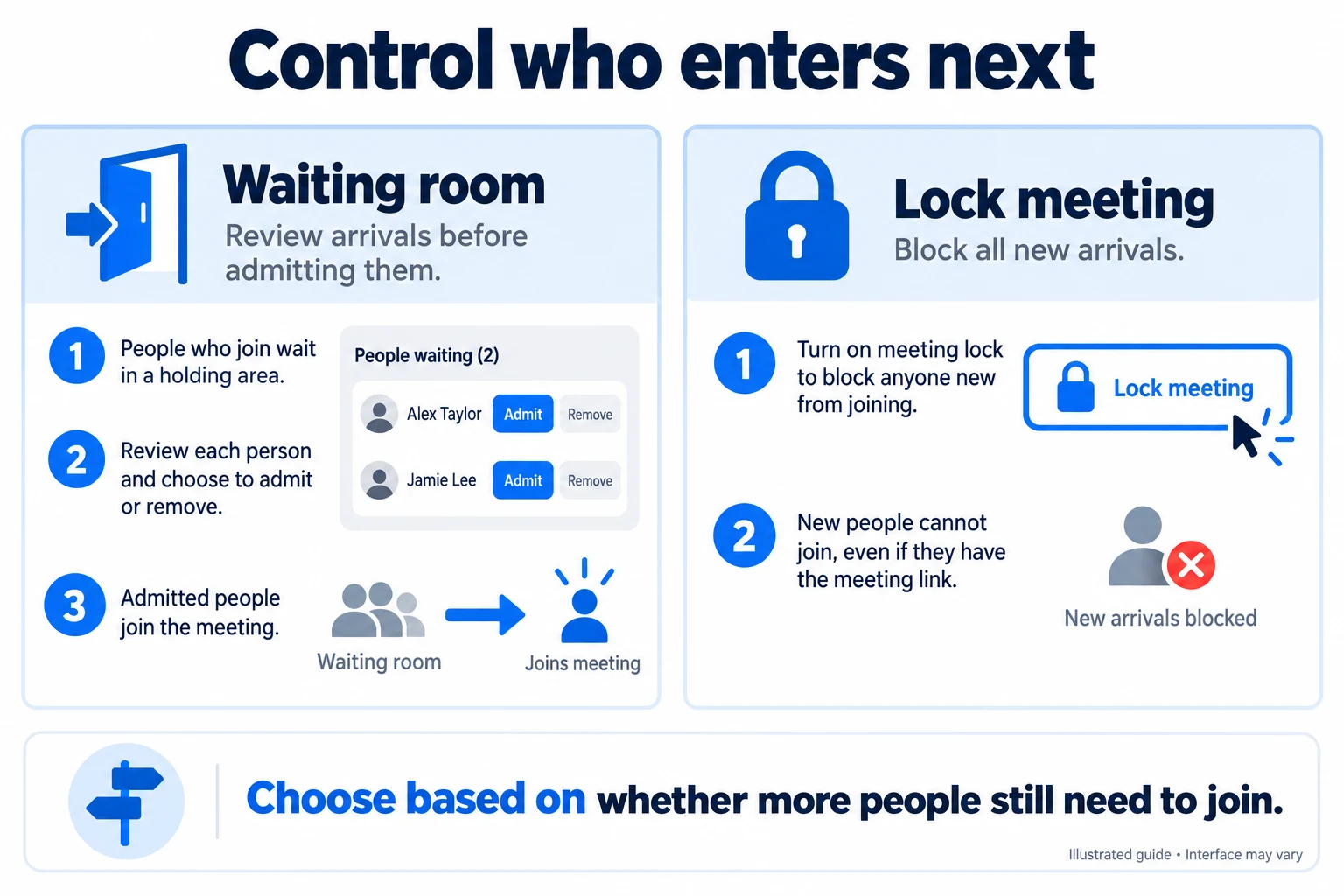
- Lock meeting: nobody new can join, people or bots.
- Enable waiting room: every new arrival waits until you admit it, so you can deny a bot.
- Put in Waiting Room (from the participant's More menu): parks a bot you are not sure about instead of removing it.
Decline the request before the bot starts recording
Some notetakers ask the host for permission before they record, and declining is the quickest way to keep them out. Calendly Notetaker waits up to 15 minutes for the host and then about 90 seconds for the host to answer its recording request; if the host clicks Decline, it leaves without recording, as described in Calendly's Notetaker article. Read usually asks to be admitted too, but Read's help center notes that the request does not appear if the host has installed the Read app in Zoom or connected their Zoom account to Read.
Can you remove a notetaker if you are not the host?
Not through Zoom: only the host and co-hosts can remove participants. Several vendors still let people end their bot from the chat: Otter says anyone, even without an Otter account, can type stop otter, and Read accepts Read stop and Opt out from any participant. Fireflies documents /ff leave and Calendly /stop, without saying whether every participant can send them. If the command does not work, send a private chat message to the host, or ask the person who brought the bot (Read's chat notice names them).

Summarize your meetings & videos automatically with NoteMeeting
Google Meet, Zoom, YouTube, Podcast — all in one extension.
How do you stop AI notetakers from joining your Zoom meetings in the future?
Zoom has no single switch that blocks every AI notetaker; the protection comes from combining sign-in rules, the waiting room and domain blocks. Zoom's 2026 article Blocking bots from joining meetings and webinars explains that bots join either through official Marketplace integrations or by automating the Zoom app, and look like normal participants in the video grid. It lists the controls below, plus a built-in bot detection in the Zoom web app that is on for every account and cannot be turned off.
| Zoom setting (web portal) | Where | What it does against bots | Limit |
|---|---|---|---|
| Waiting Room | Settings > Meeting > Security | New arrivals wait for the host; you deny the bot. Paid accounts can choose who waits: everyone, users not in your account, users not on the meeting invite, and more | A bot admitted by a co-host or by a broad bypass rule still gets in |
| Only authenticated users can join meetings | Settings > Meeting > Security | Blocks anonymous joiners, which many bots are | Pro, Business, Education or Enterprise; guests without a Zoom account are blocked too |
| Block users in specific domains from joining meetings and webinars | Settings > Meeting > Security (account, group or user level) | Blocks people signed in with a listed domain, with wildcards | Works only when authentication is required; Zoom says the list cannot check domains otherwise |
| Marketplace pre-approval (admins) | marketplace.zoom.us > Manage > Admin App Management > Permissions | Users on your account cannot add a notetaker app without admin approval | Does not affect bots brought by people outside your account |
The domain block has a known gap. In the Zoom Community thread on disabling AI notetakers, an admin reported in August 2026 that some notetakers join through the meeting participant's own signed-in account rather than their vendor domain, so domain blocks and required sign-in do not catch them. Zoom's domain block article also confirms that the list needs authentication profiles to work. For confidential meetings, the waiting room set to Everyone is the control that does not depend on how the bot signs in, at the cost of admitting each person by hand.
Zoom's bot article also mentions a Meeting SDK app block list and a bot blocking dashboard for admins, without giving menu paths in the article itself; account admins should follow the links inside that article or ask Zoom support for their plan.
Situation B: how do you stop your own notetaker from auto-joining Zoom?

Your own notetaker keeps appearing because it reads your connected calendar and joins every event with a meeting link, so the fix is in the tool, not in Zoom. Removing the bot from one meeting, or uninstalling the desktop app, does not stop the next calendar event. Do these three steps in order:
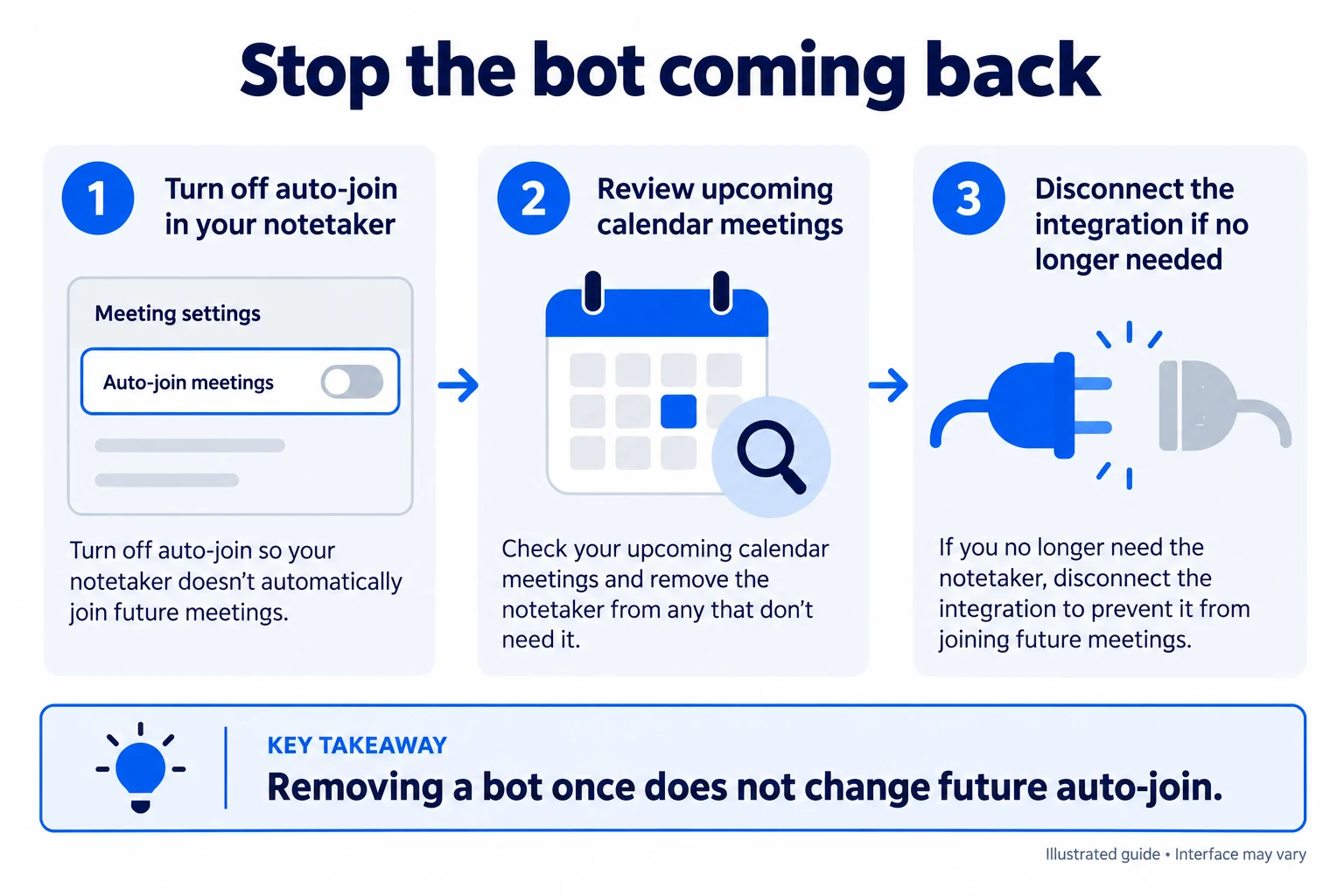
- Turn off auto-join in the tool. Use the setting in the "Where the owner turns off auto-join" column above. Otter adds that meetings you toggled on or off one by one keep their own setting, so review your upcoming events afterwards. Calendly lets you toggle Notetaker off for a single meeting on its Calendar page.
- Remove the app from your Zoom account. Sign in to the Zoom App Marketplace, click My Library at the bottom left, find the app, click the More icon under Actions, then Remove. The same path works from the Marketplace tab of the Zoom desktop app, per Zoom's article on removing Marketplace apps. Older guides say Manage > Added Apps; for personal apps Zoom's current article uses My Library.
- Disconnect the calendar, or delete the account. Otter's help center says disconnecting your calendar removes all future events. Read states that once you delete your Read account or change its auto-join settings, Read can no longer join from that account.
Admins can remove or disable a notetaker for the whole company: sign in to marketplace.zoom.us, click Manage, open Admin App Management > Apps on Account, click the app on the Added Apps tab, then use Disable or Remove on the Manage app tab, as described in Zoom's Marketplace admin article. Zoom warns that a removed app that is still approved can be added again by users, so disable it or turn on pre-approval as well.
If a bot still joins after all three steps, it is most likely coming from someone else's account. Read says this directly: if Read keeps joining after you stopped it, it comes from another account, and its chat notice shows who invited it. Treat that case as Situation A.
Situation C: how do you turn off Zoom's own note taker?
Zoom's own note-taking is not a participant, so there is nothing to remove from the Participants panel. It is My Notes (Zoom's personal notes with a transcript, which is replacing the older Zoom Notes) or Meeting summary with AI, and both are switched off in settings.
Zoom note taker keeps popping up: turn off the "Take notes" prompt
The note-taking pop-up that appears when you start talking (Zoom Community users report it even during phone calls outside meetings) comes from My Notes voice activity detection. Zoom's My Notes article says a "Take notes" notification appears when Zoom detects microphone activity. To stop it, use the Zoom desktop app settings described in Zoom's article on enabling or disabling My Notes:
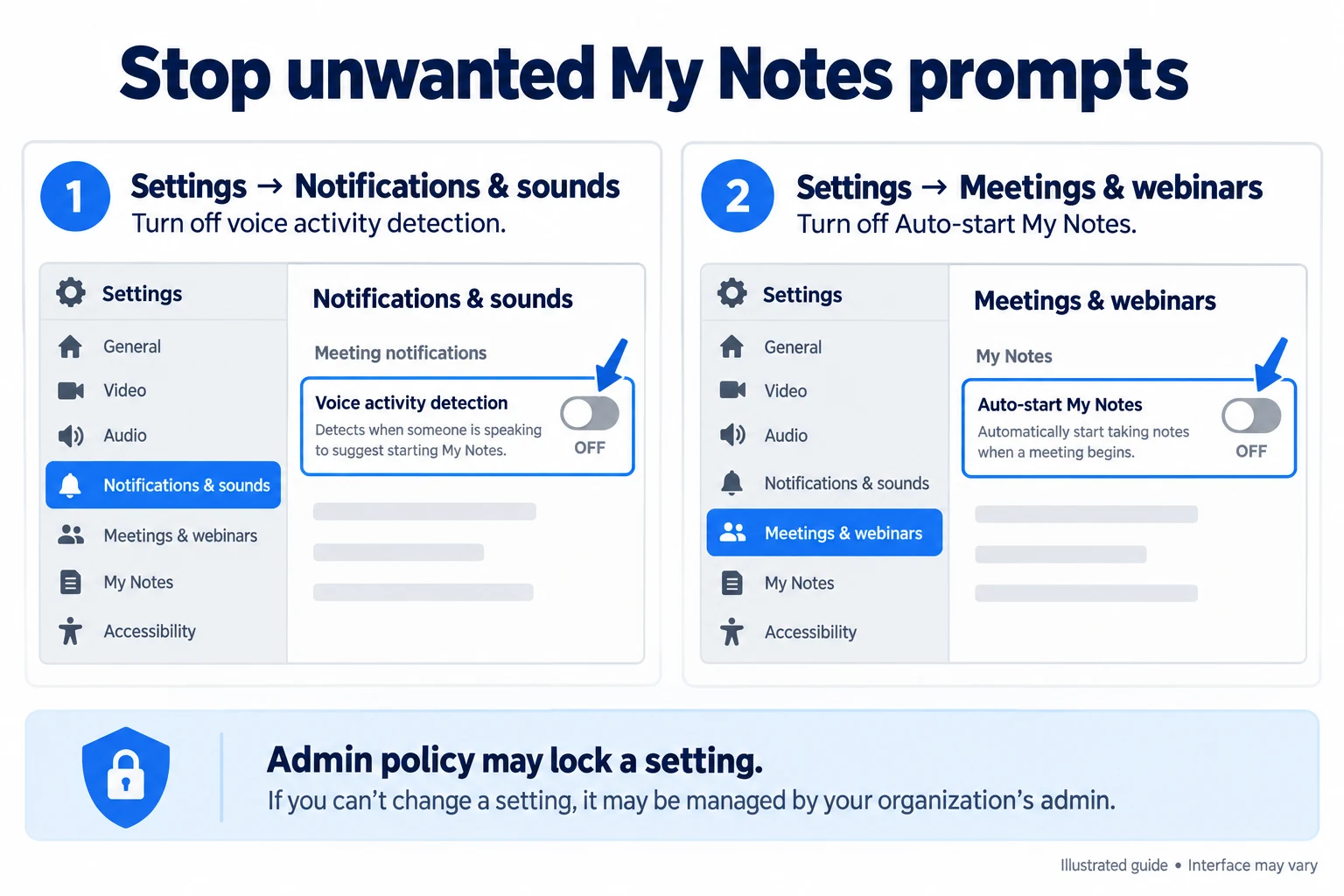
- Click your profile picture, then Settings.
- Open Notifications & sounds and turn off Automatically detect voice activity to create My Notes.
- Open Meetings & webinars and turn off Auto-start My Notes if My Notes opens by itself when you join meetings.
To remove My Notes completely, sign in to the Zoom web portal, go to Settings > Notes and turn off Enable My Notes. A Zoom Community user reported in April 2026 that this removed all note icons and pop-ups from their meetings. If a toggle is greyed out, your Zoom admin has locked it. The older Zoom Notes feature is being deprecated; its toggles (Enable In-Meeting Notes, Enable Out-of-Meeting Notes) now sit under Settings > Notes > Deprecated Notes, per Zoom's Zoom Notes article.
Turn off the Zoom AI meeting summary auto-start
The Zoom AI meeting summary starts on its own only when auto-start is on. In the web portal, go to Settings > Zoom AI > Meeting and turn off Auto-start when meetings start, or turn off Meeting summary with AI entirely; admins find the same options under Admin Center > Settings > Zoom AI, per Zoom's meeting summary settings article. During a meeting, the host or a co-host hovers over the Zoom AI icon and unchecks Meeting summary or clicks Stop Zoom AI, with an option to delete the meeting assets already created. For how the summary works when you do want it, see our guide to the Zoom AI meeting summary.
Zoom AI can also join Google Meet and Microsoft Teams meetings as a participant if you synced your calendar; that is controlled by Allow Zoom AI to join third-party meetings under Settings > Zoom AI, per Zoom's third-party meetings article.
Stop a participant's My Notes transcription as the host
My Notes transcription runs on a participant's own Zoom app, but the host can still end it. According to Zoom's My Notes article:
- One person: Participants > More options next to the name > Stop transcribing in My Notes.
- Everyone: Host tools > Advanced > My Notes > turn off Allow transcribing in My Notes.
- Every meeting on the account (admins): Admin Center > Settings > Notes > turn off Allow participants to transcribe meetings with My Notes.
Participants can tell My Notes transcription is active because the Transcription icon lights up. Notes a participant already wrote stay in that person's My Notes after the host stops transcription.
Does removing a notetaker delete what it already recorded?

Usually not: removing a bot stops it from recording more, but whatever it captured before stays in its owner's account. Fireflies says no transcript or notes are created if Fireflies is removed within the first 3 minutes. Read is the one vendor that offers deletion from inside the meeting: the Opt out chat command removes Read and deletes all measured data, while Read stop keeps a report up to that point. For anything else, ask the person who invited the bot to delete the recording and summary from their account. Zoom's own Stop Zoom AI option lets the host delete Zoom AI assets for that meeting.
How to take meeting notes without a bot in the participant list
Some people remove notetakers because a bot tile feels intrusive, not because they object to notes. A bot-free tool is an option in that case. NoteMeeting transcribes and summarizes Zoom meetings without joining as a participant: the NoteMeeting Chrome extension runs in your browser when you use Zoom in the browser (the Zoom web app), and the NoteMeeting Desktop App, included from the Pro plan, captures system audio from the installed Zoom desktop app. NoteMeeting does not store your audio on its servers; you download the transcript and recap yourself. Limits: it does not record video, it covers Zoom in the browser and the Zoom desktop app (not the Zoom mobile app), and the free trial covers 1 hour of audio before a paid plan (see NoteMeeting pricing).
No bot does not mean no consent. Tell the other participants at the start that you are taking AI notes, the same way you would announce a recording; our guide on how to record a Zoom meeting covers consent in more detail. For a side-by-side of bot-based and bot-free tools, see the best AI meeting note takers. If you want to try the bot-free approach on your next call, install NoteMeeting and use the 1-hour free trial.
FAQ
Can a notetaker join a Zoom meeting without being admitted?
Yes, if the meeting has no waiting room, or if the bot passes the meeting's bypass rules. Read notes that its admit request does not appear when the host has installed the Read app in Zoom or connected Zoom to Read. A waiting room set to Everyone, or a locked meeting, makes every arrival wait for the host.
Can participants remove a bot from a Zoom meeting?
Not with Zoom's controls: only the host and co-hosts can remove participants. Participants can still try vendor chat commands: Otter and Read say any participant can use "stop otter" and "Read stop" or "Opt out". Fireflies ("/ff leave") and Calendly ("/stop") document a command without saying who may send it. Otherwise, message the host or leave the meeting.
Why does the notetaker keep joining after I removed it?
Removing a bot only affects the current meeting. The bot returns when its owner's calendar still has auto-join on, so either you turn auto-join off in your own tool or the person who uses it has to. If you blocked a vendor domain, remember that Zoom's domain block works only when the meeting requires sign-in.
Is it rude to remove someone's AI notetaker?
Not if you explain why. Many hosts say at the start that recordings and AI notetakers are not allowed in confidential meetings, then remove any bot that joins. Read itself asks its users to tell participants they are recording, and Calendly says the person using its Notetaker is responsible for getting consent.
How do I remove a notetaker in Google Meet or Microsoft Teams?
The idea is the same: remove it from the People or Participants list and turn off auto-join in the tool; Otter's and Read's help pages linked above include the Meet and Teams steps. For the difference between bots and extensions on Google Meet, see Google Meet note-taking extensions.