
Online meetings are easy to capture: a bot joins the call or the platform records it. In-person meetings are different. There's no call to join, so an AI note taker for in-person meetings has to hear the room through a phone, a laptop, or a dedicated recorder, then turn that audio into a transcript, a summary, and action items. That makes audio quality, mic placement, and where the processing happens far more important than any feature list.
Table of contents
- Key takeaways
- Quick comparison: 7 AI note-taking options for in-person meetings
- How we evaluated these tools
- The 7 best AI note takers for in-person meetings, reviewed
- 1. Plaud Note / Note Pro: best dedicated recorder
- 2. Krisp: record on your phone, process afterward
- 3. Otter.ai: best for live transcription in English
- 4. Hyprnote: best for local, on-device processing
- 5. Jamie: best for bot-free notes across online and in-person meetings
- 6. Granola: best for polished, structured notes
- 7. Phone voice recorder + AI transcription: the flexible, low-volume workflow
- AI recorder, phone app, or laptop software?
- How to choose the right tool before you pay
- 1. Test audio capture in your actual room
- 2. Check language support and speaker separation
- 3. Separate offline recording from offline AI
- 4. Judge the summary, action items, and export
- 5. Review privacy, retention, and access
- 6. Calculate 12-month total cost
- Checklist for more accurate recordings and AI notes
- FAQ
- Can Otter.ai record in-person meetings?
- Do AI note takers work without internet?
- Is there a free AI note taker for in-person meetings?
- Can I use a Sony or Olympus voice recorder with AI transcription?
- What's the best option for a large conference room?
- Do I need permission to record an in-person meeting?
- Can AI-generated notes be used as official meeting minutes?
- Conclusion: choose by how you meet, not by AI features
This guide compares 6 products and 1 do-it-yourself workflow for capturing face-to-face meetings, with verified 2026 pricing where vendors publish it, plus a testing checklist so you can pick the right setup before you pay.
Key takeaways
The microphone matters more than the AI model. A pocket recorder or phone in the middle of the table won't reliably capture someone at the far end of a large, echoey room.
"Records offline" and "AI works offline" are different claims. Most tools record locally but transcribe and summarize in the cloud.
Hardware (Plaud) suits people who record client meetings daily; phone apps (Otter, Krisp, Granola, Jamie) suit most teams; local-first desktop apps suit privacy-sensitive work.
Budget for the full year: device + subscription + transcription minutes. A 10-meeting-a-month habit at 45 minutes each is already 450 minutes.
Tell people you're recording. In the US, about a dozen states require every participant's consent.
Quick comparison: 7 AI note-taking options for in-person meetings
Prioritize tools that can capture audio in the room, not just join video calls. Prices below are from official pricing pages as of October 2026 and change often.
| Option | Best for | How it captures the room | Offline: recording / AI | Price (as of 2026) |
|---|---|---|---|---|
| Plaud Note / Note Pro | Consultants, sales, managers who record daily | Dedicated device mics | Records on device; AI after sync | Device $159 (Note) / $189 (Note Pro); free AI tier 300 min/mo; Pro $17.99/mo or $8.33/mo annually |
| Krisp | Record on your phone, process later | Phone mic (iOS/Android), upload | Records on phone; AI after upload | 7-day free trial; Core $16/user/mo or $8/user/mo annually |
| Otter.ai | Small English-language meetings, live transcript | Phone or laptop mic; file import | Live transcription needs internet | Free 300 min/mo (30 min cap per conversation); Pro $16.99/mo or $8.33/mo annually |
| Hyprnote (now anarlog) | Privacy-first, on-device processing | Laptop mic | Can run fully local, depending on models chosen | Open source; check current plans |
| Jamie | People who switch between calls and in-person meetings | Desktop/mobile mic, no bot | Not documented per step | Free (10 meetings/mo, 30 min); Plus €21/mo; Pro €39/mo |
| Granola | Founders and managers who want polished notes | Phone or desktop mic; Apple Watch | Not documented; audio deleted after transcription | Free (30-day history); Business $14/user/mo |
| Phone recorder + AI transcription | Occasional meetings, zero new hardware | Any voice memo app | Recording offline; AI depends on tool | Pay per minute or use free tiers |
Ecosystem options worth a look: Zoom My Notes now includes in-person transcription on the web (it stops automatically when a Zoom meeting starts and doesn't feed Zoom's meeting summaries). Fireflies, Notta, MeetGeek, Fellow, and Bluedot also ship mobile apps that record face-to-face conversations. If your team already pays for one of these for online calls, test its mobile recorder before buying something new; it keeps in-person and online notes in one workspace.
How we evaluated these tools

This is a buying guide based on official product pages, help docs, and pricing pages, not a hands-on benchmark. Many of the top-ranking "best AI note taker for in-person meetings" articles are published by the vendors themselves (Plaud, Otter, Fellow, MeetGeek, Bluedot), so we treat their "best" claims as marketing, not independent findings. We kept only differences you can verify, and we flag anything vendors don't document.
The criteria:
Audio capture: can the tool record the room directly, and with what mic?
Language and speaker handling: supported transcription languages, speaker separation, summaries, and action items.
Offline and privacy: which steps run on the device, where data is stored, and whether you can export it.
Total cost: hardware, subscription, and usage limits.
If you're unsure how a raw transcript differs from finished notes, see our guide to meeting transcripts. For the approved end product, use a meeting minutes template.
The 7 best AI note takers for in-person meetings, reviewed
1. Plaud Note / Note Pro: best dedicated recorder
Best for: consultants, salespeople, and managers who meet clients face to face several times a week and don't want to fiddle with a phone.
You place the card-sized device on the table, press record, then sync it to the Plaud app for transcription and AI notes. Recording locally doesn't mean the AI runs offline: transcription and summaries happen after the audio syncs to Plaud's service.
The two models differ. Plaud lists the Note Pro with four microphones and a small status display, aimed at rooms of roughly 6-12 people; the original Note has two mics and no comparable screen, better suited to 2-5 people. Plaud's AI plans are Starter (free, 300 transcription minutes a month), Pro ($17.99/month, or $8.33/month billed annually, 1,200 minutes), and Unlimited ($29.99/month, or $19.99/month billed annually). The devices list at $159 (Note) and $189 (Note Pro) on Plaud's US store.
Pros: one-button capture that's independent of your phone; long battery life; good fit for back-to-back client meetings.
Trade-offs: you buy hardware and likely a subscription once you pass 300 minutes. A pocket device still won't reliably capture a long boardroom table.
Check export formats, supported languages, and current plan limits on Plaud's official site before buying.
Choose it if you record most days. Skip it if your phone already does the job and you only meet in person occasionally.
2. Krisp: record on your phone, process afterward
Best for: people who want to record face-to-face conversations on iOS or Android, then get a transcript, summary, and action items in the same tool they use for calls.
Krisp's in-person workflow has three steps: record audio or video with the mobile app, upload the recording for transcription, then review, edit, and share the notes. It's a record-then-process workflow, not live, fully offline transcription.
Pros: no extra hardware; speaker labels, summaries, and owner-assigned action items from a single recording.
Trade-offs: quality still depends on the phone mic, placement, and crosstalk. Krisp advertises 96% accuracy, but a vendor number is no substitute for testing your own room, accents, and jargon.
Before paying, confirm transcription and summary languages, file limits, audio/transcript download rights, and retention periods.
Choose it if you want one mobile app for a record-and-upload workflow. Skip it if every step must run locally without uploading data.
3. Otter.ai: best for live transcription in English
Check first: your meeting language. As of 2026, Otter transcribes English, Spanish, French, German, Japanese, and Chinese. If your meetings mix other languages, look elsewhere.
Otter's mobile and web apps record in-person conversations through the device mic. Start a recording, put the phone in the middle of the table, and you get a live transcript with speaker labels, then a summary and action items. Live transcription needs an internet connection.
Plan limits matter more than the headline price. The free Basic plan gives 300 minutes a month but caps each conversation at 30 minutes and allows only 3 lifetime file imports. Pro ($16.99/month, or $8.33/month billed annually) raises that to 1,200 minutes, 90 minutes per conversation, and 10 imports a month. Business ($19.99/month annually) allows conversations up to 4 hours. See Otter's pricing page.
Pros: convenient if your team already uses Otter for online calls; notes from both live in one place.
Trade-offs: a phone mic can miss people sitting far away. That's a capture problem, not a fixed limit on the number of attendees. Reviewers also report spending time re-tagging speakers.
Choose it if you hold small meetings in a supported language close to the mic.
4. Hyprnote: best for local, on-device processing
Best for: people who want control over where their data goes and are comfortable checking the setup.
Hyprnote is an open-source, local-first AI notepad built by Fastrepl. It can transcribe with on-device models and summarize with a local model, so audio doesn't have to leave your laptop. Note that the open-source app now continues under the name anarlog (MIT-licensed), while hyprnote.com redirects to char.com, a newer Fastrepl product, so confirm the current product name and official download before installing.

Summarize your meetings & videos automatically with NoteMeeting
Google Meet, Zoom, YouTube, Podcast — all in one extension.
"Local-first" doesn't guarantee every step runs on your machine. Before using it for real meetings, check:
Where is the audio stored?
Is transcription using an on-device model or a cloud service?
Does the summary step send text to a cloud LLM?
How do sync and export work?
If any step uses a cloud provider, that step depends on a connection and on that provider's data policy.
Pros: the strongest option when you need to keep data on the device.
Trade-offs: your OS, RAM, and chosen model affect speed, language coverage, and accuracy. For R&D, legal, or HR data, get IT sign-off first.
5. Jamie: best for bot-free notes across online and in-person meetings
Best for: people who move between video calls and face-to-face meetings and want one workflow that doesn't depend on the meeting platform.
Jamie is built around bot-free capture: no bot joins anything; it listens through your device. In-person meetings are included on every plan, and Jamie lists notes and transcripts in 99+ languages. The free plan covers 10 meetings a month up to 30 minutes each; Plus (€21/month) allows 2-hour meetings; Pro (€39/month) is unlimited up to 5 hours per meeting.
Pros: broad language coverage and one tool for every meeting type. Bot-free isn't unique to Jamie, though; Granola, Krisp, and others work the same way.
Trade-offs: quality still depends on the mic. Confirm session length, plan limits, and audio download rights.
No bot doesn't mean you can record without telling people. Announce the recording either way.
6. Granola: best for polished, structured notes
Best for: managers and founders who want final notes that reflect both the conversation and the points they personally care about.
Granola combines the transcript with your own rough notes. You start a session, jot what matters if you want (you don't have to), and Granola expands those notes using the conversation. Its iPhone and Android apps (and Apple Watch) handle in-person capture through the device mic.
Example: a quick jot like "proposal, Friday" gets expanded with who is sending what to whom, and which Friday, as long as that was actually said.
Pros: the output reads like useful notes, not a wall of transcript.
Trade-offs: a transcript, enhanced notes, and an audio archive are three different things. Granola's pricing page states that audio is deleted after transcription on all plans, so you can't replay the original recording to settle a dispute. The free plan keeps 30 days of history; Business is $14/user/month. See Granola.
Choose it if you value structured notes over a replayable recording.
7. Phone voice recorder + AI transcription: the flexible, low-volume workflow
This is a workflow, not a product. It fits if you meet in person occasionally and want to use your phone before buying anything.
Announce the recording and the use of AI, and get consent where required.
Record with your phone's voice memo app (or an external recorder).
Save the file, play back a few seconds, and confirm the full length was captured.
Upload the file to a transcription tool that accepts imports.
Generate a summary, decisions, and an action list.
Check names, numbers, owners, and deadlines against the recording.
Whisper is a speech recognition model, not an app. Apps built on Whisper may run it on your device or send audio to a server; those are very different from a privacy standpoint. iPhone users on recent iOS versions can also get transcripts directly in the Voice Memos app, which is a free starting point for English.
Pros: flexible, and you can swap the processing tool anytime. For tool options, see our roundup of transcription software.
Trade-offs: manual file handling, possible per-minute fees, and sync or auto-delete settings that can remove the original file.
Choose it if your volume is low and you don't mind a few manual steps.
AI recorder, phone app, or laptop software?

Audio quality depends on the specific model and where you put it, not just the device category.
| Criterion | Dedicated AI recorder | Phone app | Laptop software |
|---|---|---|---|
| Hardware | Buy a device (~$150-$190) | Use your phone | Use your laptop |
| Starting a recording | Physical button | Open the app | Pick input, start session |
| Microphone | Built-in array; external input varies | Phone mic or compatible external mic | Built-in, USB, or room audio system |
| Offline | Records offline; AI usually cloud | Depends on app | Can be fully local with the right software |
| Ongoing cost | AI plan beyond free minutes | Subscription or per-use | Software, AI, accessories |
Pick a dedicated recorder if you record constantly. Start with your phone for small conversations near the mic. Choose a laptop app if you take notes on your computer anyway or need local processing.
For large rooms, invest in a proper conference mic or room audio system first, then pick software that accepts that input. A pocket recorder won't cover every seat.
How to choose the right tool before you pay
1. Test audio capture in your actual room
Confirm the tool accepts a mic or an audio file, not just a meeting link.
Identify the seat farthest from the mic and the main noise sources (HVAC, coffee machine, street).
Record a test in that room and listen specifically to the farthest speaker.
Headcount is only a rough guide. Echo, air conditioning, and people turning away from the table all hurt results. AI can't reliably recover words the mic never captured.
2. Check language support and speaker separation
Test with a clip that includes names, industry jargon, accents, and, if you work in more than one language, a switch between languages mid-sentence.
Speaker diarization (splitting the transcript by voice) is not speaker identification. "Speaker 1" usually still needs you to assign a name. Check:
Is your language supported for transcription, not just the interface?
How does the tool handle code-switching?
Can you rename and correct speaker labels?
Does crosstalk get attributed to the wrong person?
To compare accuracy objectively, see word error rate (WER).
3. Separate offline recording from offline AI
Offline recording means audio is saved without an internet connection. Offline AI means transcription and summarization happen on the device without sending data to the cloud.
Record on a device, then connect to process in the cloud (Plaud, Krisp, most phone apps).
Record and transcribe on a laptop with a local model; summaries must also run locally if you need a fully offline workflow (local-first apps such as Hyprnote).
Check recording, transcription, speaker separation, and summarization separately. A tool may be offline for only some of them.
4. Judge the summary, action items, and export
A useful summary separates decisions made from ideas still under discussion. Check whether owners and deadlines were actually stated or inferred by the AI. "Sarah sends the quote by 5 p.m. Friday" only counts if someone said it.
Test exporting before you pay. A native integration with your task manager is not the same as copying text over manually. Our guide to writing and tracking action items covers what a good action item should contain.
5. Review privacy, retention, and access
Where are audio and text processed and stored (US, EU)?
Which subprocessors receive the data?
How long is data kept, and how do you delete it?
Who can view, download, or share recordings?
Is your content used to train AI models?
Deleting in the app may not immediately purge backups. For regulated data (healthcare, finance, legal), look for SOC 2 Type II, HIPAA eligibility with a BAA, and GDPR terms, and get IT or legal approval. Local processing doesn't remove the risk of someone accessing the laptop.
6. Calculate 12-month total cost
Total cost = hardware + subscription + usage overages + accessories.
Example: 10 meetings × 45 minutes = 450 minutes a month. That already exceeds most free tiers (Otter and Plaud both give 300), and Otter's free plan would cut each meeting at 30 minutes. Compare your real volume with plan limits instead of the starting price.
Also check the per-recording length limit, number of file imports, export rights, and what happens to your data if you cancel. Annual pricing often looks half the monthly price; compare like for like.
Checklist for more accurate recordings and AI notes
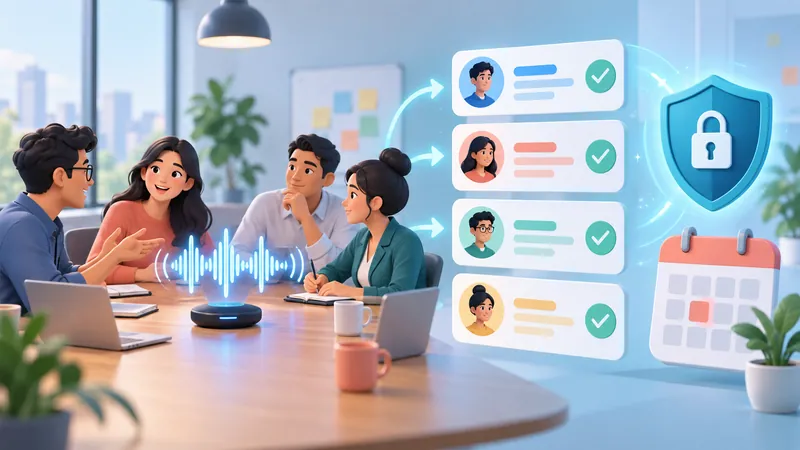
Before the meeting
Announce the recording and how the data will be used.
Check battery, storage, and mic input.
Record a 10-20 second test and play it back.
During the meeting
Place the mic in the open, centered, away from papers, laptop fans, and vibrating surfaces.
Ask people to introduce themselves early; it helps speaker labeling.
Avoid talking over each other.
State owners and deadlines out loud when you assign tasks.
After the meeting
Check names, amounts, dates, and speaker labels.
Confirm decisions before sharing. Our guide on how to summarize a meeting walks through it.
Restrict access; keep or delete according to your policy.
Avoid three mistakes: choosing on advertised accuracy alone, forgetting AI processing fees, and assuming offline recording means every AI step is offline.
FAQ
Can Otter.ai record in-person meetings?
Yes. Otter's mobile and web apps record in-person conversations through your device's mic and transcribe them live. You need an internet connection for live transcription, and the meeting must be in a supported language (English, Spanish, French, German, Japanese, or Chinese as of 2026). On the free plan, each recording is capped at 30 minutes.
Do AI note takers work without internet?
Partly. Most recorders and phone apps capture audio offline and process it once you reconnect. For transcription and summaries that are fully offline, you need software that runs models on your device, such as a local-first desktop app, plus hardware that can handle it.
Is there a free AI note taker for in-person meetings?
Yes, with limits. Otter's free plan offers 300 minutes a month (30 minutes per conversation), Plaud's free AI tier gives 300 minutes with its device, Jamie's free plan covers 10 meetings a month, and Granola's free plan keeps 30 days of history. On iPhone, Voice Memos can transcribe recordings for free.
Can I use a Sony or Olympus voice recorder with AI transcription?
Yes, if the recorder exports a file format your transcription tool accepts (usually MP3 or WAV). Transfer the file to your computer, then upload it. A traditional recorder doesn't create AI notes on its own, so check format, file size limits, and the tool's data policy.
What's the best option for a large conference room?
Fix the audio first: a conference mic or room system matters more than the software. Then choose a tool that accepts that input and test it from the farthest seat. Without a side-by-side test in your room, no brand is reliably "best."
Do I need permission to record an in-person meeting?
It depends on where you are. US federal law and most states allow recording with one party's consent, but about a dozen states (including California, Florida, Illinois, Pennsylvania, and Washington) require all parties to agree. In the EU and UK, GDPR requires a lawful basis and telling people how the recording will be used. Best practice everywhere: announce the recording and the AI processing at the start. This isn't legal advice.
Can AI-generated notes be used as official meeting minutes?
Not without review. AI can mislabel speakers, garble numbers, or turn a suggestion into a decision. Check anything important and follow your organization's approval process. See how to write meeting minutes for the full process.
Conclusion: choose by how you meet, not by AI features
If you want a dedicated device, start with Plaud. If you'd rather use your phone or laptop, compare Otter, Krisp, Jamie, and Granola on language support, plan limits, and whether you need the audio afterward. If data must stay on the device, verify every processing step of a local-first tool and get internal approval. And if you only meet in person a few times a month, a voice recorder plus a transcription tool may be all you need. For online calls, see our comparison of the best AI meeting note takers.
Shortlist two options, test them in one short meeting where everyone has agreed to be recorded, then compare the transcript, the total cost, and the data policy before you pay.