
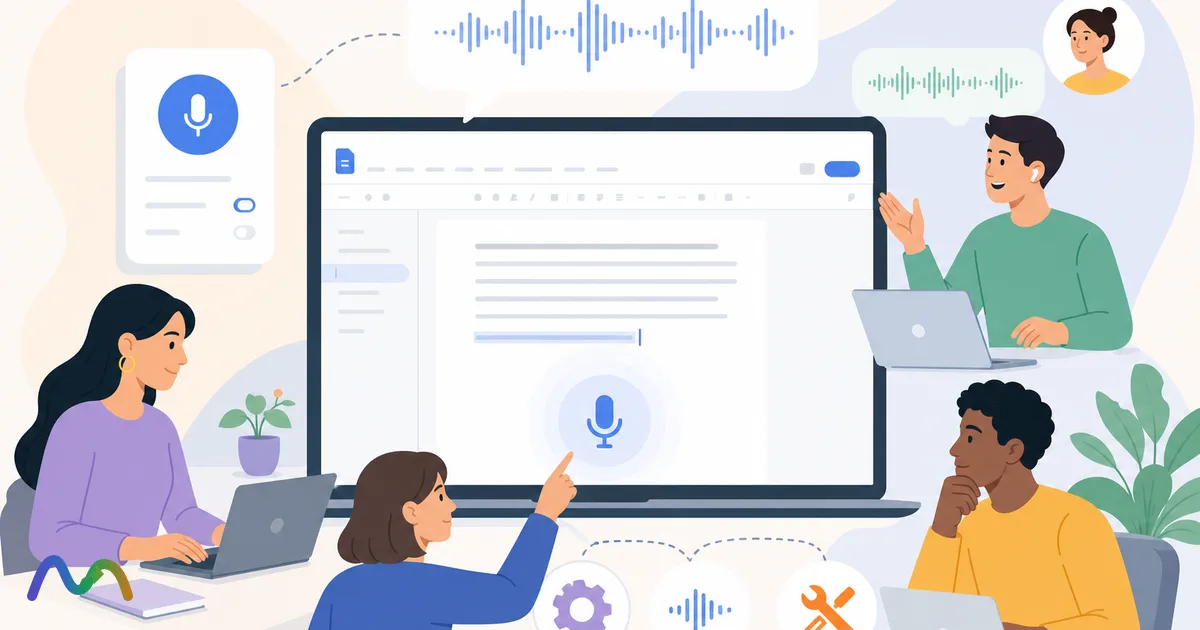
Google Docs voice typing is the free dictation tool built into Google Docs: you click a microphone, talk, and your words appear in the document. It needs no add-on and works in 100+ languages. It also has a set of English voice commands for punctuation, formatting, and editing. This guide covers what you need before you start, how to turn it on (including the keyboard shortcut), which commands actually work, and how to fix it when it stops listening.
Table of contents
- Key takeaways
- What is Google Docs voice typing?
- Requirements: what you need before you start
- Check the microphone and browser permission
- How to turn on voice typing in Google Docs (step by step)
- Quick setup tips
- Voice typing isn't in the Tools menu: what to check
- How to get more accurate results
- Fixing mistakes without turning voice typing off
- Voice typing punctuation and commands
- Voice commands for editing and formatting (English only)
- Dictating in other languages
- Can you transcribe an audio file with Google Docs voice typing?
- Google Docs voice typing not working? 6 common causes and fixes
- 1. Microphone permission is blocked
- 2. Unsupported browser or a glitchy tab
- 3. Wrong language selected
- 4. Mic muted, wrong input device, or in use elsewhere
- 5. "We're having trouble hearing you"
- 6. Voice commands get typed out instead of executed
- Google Docs voice typing vs. other dictation and transcription options
- FAQ
- Is Google Docs voice typing free?
- What is the shortcut for voice typing in Google Docs?
- Can I use Google Docs voice typing on my phone?
- Does Google Docs voice typing work in Firefox?
- Does voice typing work offline?
- How accurate is Google Docs voice typing?
- Why does voice typing stop by itself?
- Can I use voice typing in Google Slides?
- Conclusion
Key takeaways
Open it from Tools > Voice typing or press Ctrl+Shift+S (Windows/ChromeOS) or ⌘+Shift+S (Mac).
It only works on a computer, in the latest Chrome, Edge, or Safari. Firefox isn't supported, and the Docs mobile app has no voice typing button.
Dictation works in 100+ languages, but voice commands (formatting, selecting, editing) are English-only. Your account language and the document language both have to be English.
Most "not working" cases come down to microphone permission, the wrong input device, or a language mismatch.
It's built for one person dictating. For multi-speaker meetings or recorded audio, a dedicated transcription tool will do a much better job.
What is Google Docs voice typing?
Voice typing is Google's speech-to-text feature for Docs (and for speaker notes in Google Slides). Text appears at your cursor as you speak, live. It runs on Google's cloud speech recognition, so you need an internet connection, but there's nothing to install and it costs nothing on personal or Workspace accounts.
It's a speech-to-text tool for personal writing, and it does that well. Typical uses:
Getting a first draft down quickly, then editing by keyboard
Capturing ideas while brainstorming on your own
Drafting emails, outlines, or notes without typing
Reducing keyboard time if you have RSI, wrist pain, or limited mobility
Dictating in a second language you speak better than you type
What it isn't: a meeting transcription tool. It doesn't label speakers, doesn't save audio, and produces no summary or action items. If that's what you need, see AI meeting notes instead.
Requirements: what you need before you start
Most problems with voice typing come from the setup, not from the document itself. Check these first:
A computer. Voice typing is in the Docs web app on desktop. The Google Docs app for iPhone, iPad, and Android doesn't have it.
A supported browser. Google lists the latest versions of Chrome, Edge, and Safari. Chrome is the most reliable. Firefox is not supported, so the option won't appear there.
A working microphone with permission granted to docs.google.com in the browser.
An internet connection. Recognition happens on Google's servers, so it doesn't work offline.
A native Google Doc. If you're editing an uploaded .docx file, voice typing may be unavailable. Use File > Save as Google Docs first.
No admin block. On work or school accounts, the Workspace admin can restrict features. If the menu item is missing on a managed account only, ask IT.
Your laptop's built-in mic works fine in a quiet room. A headset mic close to your mouth helps far more than any setting: it cuts fan noise and room echo, which are the main sources of misheard words.
On a phone? Use your keyboard's dictation instead. That's the microphone key in Gboard on Android, or the mic key on the iOS keyboard. It types into the Docs app just like any other app. See speech-to-text on iPhone and Android for step-by-step instructions.
Check the microphone and browser permission
In your OS sound settings, make sure the right input device is selected and the input level moves when you speak.
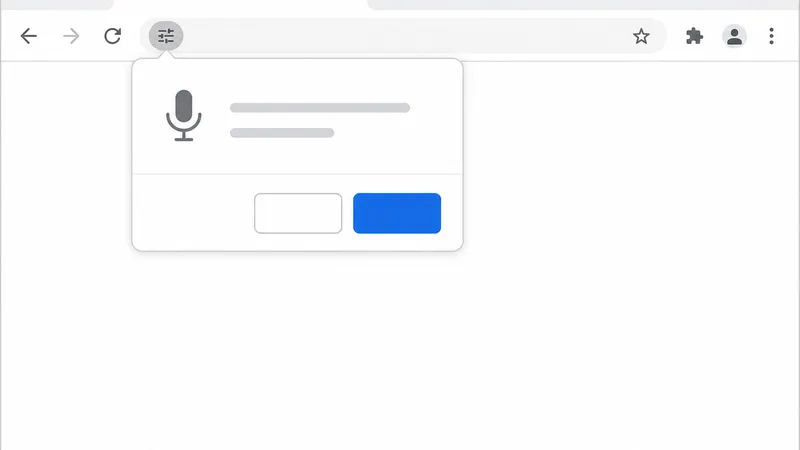
In Chrome, click the site-controls icon left of the address bar on docs.google.com and set Microphone to Allow. You can also check Settings > Privacy and security > Site settings > Microphone.
Close apps that may be holding the mic, such as Zoom, Teams, Google Meet, or a recorder.
Reload the Docs tab after changing any permission.
How to turn on voice typing in Google Docs (step by step)
Open a document in Google Docs on your computer.
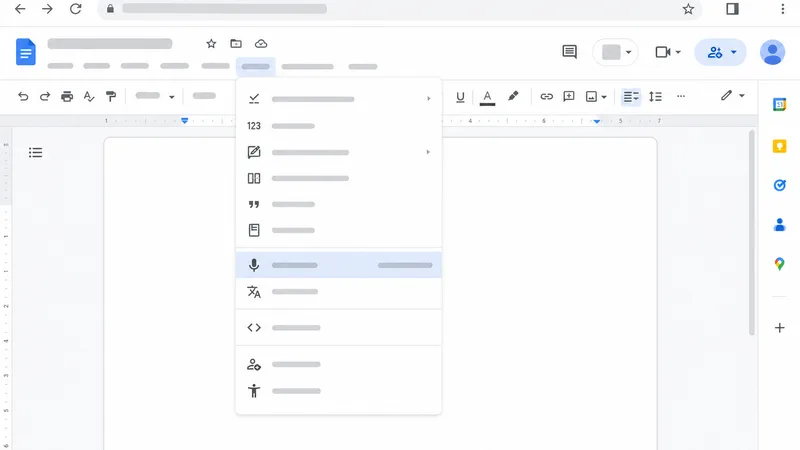
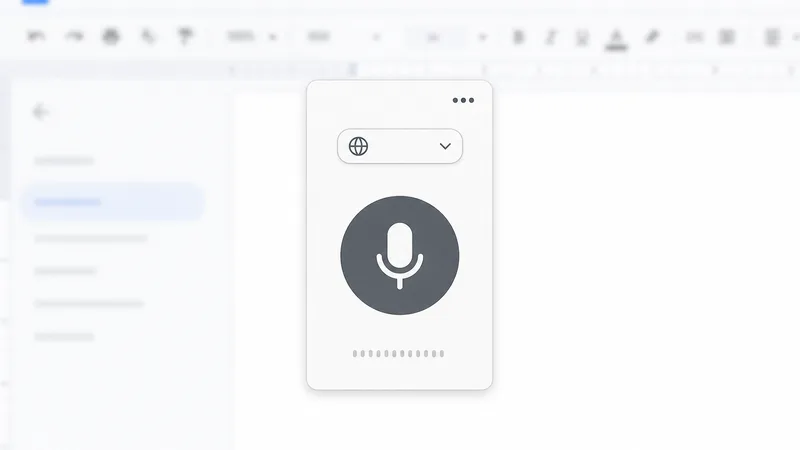
Go to Tools > Voice typing, or press Ctrl+Shift+S (Windows/ChromeOS) or ⌘+Shift+S (Mac). A microphone box appears.
Pick your language from the dropdown above the mic if it isn't already right (for example, English (United States) or English (United Kingdom)).
Place your cursor where the text should go.
Click the microphone. It turns red while it's listening. Start speaking at a normal pace.
Click the microphone again to stop, or say "stop listening."
If you click the mic and nothing happens, check microphone permission first (see the troubleshooting section below).
Quick setup tips
Drag the mic box somewhere it won't cover your text.
Say one short test sentence before a long dictation to confirm the language and mic.
Keep the Docs tab in focus. Switching to another window or tab often pauses voice typing.
Voice typing isn't in the Tools menu: what to check
Are you on a computer, not the mobile app?
Are you in Chrome, Edge, or Safari (not Firefox)?
Is the file a native Google Doc, not a .docx in Office editing mode?
Is it a work or school account where the admin may have restricted the feature?
How to get more accurate results
Don't expect a perfect transcript on the first pass. The workflow that works is to dictate a rough draft without stopping, then clean it up with the keyboard.
Speak in complete phrases. Recognition uses context, so full sentences come out more accurate than single words.
Keep a steady, moderate pace. You don't need to speak slowly, but don't rush either.
Enunciate names and jargon. These are where most errors happen. Fix them afterward with Find and replace.
Use a headset or external mic and a quiet room. Background noise is the biggest accuracy killer.
Don't stop to fix every mistake. Correcting as you go breaks your flow and the recognizer's context.
 Try NoteMeeting Free →
Summarize your meetings & videos automatically with NoteMeeting
Google Meet, Zoom, YouTube, Podcast — all in one extension.
Choose the right language variant. English (India), English (Australia), and others each have their own model. Picking yours can help with accent-related errors.
If results are still poor, change the mic or the room before you change tools. To compare with dedicated live-transcription options, see real-time speech-to-text tools.
Fixing mistakes without turning voice typing off
Pause briefly, click the wrong word, and fix it by keyboard. Then put the cursor back and keep talking.
In English, you can also say "select [word]" and then speak the replacement, or say "delete last word."
Edit in batches after each paragraph. That's faster than fixing word by word.
Voice typing punctuation and commands
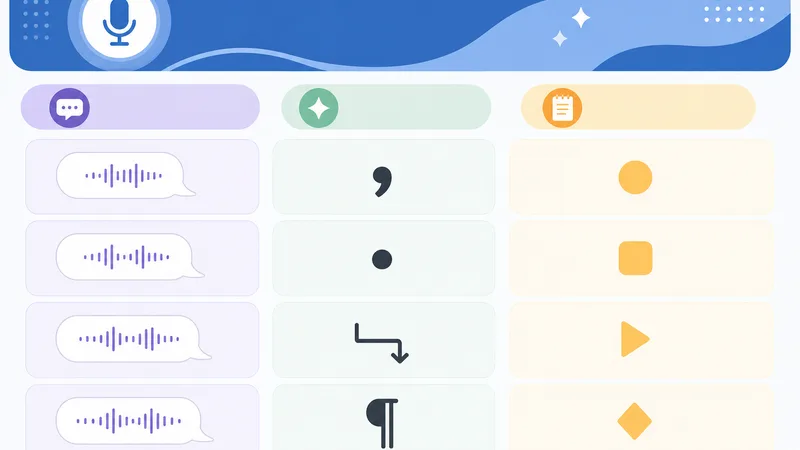
You can speak punctuation as you go. Google's help page notes that punctuation might not be available in every language. In English, these work reliably:
| Say | Result |
|---|---|
| period | . |
| comma | , |
| question mark | ? |
| exclamation point | ! |
| new line | Line break |
| new paragraph | New paragraph |
Example: "Meeting recap new paragraph We agreed to launch next week period" produces a heading line, a new paragraph, and a full sentence.
Voice commands for editing and formatting (English only)
Per Google, voice commands only work when both your Google account language and the document language are English. If commands are typed out as words instead of executed, that's almost always why. Change the document language under File > Language.
| Category | Example commands |
|---|---|
| Select text | "select all", "select paragraph", "select line", "select [word or phrase]", "deselect" |
| Format text | "bold", "italicize", "underline", "uppercase", "lowercase", "strikethrough" |
| Headings | "apply heading 1" through "apply heading 6", "apply normal text" |
| Color and size | "text color red", "highlight yellow", "font size 14", "increase font size" |
| Lists and alignment | "create bulleted list", "create numbered list", "align center", "align left" |
| Editing | "copy", "cut", "paste", "delete last word", "undo", "redo", "insert link", "insert comment", "insert table" |
| Move the cursor | "go to the end of the line", "go to end of paragraph", "move to next word", "scroll down" |
| Control dictation | "stop listening", "resume", "resume with [word or phrase]" |
For the complete list, open Tools > Voice typing, then the ? or three-dot menu on the mic box, or see Google's help page on voice typing.
Dictating in other languages
Choose the language from the dropdown before you click the mic. You can switch mid-document, but voice typing recognizes one language at a time, so mixed-language sentences will come out garbled. Outside English, plan on adding most punctuation and all formatting by hand.
Can you transcribe an audio file with Google Docs voice typing?
Not directly. There's no upload button. The common workaround is to play the recording out loud so the mic hears it:
Open a blank doc, start voice typing, and choose the recording's language.
Play the audio through speakers (or from a second device) with the mic close to the speaker.
Keep the Docs tab in focus. Restart the mic if it stops on long silences.
Proofread names and terms afterward. There will be no speaker labels or timestamps.
This is only usable for clean, single-speaker audio at a normal pace. Anything with crosstalk, music, or several voices will produce an error-heavy wall of text. For interviews, podcasts, and meetings, an upload-based tool is faster and far more accurate. See our guides to transcription software and meeting transcripts.
Google Docs voice typing not working? 6 common causes and fixes
1. Microphone permission is blocked
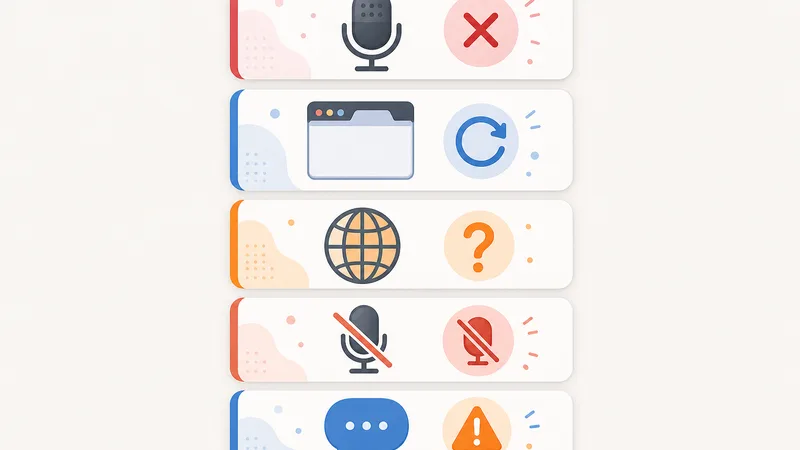
Symptom: you click the mic and nothing happens, or the browser shows a blocked-mic icon.
Fix: click the site-controls icon in the address bar, set Microphone to Allow, and reload the tab. On macOS, also check System Settings > Privacy & Security > Microphone and make sure your browser is enabled there.
2. Unsupported browser or a glitchy tab
Symptom: the option is missing or the mic doesn't respond.
Fix: switch to Chrome, update it (Help > About Google Chrome), reload the tab, and temporarily disable extensions that touch audio or Docs to rule out a conflict.
3. Wrong language selected
Symptom: lots of wrong words even though you're speaking clearly.
Fix: check the language dropdown on the mic box and match it to the language and region you're speaking.
4. Mic muted, wrong input device, or in use elsewhere
Symptom: Docs hears nothing or very little.
Fix: unmute your headset, pick the correct input device in your OS sound settings, raise the input volume, and close Zoom, Teams, or Meet if they're holding the mic.
5. "We're having trouble hearing you"
This message means Docs isn't getting a usable signal. Google's own advice is to move to a quieter room, plug in an external microphone, or adjust the input volume. Getting closer to the mic usually helps too.
6. Voice commands get typed out instead of executed
Symptom: "bold" appears as the word "bold."
Fix: commands need English as both the account language and the document language (File > Language). Say each command as a separate phrase with a short pause before it.
Still stuck? Try a different mic, then a different browser profile, before you decide the feature is broken. In most cases the cause is permission or input settings.
Google Docs voice typing vs. other dictation and transcription options
| Need | Google Docs voice typing | OS dictation (Windows Win+H, macOS Dictation) | AI meeting note-taker |
|---|---|---|---|
| Dictate a personal draft in Docs | Best fit | Works too | Overkill |
| Dictate in any app (email, Slack, Word) | Docs/Slides notes only | Best fit | No |
| Formatting by voice | Yes (English) | Limited | No |
| Multi-speaker meetings | Poor | Poor | Built for it |
| Speaker labels and timestamps | No | No | Yes |
| Summary and action items | No | No | Yes |
| Transcribe a recorded file | Workaround only | Workaround only | Usually supports upload |
If your real need is capturing meetings rather than dictating, compare the options in best AI meeting note takers and Google Meet note-taking extensions, or see how to get a Google Meet transcript. NoteMeeting's Chrome extension transcribes and summarizes Google Meet calls without dictation workarounds.
FAQ
Is Google Docs voice typing free?
Yes. It's included at no cost with any Google account, personal or Workspace. You only need a computer, a supported browser, and a microphone.
What is the shortcut for voice typing in Google Docs?
Ctrl+Shift+S on Windows and ChromeOS, ⌘+Shift+S on Mac. It opens the mic box. Click the mic (or press the shortcut again) to start listening.
Can I use Google Docs voice typing on my phone?
Not inside the Docs app. Tap a text area in the Docs app and use your keyboard's mic key instead: Gboard on Android, or dictation on iPhone and iPad.
Does Google Docs voice typing work in Firefox?
No. Google supports the latest Chrome, Edge, and Safari. Chrome is the most dependable.
Does voice typing work offline?
No. Speech is processed by Google's servers, so you need an active internet connection.
How accurate is Google Docs voice typing?
With a good mic, a quiet room, and clear English, it's accurate enough that you only fix a handful of words per paragraph. Accuracy drops with background noise, fast speech, heavy accents, mixed languages, and technical vocabulary. It also has no custom vocabulary feature to fix recurring terms.
Why does voice typing stop by itself?
The most common reasons are switching to another tab or window, a long silence, or another app taking over the microphone. Click the mic again or say "resume" to continue.
Can I use voice typing in Google Slides?
Yes, but only in speaker notes: open a presentation, then go to Tools > Dictate speaker notes.
Conclusion
Google Docs voice typing is the fastest free way to dictate into a document. Remember three things: open it with Tools > Voice typing or Ctrl/⌘+Shift+S, use Chrome with mic permission allowed, and pick the right language before you speak. Keep English as your account and document language if you want voice commands. When the job grows past personal dictation into meetings, interviews, or recorded audio, switch to a tool built for transcription.