
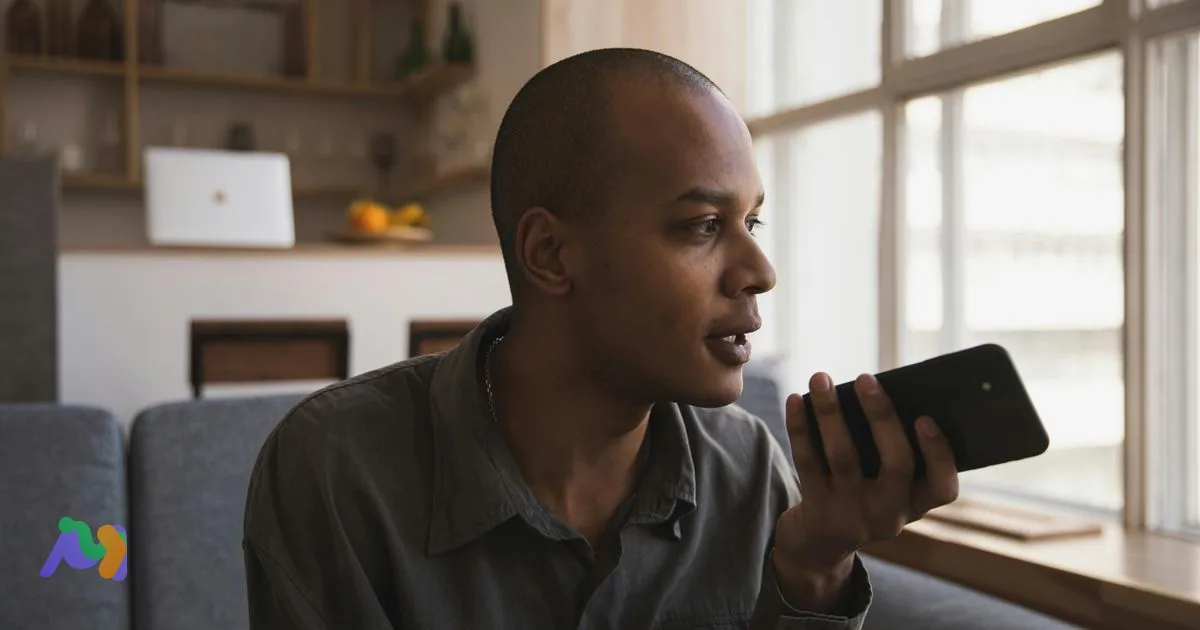
Speech-to-text on your phone is one of those features that's been built in for years but most people never turn on. Once you do, voice typing replaces 60–70% of the typing you used to do — emails, messages, search queries, document drafts, all dictated faster than you could thumb-type them. This guide walks through enabling and using speech-to-text on iPhone and Android, covers the cross-platform Gboard option, and lists the best apps for converting existing audio recordings into text on mobile.
Table of contents
- Key takeaways
- Quick start: speech-to-text on mobile in 30 seconds
- How to use speech-to-text on iPhone
- Step 1 — Enable Dictation
- Step 2 — Use Dictation in any app
- On-device dictation (iPhone XR and later, iOS 17+)
- Hands-free dictation with Siri
- Common iPhone issues and fixes
- How to use speech-to-text on Android
- Step 1 — Enable voice typing
- Step 2 — Use voice typing in any app
- Live Transcribe (Pixel and Android Accessibility)
- Samsung-specific: Bixby Voice + Samsung Keyboard
- Common Android issues and fixes
- Gboard: the cross-platform choice
- Why Gboard for voice typing
- Install Gboard
- How to dictate with Gboard
- When Gboard beats the default keyboard
- How to convert an existing audio recording to text on mobile
- When to use file upload vs live dictation
- 5 best mobile apps for audio-to-text
- How to choose
- Live Caption (bonus accessibility feature)
- On Android
- On iPhone
- What Live Caption is good for
- Tips to improve mobile dictation accuracy
- Speak clearly at a moderate pace
- Find a quiet spot
- Use a headset for long sessions
- Add personal vocabulary
- Update your OS regularly
- Pause-then-correct, don't argue with the model
- When mobile speech-to-text struggles
- Built-in vs Gboard vs third-party app: a quick decision
- Frequently asked questions
- Does iPhone speech-to-text work offline?
- Is Gboard free?
- Can I dictate in two languages at once?
- Why does my dictation stop after a sentence?
- What's the best free voice-to-text app for iPhone?
- How do I convert a voice memo to text on iPhone?
- Does Android Voice Typing work without internet?
- Conclusion
Key takeaways
Both iPhone and Android have built-in speech-to-text — free, no separate app needed, works in any text field.
iPhone XR and later run dictation entirely on-device on iOS 17+ — your audio never leaves the phone.
Gboard (Google's keyboard) brings the same voice typing to both platforms with a unified UX, custom vocabulary, and 60+ languages.
For converting existing recordings to text on mobile, third-party apps like Otter, Notta, and Speechify each cover slightly different use cases.
Quick start: speech-to-text on mobile in 30 seconds

Speech-to-text on phones is the same underlying technology covered in our pillar guide on what speech-to-text is — but on mobile, it's been folded into the operating system so deeply that you almost don't notice it's there. The microphone button on your keyboard is the front door. Tap it, speak, and your words appear in whatever text field you're focused on.
Both iOS and Android have shipped voice typing for years; what's changed in 2026 is on-device processing (privacy improves), better accuracy on accents, and tighter integration with personal vocabulary. The setup is a one-time toggle.
How to use speech-to-text on iPhone
Step 1 — Enable Dictation
Open Settings → General → Keyboard.
Scroll down and toggle Enable Dictation on.
Confirm if prompted.
Alternative path on newer iOS: Settings → Apple Intelligence & Siri → Dictation.
Step 2 — Use Dictation in any app
Tap any text field — Messages, Notes, Mail, Safari search, anywhere you can type.
The keyboard appears. Tap the small microphone icon in the bottom-right corner.
Speak. Your words appear as you talk.
To insert punctuation, say it: "comma," "period," "question mark," "new paragraph," "exclamation point."
Tap the keyboard icon to switch back to typing, or tap the microphone icon again to stop.
On-device dictation (iPhone XR and later, iOS 17+)
For supported devices and languages, iOS now runs dictation entirely on the phone — no audio sent to Apple's servers. The benefit is privacy (your speech stays local) and offline availability (works in airplane mode). Apple processes English (US, UK, Australia, India, Singapore), Spanish, French, German, Italian, Mandarin, Japanese, and Cantonese on-device. Other languages still use cloud processing.
You'll know it's on-device when the dictation indicator shows a small purple dot rather than the older "Dictation" badge.
Hands-free dictation with Siri
For genuinely hands-free typing — driving, cooking, exercising — combine Siri with Dictation:
"Hey Siri, send a message to [contact]." Siri opens Messages and prompts you to dictate the body of the message.
"Hey Siri, take a note." Opens Notes ready for dictation.
"Hey Siri, remind me to [task]." Creates a reminder via voice.
Common iPhone issues and fixes
Microphone icon doesn't appear. Dictation isn't enabled. Go back to Settings → General → Keyboard → Enable Dictation.
Wrong language. Tap and hold the globe (🌐) icon on the keyboard, then choose Dictation Languages or change keyboard language.
"Dictation requires internet." Your device or language doesn't support on-device dictation. Connect to Wi-Fi/cellular, or check Settings → Apple Intelligence & Siri → Dictation for on-device options.
Cuts off mid-sentence. Older iOS limited dictation to 60 seconds. iOS 17+ removed that cap on supported devices. If you're still seeing it, update iOS.
How to use speech-to-text on Android
Step 1 — Enable voice typing
The exact path varies by manufacturer (Samsung, Pixel, OnePlus, Xiaomi all have slightly different settings menus), but the core flow is consistent:
Open Settings → System → Languages & input → On-screen keyboard.
Select your default keyboard (typically Gboard on Pixel, Samsung Keyboard on Samsung).
Look for Voice typing or Voice input and toggle it on.
If using Gboard, also enable Faster voice typing for on-device processing on supported phones.
Step 2 — Use voice typing in any app
Tap any text field to bring up the keyboard.
Tap the microphone icon — usually top-right on Gboard, top-bar on Samsung Keyboard.
Speak. Text appears as you talk.
For punctuation: say "comma," "period," "question mark," "new line."
Tap the microphone again to stop, or it'll auto-stop after a few seconds of silence.
Live Transcribe (Pixel and Android Accessibility)
Google's Live Transcribe is a separate accessibility app that runs continuous speech-to-text from your phone's microphone, displayed on the screen as a real-time transcript. Originally designed for deaf and hard-of-hearing users, it's now broadly useful for any in-person conversation. Pre-installed on Pixel devices; available as a free app on other Android phones.
Samsung-specific: Bixby Voice + Samsung Keyboard
Samsung phones have two layers — Samsung Keyboard's built-in voice typing, and Bixby Voice for system-level voice commands. The keyboard mic is what you want for dictation; Bixby is for "open Maps" / "set a timer" type commands.
Common Android issues and fixes
No microphone icon. Voice typing isn't enabled in your keyboard settings. Open the keyboard's settings via the gear icon.
Says "couldn't connect." Cloud-based voice typing needs internet. For offline, enable Faster voice typing (Gboard) which downloads on-device models.
Wrong language detected. Tap and hold the spacebar, choose Voice typing language. On Gboard, you can have multilingual recognition (auto-detect between two languages).
Stops after 30 seconds. Some keyboards still have a session limit. Update Gboard to the latest version, which removes the cap on most devices.
Gboard: the cross-platform choice

If you switch between iPhone and Android, or you just want a more powerful keyboard than the default, Gboard is worth installing. Google's keyboard works on both platforms, brings the same voice typing experience, and supports 60+ languages with multilingual auto-detection.
Why Gboard for voice typing
Same experience on iPhone and Android. One mental model across devices.
 Try NoteMeeting Free →
Summarize your meetings & videos automatically with NoteMeeting
Google Meet, Zoom, YouTube, Podcast — all in one extension.
Custom vocabulary. Personal dictionary syncs across your devices via your Google account.
Multilingual mode. Switch between two languages mid-sentence — Gboard detects and transcribes both.
Faster voice typing. On supported Pixel and other devices, voice typing runs on-device, lower latency, works offline.
Punctuation auto-insertion. Recent Gboard versions add commas and periods automatically based on speech rhythm — you don't have to say "period" anymore.
Install Gboard
iPhone: Download from the App Store. Then go to Settings → General → Keyboard → Keyboards → Add New Keyboard → Gboard. Tap Gboard once, enable Allow Full Access.
Android: Most phones have it pre-installed. If not, download from the Play Store. To make it default: Settings → System → Languages & input → On-screen keyboard → Manage on-screen keyboards → enable Gboard → set as default.
How to dictate with Gboard
Open any app with a text field.
If multiple keyboards are installed, tap the globe (🌐) on iPhone or the keyboard switcher on Android to choose Gboard.
Tap the microphone icon (top-right on Gboard).
Speak. Text appears.
Tap the mic again to stop.
When Gboard beats the default keyboard
Gboard is the better pick when: you switch between iPhone and Android often, you type in two or more languages regularly, you want a synced personal dictionary, or you've noticed your default keyboard cuts off long dictation sessions. For pure simplicity on iPhone, the built-in keyboard is fine; for everyone else, Gboard usually wins.
How to convert an existing audio recording to text on mobile
Built-in dictation works on live speech. If you have a voice memo, a meeting recording, or a podcast file you want to transcribe, you need a separate app.
When to use file upload vs live dictation
Live dictation — typing as you speak, in any app's text field. Built into the keyboard.
File upload (third-party app) — taking an existing audio file and producing a transcript afterward. Most apps accept formats like M4A, MP3, WAV, MP4 video.
5 best mobile apps for audio-to-text
1. Otter.ai
The most polished option for meeting recordings. Captures live or uploads files, produces a clean transcript with speaker labels, summary, and action items. Free tier covers 300 minutes/month; paid from ~$10/month.
2. Notta
Strong on multilingual transcription including Asian languages. Good iOS and Android apps with file upload, live recording, and translation. Free tier 120 min/month.
3. Voice Notes / Apple Voice Memos with Live Transcript
Apple's built-in Voice Memos app on iOS 17+ now generates transcripts of recordings automatically. No separate app needed — record a memo, tap the transcript button. Free, on-device on supported phones.
4. Speechify
Originally a text-to-speech app, Speechify added strong audio-to-text in recent versions. Useful if you also want voice playback of articles. Free tier limited; paid from ~$11/month.
5. Rev
The original transcription service offers a mobile app for both AI ($0.25/min) and human-verified ($1.50/min) transcripts. Best when you need human-verified accuracy for legal, medical, or media work.
How to choose
Meeting recordings → Otter (best summary + action items).
Multilingual content → Notta.
iPhone-only personal use → Apple Voice Memos (free, on-device).
You also want listen-back → Speechify.
You need certified accuracy → Rev.
Live Caption (bonus accessibility feature)
Both Android and iOS now offer Live Caption — automatic captions for any audio playing on your device. Works on videos, podcasts, voice messages, even calls. Designed for accessibility but useful for any silent-mode listening.
On Android
Pull down quick settings → tap Live Caption. Or enable persistently in Settings → Sound & vibration → Live Caption. Works on Pixel devices and most modern Android phones running Android 10+. Captions appear as a floating bar over whatever's playing audio.
On iPhone
iOS 16 and later support Live Captions in Settings → Accessibility → Live Captions (Beta). Captions appear in a floating panel for any audio. English-first; expanding to more languages.
What Live Caption is good for
Watching videos in silent mode (commute, library, in bed).
Captioning calls when you're hard of hearing or in a noisy environment.
Capturing snippets from a podcast you can't pause to take notes on.
Live Caption transcripts are not saved by default — they're a real-time overlay only.
Tips to improve mobile dictation accuracy
Speak clearly at a moderate pace
Articulation matters more than speed. Slowing down slightly and pronouncing word endings helps the model significantly more than speaking loudly.
Find a quiet spot
Open-plan offices, coffee shops, and traffic noise all cut accuracy. Step into a quieter area for important dictation.
Use a headset for long sessions
Built-in phone microphones are okay; AirPods, USB-C earbuds, or any external mic improve accuracy noticeably for sessions over a couple of minutes.
Add personal vocabulary
Both Gboard and the iPhone keyboard let you add custom words to your personal dictionary. Add: company names, product names, common typos that get auto-corrected wrong, abbreviations, and any other proper nouns you use frequently.
Update your OS regularly
Speech-to-text models in iOS and Android improve with every major OS release. iOS 17 made dictation noticeably more accurate than iOS 16; iOS 18 added on-device processing for more languages. Same pattern on Android.
Pause-then-correct, don't argue with the model
If a word comes out wrong, just tap to fix it rather than re-dictating the whole sentence. Faster and more reliable.
When mobile speech-to-text struggles
Heavy regional accents. Models handle American, British, Australian, and Indian English well; some regional dialects (Scottish, deep Southern US, Irish) lose accuracy.
Background noise. Cafés, traffic, kids in the background — all degrade transcription quality.
Low-quality recorded files. Phone calls (8 kHz audio), old MP3s, and recordings from cheap microphones produce noticeably worse transcripts than fresh dictation on a modern phone.
Specialized vocabulary. Medical jargon, legal terms, and technical brand names get mangled. Add to your personal dictionary or accept the manual cleanup.
Mixed-language conversations. Most engines transcribe one language at a time. If you frequently switch languages mid-sentence, Gboard's multilingual mode is the cleanest answer.
Built-in vs Gboard vs third-party app: a quick decision
Need |
Best choice |
|---|---|
Quick voice typing |
Built-in iPhone Dictation or Android voice typing |
Switching iPhone ↔ Android |
Gboard (cross-platform, synced dictionary) |
Multilingual typing |
Gboard multilingual mode |
Long dictation (10+ min) |
Otter or Notta — built-in cuts off, third-party doesn't |
Transcribing recorded files |
Otter (English) or Notta (multilingual) or Apple Voice Memos (iOS 17+) |
Captioning audio playing on phone |
Live Caption (built-in) |
Privacy-first (no cloud) |
iPhone XR+ on-device dictation, or Android Faster voice typing |
Frequently asked questions
Does iPhone speech-to-text work offline?
Yes, on iPhone XR and later running iOS 17 or newer, dictation runs entirely on-device for supported languages (US English, UK English, Spanish, French, German, Italian, Mandarin, Japanese, and several more). For other languages or older devices, it requires internet.
Is Gboard free?
Yes — Gboard is free on both iPhone and Android, with no ads. It's published by Google as part of the broader Workspace ecosystem.
Can I dictate in two languages at once?
On Gboard with multilingual mode enabled, yes — you can switch between two configured languages mid-sentence and the keyboard auto-detects which one you're using. iPhone Dictation handles one language at a time but lets you switch quickly via the globe key.
Why does my dictation stop after a sentence?
Most likely you're on an older OS version or a keyboard with session timeouts. Update iOS / Android to the latest version, or update Gboard. Modern versions don't impose hard limits on dictation length.
What's the best free voice-to-text app for iPhone?
For live dictation: built-in iPhone Dictation. For transcribing recordings: Apple Voice Memos (iOS 17+, free, on-device) or Otter's free tier (300 min/month). For multilingual: Notta's free tier.
How do I convert a voice memo to text on iPhone?
iOS 17 and later automatically transcribe voice memos. Open Voice Memos, tap a recording, and tap the transcript icon (the lines next to the playback button). For older iOS, share the audio file to Otter, Notta, or Rev to transcribe.
Does Android Voice Typing work without internet?
It can. Enable Faster voice typing in Gboard's settings — this downloads an on-device speech model and runs voice typing locally for the languages you've installed. Works in airplane mode and lower-latency than cloud-based voice typing.
Conclusion
Mobile speech-to-text is one of the highest-value features of modern smartphones — built in, free, and capable enough to replace a meaningful chunk of your typing. The setup is a one-time toggle, the basics work in every text field, and the cross-platform option (Gboard) covers the gap if you switch devices or type in multiple languages. Add a third-party app like Otter or Notta when you need to convert existing recordings, and you have a complete mobile speech-to-text toolkit without ever opening your wallet.