

To get a Google Meet transcript, you need the right account type, permission to turn on meeting transcription, and to know where to find the file after the call ends. This last step is what most people miss — they keep hunting for a Transcript button that their account doesn't actually have. As of 2026, Google officially supports transcripts in 8 languages (Vietnamese is not yet included), and the feature only works on a computer or Android device — iOS is still not supported.

Table of contents
- Key takeaways
- Does Google Meet have a transcript feature?
- When native Google Meet transcripts are available
- When transcripts usually don't work
- Requirements to enable Google Meet transcripts
- Supported Google Workspace plans
- Supported devices
- Who has permission to start a transcript
- Storage requirements
- Languages supported by transcripts
- How to turn on Google Meet transcripts — step by step
- Turn on transcripts on a computer
- Turn on transcripts on Android
- How to stop transcription
- Auto-start transcription for scheduled meetings
- How to find a Google Meet transcript after the meeting
- Where is the Google Meet transcript saved?
- Open a Google Meet transcript from email
- Find a transcript in Google Drive
- Get a transcript from Google Calendar
- Download a Google Meet transcript to your computer
- Who receives a transcript after the meeting
- Why don't I see the Transcripts option in Google Meet?
- Your account doesn't support transcripts
- You're not the host or don't have permission
- Your device isn't supported
- The meeting can't store the transcript
- The transcript hasn't been processed yet
- Quick troubleshooting checklist
- Google Meet transcript vs live captions: what's the difference?
- What are live captions?
- What is a transcript?
- When to use captions vs transcripts
- What transcripts don't capture
- What to do when there's no native transcript
- When a third-party tool makes sense
- Tools commonly used
- Quick comparison: alternatives to native transcripts
- How to choose an alternative
- Before using a third-party AI meeting tool
- Tips to use Google Meet transcripts more effectively
- Frequently Asked Questions
- Does Google Meet have a transcript feature?
- How do I turn on a Google Meet transcript?
- Where is the Google Meet transcript saved after the meeting?
- Why don't I see the Transcripts option in Google Meet?
- Can I download a Google Meet transcript to my computer?
- How is a Google Meet transcript different from live captions?
- How long does it take to get a Google Meet transcript?
This guide shows you how to check whether Google Meet has transcripts on your account, how to turn the feature on from a computer and Android, how to find the file in your email, Google Drive, or Google Calendar, and what to do when the option is missing. Quick note: not every personal Gmail account gets native transcripts.
Key takeaways
Google Meet supports transcripts, but the feature is not available on every account — it's tied to paid Google Workspace plans (Business Standard and up).
Check four things first: account type, device, permission to turn it on, and Google Drive storage space.
The most reliable way to enable transcripts is from a computer running Google Chrome.
After the meeting, the fastest order to find the transcript file is: email → Google Drive → Google Calendar.
Live captions let you read along during the call; transcripts save the conversation as a file you can open afterward.
If you can't see Transcripts, the cause is usually an unsupported account, missing permissions, or an incompatible device.
Transcripts stay in the organizer's Drive like any other file. Google Meet doesn't auto-delete them after a set period, but your Workspace admin may apply retention rules with Google Vault.
If your account doesn't include native transcripts, an AI meeting notes tool (like Take notes for me, Tactiq, or NoteMeeting) is the standard workaround.
Does Google Meet have a transcript feature?

Yes — but not on every account.
A Google Meet transcript is a text record of what was said during the call, saved as a file you can open after the meeting ends. The feature is tied to Google Workspace paid plans, not to every Gmail account.
The most common confusion: having live captions does not mean you have a transcript. Captions only appear on screen while the meeting is in progress. A transcript is a saved file you can reopen, share, download, or use as meeting minutes.
If you're on a company, school, or Workspace Individual account, transcripts are very likely available. If you're on a personal Gmail account, you usually won't see the option at all — or only in narrow cases depending on the current rollout.
Quick conclusion: if your goal is how to get a Google Meet transcript, start by confirming your account type. That's the #1 prerequisite.
When native Google Meet transcripts are available
You can typically use native transcripts when all of the following are true:
You're on a Google Workspace account from a company or organization.
You're on Workspace Individual and your current plan includes transcription.
You're the meeting host or a co-host, or have been granted permission by the host.
You're joining from a supported device — a computer is the safest choice.
The meeting meets storage requirements to save the file to Google Drive.
Real-world examples:
Employees on a company email like
@yourcompany.comare far more likely to see the Transcripts button than personal Gmail users.Teachers on an eligible Education plan can use transcripts if the workspace admin has enabled it.
Internal project teams on a Workspace account routinely turn on transcripts to capture decisions and action items.
Only when these conditions line up will the Transcripts / Start transcription option actually appear inside the meeting.
When transcripts usually don't work
These are the cases where the feature is missing — and they're extremely common:
You're using a personal Gmail account.
Your organization's Google Workspace plan doesn't include transcription.
You're an attendee, not the host or co-host.
You're on an unsupported device or an outdated app build.
The organization restricts guest permissions for people outside the company domain.
Common mix-ups:
You see live captions but no transcript.
You can join the meeting but don't have permission to start transcription.
Someone else in the same meeting can use transcripts but you can't.
If Transcripts is missing, don't immediately assume Google Meet is broken — it's almost always one of the conditions above.
Requirements to enable Google Meet transcripts
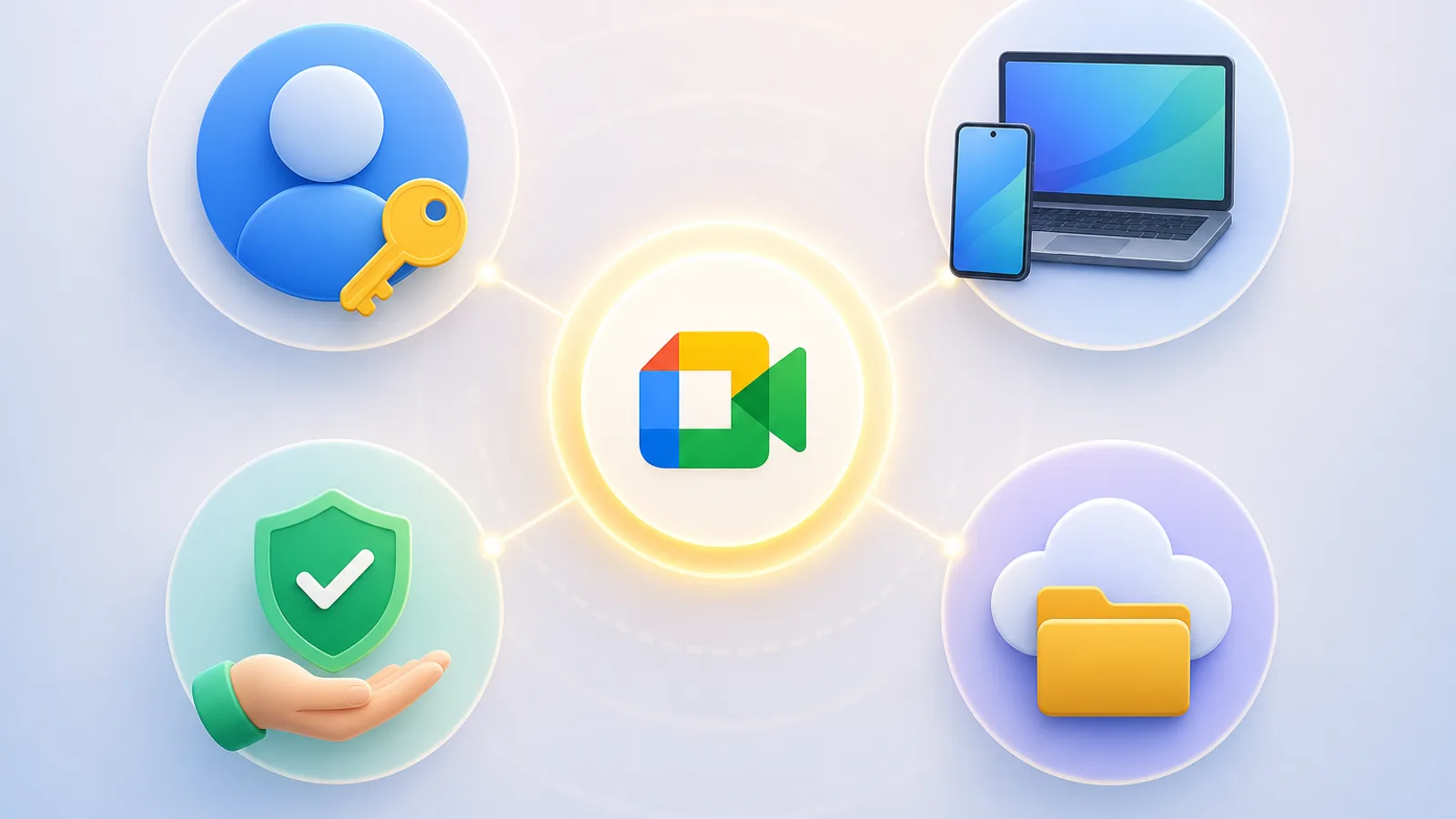
Before you hunt for the Transcripts button, check four things: account, device, permission, and storage. Getting this right up front saves you from clicking through menus on an account that simply doesn't qualify.
Quick pre-flight check:
Are you on a Google Workspace plan that supports transcription?
Are you on a computer or Android device?
Are you the host, co-host, or someone authorized to turn it on?
Does the host's Google Drive have enough free space?
Supported Google Workspace plans
Transcripts are plan-dependent. Don't assume that "Google Meet works" means "transcripts work."
The following editions typically include transcripts (subject to Google's current rollout):
Business Standard (starting around $14/user/month)
Business Plus
Enterprise Starter
Enterprise Standard
Enterprise Plus
Teaching and Learning Upgrade
Education Plus
Workspace Individual
Quick reference table:
Account type | Transcript availability |
|---|---|
Personal Gmail (free) | Native transcripts usually not available |
Company email on Workspace | Usually available, depending on plan and permission |
School email | Possibly available, depending on license and admin settings |
Workspace Individual | Usually available, subject to current rollout |
Two practical notes:
If you're on a company or school account, the fastest path is to ask your Workspace admin instead of digging through menus.
If you're on personal Gmail, don't waste time hunting for the option — chances are your account simply doesn't support it.
Warning for students: on Google Workspace for Education, student license accounts have transcription turned off by default. Only teacher accounts or accounts granted permission by the admin can start a transcript.
Supported devices
A computer or laptop is the most stable choice.
Things to know:
A computer running Google Chrome is the fastest and most reliable way to confirm whether your account has transcripts.
Android supports transcripts, but the in-app UI varies by version.
If you don't see Transcripts on your phone, switch to a computer to verify.
An outdated browser or an old Meet app build can hide the feature entirely.
iPhone / iPad (iOS) are not supported. Per Google's official documentation (updated 2026), the Transcripts feature only runs on computers, laptops, or Android devices. If you're on iOS, switch to a Mac/PC to start the transcript.
Practical tips from daily use:
For important meetings where you need a transcript, always start from Chrome on a computer.
Don't troubleshoot Transcripts on a phone for the first time. It's too easy to confuse a missing permission with a missing UI element.
Who has permission to start a transcript
Not every meeting participant can turn on transcription.
By default:
The host typically has permission.
Co-hosts can usually start it, depending on meeting settings.
Other internal members in the same organization may be allowed if the organization permits it.
External guests are usually more restricted.
If the organization has Host management enabled, only the host and co-hosts can start transcription — no one else.
This is one of the most common pain points: you join a meeting normally and the Transcript option just isn't there. It's not a Google Meet bug — it's a permission issue.
If you suspect missing permissions, do this:
Ask the organizer or a co-host to turn it on for you.
Check whether you're an external guest (outside the host's domain).
Confirm whether Host management is locking the option down.
Storage requirements
A transcript is a text file generated after the meeting, so it needs valid storage to land in.
You should confirm:
The host's (or organizer's) Google Drive has free space.
The organization doesn't block transcript creation or storage.
Internal sharing policy doesn't block access to the file once it's generated.
If transcription is on but the file can't be saved, you simply won't get a transcript when the meeting ends.
Languages supported by transcripts
Per Google's official documentation, the Transcripts feature currently supports 8 languages:
English
French
German
Italian
Japanese
Korean
Portuguese
Spanish
Important note: as of 2026, native Google Meet transcripts do not support Vietnamese, Mandarin, Hindi, or many other languages. If the meeting is in an unsupported language, the transcript may not generate, or accuracy will drop sharply. This is the main difference from live captions — captions cover 80+ languages, transcripts cover 8.
To improve accuracy:
Speak slowly and clearly.
Use a quality microphone.
Avoid talking over each other.
Pronounce names, jargon, and numbers carefully.
How to turn on Google Meet transcripts — step by step

If your account and permissions check out, enabling transcripts only takes a few clicks. This section is the core if you're searching for the exact way to turn on Google Meet transcription.
The menu label may show as Transcripts, Transcription, or Meeting transcripts depending on your UI language.
Turn on transcripts on a computer
Follow these 5 steps:
Open Google Meet in Google Chrome on a computer and join the meeting.
Make sure you're signed in with the correct Workspace account.Click the Meeting tools icon (at the bottom right of the meeting window).
Choose Transcribe from the panel that opens.
Click Start transcription.
Once enabled, everyone in the meeting typically sees a notice that transcription has started.Continue the meeting and watch for the transcription indicator on screen.
Signs that transcription is running:
A "transcription is on" indicator is visible in the meeting.
Participants receive a notice that the transcript has started.
After the meeting ends, the system emails a link to the transcript file.
Practical tips:
Start transcription at the beginning of the meeting. If you turn it on late, the opening minutes won't be in the transcript.
If you don't see the Transcripts option, try reloading the tab, double-check your account, and confirm permission with the organizer.
If you're signed into multiple Google accounts in Chrome, confirm the meeting is using the correct Workspace account.
A common scenario: people open Meet in Chrome but are logged in under a personal Gmail instead of their company account — same meeting, but they don't see Transcripts while colleagues do.
Turn on transcripts on Android
The steps on Android are usually:
Open the Google Meet app on your Android device.
Start or join a meeting with a transcript-supported account.
Tap More options, then Tools, at the bottom right.
Choose Transcribe if available.
Tap Start to begin transcription.
Important notes:
The Android UI changes between app versions.
If you don't see Transcripts on Android, update the Meet app first.
If it still doesn't appear, switch to a computer. That's the fastest way to confirm whether the issue is device-related or account-related.
How to stop transcription
To stop:
Reopen the Transcripts menu.
Choose Stop transcription.
Things to know:
If you stop and restart, the transcript gets split into multiple files.
Stopping mid-meeting is useful when there's a break or a private side discussion.
There is no pause function. Google Meet only allows Stop and Restart. Each Stop/Restart cycle creates a separate transcript file — you have to manually merge them if you want a single document.
Auto-stop when everyone leaves: if all participants leave the meeting, transcription stops automatically even if you didn't press Stop. Keep this in mind if you leave and rejoin — the gap won't be captured.
Auto-start transcription for scheduled meetings
This option depends on your plan and permission.
To check:

Summarize your meetings & videos automatically with NoteMeeting
Google Meet, Zoom, YouTube, Podcast — all in one extension.
When creating or scheduling a meeting in Google Calendar, open the meeting settings.
Look for a toggle related to transcripts, recording, or auto-start features.
If available, enable auto-transcription.
Notes:
Not every account has this option.
Auto-transcription only kicks in when the host or co-host joins the meeting on the web — if neither joins, it won't run.
How to find a Google Meet transcript after the meeting
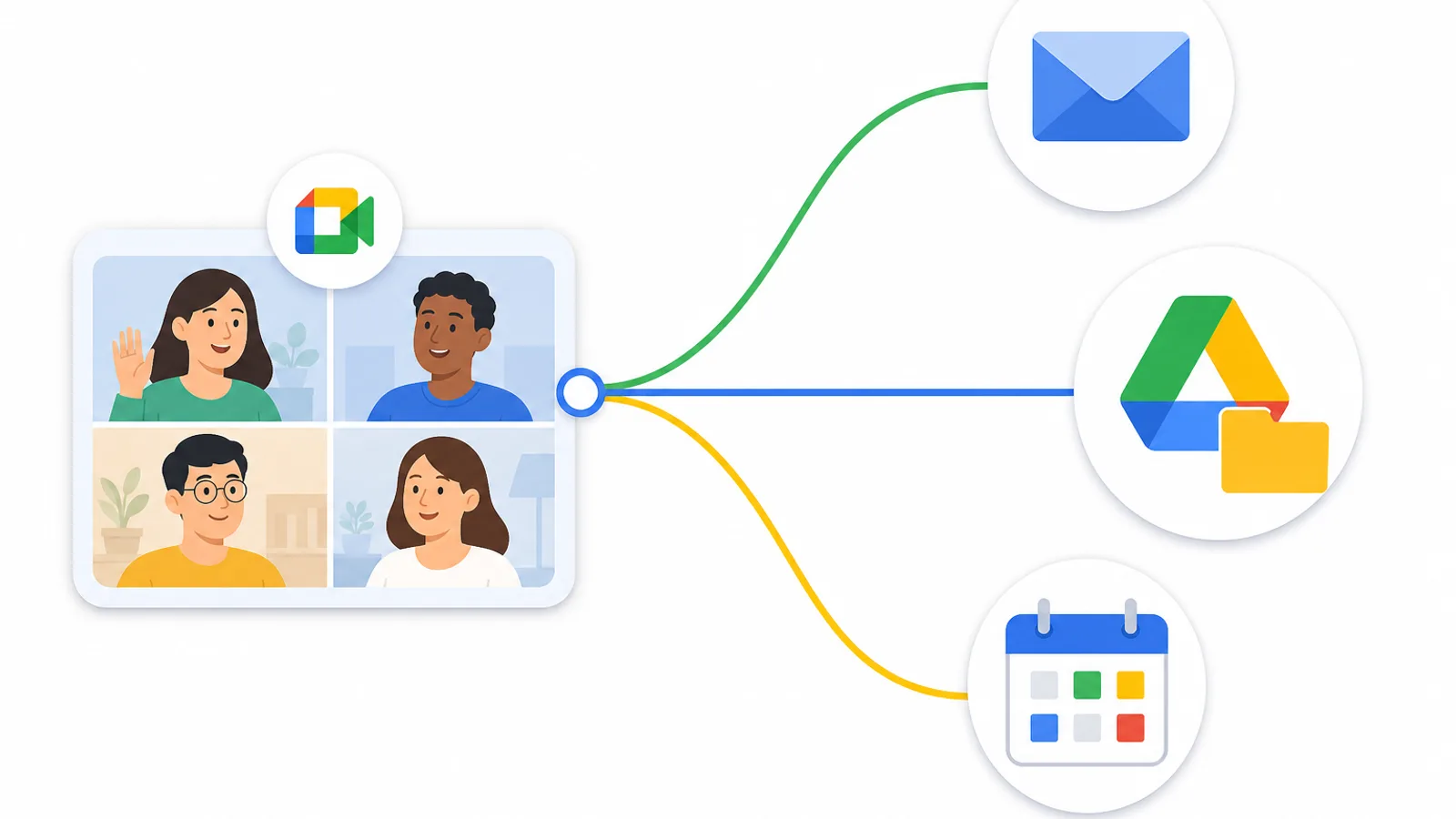
After the meeting ends, the transcript is sent or stored in a few predictable places. The fastest order is: email → Drive → Calendar.
If you're searching for the exact answer to where Google Meet transcripts are saved, this section is the direct answer.
Where is the Google Meet transcript saved?
Transcripts are typically delivered via email, stored in the host's Google Drive, and attached to the Google Calendar event.
Specifically:
Email: usually contains a direct link to open the transcript file.
Google Drive: the file is saved here for long-term storage.
Google Calendar: some meetings have the transcript attached to the event itself.
Check email first — it's usually the fastest path.
Processing time: transcripts are typically available within a few hours, but Google says it can take up to 24 hours for long meetings. If it's only been a few minutes since the call ended, give it more time before assuming the transcript failed.
Open a Google Meet transcript from email
Steps:
Open the inbox of the account you joined the meeting with.
Search for the meeting name, or use keywords like
Meet,transcript, ormeeting transcript.Check Spam, Promotions, or Updates if the email isn't in your main inbox.
Open the email and click the transcript link.
If the link returns an access-denied error, verify that you have permission to view the file.
Real-world cases:
For long meetings, the email may arrive later than usual while the system finishes processing.
Not every participant receives a transcript email — typically only hosts, co-hosts, and the person who started transcription.
If you know transcription was on but the email never arrives, go check Google Drive directly.
Find a transcript in Google Drive
This is the most reliable place after email.
File format and location: Google Meet saves transcripts as Google Docs (.gdoc) inside the "Google Meet" folder (one sub-folder per meeting) in the organizer's Drive. Transcripts from before July 2026 are in "Legacy Meet Recordings" inside that folder. The file name pattern is Meeting Name (YYYY-MM-DD at HH:MM TZ) - Transcript — for example, Team Sync (2026-05-16 at 10:00 PST) - Transcript. Because it's a Google Doc, you can open it directly, comment, edit, or download it as .docx, .pdf, or .txt.
Retention: Google Meet doesn't set an expiry date on transcripts. The file stays in the organizer's Drive unless someone deletes it or your Workspace admin has set a retention rule (for example in Google Vault) that removes Meet data after a set time. If you need your own copy, make a copy in your Drive or download it.
Steps:
Open Google Drive signed in with the account used during the meeting.
In the search box, type:
the meeting name
the meeting date
the keyword
transcript
Check the host's Drive (or the person who started transcription) if you have shared access.
Open the transcript file to read, edit, or reuse it in Google Docs.
Practical uses for a transcript file:
Convert into meeting minutes.
Edit and clean up in Google Docs.
Extract action items, deadlines, and owners.
Pro tip: name your meetings clearly from the start. A vague title like "Weekly Sync" makes it painful to find the right transcript months later when you have ten of them.
Get a transcript from Google Calendar
Some meetings show the transcript directly on the Google Calendar event.
Quick steps:
Open Google Calendar.
Select the meeting event.
Look for attached files or related links.
Open the transcript if it's there and you have access.
This isn't the most common path, but it's useful when the email gets lost.
Download a Google Meet transcript to your computer
Once you've opened the file, downloading is easy.
Steps:
Open the transcript from email, Drive, or Calendar.
Choose File → Download.
If a format picker appears, choose DOCX, PDF, or TXT as needed.
Common reasons to download:
Archive as internal meeting minutes.
Send to external recipients outside your Workspace.
Reference quotes, decisions, or action items.
Note: you can only download if you have access permission to the file.
Who receives a transcript after the meeting
The people who typically get the transcript link include:
The host
Co-hosts
The person who started transcription
Other internal members, if organization policy allows it
Things to remember:
Not every participant receives the file.
If you don't see a transcript, the fastest path is to ask the organizer.
200-invitee rule: if a meeting has more than 200 invitees in the host's organization, only the host, co-hosts, and the person who started the transcript get the file link. Everyone else has to request it manually.
Why don't I see the Transcripts option in Google Meet?
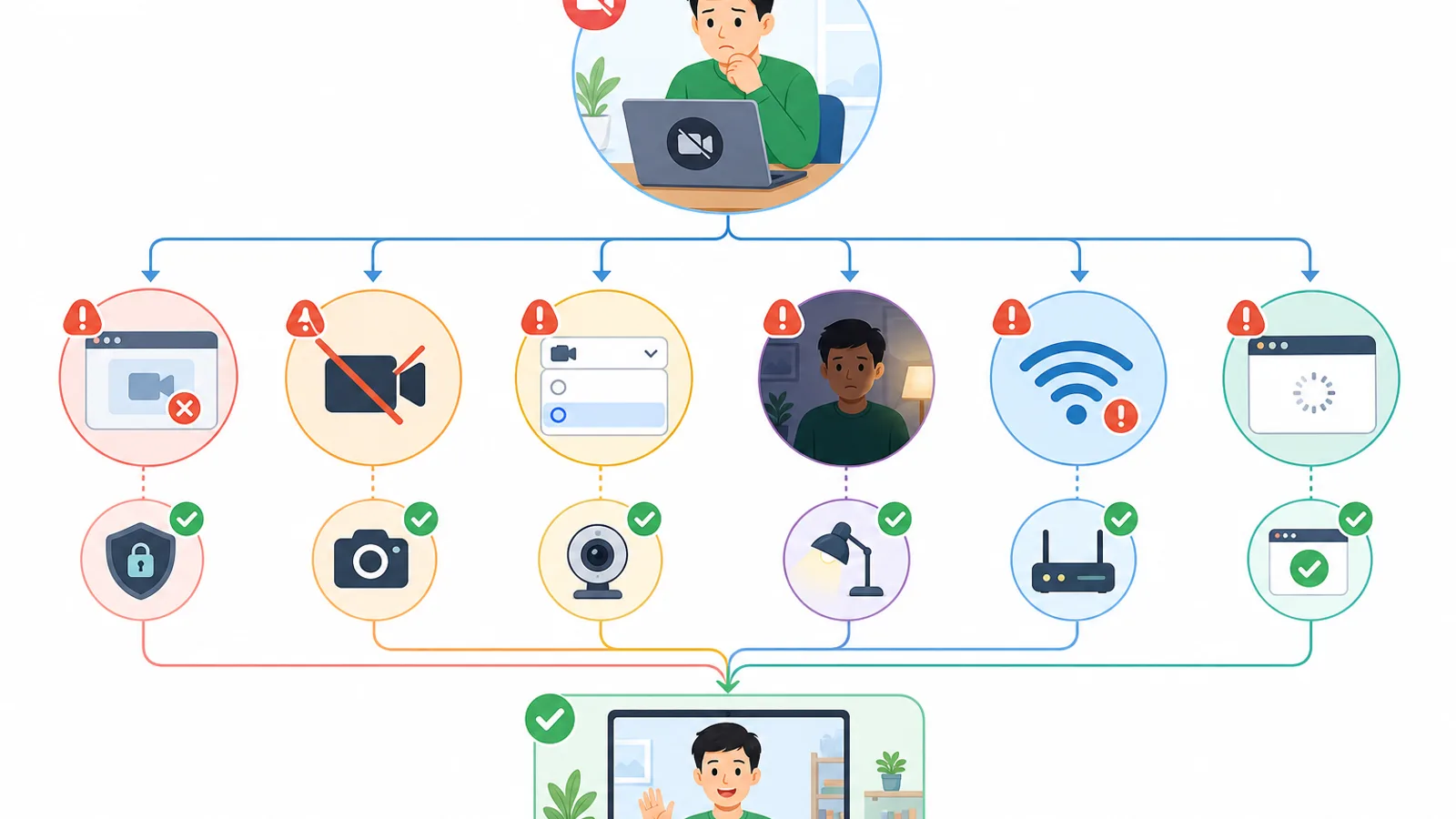
The three biggest reasons Transcripts disappears: your account doesn't support it, you don't have permission, or your device isn't compatible. Don't immediately blame the app.
The right move is to check eligibility first, then troubleshoot the UI.
Your account doesn't support transcripts
This is the #1 cause.
Personal Gmail generally doesn't include native transcripts the way supported Google Workspace plans do. Even company or school accounts can hit limits if their plan doesn't cover transcription or if the admin hasn't enabled it.
Easy example:
In the same meeting, someone on a company email sees Transcripts.
Someone on a personal Gmail in the same meeting doesn't.
Things to remember:
Check your account type before trying any technical fix.
On a company account, asking your admin is faster than digging through menus.
On personal Gmail, plan ahead and use a third-party tool.
You're not the host or don't have permission
Very common.
Joining a meeting does not mean you can start transcription. Many organizations restrict the feature to hosts, co-hosts, or internal members.
How to handle it:
Ask the organizer or a co-host to turn on Transcripts.
Check whether you're an external guest outside the host's domain.
Confirm your role in the meeting.
Your device isn't supported
An old device, app, or browser can hide the option.
Try these:
Update the Google Meet app on mobile.
Switch to Google Chrome if you're on another browser.
Try again from a computer.
Sign out and sign back in with the correct account.
For a quick sanity check, desktop is the most reliable environment.
The meeting can't store the transcript
Transcripts aren't just a button — they also need a place to land.
Common reasons the file fails to save:
Google Drive is out of storage.
Organization policy blocks transcript creation.
Meeting settings are misconfigured.
Auto-transcription was set up but the host never joined, so it never started.
If the file can't be created, you won't see a transcript afterward even though you turned it on.
The transcript hasn't been processed yet
For long meetings, give the system time. The official guidance is up to 24 hours in edge cases.
Check in this order:
Email → Drive → Calendar
If the meeting just ended a few minutes ago, this is normal — the file isn't ready yet.
Quick troubleshooting checklist
Confirm you're on a Google Workspace plan that supports transcripts.
Confirm you're signed in with the correct account, not a personal Gmail or secondary account.
Confirm you're the host or a co-host.
Open the meeting in Google Chrome on a computer.
Update the Google Meet app on Android.
Reload the Google Meet tab.
Check that Google Drive has free space.
Wait longer if the meeting just ended.
Search for the transcript in email, then Drive, then Calendar.
If it still doesn't work, use an AI meeting note taker as a backup.
Google Meet transcript vs live captions: what's the difference?

Live captions are for reading along during the call. Transcripts are for saving and reviewing later. That's the most important distinction.
Criteria | Live captions | Transcript |
|---|---|---|
Purpose | Read along in real time | Save the meeting content for later |
When to use | During the meeting | After the meeting |
Generates a file? | Usually not | Yes, if it processes successfully |
Languages | 80+ languages | 8 languages |
Best use | Improve listening comprehension | Reference, summaries, meeting minutes |
Access | Easy to turn on for almost any account | Plan-, role-, and device-dependent |
What are live captions?
Live captions are real-time subtitles that appear on screen while people are speaking in the meeting. The main goal is to help participants follow the conversation as it happens. If you want to keep the caption text itself, our guide on saving Google Meet captions compares recordings with captions and caption-capture extensions.
What is a transcript?
A transcript is a meeting transcript — a saved text record of what was said during the call, usually delivered as a file you can open afterward. It's designed for reference, summarization, and meeting minutes.
When to use captions vs transcripts
Use them like this:
Use live captions when:
You want to read along as people speak.
It's a short meeting with few action items.
You just need a listening aid.
Use transcripts when:
You need to keep a record of what was said.
The meeting has multiple action items, deadlines, or decisions.
You need to share with people who couldn't attend.
You want to create meeting minutes or a summary afterward.
Examples:
Short 15-minute internal sync: captions are usually enough.
Project, client, or training meetings: transcripts are far more useful.
What transcripts don't capture
Transcripts cover spoken words only.
They don't include:
The in-meeting chat
Video recording
Speaker identification — Google Meet transcripts don't label who said what
Reactions, hand raises, or full interaction history
For a complete record, pair the transcript with a meeting recording.
What to do when there's no native transcript
If your Google Meet account doesn't support transcripts, the most practical fix is to use an AI meeting notes tool that converts audio into text. This is the standard workaround for personal Gmail users, small teams, and anyone who needs extras like AI summaries or speaker identification.
When a third-party tool makes sense
Consider one when:
Your Google Meet account doesn't include transcripts.
You want AI summaries after the meeting.
You need speaker identification.
You need exports in TXT, DOCX, or PDF.
You want easier search and retrieval of past meeting content.
Good fits:
Sales calls where you need a record of the conversation.
Training sessions where transcripts become reference material.
Customer support calls where you need to look up past advice.
Tools commonly used
NoteMeeting: AI meeting notes tool optimized for Vietnamese teams — covers transcription in Vietnamese (which native Google Meet transcripts don't support), AI summaries, action item extraction, and integrations with Google Meet, Zoom, and Teams. A good fit for Vietnamese-speaking sales, consulting, and training teams.
Tactiq: Chrome extension for real-time transcription without a meeting bot. Supports 60+ languages and integrates with Slack, HubSpot, and Linear.
Notta: good when you need live transcription, AI summaries, and exports in multiple formats.
Otter.ai: popular for live transcription, speaker identification, and AI-generated meeting summaries.
Other AI meeting note takers: useful when you also want calendar sync, workflow automation, or team-level meeting management.
Quick comparison: alternatives to native transcripts
Option | Strengths | Limitations | Best for |
|---|---|---|---|
Native Google Meet transcript | Built-in, seamless with Workspace | Plan- and permission-gated; 8 languages only | Companies and schools already on Workspace |
NoteMeeting | Vietnamese support, AI summaries, action items, Meet/Zoom/Teams | Requires account connection; joins as a bot | Vietnamese teams needing transcripts + summaries |
Tactiq | Real-time transcript via Chrome extension, no bot, 60+ languages | Requires Chrome; limited free tier | Solo users who don't want a meeting bot |
Notta | Live transcription, AI summaries, TXT/DOCX/PDF exports | Third-party tool; check privacy policy | People who need fast notes and summaries |
Otter.ai | Speaker identification, AI summaries, popular in US/EU | English-focused; bot joins as a participant | English-speaking sales and consulting teams |
How to choose an alternative
Use this quick checklist:
Does it support Google Meet?
Does it cover the language you need?
Can it export to TXT, DOCX, PDF?
Does it have a clear data privacy policy?
Does it offer AI summaries after the meeting?
Does it provide speaker identification if you need to know who said what?
Is it easy enough for your team to actually adopt?
Quick recommendation:
Basic needs (transcript only): pick a simple, low-friction tool.
Heavier needs (summaries, action items, workflow): pick a tool with stronger AI features.
Before using a third-party AI meeting tool
Tell participants the meeting is being transcribed — required by law in some regions.
Check the data policy and where files are stored.
Be clear about the difference between native Google Meet transcripts and transcripts generated by a third-party app.
For sensitive meetings, think carefully before adding a third-party tool to the call.
Tips to use Google Meet transcripts more effectively
Use clear meeting titles so you can find transcripts in Drive months later.
Start transcription at the very beginning so you don't miss the opening minutes.
Combine transcripts with Google Calendar, Google Drive, and Google Docs for faster post-meeting workflows.
For important meetings, pair the transcript with a recording for cross-reference.
Use a quality microphone and avoid talking over each other to get a cleaner transcript.
Right after the meeting, extract action items, deadlines, and owners.
If your team meets often, standardize meeting titles to make long-term document management easier.
Make a copy of important transcripts if you need your own version, and ask your admin whether a retention rule applies to Meet files.
A transcript is more than a record of what was said — used well, it's the fastest way to turn meetings into action.
To do how to get a Google Meet transcript the right way, remember three steps: confirm your account and permissions, start transcription from inside the meeting, then find the file in email, Google Drive, or Google Calendar. If the feature is missing, the cause is almost always your plan, role, or device — not a bug.
If your Google Meet doesn't include native transcripts, an AI meeting notes tool is a perfectly viable alternative. Check your account today, try turning on transcripts in your next meeting, and bookmark this guide for quick reference.
Frequently Asked Questions
Does Google Meet have a transcript feature?
Yes, Google Meet supports meeting transcripts. However, the feature is only available on paid Google Workspace plans (Business Standard and up, Workspace Individual, and most Education tiers) and requires the user to be the host, co-host, or have permission granted by the organizer. Personal Gmail accounts generally don't include native transcripts.
How do I turn on a Google Meet transcript?
To turn on a Google Meet transcript, join the meeting from a computer or Android device, click Meeting tools at the bottom right (on Android, More options then Tools), choose Transcribe, then click Start transcription. You need a supported Google Workspace account and the right permissions. iOS (iPhone/iPad) is not supported.
Where is the Google Meet transcript saved after the meeting?
Once the meeting ends, the transcript is emailed to the host and the person who started transcription. The file is also saved to the organizer's Google Drive in the "Google Meet" folder as a Google Doc, and sometimes attached to the meeting's Google Calendar event. It stays there unless it's deleted or removed by a retention rule your admin has set.
Why don't I see the Transcripts option in Google Meet?
The most common reasons: your account is a personal Gmail (no native transcripts), you're not the host or co-host, you're on an incompatible device or outdated app, or the meeting doesn't meet the storage requirements. Switch to a computer with Chrome, sign in with a supported Workspace account, and ask the host for permission.
Can I download a Google Meet transcript to my computer?
Yes. Open the transcript file (from email or Google Drive), choose File → Download, and pick the format you need — DOCX, PDF, or TXT. You can only download files you have permission to access.
How is a Google Meet transcript different from live captions?
Live captions are real-time subtitles displayed on screen during the meeting to help with listening comprehension. A transcript is a full text record of the meeting, generated afterward and saved as a file you can reference, edit, or share. Captions cover 80+ languages; transcripts cover only 8 (Vietnamese is not included).
How long does it take to get a Google Meet transcript?
Transcripts are usually available within a few hours of the meeting ending. For long meetings, Google says it can take up to 24 hours. Check email first, then Google Drive, then the Calendar event if the file hasn't arrived yet.