
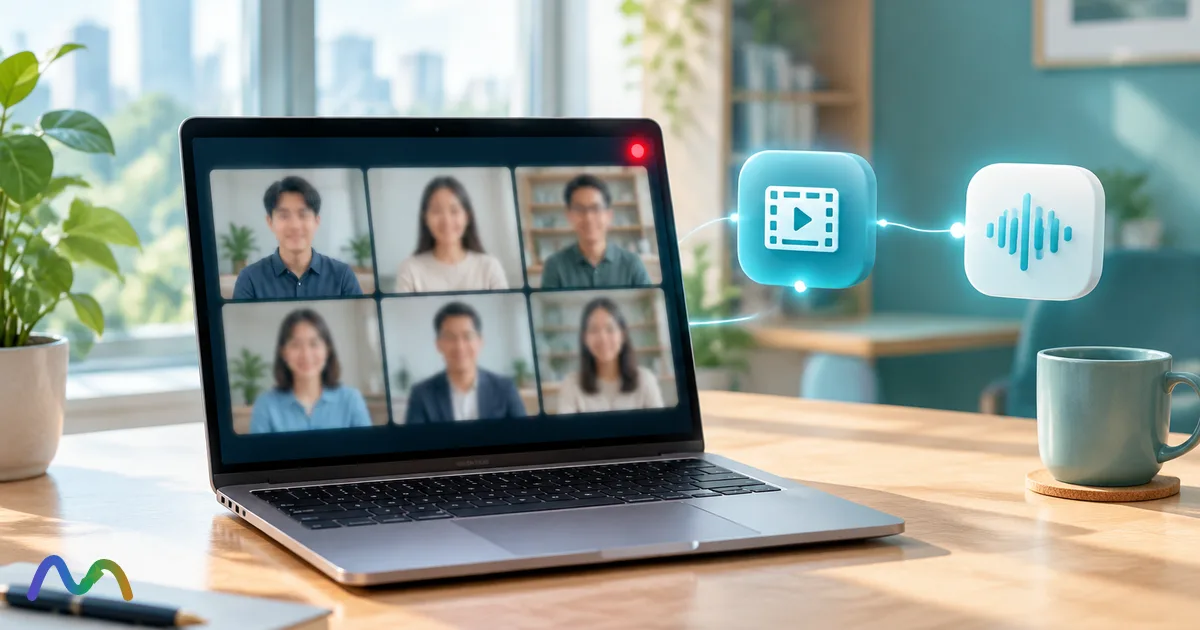
To record a Zoom meeting, the host clicks Record in the meeting toolbar and picks Record on this Computer (saved to your device, works on the free Basic plan) or Record to the Cloud (saved to Zoom, paid plans only). Every computer recording produces a video file (.mp4) and an audio-only file (.m4a) at the same time, so if you only need the audio, you already have it. Participants can't record unless the host allows it; the fallback is your operating system's screen recorder, which has real limits on capturing other people's audio.
Table of contents
- Recording video vs. recording audio on Zoom
- Before you record: 3 things to check
- How to record a Zoom meeting on desktop as the host
- Record on this Computer (local recording)
- Record to the Cloud
- Record every meeting automatically
- How to record a Zoom meeting if you're not the host
- How to record a Zoom meeting on iPhone or Android
- How to record only the audio of a Zoom meeting
- As the host: grab the .m4a Zoom already made
- Record a separate audio file for each participant
- Not the host but you need the content: live transcription
- Already have the recording: turn it into text
- Where Zoom recordings are saved
- Zoom recording problems and fixes
- The Record button is missing or grayed out
- I only see cloud, or only see local
- The meeting ended but there's no file
- My screen recording has no sound from other people
- I ran out of storage
- Is it legal to record a Zoom meeting?
- You have the recording. What about the notes?
- FAQ
- Can I record a Zoom meeting on a free account?
- How do I record only audio on Zoom?
- Can I record a Zoom meeting without the host knowing?
- Can participants see when I'm recording?
- Where do Zoom recordings from my phone go?
- Can I get each speaker's audio separately?
- Is there a time limit on Zoom recordings?
Use this table to find the right method for your role and device:
| Your situation | Method | What you get | Requirements |
|---|---|---|---|
| Host on a computer | Record > Record on this Computer | .mp4 (video + audio), .m4a (audio only), chat .txt | Any account, including free Basic; Zoom desktop app |
| Host who wants a shareable link | Record > Record to the Cloud | .mp4, .m4a, .vtt transcript (if enabled) | Licensed user on a paid plan (Pro, Business, Education, Enterprise) |
| Host or co-host on a phone | Record icon > Start Recording | Cloud recording only | Paid license, cloud recording turned on |
| Participant on a computer | Ask the host for recording permission, or use a system screen recorder | Depends on method | Host approval; follow the meeting's rules and consent laws |
| Participant who only needs the content | Live transcription with a browser extension | Transcript and AI summary (no audio file) | Zoom web client in Chrome, or Desktop App (Pro plan) |
Recording video vs. recording audio on Zoom
Zoom has no separate "record audio" button. When you hit Record, Zoom captures audio and video together and then writes several files when the meeting ends. According to Zoom's documentation on recording file formats, a recording can include:
video[number].mp4: the full video with audio. Use it for replays, people who missed the meeting, or training material.
audio[number].m4a: audio only, much smaller. Easy to play on a phone or upload to a transcription tool.
Chat .txt: in-meeting chat messages, if chat saving is on.
playback[number].m3u: a playlist that plays the individual MP4 segments in order. Local recordings on Windows only.
.vtt and cc.vtt: the audio transcript and closed captions. Cloud recordings only, when those features are enabled.
In practice: a teacher saving a lecture with slides wants the .mp4. A recruiter replaying a candidate interview or a sales rep reviewing a discovery call usually only needs the .m4a.

Before you record: 3 things to check
Almost every "I can't find the Record button" or "Record is grayed out" problem comes down to one of these:
Your plan. Local (computer) recording works on a free Basic account or higher, in the Zoom desktop app for Windows, macOS and Linux. Cloud recording needs a licensed user on a paid plan. As of October 2026, Zoom Pro costs $16.99 per user per month billed monthly, or $14.16 billed annually.
Your role in the meeting. The host records, or grants recording permission to someone else. A regular participant can't start Zoom's recorder on their own.
Your settings. Sign in at zoom.us, open Settings and go to the Recording tab (labeled Recording & Transcript on newer accounts). Make sure Local recording and/or Cloud recording are on. On a company account, your admin may have locked these at the organization level, in which case IT has to turn them on.
Two limits worth knowing before a long meeting. First, free Basic meetings end at 40 minutes, and the recording stops with them. Second, cloud storage is 10 GB per licensed user on Pro and Business, 15 GB on Business Plus and unlimited on Enterprise, pooled across the whole account. Zoom also caps a single live session at 150 cloud recording files (layouts, audio-only files, chat and interpretation views all count).
How to record a Zoom meeting on desktop as the host
Record on this Computer (local recording)
Open the Zoom desktop app and start the meeting as host.
Click Record in the toolbar. If it's hidden, click More (three dots).
If a menu appears, choose Record on this Computer. A recording indicator shows in the top-left corner, and everyone in the meeting is notified that it's being recorded.
Use Pause or Stop on the indicator or toolbar whenever you need to.
End the meeting. Zoom converts the recording and opens the folder when it's done.
Keyboard shortcuts in the Zoom desktop app:
| Action | Windows | macOS |
|---|---|---|
| Start/stop local recording | Alt + R | Command + Shift + R |
| Start/stop cloud recording | Alt + C | Command + Shift + C |
| Pause/resume recording | Alt + P | Command + Shift + P |
Don't interrupt the conversion. Zoom warns that restarting or shutting down your computer, letting the disk sleep or closing your laptop during conversion can corrupt the recording, sometimes beyond recovery. For a one or two hour meeting, give it a few minutes until the folder opens on its own.
Record to the Cloud
Same steps, but choose Record to the Cloud in step 3 (or press Alt + C / Command + Shift + C). Cloud recording saves disk space, survives your laptop shutting down after the call, and gives you a link to share right away. It also works from the Zoom mobile apps and the Zoom web app, where local recording isn't available. After the meeting, Zoom processes the file on its servers and emails you when it's ready. On supported accounts the cloud recording can include a .vtt transcript; see our guide to Zoom transcription for how to turn it on and download it. A cloud recording covers only the main session, so for small-group discussions see how to record Zoom breakout rooms.
Record every meeting automatically
If you always forget to hit Record, go to Settings > Recording on the Zoom web portal and turn on Automatic recording, then choose local or cloud. You can also enable it for a single meeting when scheduling: under Options, check Automatically record meeting. Two catches from Zoom's docs: the account setting only applies to meetings you schedule afterward (not existing meetings or your Personal Meeting ID), and automatic local recording only starts when the host launches the meeting from the desktop app. Free Basic users can only auto-record locally.
How to record a Zoom meeting if you're not the host
A participant can't start Zoom's recorder alone: the host has to click Participants > More > Allow Record (you then record to your computer in the desktop app), make you a co-host, or schedule automatic cloud recording, which saves to the host's account. Without the host, only your computer's screen recorder works, only some of them capture other people's voices, and Zoom shows no notice for them, so you must tell people. Our guide to recording a Zoom meeting without being the host covers every role, phones, screen recorders that capture audio, consent and a missing Record button.

Summarize your meetings & videos automatically with NoteMeeting
Google Meet, Zoom, YouTube, Podcast — all in one extension.

How to record a Zoom meeting on iPhone or Android
The Zoom mobile app can't record to your phone. It only records to the cloud, and Zoom lists three requirements: a paid account (Pro, Business, Education or Enterprise), a licensed user with host or co-host role, and cloud recording turned on.
Start or join the meeting as host.
Tap the Record icon in the controls (or tap More if you don't see it), then Start Recording.
A recording indicator appears in the top-left corner. Tap the Record icon again for Pause Recording or Stop Recording.
After the meeting, the recording is processed and appears under Recordings on the Zoom web portal.
On a free account or as a regular participant, your phone's built-in screen recorder is the only mobile option. Many phones won't capture other participants' voices during a call because the OS and the app restrict internal audio capture, so do a 30-second test before an important meeting. If you need a guaranteed recording, use a computer.
How to record only the audio of a Zoom meeting
Many people searching "record Zoom audio only" don't want video at all, just something to replay or turn into notes. Several popular guides claim audio-only is a cloud-only feature. It isn't: Zoom's own docs list the .m4a audio file as standard output of a computer recording on any plan, free included.
As the host: grab the .m4a Zoom already made
After a local recording, open the recording folder and take audio[number].m4a. It plays on Windows, macOS, iPhone and Android without extra software. Delete the .mp4 if you don't need it. For cloud recordings, download the audio-only file from the recording's page on the Zoom web portal (your cloud recording settings need the audio-only file option checked). Step-by-step instructions, including how to save just one file, are in how to download a Zoom recording.
Record a separate audio file for each participant
Few guides mention this, and it's very useful for interviews, podcasts and any meeting where you need clean per-speaker audio. In the Zoom desktop app, click your profile picture > Settings > Recording and turn on Record a separate audio file for each participant. Then:
The recording folder gets an Audio Record subfolder with one file per person, named audio[Name][number].m4a.
Zoom records separate tracks for up to 80 participants. Phone dial-in participants share one combined file.
It works for computer recordings only, not cloud.
Not the host but you need the content: live transcription
If you're a participant and the host won't allow recording, what you usually need is text for notes or minutes, not a video file. NoteMeeting is a Chrome extension that runs inside the Zoom web client and doesn't join the meeting as a bot, so no extra "notetaker" shows up in the participant list. It transcribes in real time and produces an AI summary with decisions and action items right after the meeting. If you use the installed Zoom desktop app, the NoteMeeting Desktop App (Pro plan and up) captures system audio for the transcript and two-way voice translation. For calls in English and Vietnamese, the Voice Translator (Pro unlimited, Teams 400 min/month) translates speech live between the two. Note that NoteMeeting gives you a transcript and notes, not an audio recording, and you should still tell people you're capturing the conversation.
Already have the recording: turn it into text
Cloud recordings can include a Zoom-generated .vtt transcript. Setup and download steps are in our Zoom transcription guide.
Local .m4a files can go into any transcription tool. We compare options by use case and price in the best transcription software.
For what a good transcript should contain and how to use it afterward, see meeting transcripts explained.
Where Zoom recordings are saved
| Recording type | Default location |
|---|---|
| Local, Windows | C:\Users\[Username]\Documents\Zoom |
| Local, macOS | /Users/[Username]/Documents/Zoom |
| Cloud | Zoom web portal > Recordings & Transcripts > Cloud recordings |
| Xbox Game Bar | Videos\Captures |
Each meeting gets its own folder named with the date, time and topic. For changing the save folder, finding "missing" recordings and downloading cloud files, see where Zoom recordings are saved.
Zoom recording problems and fixes
The Record button is missing or grayed out
You're not the host and haven't been given permission, or recording is turned off in Settings > Recording (by you or locked by an admin). On mobile, the button only appears for a licensed host or co-host.
I only see cloud, or only see local
Free accounts only get local recording. Company admins can disable either option. In the mobile apps and the Zoom web app you won't see local recording at all.
The meeting ended but there's no file
Check whether the conversion was interrupted (shutdown, closed lid). Open Documents\Zoom and look for the meeting's folder. If it contains a double_click_to_convert .zoom file, double-click it to retry the conversion. If that fails, Zoom's community forums describe running the zTscoder converter manually; if nothing works, the file may be corrupted.
My screen recording has no sound from other people
Common on older macOS versions and on phones. On Windows, check that Game Bar is capturing system audio and not just your microphone. The reliable fix is still asking the host for recording permission in Zoom.
I ran out of storage
Long meetings with lots of screen sharing produce big files. Free up disk space before a long session, or keep the .m4a and delete the .mp4 once you have your notes. For cloud, clear old recordings before you hit the account's pooled limit.
Is it legal to record a Zoom meeting?
Zoom always shows a notice when someone uses its built-in recorder. External screen recorders don't trigger that notice, which is where legal risk comes in. In the US, federal law and most states allow recording if one party to the conversation consents, but roughly a dozen states, including California, Florida, Illinois, Maryland, Massachusetts, Pennsylvania and Washington, require consent from everyone. When participants are in different states, follow the strictest rule. In the EU and UK, GDPR treats recordings as personal data, so you need a lawful basis and must tell people. This isn't legal advice; the practical rule is simple: announce the recording at the start, especially for candidate interviews, client calls and internal meetings, and check your company's policy before sharing files outside the team. Hosts who do not want third-party AI notetakers recording their meetings can remove notetaker bots from Zoom and block them in future meetings.
Recording on other platforms too? See how to record a Google Meet and how to record a Microsoft Teams meeting, or compare the platforms in Google Meet vs Zoom.
You have the recording. What about the notes?
A video or audio file means nothing gets lost, but replaying a 60-minute meeting to write meeting minutes takes close to 60 minutes. If what you actually need after each Zoom call is a transcript, a summary and a list of action items, try NoteMeeting: the free trial includes 1 hour of audio, enough to test it on a few real meetings before you look at pricing.
FAQ
Can I record a Zoom meeting on a free account?
Yes, but only locally (Record on this Computer) in the Zoom desktop app for Windows, macOS or Linux. Free meetings end at 40 minutes. Cloud recording and recording on a phone need a paid plan.
How do I record only audio on Zoom?
Record as usual. Every local recording includes an audio-only .m4a file next to the .mp4, and cloud recordings can include one too. Just keep the .m4a.
Can I record a Zoom meeting without the host knowing?
Zoom's built-in recorder always notifies everyone. A screen recorder doesn't trigger Zoom's notice, but recording people without telling them can break all-party consent laws and company policy. Ask the host for permission instead.
Can participants see when I'm recording?
With Zoom's recorder, yes: everyone sees a recording indicator and notice. With an external screen recorder, Zoom shows nothing, so tell people yourself. Transcription has its own signs, separate from recording; see what "this meeting is being transcribed" means.
Where do Zoom recordings from my phone go?
To the cloud only. Sign in at zoom.us and open Recordings & Transcripts > Cloud recordings to view, download or share them.
Can I get each speaker's audio separately?
Yes, for computer recordings. Turn on "Record a separate audio file for each participant" in Settings > Recording, and Zoom saves one .m4a per person (up to 80) in an Audio Record folder.
Is there a time limit on Zoom recordings?
Local recordings are limited mainly by disk space and by your meeting length (40 minutes on the free plan, 30 hours on Pro). Cloud recordings are limited by storage: 10 GB per license on Pro and Business, 15 GB on Business Plus, unlimited on Enterprise.