
When Zoom says "This meeting is being transcribed", a Zoom feature is turning what people say into text while the meeting runs. It does not mean the video is being recorded: transcription and recording are separate features in Zoom. The notice usually comes from one of three Zoom features: Meeting transcript (started by the host), Zoom AI meeting summary or meeting questions (started by the host, a co-host or an auto-start setting; older notices call it AI Companion), or My Notes, a personal notes feature another participant can switch on for themselves. Participants cannot turn transcription off on their own; for My Notes and Zoom AI, Zoom gives them a button to ask the host to stop it, and the host can stop any of them in a couple of clicks.
Table of contents
- What does "this meeting is being transcribed" mean in Zoom?
- Which Zoom feature is behind the notice?
- What does "being transcribed for AI Companion" mean?
- Can you find out who turned on transcription in Zoom?
- What can you do if you don't want to be transcribed?
- How does the host stop a Zoom meeting from being transcribed?
- Transcribing on your own device: tell people first
- FAQ
- Why does my Zoom meeting say it's being transcribed when I didn't turn anything on?
- Can Zoom transcribe a meeting without recording it?
What does "this meeting is being transcribed" mean in Zoom?
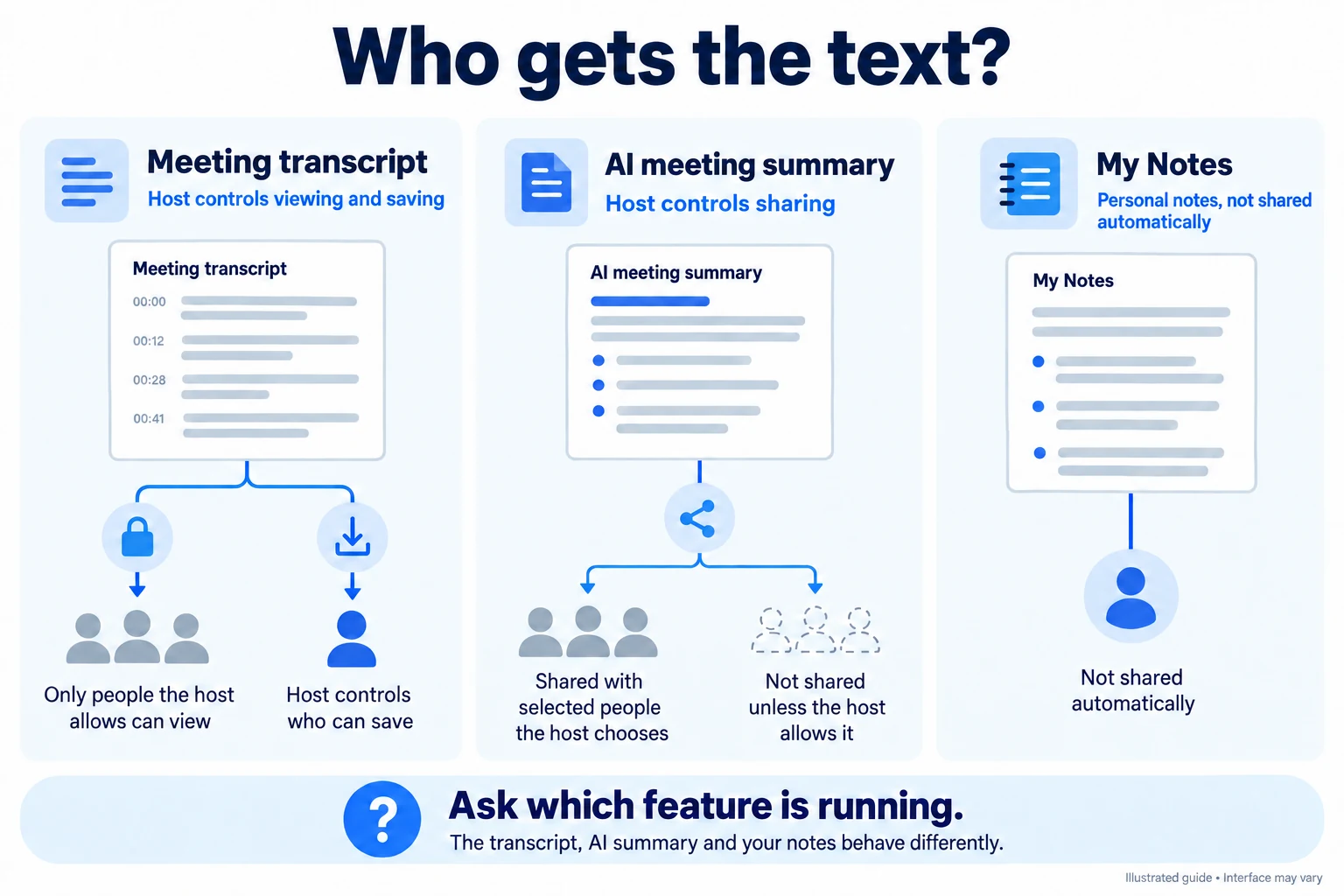
"This meeting is being transcribed" means Zoom is converting the meeting audio into text, for a live transcript panel, an AI-generated summary or one participant's private notes. The wording does not say which feature is running or who will get the text, and a Zoom developer forum thread shows someone who joins after transcription has started getting the same dialog.
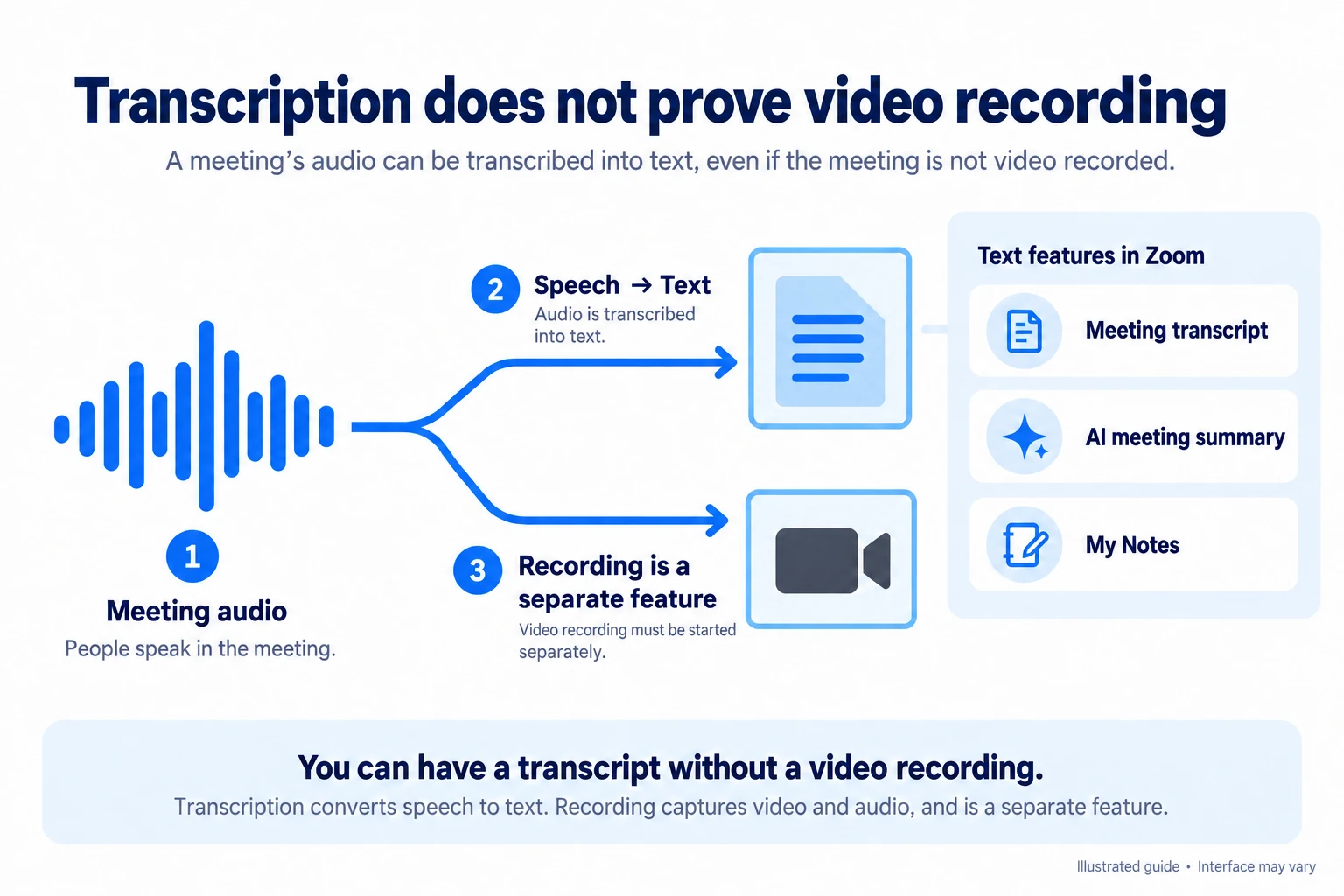
Being transcribed is not the same as being recorded. Meeting transcript, Zoom AI meeting summary and My Notes all create text without any recording. A Zoom cloud recording is a separate feature with its own recording notice, and its audio transcript (a VTT file) is created only after the recording finishes.
Which Zoom feature is behind the notice?

Look at the top-right corner of the Zoom meeting window and at the Participants list: each feature leaves a different sign. The table maps each sign to the feature, who started it, who receives the text and how it stops (Zoom support articles checked October 4, 2026).
| What you see | Feature behind it | Who started it | Who gets the text | How to stop it |
|---|---|---|---|---|
| Transcription notice and a Transcript icon in the top-right corner | Meeting transcript | The host, either directly or by accepting a participant's transcription request, or an account setting that generates transcripts automatically | Participants can read the live panel if the host allows it; saving a TXT copy is limited to the roles the host or admin chose | Host hovers over the Transcript icon and clicks Stop transcription, with an option to delete the transcript |
| Notice that mentions AI (older versions say AI Companion) and a lit Zoom AI sparkle icon in the top-right corner | Zoom AI meeting summary or meeting questions | The host or a co-host, or the host's Auto-start setting | The summary goes to the host, then to whoever the host's sharing setting includes; a full transcript is kept only if the host turned on Generate transcript | Host or co-host stops it from the Zoom AI icon; participants can ask the host to turn it off and delete what was generated |
| A "meeting is being transcribed" banner, a pencil icon next to someone in the Participants list and a transcription icon in the top-right corner | My Notes | The participant marked with the pencil icon | Only that participant; My Notes are not shared automatically with the host or anyone else | Host clicks Stop transcribing in My Notes for that person, or turns off Allow transcribing in My Notes for everyone; participants click Ask host to stop transcription |
| A recording notice, and later an email that the audio transcript is ready | Cloud recording with audio transcript | Whoever started the cloud recording, with Create audio transcript turned on in their settings | The recording owner, plus viewers of a shared recording if the owner lets them see the transcript | Stop the cloud recording; turn off Create audio transcript in the web portal |
| A notification that a participant enabled captions | Automated captions | The host, or a participant if the host allows it | On screen only (and in recording playback); since late May 2026 captions cannot be saved or downloaded | Each person can hide captions; the host controls who may turn them on |
| The Active Apps Notifier icon in the top-right corner, or a participant named after an AI notetaker | Third-party app or notetaker bot | Click the Active Apps Notifier icon: it lists each tool, what content it accesses and which user is using it | The tool owner's account with that vendor, not Zoom | The host can remove the bot (or report it if uninvited); ask the owner to disconnect it |
Zoom's recording notice article covers recording disclaimers only and describes no separate transcription prompt for cloud recordings, so the notice during a cloud recording can vary. Zoom's AI white paper also notes that each participant sees the My Notes banner unless they earlier chose not to show it again, which explains why some people in a meeting see the notice and others do not.

Summarize your meetings & videos automatically with NoteMeeting
Google Meet, Zoom, YouTube, Podcast — all in one extension.
What does "being transcribed for AI Companion" mean?
"Being transcribed for AI Companion" means the host (or an auto-start setting) turned on Zoom's AI meeting summary or meeting questions, and Zoom needs a transcript of the audio to produce them. AI Companion was the name of these features until Zoom retired it in June 2026; they now sit under Zoom AI, so newer clients and settings use that name. When the notice says the meeting is being recorded and also transcribed for AI Companion (a variant documented by university IT guides), a cloud recording and a Zoom AI feature are running at the same time.
The result can travel beyond the host. In Zoom's meeting summary settings, the host chooses whether the summary goes to the host only, to hosts and co-hosts, to invitees inside the organization, or to all invitees including outside guests. The same article states that Zoom does not use customer audio, video, chat, screen sharing, attachments or similar content to train Zoom's or third-party AI models. Zoom's meeting summary article adds that the feature may use third-party models to process the meeting. For how the host starts the summary and where it is delivered, see our guide to Zoom's AI meeting summary.
Can you find out who turned on transcription in Zoom?

Partly. For My Notes, the person is visible: Zoom marks anyone using My Notes with a pencil icon in the Participants list, according to Zoom's AI white paper on user transparency. For third-party apps, the Active Apps Notifier icon in the top-right corner lists which user is using each tool, according to Zoom's guide to automated meeting tools. For Meeting transcript and Zoom AI meeting summary, only the host or a co-host can start them (participants can only send a request), so either one of them started it or an automatic setting on the host's account did.
Beyond that, Zoom documents no way for a participant to see who switched transcription on, and in a December 2025 Zoom Community thread a community volunteer replied that this level of detail is not available. If it matters, ask the host, who knows whether auto-start is on.
What can you do if you don't want to be transcribed?
As a participant you cannot stop the host's transcript or summary yourself, but you have several options:
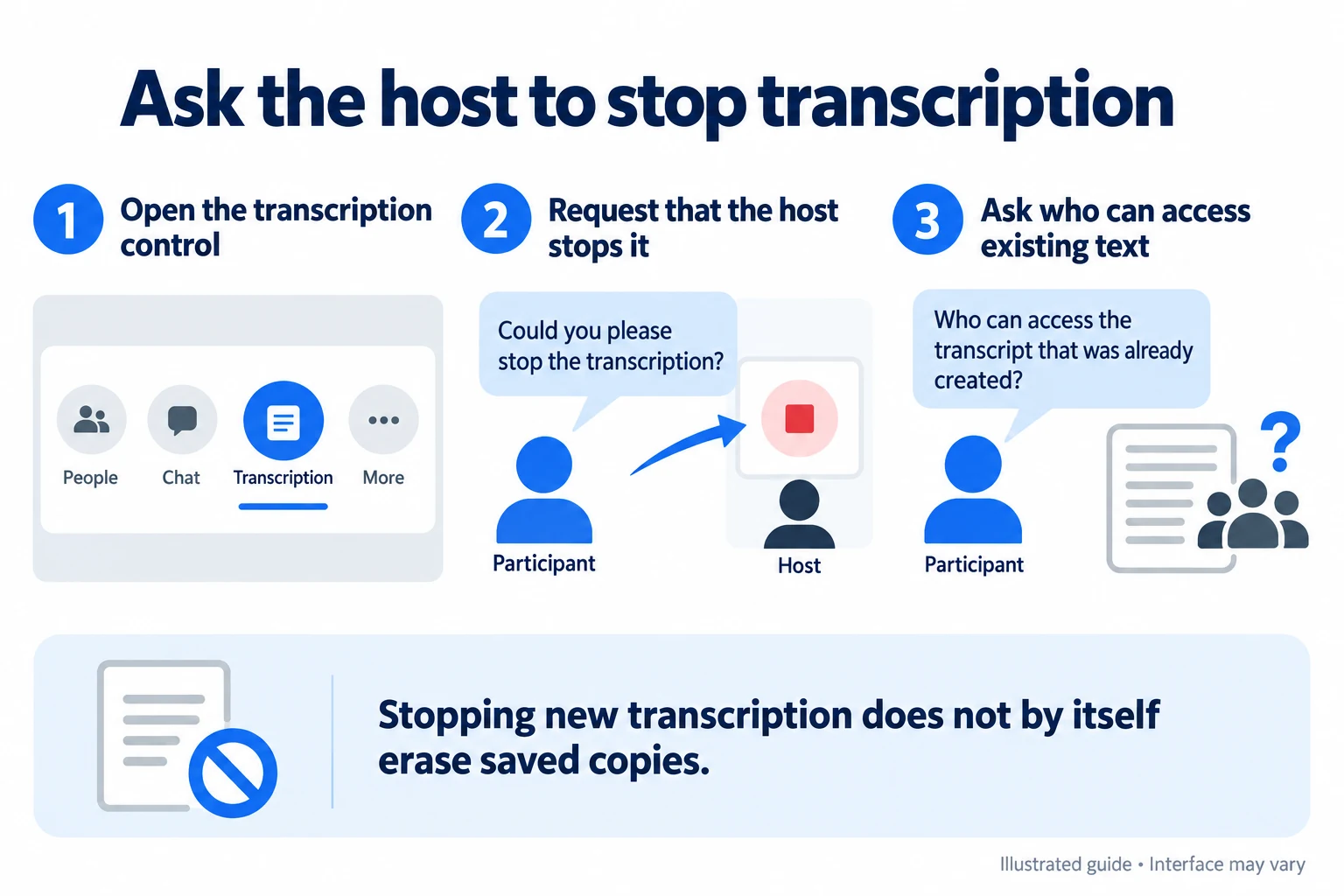
- Use Zoom's request button: for My Notes, click the transcription icon and choose Ask host to stop transcription; for Zoom AI, ask the host to turn the features off and delete what was generated so far.
- Ask the host in chat or out loud what the transcript is for, who will receive it and how long it will be kept.
- Keep sensitive details out of the meeting, or leave if the answer does not satisfy you; if your organization has a policy on AI notes, raise it with your admin.
When a host stops My Notes transcription, the text already created stays with the participant who started My Notes, unless the host also deletes the meeting's assets before that participant saved it, per Zoom's white paper.
How does the host stop a Zoom meeting from being transcribed?
During the meeting, the host stops each feature where it was started: hover over the Transcript icon and click Stop transcription for Meeting transcript, stop Zoom AI from the Zoom AI icon, and stop My Notes for one person from the Participants list or for everyone under Host tools > Advanced. To stop it from coming back in future meetings, the host checks three places in the Zoom web portal:
- Settings > Meeting > In Meeting (Advanced): Meeting transcript, including the option to generate transcripts automatically for all meetings or for meetings with a summary.
- Settings > Zoom AI: Meeting summary with AI and its Auto-start when meetings start option.
- Recording settings: Create audio transcript under cloud recording.
A greyed-out toggle means an admin locked it. Meeting transcript is not enabled by default, according to Zoom's meeting transcript settings article, so a notice in a new meeting usually means someone turned it on or an AI feature is set to auto-start. Full steps for turning transcripts on, saving them and turning them off are in our Zoom transcription guide.
Transcribing on your own device: tell people first
A transcription tool that runs on your own computer, without joining the call, does not show other people a Zoom transcription notice, so telling them is up to you. NoteMeeting works this way: the NoteMeeting Chrome extension transcribes meetings you join in the Zoom web app, and the NoteMeeting Desktop App (Pro plan and up) works with the installed Zoom app by capturing system audio. No bot joins the call, and NoteMeeting does not store the audio on its servers; you download the transcript and recap yourself. NoteMeeting does not record video. Say at the start that you are transcribing and get consent where the law or your company requires it. If that setup suits you, the free trial includes 1 hour of audio for transcripts and summaries.
FAQ
Why does my Zoom meeting say it's being transcribed when I didn't turn anything on?
If you are the host, the most likely causes are an auto-start setting for Zoom AI meeting summary, an account setting that generates Meeting transcripts automatically, or a participant using My Notes. Check the Participants list for a pencil icon, then review Settings > Zoom AI and Settings > Meeting in the web portal. If those settings are locked, your admin turned them on.
Can Zoom transcribe a meeting without recording it?
Yes. Meeting transcript, Zoom AI meeting summary and My Notes create text without a recording. Only the cloud recording audio transcript depends on a recording, and it is produced after the meeting ends.