
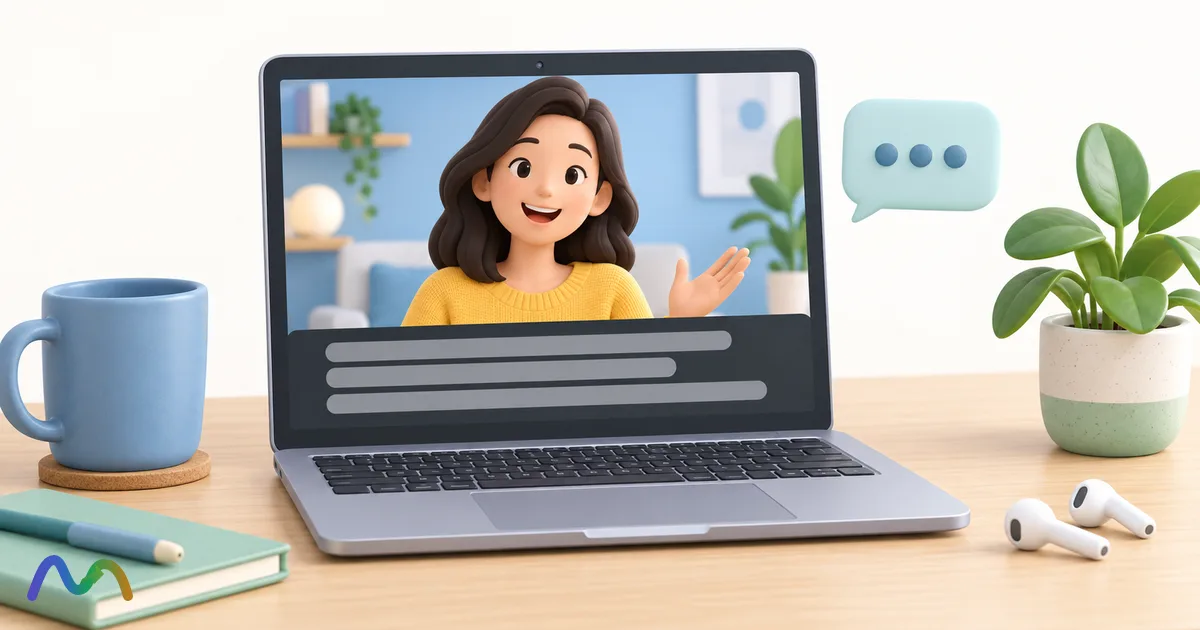
To turn on captions in Zoom, click Show captions in the meeting controls toolbar (on a phone, tap More > Show CC). If the button is missing, the Automated captions setting has to be switched on in the Zoom web portal under Settings > Meeting > In Meeting (Advanced); it is on by default for paid accounts, and Zoom's pricing page lists automated captions on the free Basic plan too. Zoom's support article lists 49 languages and regional dialects as of October 4, 2026.
Table of contents
- How to turn on captions during a Zoom meeting
- Zoom desktop app (Windows, macOS, Linux)
- Zoom web app (browser)
- iPhone, iPad and Android
- If you only see Request captions
- Does turning on captions in Zoom turn them on for everyone?
- Will others know you turned on captions?
- Turn on automated captions in Zoom settings
- Change the Zoom caption language
- Turn off captions in Zoom
- Zoom captions not showing: causes and fixes
- Captions in Zoom recordings
- Can you save Zoom captions after a meeting?
- Translated captions in Zoom
- Manual captions and CART services in Zoom
- FAQ
- Are Zoom captions free?
- Are captions the same as a Zoom transcript?
Showing captions is personal: other participants only see captions if they turn them on themselves. The Caption language setting is different, because Zoom says that choice applies to everyone in the meeting. Since late May 2026, captions can no longer be saved or downloaded after a meeting; for a text record you need Zoom's Meeting transcript instead.
| What you do | Who it affects |
|---|---|
| Click Show captions (captions already allowed) | Only your screen. Others turn captions on for themselves. |
| Change caption font, size, color or position | Only you |
| Change the Caption language | Everyone in the meeting, according to Zoom's participant guide |
| Send Request captions | The host (and possibly co-hosts) gets a notification; if approved, captions become available to all participants |
| Host turns off Allow closed captioning for this meeting | Automated captions end for all participants |
How to turn on captions during a Zoom meeting
Once captions are allowed in a meeting, each person turns them on from their own toolbar. Captions appear above the meeting controls, and each line is labeled with the speaker's display name. The steps below follow Zoom's guide to viewing captions, checked on October 4, 2026.
Zoom desktop app (Windows, macOS, Linux)
- Sign in to the Zoom desktop app and join the meeting.
- Click Show captions in the meeting controls toolbar. If your window is narrow and you don't see it, click More > Show captions.
- Optional: click the up arrow next to the captions icon > Caption settings to change font size, color, or pop captions out into a movable box.
To have captions turn on automatically whenever they are available, click your profile picture > Settings > Accessibility and turn on Always show captions in meetings and webinars. This only works in meetings where the host allows captions.
Zoom web app (browser)
In a meeting joined from a browser, click Show Captions in the toolbar. The up arrow next to the icon opens Caption language, which defaults to English in the web app.
iPhone, iPad and Android
- Open the Zoom app, sign in and join the meeting.
- Tap More in the meeting controls.
- Tap Show CC. Captions appear above the controls.
- To change the language: More > Settings > Captions and translations > Caption language, tap the language being spoken, then tap Save.
If you only see Request captions
When the host has limited who can enable captions but hasn't disabled them, the toolbar shows Request captions instead of Show captions (Request CC on mobile; look under More if it's hidden). Click it, optionally check Send request with translation, and click Send. The host sees the request in the middle of their meeting window and clicks Enable or Decline. According to Zoom's host captions guide, an approved request makes captions available to all participants for the rest of the meeting.
Does turning on captions in Zoom turn them on for everyone?
No. Clicking Show captions displays captions on your screen only, so captions are "only for you" unless other participants turn them on too. Zoom also states that changes to caption size, color and position are visible only to you. Two actions do reach the whole meeting: the Caption language selection, which Zoom's participant guide says impacts all participants, and a host approving a caption request, which makes captions available to everyone.
Will others know you turned on captions?
Usually not, but the first activation in a meeting may be visible. Zoom's support articles do not describe any notice when a participant clicks Show captions. The University of Colorado's accessibility guide says that the first time captions are enabled in a meeting, all participants receive a notification. In a Zoom Community thread from January 2024, the accepted answer says that once captions are already enabled, nobody but you can see when you show or hide them, while a request is visible to the host. If you want to avoid any notice, wait until someone else has started captions, or ask the host to enable them at the start of the meeting. A captions notification is different from a transcription notice; this guide to Zoom transcription notices explains which feature shows which sign.
Turn on automated captions in Zoom settings
If nobody in a meeting sees a captions button, the Automated captions setting is probably off for the host. Zoom enables it by default for paid accounts, and Zoom's pricing page shows automated captions on Basic, Pro, Business and Enterprise. Zoom also notes that some accounts may not have automated captions. Per Zoom's article on enabling automated captions:

Summarize your meetings & videos automatically with NoteMeeting
Google Meet, Zoom, YouTube, Podcast — all in one extension.
- Sign in to the Zoom web portal.
- Click Settings, then the Meeting tab.
- Under In Meeting (Advanced), turn on Automated captions. Use the pencil icon to choose which languages are available.
- Optional: check Allow only the following users to enable captions for the meeting and choose Host or Host and Co-host. Participants will then see Request captions.
- Optional: turn on Automated captions on device to process captions on the computer itself, which helps on weak connections (Windows or macOS app 6.5.3 or later on a recent computer).
Admins find the same toggle under Account Management > Account Settings (whole organization) or User Management > Groups; a grayed-out toggle means it is locked at a higher level. Older guides that say to enable "Live Transcript" describe the same feature under its previous name.
Change the Zoom caption language
Zoom's caption language is the language Zoom expects people to speak, not a translation target. If participants speak Spanish while it is set to English, the captions will be inaccurate. The default is English on mobile and web, and the host's operating system language on desktop. To change it, click the up arrow next to the captions icon, choose Caption language, pick the language and click Save. Because the choice affects everyone, agree on it with the host before switching.
Zoom's support article lists 49 languages and regional dialects on October 4, 2026, including Spanish, French, German, Chinese, Japanese, Korean, Hindi, Arabic and Vietnamese; the host's settings decide which ones a meeting offers. Because Zoom listens for one caption language at a time, bilingual calls get the worst captions unless someone switches the language when the conversation does.
Turn off captions in Zoom
To hide captions on your own screen, click the Show/Hide captions icon in the toolbar again. Other participants keep their captions. If captions appear in every meeting, turn off Always show captions in meetings and webinars under Settings > Accessibility in the desktop app.
A host who wants to end captions for the whole meeting clicks the up arrow next to Show Captions > Host caption control settings and turns off Allow closed captioning for this meeting. To stop captions in all future meetings, turn off Automated captions in the web portal under Settings > Meeting > In Meeting (Advanced).
Zoom captions not showing: causes and fixes
| Problem | Likely cause | Fix |
|---|---|---|
| No Show captions button | Automated captions is off at the user, group or account level, or the host disabled captions for this meeting | Check More first; turn on Automated captions in the web portal (ask an admin if it's locked); ask the host to turn on Allow closed captioning for this meeting |
| Only Request captions appears | The host limited caption control to host or co-hosts | Send the request and wait for the host to click Enable |
| Captions are nonsense | Caption language doesn't match the language being spoken | Change Caption language, after checking with the host |
| Automated captions unavailable while someone types captions | Manual captioning is on for the session; Zoom doesn't allow automated captions at the same time | Use the manual captions, or have the host turn off the manual captioner |
| Other participants don't see captions | Captions are shown per person | Each participant clicks Show captions or turns on Always show captions |
| No Save captions option | Zoom removed saving captions in May 2026 | Use Meeting transcript or a transcription tool |
Captions in Zoom recordings
Zoom says captions remain available when you play back recordings in the Zoom Workplace app or web portal. To get captions on a cloud recording, the host turns on Create audio transcript in the cloud recording settings. After processing, open Recordings & Transcripts > Cloud recordings in the web portal, play the recording and click the CC icon, per Zoom's audio transcription guide. This needs a Pro, Business, Education or Enterprise account; free Basic accounts can only record locally. See how to record a Zoom meeting and where Zoom recordings go.
Can you save Zoom captions after a meeting?
No. Zoom ended saving and downloading captions in May 2026: its notice gives May 18, and its FAQ on the May 2026 captions and transcript changes describes a rollout from May 24 to 26. During a meeting you can scroll back through the last 3 minutes of captions, and nothing is kept afterward. Tutorials that tell you to click "Save captions" are out of date.
The replacement is Meeting transcript, a setting that is off by default and must be turned on by a host or admin. Enabling it and downloading the TXT or VTT file are covered in our Zoom transcription guide; for an AI recap instead of full text, see Zoom AI meeting summary.
If you are not the host and the host hasn't turned on Meeting transcript, Zoom gives you no built-in way to keep the text. NoteMeeting AI Transcription covers that case by transcribing live on your own computer: the Chrome extension for Zoom in a browser, or the NoteMeeting Desktop App (Pro plan and up) for the installed Zoom app. The transcript is visible only to you and adds no captions for anyone else. NoteMeeting does not store audio or transcripts on its servers; you download the transcript and AI summary yourself.

Translated captions in Zoom
Automated captions only show text in the language being spoken. To read a speaker's words in another language, Zoom has translated captions, which require the host's account to be on Business Plus, an Enterprise plan or the Translated Captions add-on. Plans, setup and alternatives are in our Zoom translation guide.
Manual captions and CART services in Zoom
Manual captions are typed by a person, either a participant the host assigns or a professional CART (Communication Access Realtime Translation) captioner. Zoom itself recommends this route when captions must meet compliance or accessibility requirements, since automated accuracy varies with noise and accents. First turn on Manual captions under In Meeting (Advanced), per Zoom's manual captions setup article. In the meeting, the host clicks the up arrow next to Show Captions > Set up manual captioner and picks one option:
- Assign a participant to type: in the Participants panel, hover over the person, click More > Assign to type Closed Caption. Only one person can be assigned per meeting.
- I will type: the host types captions in a caption window.
- Copy the API token: send the caption URL to a third-party captioning service. This requires the sub-setting Allow use of caption API Token to integrate with 3rd-party Closed Captioning services, as explained in Zoom's third-party captioning article.
FAQ
Are Zoom captions free?
Yes. Zoom's pricing page lists automated captions on the free Basic plan as well as paid plans, although Basic meetings are limited to 40 minutes and translated captions are not included. If the button is missing on a free account, check the Automated captions setting in the web portal.
Are captions the same as a Zoom transcript?
No. Zoom captions are live text with 3 minutes of scroll-back that cannot be kept after the meeting. A Meeting transcript is a saved record that a host or admin must enable, and it can be viewed or downloaded afterward depending on the settings. For notes or minutes, you need the transcript.
Using Google Meet as well? The steps there are different; see how to turn on Google Meet captions, or Zoom vs Google Meet for captions and transcripts by plan. If you regularly need a written record of Zoom calls you don't host, try NoteMeeting with the 1-hour trial to transcribe and summarize your next meeting.