

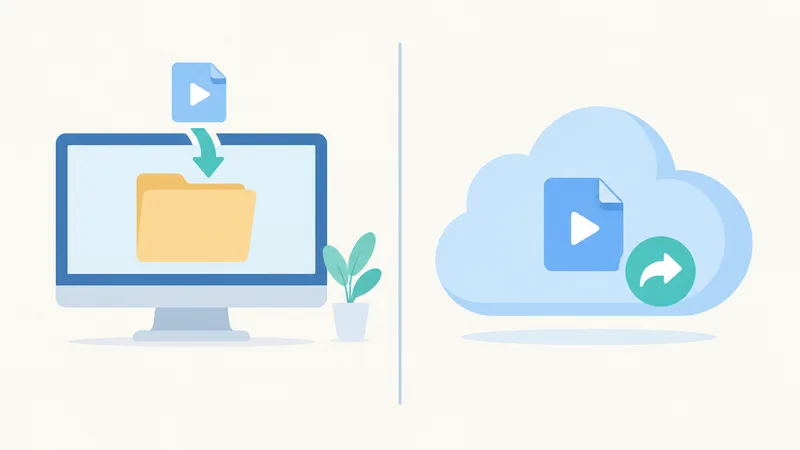
Where Zoom recordings go depends on how the meeting was recorded. A computer recording (Zoom's current name for a local recording) is saved in the Documents\Zoom folder on the computer that pressed Record, and nowhere else. A cloud recording (paid plans only) never lands on your hard drive: it lives in Recordings & Transcripts on the Zoom web portal at zoom.us.

Table of contents
- Step 0: figure out which kind of recording you have
- How to find Zoom computer (local) recordings
- Option 1: open the Documents\Zoom folder directly
- Option 2: open recordings from the Zoom Workplace app
- Option 3: look up the file path on the web portal
- How to find Zoom cloud recordings
- On the web portal
- In the desktop app
- On your phone
- Why your cloud recording isn't there yet
- Can't find your Zoom recording? Causes and fixes
- The folder only has double_click_to_convert files
- Your disk is full (error 614)
- You're searching the computer, but it's a cloud recording
- You weren't the one recording
- A note-taker bot showed "recording," but Zoom wasn't
- The recording was paused or stopped
- You deleted it by mistake
- How to change where Zoom saves recordings
- How long does Zoom keep cloud recordings?
- No recording permission, but you still need what was said
- FAQ
- Where do Zoom recordings go on my computer?
- Where do Zoom recordings go on iPhone and Android?
- Can I record to the cloud with a free Zoom account?
- What is a double_click_to_convert file?
- How long does it take for a Zoom cloud recording to show up?
- If a co-host records to the cloud, whose account is it in?
- Can I recover a deleted Zoom recording?
Use the table below to find yours in a few seconds. The rest of the guide covers the fastest ways to open recordings, what to do when the file is missing, and how long Zoom keeps cloud recordings.
| How the meeting was recorded | Where the recording is | Notes |
|---|---|---|
| Computer recording, Windows | C:\Users\[Username]\Documents\Zoom | Available on every plan, including free Basic |
| Computer recording, Mac | /Users/[Username]/Documents/Zoom | Only on the machine that recorded |
| Computer recording, Linux | /home/[Username]/Documents/Zoom | Same as above |
| Cloud recording (desktop or mobile) | zoom.us > Recordings & Transcripts > Cloud recordings tab | Pro, Business, Education, Enterprise; host account |
| Recorded on iPhone, iPad or Android | Cloud only, view on the web portal | The mobile app cannot save recordings to your phone |
| Save location was changed | The folder set in Settings > Recording | Look it up in the web portal's Location column (see below) |
This guide is about finding and managing recordings. If you need the steps to start a recording or get permission to record as a participant, see how to record a Zoom meeting.
Step 0: figure out which kind of recording you have
Most "lost" Zoom recordings are simply being searched for in the wrong place. Answer three questions before you open any folder:
Who pressed Record? A computer recording only exists on the recorder's machine. If your professor, manager or recruiter recorded the call, the file is on their computer, not yours.
Which device was used? Computer recording only works in the Zoom Workplace desktop app for Windows, macOS and Linux. The iOS and Android apps support cloud recording only.
What plan is the account on? A free Basic account can only record to the computer. Cloud recording needs a licensed (paid) account and host or co-host rights.
One detail that trips people up: when a co-host starts a cloud recording, the recording shows up in the host's list, not the co-host's. Teaching assistants, recruiters and coordinators who run meetings as co-hosts usually need the host to share the link.
How to find Zoom computer (local) recordings
There are three ways in. Pick the one that matches what you remember.
Option 1: open the Documents\Zoom folder directly
Open File Explorer (Windows) or Finder (Mac).
Go to Documents and open the Zoom folder.
Each meeting has its own subfolder named with the date, time and meeting topic. Open the one that matches your meeting.
Inside the meeting folder, Zoom creates these files (per Zoom's documentation; the numbers are random):
| File name | What it contains | When you need it |
|---|---|---|
video[number].mp4 | Video with audio | Rewatching, sending to people who missed the call |
audio[number].m4a | Audio only | Listening back, transcription, writing minutes |
playback[number].m3u | Playlist file | Contains no video; no need to share it |
chat.txt | In-meeting chat messages | Recovering links and files posted in chat |
audio[Name][number].m4a | Separate audio track per participant | Only if "record a separate audio file for each participant" is on |
If the folder only contains double_click_to_convert_01.zoom and no .mp4, the recording was never converted. Jump to the troubleshooting section below.
Option 2: open recordings from the Zoom Workplace app
The current Zoom Workplace app no longer has the "Meetings > Recorded" tab that many older guides still describe. The current path is:
Open the Zoom Workplace desktop app and click the Home tab.
Below your list of upcoming meetings, click Open recordings. The app switches to the Hub tab.
Under My files > Meeting recordings, select the Computer recordings tab.
Click a meeting name to play it in your default player, or hover over it and click the three-dot menu for Play audio only, View file location (opens the folder) or Delete.
Recordings that were never converted show a Convert button next to the meeting name. Click it to have Zoom produce the .mp4.
Option 3: look up the file path on the web portal
This is the fix when you or your IT team changed the save folder and nobody remembers where.
Sign in at zoom.us with the account that recorded the meeting.
Click Recordings & Transcripts in the navigation menu.
Open the Computer recordings tab, find the meeting by Meeting ID and check the Location column. It shows the full path on the recording machine, along with the computer name.
The portal only shows metadata. The video file itself stays on the computer that recorded it, so you cannot download a computer recording from zoom.us.
How to find Zoom cloud recordings
Cloud recordings are never downloaded automatically. You watch, share and download them from the host's Zoom account.
On the web portal
Sign in at zoom.us with the host account.
Click Recordings & Transcripts in the navigation menu.
Open the Cloud recordings tab. Adjust the date range if needed, then search by host, Meeting ID, topic or keyword.
Open the recording to play it in the browser, download individual files, or copy a share link.
For long meetings, sending a share link is usually better than downloading and emailing a multi-GB file, and you keep control over who can view it. Account admins can see every recording in the organization under Account Management > Recording and Transcript Management, with Advanced Search filters for date range, host and storage location. For the full download steps, the files each recording contains and why a shared link may have no Download button, see how to download a Zoom recording.
Cloud recordings can include files that computer recordings don't, such as a .vtt transcript file when audio transcript is turned on. If the transcript is what you're after, see our guide to turning on and downloading a Zoom transcript.

Summarize your meetings & videos automatically with NoteMeeting
Google Meet, Zoom, YouTube, Podcast — all in one extension.
In the desktop app
Once processing finishes, cloud recordings also appear in the Hub tab of Zoom Workplace, next to your computer recordings.
On your phone
The Zoom mobile app can't save recordings to your phone's storage or photo library, so anything you record on iPhone or Android is a cloud recording. After processing, it appears under Recordings & Transcripts on the web portal. The simplest way to watch it on your phone is to open zoom.us in your mobile browser, sign in and go to Recordings & Transcripts, or tap the link in the email Zoom sends the host when the recording is ready.
Why your cloud recording isn't there yet
Cloud recordings need processing time after the meeting ends. Zoom says it usually takes about twice the recorded duration and can take up to 24 hours when load is high, so a one-hour meeting showing up two hours later is normal. If email notifications are on, the host gets an email when it's ready. If it still hasn't appeared after 48 hours, Zoom recommends contacting support.
Can't find your Zoom recording? Causes and fixes
The folder only has double_click_to_convert files
When a meeting ends, Zoom converts the raw recording to .mp4. If you close the laptop lid or shut down during conversion, the process stops and the folder only contains files like double_click_to_convert_01.zoom and double_click_to_convert_02.zoom.
Open the meeting folder and double-click
double_click_to_convert_01.zoom. Zoom restarts the conversion.Keep the computer awake with the lid open until the .mp4 appears.
Don't rename the .zoom files during conversion. Zoom warns this can corrupt them.
If double-clicking does nothing:
Windows: right-click the .zoom file, choose Open with, and point it to
zTscoder.exeinC:\Users\[Username]\AppData\Roaming\Zoom\bin.Mac: in Applications, right-click zoom.us, choose Show Package Contents, go to
Contents/Frameworksand open the .zoom file with the Transcode app.
Your disk is full (error 614)
Zoom can't record or convert when the drive is nearly full; the error you'll typically see is 614. Free up space or move the save folder to another drive (steps below), then convert the .zoom file again.
You're searching the computer, but it's a cloud recording
If the meeting was recorded from a phone, or the host chose "Record to the cloud," your Documents\Zoom folder will be empty. Check the Cloud recordings tab in the host's web portal instead.
You weren't the one recording
Students and interview candidates often look for a recording on their own laptop when the instructor or recruiter was the one recording. Only the host, or whoever was given recording permission, has the file. Ask them for a share link. If you need to record the next one yourself, here is what Zoom lets a participant record and where the file goes. Breakout room recordings work the same way: each one sits on the computer of the person who recorded that room (see recording Zoom breakout rooms).
A note-taker bot showed "recording," but Zoom wasn't
Zoom's own troubleshooting article lists this as a cause: a third-party AI note-taker in the meeting displayed a recording notice even though no Zoom recording was running. In that case there is no file in Zoom at all. Check the note-taker's own dashboard for the recording or transcript.
The recording was paused or stopped
If the host or co-host paused or stopped recording and forgot to resume, the recording only covers what was captured. And if automatic recording was off and nobody pressed Record, there is nothing to find.
You deleted it by mistake
Computer recording: check the Recycle Bin (Windows) or Trash (Mac), then right-click and choose Restore or Put Back.
Cloud recording: go to Recordings & Transcripts, open the Trash, find the meeting and click Recover. Deleted cloud recordings can be recovered for up to 30 days. If you don't see a Trash option, ask your company's Zoom admin.

How to change where Zoom saves recordings
A few hours of meeting video can take up several GB. If your main drive is small, point recordings to a larger drive before you need it.
Open Zoom Workplace, click your profile picture in the top-right corner and choose Settings.
Click the Recording tab.
Under Local recording storage, find Storage location and click Change.
Pick the new folder (for example
D:\Zoom Recordingsor an external drive) and confirm.
The change only applies to new recordings. Older ones stay in the old folder until you move them yourself. On company-managed computers, your admin may have locked this setting.
How long does Zoom keep cloud recordings?
There's no single expiry date for every account. How long a cloud recording survives depends on three things:
Plan storage: each paid plan has its own cloud storage limit (Enterprise can be unlimited). When you hit the limit, existing recordings stay viewable, but new cloud recording is disabled until you free up space.
Admin auto-delete policy: admins can turn on "Delete cloud recordings after a specified number of days," which deletes recordings a set number of days after they were created. This is why recordings often seem to "disappear" after a few weeks at work or school.
Downgrading: if the account drops to Basic, cloud recordings are permanently deleted after 30 days. Upgrading again within that window keeps them.
For trainings, hiring interviews and meetings where decisions were made, download the .mp4 and .vtt and keep your own archive rather than relying on the cloud alone. If your organization is in a regulated field, check your records retention policy before deleting anything. If you also use Google Meet, its recordings save to the organizer's Google Drive, which works quite differently (see how to record a Google Meet, or our Google Meet vs Zoom comparison). For Teams, see how to record a Microsoft Teams meeting.
No recording permission, but you still need what was said
Participants often end up without a recording: they're not the host, the host didn't grant permission, or the company account has recording turned off. But what you actually need afterward is rarely a two-hour video. It's who said what, what was decided and who owns which task.
If you join Zoom from the web client in Chrome, the NoteMeeting extension can cover that. It runs inside your meeting tab and doesn't join as a bot, so no extra participant appears in the list. You get a real-time transcript during the call and an AI summary with action items right after it ends. On the installed Zoom desktop app, use the NoteMeeting Desktop App (Pro plan and up), which captures system audio for the transcript and two-way voice translation. It's a note-taking tool, not a substitute for recording permission: follow your company's policy and local consent rules, and tell the host if the meeting covers sensitive topics.
With a transcript in hand, the follow-up is quick. See how to summarize a meeting and our meeting minutes templates.
FAQ
Where do Zoom recordings go on my computer?
By default, to the Documents\Zoom folder: C:\Users\[Username]\Documents\Zoom on Windows and /Users/[Username]/Documents/Zoom on Mac. Each meeting gets a subfolder named by date, time and topic. If the location was changed, check Settings > Recording in the app or the Location column on the web portal.
Where do Zoom recordings go on iPhone and Android?
To the Zoom cloud. The mobile app can't save recordings to your phone or photo library. Recordings appear under Recordings & Transcripts on zoom.us for the host account, which must be on a paid plan.
Can I record to the cloud with a free Zoom account?
No. Basic accounts can only record to the computer through the Zoom Workplace desktop app. Cloud recording requires a Pro, Business, Education or Enterprise plan.
What is a double_click_to_convert file?
It's recording data that hasn't been converted to .mp4 yet, usually because the computer slept or shut down while Zoom was converting. Double-click double_click_to_convert_01.zoom to restart the conversion, and don't rename the files while it runs.
How long does it take for a Zoom cloud recording to show up?
Usually about twice the length of the recording, and up to 24 hours when Zoom is busy. If it's missing after 48 hours, contact Zoom support.
If a co-host records to the cloud, whose account is it in?
The host's. The co-host needs the host to share the link or download the files.
Can I recover a deleted Zoom recording?
Computer recordings go to the Recycle Bin or Trash of your operating system. Cloud recordings go to the Trash in Recordings & Transcripts and can be recovered for up to 30 days.
If you're on Zoom, Google Meet or Teams every day and need the content rather than the video, try NoteMeeting free with 1 hour of audio and get a transcript and summary the moment your meeting ends.