

To download a Zoom cloud recording, the host signs in at zoom.us, clicks Recordings & Transcripts, opens the Cloud recordings tab, clicks the recording and clicks Download. Cloud recording needs a paid Pro, Business, Education or Enterprise account, and the recording must finish processing first. A computer (local) recording needs no download at all: it is already saved as an MP4 in the Documents\Zoom folder of the computer that recorded it. If someone sent you a share link, open it in a desktop browser, enter the passcode and click Download; that button only appears when the host turned on Viewers can download and the account's admin allows viewer downloads.
Table of contents
- How to download a Zoom cloud recording from the web portal
- Download only one file, such as the audio
- Download as an account owner or admin
- Which files are in a Zoom recording download?
- Can you download a Zoom recording from the Zoom Workplace desktop app?
- Can you download a Zoom recording on iPhone or Android?
- Local (computer) recordings: there is nothing to download
- How to download a Zoom recording from a shared link
- Why can't I download a Zoom recording?
- The host disabled downloads: what you can do
- Can you download all your Zoom recordings at once?
- What happens to the cloud copy after you download it?
- When you need what was said, not the video
- FAQ
- Can I download a Zoom recording if I'm not the host?
- Why did my Zoom download come as several files?
- Can I download a Zoom recording as MP4?
- Does the host know if I download the recording?
- How long does a Zoom recording link work?
Which of these applies depends on two things: your role in the meeting and where the recording was saved. The table below combines what Zoom's support articles say about each role, checked on October 4, 2026.
| You are | Recording type | Can you download it? | What you get | Where to click |
|---|---|---|---|---|
| Host | Cloud | Yes, once processing is done | Every file your recording settings produced: MP4 video, M4A audio, VTT transcript, chat TXT | zoom.us > Recordings & Transcripts > Cloud recordings > recording > Download |
| Host or participant who recorded | Computer (local) | Nothing to download; the files are on that computer | MP4, M4A, chat.txt, M3U playlist | Documents\Zoom, or Zoom Workplace > Hub > Meeting recordings > Computer recordings > View file location |
| Co-host who started a cloud recording | Cloud | Not from your own account: the recording lands in the host's list | Whatever the host shares with you | Ask the host for a share link with Viewers can download turned on |
| Alternative host (licensed, same account) | Cloud | Only if the host ticked Meeting cloud recording as an asset you can manage when scheduling | The meeting's cloud recording, as a co-owner | Set by the host in the meeting's scheduling settings |
| Delegate with scheduling privilege | Cloud | Yes, for meetings hosted by the person you schedule for (you can't delete them) | Same files as the host | Recordings & Transcripts > Cloud recordings |
| Account owner or admin | Cloud | Yes, for every user on the account | Same files as the host | Account Management > Recording and Transcript Management > Recordings tab |
| Viewer with a share link | Cloud | Only if Viewers can download is on and the admin hasn't limited downloads to the host | The video (the transcript and chat may be viewable on the page) | The Download button on the share page |
| Anyone else | Computer (local) | No link exists | Whatever file the recorder sends you | Ask the recorder to send the MP4 or upload it to a drive |
How to download a Zoom cloud recording from the web portal
The Zoom web portal is the only place Zoom documents a Download button for cloud recordings. The steps in Zoom's article on managing and sharing cloud recordings are:
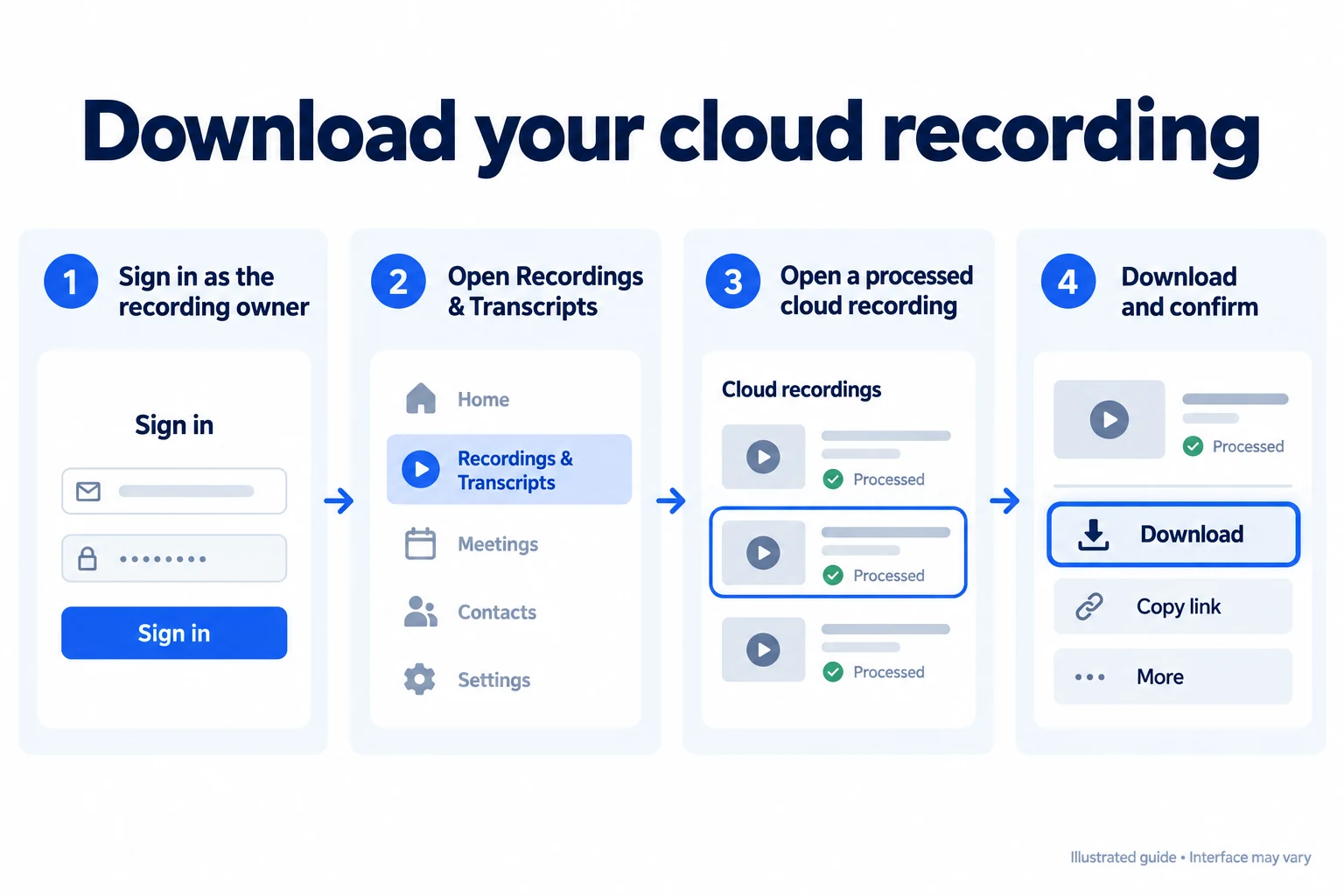
- Sign in to the Zoom web portal at zoom.us with the account that hosted the meeting.
- In the navigation menu, click Recordings & Transcripts, then the Cloud recordings tab.
- Find the meeting by topic, meeting ID or a keyword from the audio transcript. Use Advanced Search to filter by date range.
- Click the recording to open its page, which lists every file in the recording.
- Click Download, then click Download again in the confirmation prompt. Your browser may ask where to save the files.
A Zoom cloud recording that is still processing shows its title in the list but cannot be opened or downloaded yet. Processing usually takes a while after the meeting ends, and the host receives an email when the recording is ready if email notifications are on.
Download only one file, such as the audio
The recording page lists each file separately (video, audio only, audio transcript, chat file), so you can save just the one you need. Hover over a file in the list to reveal its small action icons, then click the download arrow. Zoom's own article documents this hover menu for deleting individual files; the per-file download icon is described in university IT guides such as Millersville University's Zoom guide. Grabbing only the M4A is handy for long meetings: Zoom estimates about 200 MB per hour for recorded video and about 20 MB per hour for recorded screen sharing.
Download as an account owner or admin
Account owners and admins can download any user's cloud recording without asking the host. Go to Account Management > Recording and Transcript Management > Recordings tab, filter with Advanced Search by date range, host or storage location, open the recording and click Download. The admin needs the privilege to edit account settings.
Which files are in a Zoom recording download?

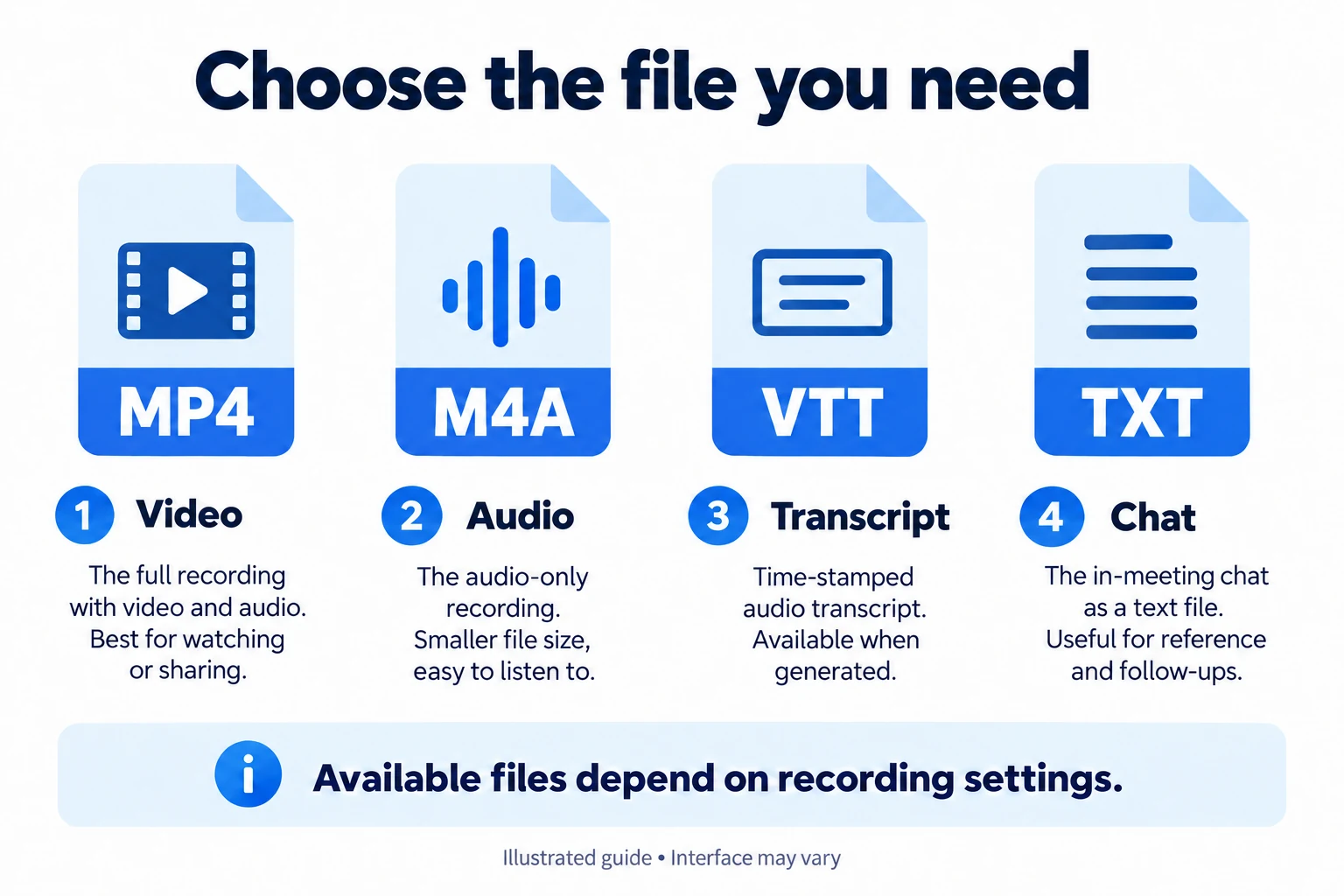
A Zoom cloud recording is not one file but a set of files, and which ones exist depends on the host's cloud recording settings at the moment of recording. Settings changed afterwards do not add files to an old recording. Zoom's recording file format article and its cloud recording settings article list the following:
| File | Format | Created when |
|---|---|---|
| Shared screen with speaker view (or gallery view) | MP4 | Record active speaker with shared screen, or Record gallery view with shared screen, is checked |
| Active speaker, gallery view and shared screen as separate videos | Several MP4 files | Record active speaker, gallery view and shared screen separately is checked |
| Audio only | M4A | Record audio-only files is checked (one file for everyone, one per participant, or both) |
| Audio transcript | VTT | Create audio transcript is on; it arrives after the video, with a second email |
| Chat | TXT | Save chat messages from the meeting is checked; only messages sent to everyone are saved |
| Closed captions | CC.VTT | Save closed caption as a VTT file is on (see the note below) |
| Timeline | JSON | Add a timestamp to the recording is on; available through Zoom's API, not as a normal portal download |
Two Zoom pages disagree on per-participant audio: the file format article says separate audio tracks for each participant are a computer recording feature, while the cloud recording settings article offers Record a separate audio file of each participant for up to 200 speakers. The captions file has a similar caveat: since Zoom's caption change in late May 2026, Zoom says captions can no longer be saved as a post-meeting asset, although the cloud settings article still lists the CC.VTT option. If you need the words, rely on the audio transcript VTT; our guide to Zoom transcription explains how to turn it on and the difference between VTT and TXT transcripts.
Every downloaded file is a standard format: the MP4 plays in any video player and the VTT opens in a text editor. You do not need to convert a Zoom cloud recording to MP4 after downloading it.
Can you download a Zoom recording from the Zoom Workplace desktop app?
The Zoom Workplace desktop app shows your recordings but sends you to the web portal to download cloud files. In the app (version 6.5.5 or later), click the Hub tab, then My files > Meeting recordings, where cloud and computer recordings sit in separate tabs. For a cloud recording, Zoom's Hub article lists actions such as Copy link and passcode, Share, Open in browser and Recording details, but no Download action. Use Recording details to jump to the recording's page on the web portal, then click Download there.
For a computer recording, the same Hub tab opens the file directly: hover over the recording, click the three-dot menu and choose View file location. A recording that shows Convert next to its name was never converted to MP4; click Convert first.

Summarize your meetings & videos automatically with NoteMeeting
Google Meet, Zoom, YouTube, Podcast — all in one extension.
Can you download a Zoom recording on iPhone or Android?

Zoom's support articles do not document a way to download a cloud recording inside the Zoom mobile app. The iOS and Android apps can only record to the cloud, and those recordings appear in the host's Recordings & Transcripts list on the web portal, which you open in a browser. There is a second catch for share links on a phone: Zoom's recording FAQ says the download icon on the recording share page disappears when the browser window is narrower than 1,024 pixels. Switching your mobile browser to its desktop site mode may make the page wide enough; if the icon still does not show, download the recording on a computer instead.
Local (computer) recordings: there is nothing to download
A Zoom computer recording, the free option available on every plan including Basic, is written straight to the hard drive of the computer that recorded it, so there is no download step. The default folder is the Zoom folder inside Documents on Windows, macOS and Linux, with one subfolder per meeting. The Zoom web portal lists computer recordings only as a file path; it cannot download them, and Zoom does not let you upload a computer recording to the Zoom cloud.
If you can't find the folder, or it only contains double_click_to_convert files, see our guide on where Zoom recordings are saved and how to fix missing files. To give a computer recording to someone else, Zoom suggests sending the MP4 directly or uploading it to a service such as Google Drive, Dropbox, Box, YouTube or Vimeo.
How to download a Zoom recording from a shared link

Downloading from a shared link works only when the host allowed it. Each share link carries the settings the host chose under Share > More settings, and the Download button appears only when Viewers can download is on. When it is, the steps are:
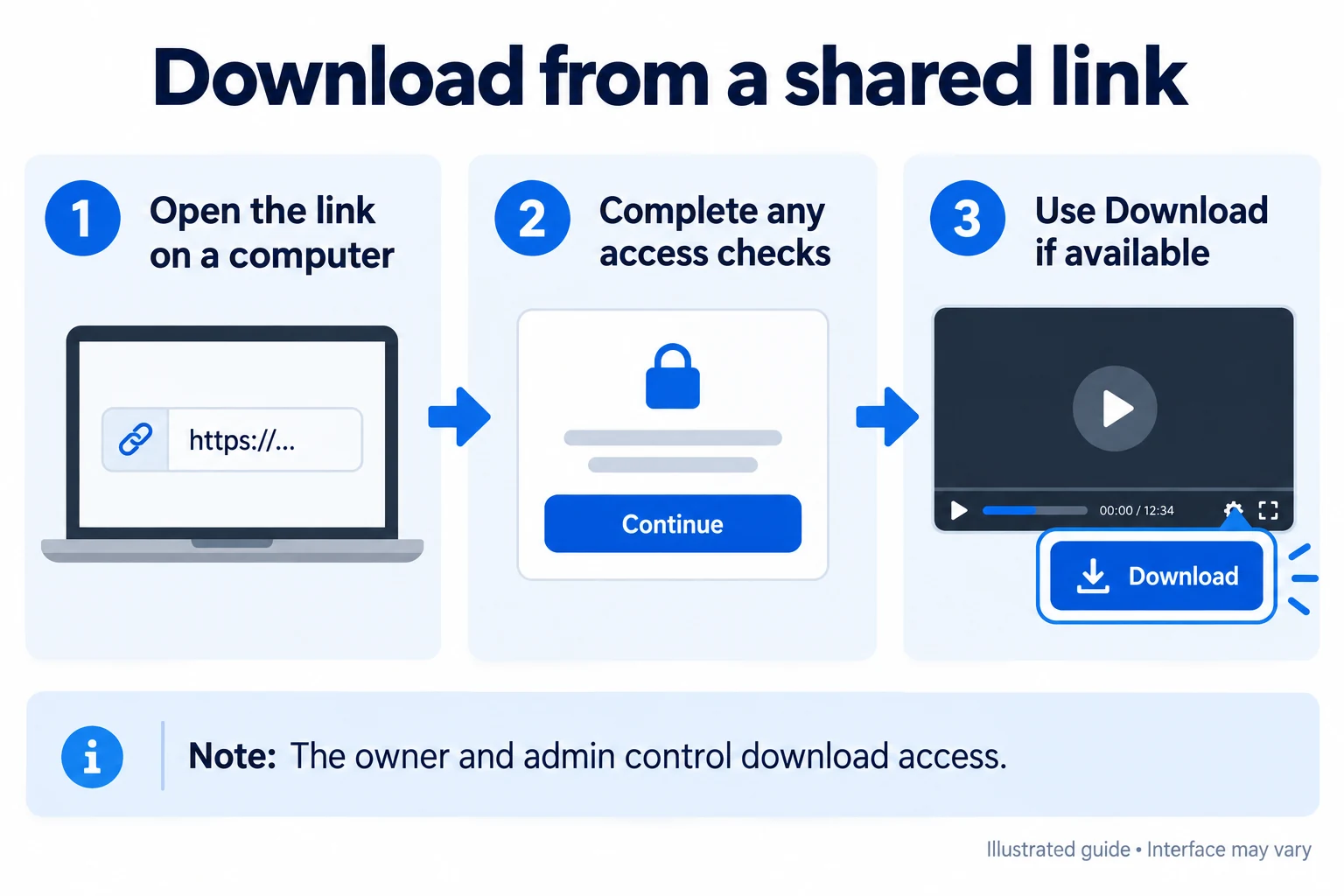
- Open the link in a browser on a computer.
- Enter the passcode if the page asks for one. Some links have the passcode embedded, so they open in one click.
- Sign in to Zoom if the page asks you to. The host may limit viewing to signed-in Zoom users, users in the same account, specific email domains or a company single sign-on.
- Fill in your name and email if the recording requires registration (Zoom calls this an on-demand recording).
- Click Download on the share page and choose where to save the file.
The viewer setting covers the video. Two separate settings, Viewers can see transcript and Viewers can see the chat, decide whether the transcript and chat appear on the share page; Zoom's articles describe them as viewing options, not downloads.
The host can see who downloaded. The recording's Recording Analytics page counts each click on Download, and for signed-in Zoom users it shows their name and email address. Viewers who watch without giving an email are not identified.
Why can't I download a Zoom recording?
A missing Download option almost always comes from a setting that someone else controls. Match what you see to the cause:
| What you see | Likely cause | Who can fix it |
|---|---|---|
| Share page plays the video but has no Download button | The host left Viewers can download off | The host |
| The host turned Viewers can download on, but viewers still can't download | The account setting Cloud recording downloads is off, or set to Only the host can download cloud recordings | The account admin |
| The download icon disappears on the share page | Browser window narrower than 1,024 pixels (common on phones) | You: maximize the window or use a computer |
| "Processing" message, video won't play | The cloud recording hasn't finished processing | Nobody: wait, then reload |
| "The recording URL link is invalid" or "The media could not be loaded" | The recording was deleted or moved to the trash | The owner can recover it from the trash within 30 days |
| The link stopped working after a few days | The host set an expiration date | The host: extend or remove the expiry |
| Asked to sign in, or access denied after signing in | The link is limited to signed-in users, one account, specific domains, SSO or named people | You (sign in with the right account) or the host |
| Access blocked from your network | The admin restricted playback to certain IP addresses | The account admin |
| You were co-host but the recording isn't in your list | Cloud recordings started by a co-host go to the host's account | The host |
| You hosted but can't see your own recordings | The admin turned on Prevent hosts from accessing their cloud recordings | The account admin |
| The host has no share link to send | It was a computer recording, so it only exists on the recorder's computer | The person who recorded |
Sources: Zoom's cloud recording management settings, Zoom's missing cloud recordings guide and the recording FAQ linked above.
The host disabled downloads: what you can do
When the host turned off downloads, the only supported way to get the file is to ask the host. Zoom's recording FAQ says a restricted recording can't be downloaded "even if you use a tool to search the URL for a download." Browser extensions, scripts and screen recorders that get around the restriction copy a file the host chose not to distribute, which can break your school's or employer's rules and the rights of whoever owns the content, so this guide does not cover them.
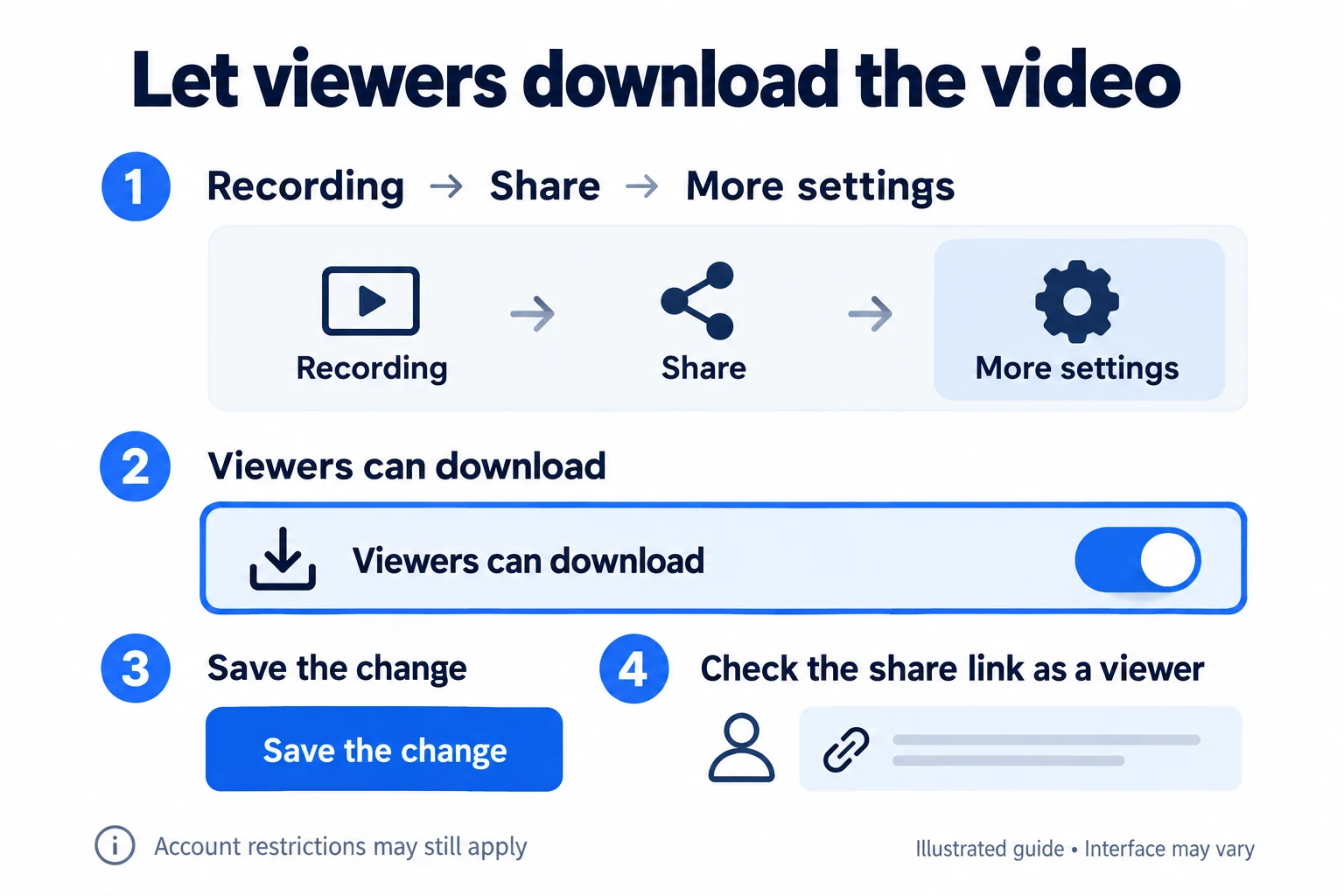
Asking works best when you tell the host exactly what to click. You can send something like this:
- Host steps: "Could you allow downloads for the recording? On zoom.us, go to Recordings & Transcripts > Cloud recordings, open the recording, click Share, open More settings, turn on Viewers can download and click Save. The same link will then show a Download button."
- If the option is missing or locked for the host: the account admin has to turn on Cloud recording downloads (and clear Only the host can download cloud recordings) under Account Management > Account Settings > Recording & Transcript.
- If the host would rather not share the video: ask for just the M4A audio or the VTT transcript, which the host can download and send as a file.
Can you download all your Zoom recordings at once?
Zoom's support articles describe downloading one recording at a time; none of the articles checked documents a bulk download button. The Export button on the Cloud recordings page saves a CSV list (host email, meeting ID, topic, start time, file size), not the recordings themselves. Some university guides, such as the University of Missouri System's, show selecting several recordings with checkboxes and choosing More > Download; check whether your portal offers this, because Zoom's current article does not mention it.
For large archives, Zoom points admins to its API or to apps in the Zoom App Marketplace. The Zoom Meetings API has a List all recordings endpoint and a Get meeting recordings endpoint that return a download URL for each file, which a developer or admin can script. Choosing a third-party app means giving it access to your recordings, so involve your admin.
What happens to the cloud copy after you download it?
Downloading a Zoom cloud recording copies it; the cloud copy stays until someone deletes it or an auto-delete rule removes it. That matters because cloud space is limited: when an account reaches its storage limit, nobody on it can record to the cloud until space is freed, though existing recordings stay accessible. Enterprise accounts have unlimited cloud storage.
- Download, then delete: Zoom's own advice for a full account. Deleted recordings move to the trash, which does not count toward your storage, and can be recovered for 30 days if the admin enabled the trash.
- Auto-delete rules: admins can delete cloud recordings a set number of days after they were created. The University of Missouri System, for example, keeps them for 45 days before moving them to the trash. If a recording must survive, download it or click Disable auto-delete on it, if your admin hasn't locked that option.
- Downgrades: if a paid account drops to Basic, its cloud recordings are deleted after 30 days unless the account is upgraded again within that time.
If you are downloading recordings to make room, the cheapest change for future meetings is to record fewer files: Zoom lists the separate-views option, audio-only files and saved chat as settings that add files to every recording.
When you need what was said, not the video
Many download requests are really about content: the decisions, the numbers and who agreed to do what. For a meeting that already happened, the quickest route is to ask the host for the audio transcript VTT, which is a small text file even when the video is several gigabytes. For future meetings where you won't be the host and may never get the recording, you can take your own live transcript from your side of the call.
NoteMeeting does that without joining the meeting as a bot. It does not download, record or store Zoom recordings; it transcribes the meeting from your side of the call while it runs and gives you a transcript and AI summary to download afterwards (nothing is kept on NoteMeeting's servers). Zoom in the browser works with the NoteMeeting Chrome extension; the installed Zoom desktop app needs the NoteMeeting Desktop App, included from the Pro plan. The free trial covers 1 hour of audio, then plans start at $6 a month (see NoteMeeting pricing and how its AI transcription works). Tell the other participants you are transcribing, just as you would before recording; our guide on how to record a Zoom meeting covers asking the host for recording permission.
FAQ
Can I download a Zoom recording if I'm not the host?
Yes, if the host shares the cloud recording with Viewers can download turned on, or if you are an admin, a scheduling delegate, or an alternative host given access to the recording. A co-host who started the recording does not get it in their own account. For a computer recording, only the person who recorded has the file.
Why did my Zoom download come as several files?
A Zoom cloud recording is a set of files: one or more MP4 videos, an M4A audio file, and, if enabled, a VTT transcript and a chat TXT file. Download only the file you need from the recording page, or keep them together in one folder per meeting.
Can I download a Zoom recording as MP4?
Yes. Zoom saves both cloud and computer recordings as MP4 video, so the download needs no conversion. Only an unconverted computer recording (a .zoom file named double_click_to_convert) has to be converted first in the Zoom desktop app.
Does the host know if I download the recording?
The host can see the number of download clicks in Recording Analytics, and if you were signed in to Zoom, your name and email appear in the download list. Viewers who watch without giving an email are not named.
How long does a Zoom recording link work?
Until the host's expiration date, until the recording is deleted, or until an auto-delete rule removes it, whichever comes first. Zoom also creates a new link when the host changes who the recording is shared with, so an old link may stop working after sharing changes.