

Installing a Chrome extension takes under a minute: find it in the Chrome Web Store, click Add to Chrome, and confirm. The confusing part comes afterward: the icon doesn't show up, a permissions prompt you skimmed, an "Add to Chrome" button that's greyed out, or an extension Chrome suddenly turned off. This guide covers installation, pinning and managing extensions, limiting what they can access, removing or repairing them, and fixing the most common install errors in 2026.
Table of contents
- Key takeaways
- How to install a Chrome extension (4 steps)
- Step 1: Open the Chrome Web Store
- Step 2: Vet the listing before you install
- Step 3: Click Add to Chrome and confirm permissions
- Step 4: Confirm it installed
- Where to find, pin, and manage extensions
- Installed but no icon? That's normal
- How to pin or unpin an extension
- Turn extensions on/off and open Manage extensions
- Extension permissions: what they mean and how to limit them
- Common permission warnings, explained
- How to change site access after installing
- How to remove, repair, or clean up extensions
- Remove an extension
- If an extension is "corrupted" or stopped working
- Can't install a Chrome extension? 6 common causes
- 1. You're in Incognito or Guest mode
- 2. Your browser is managed by an organization
- 3. The extension uses Manifest V2 or is otherwise unsupported
- 4. A temporary store or browser glitch
- 5. Outdated Chrome or a profile/sync problem
- 6. You're on a phone or tablet
- What about installing extensions outside the store?
- Checklist: choosing a safe extension
- Example: vetting a meeting note-taking extension
- FAQ
- Are Chrome extensions free?
- Why can't I see the extension I just installed?
- Are Chrome extensions safe?
- Why is "Add to Chrome" greyed out?
- How do I remove a Chrome extension?
- Can I use Chrome extensions on Android or iPhone?
- Do Chrome Web Store extensions work in Edge or Brave?
- Do extensions run in Incognito mode?
- Conclusion
Key takeaways
Install from the official Chrome Web Store (chromewebstore.google.com): Add to Chrome > Add extension.
A missing icon doesn't mean the install failed. New extensions sit under the puzzle-piece menu until you pin them.
Use site access settings to limit an extension to the sites you choose, or to only run when you click it.
You can't install extensions in Incognito or Guest mode, and work or school browsers may block them by policy.
Older Manifest V2 extensions no longer run in current Chrome, and as of August 31, 2026 they've been removed from the Web Store.
How to install a Chrome extension (4 steps)
Open the Chrome Web Store in Chrome on your computer.
Search for the extension by name or by task (for example, "meeting notes" or "tab manager").
Open its listing and click Add to Chrome.
Review the permission prompt and click Add extension. Then find it under the puzzle-piece icon.
The process is the same whether you want a translator, a password manager, or a meeting note-taking extension. The two things worth slowing down for are who published the extension and what it's asking to access.
Step 1: Open the Chrome Web Store
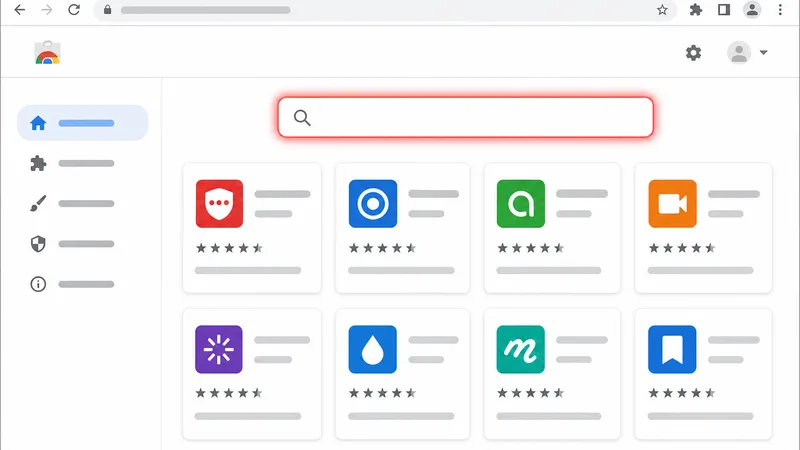
Open Google Chrome on Windows, Mac, Linux, or ChromeOS.
Go to
chromewebstore.google.com, or open the puzzle-piece menu and choose Visit Chrome Web Store.Search by exact name if you know it. Otherwise, search by what you need it to do.
Before you start:
You can't add extensions in Incognito mode or as a Guest. Use a normal window and a signed-in profile.
On a work or school computer, your administrator may allow only approved extensions.
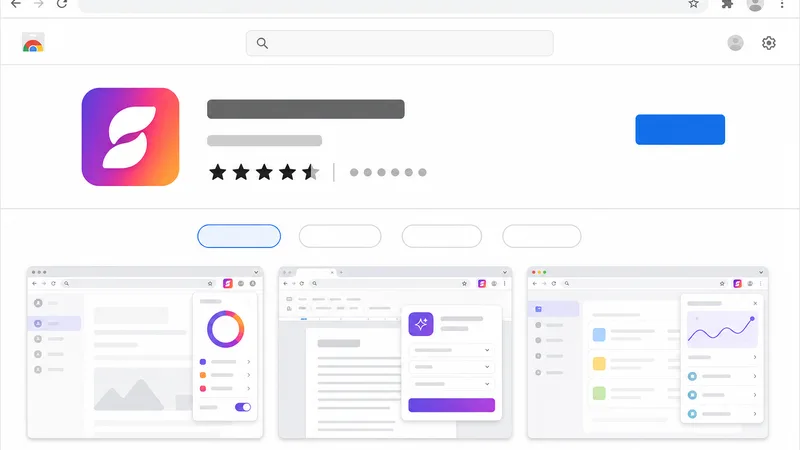
Step 2: Vet the listing before you install
Take ten seconds to check:
Publisher: does it match the company or product you expect? Is there a website and a privacy policy?
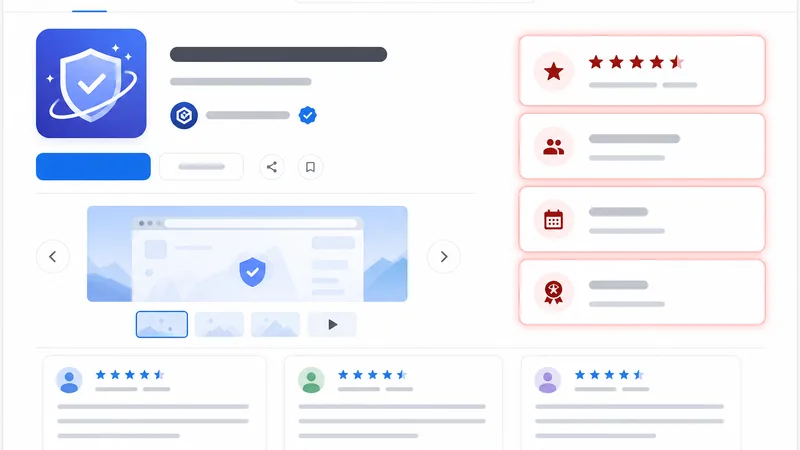
Badges: an Established Publisher badge (blue checkmark) means Google verified the developer's identity and good track record. A Featured badge means the Chrome team reviewed it for best practices and user experience.
Users and recent reviews: read the newest reviews, not just the star average.
Last updated date: something untouched for a year or more may be abandoned.
Privacy section: the listing shows what data the developer says it collects.
Watch for impersonators. Copycat extensions reuse a well-known brand's name and logo. If the name is familiar but the publisher isn't, the user count is tiny, or the reviews look templated, skip it.
Step 3: Click Add to Chrome and confirm permissions
Click Add to Chrome.
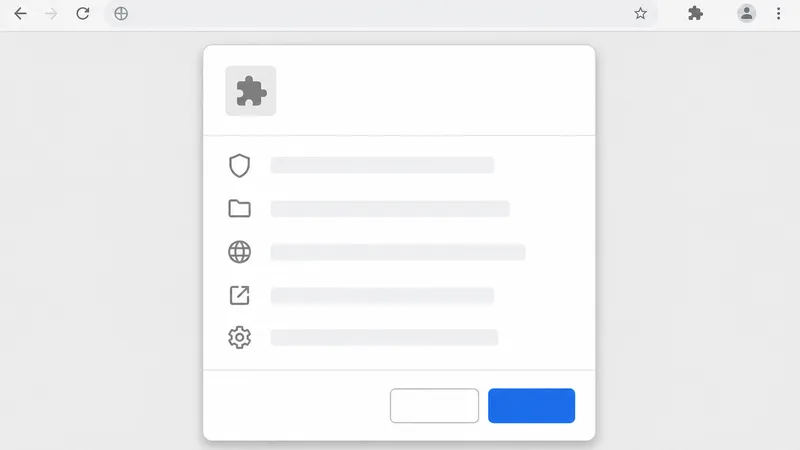
Chrome shows what the extension can do, for example "Read and change all your data on all websites."
If those permissions make sense for what the extension does, click Add extension.
Rule of thumb: permissions should match the feature. A page translator needs to read the page. A new-tab wallpaper extension asking to read and change data on every site deserves a second look.
Step 4: Confirm it installed
Chrome briefly shows a confirmation near the toolbar.
Click the puzzle-piece icon (Extensions) to the right of the address bar to see it listed.
Pin it if you'll use it often (see below).
On Microsoft Edge, Brave, Opera, or Vivaldi? These are Chromium-based and can install from the Chrome Web Store too. The button may read "Get" or "Add to Brave," and Edge asks you to allow extensions from other stores first. A few extensions that depend on Google-specific APIs may not work fully outside Chrome.
Where to find, pin, and manage extensions
Installed, pinned, and enabled are three different states:
Installed: it's in your browser profile.
Pinned: its icon sits on the toolbar for one-click access.
Enabled: it's switched on and running.
Knowing the difference keeps you from removing an extension that was simply hidden.
Installed but no icon? That's normal
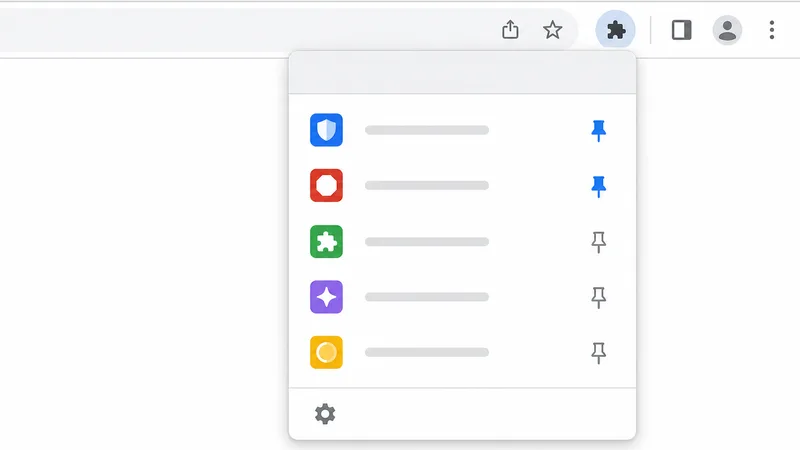
Chrome doesn't always put new extensions on the toolbar. Click the puzzle-piece icon and you'll find it there.
How to pin or unpin an extension
Click the puzzle-piece icon on the toolbar.
Find the extension.
Click the pin icon next to it. Click it again to unpin.
You can also right-click a pinned icon and choose Unpin, or drag icons to reorder them. Pin the extensions you use daily and leave the rest in the menu.
Turn extensions on/off and open Manage extensions
Two ways to get there:
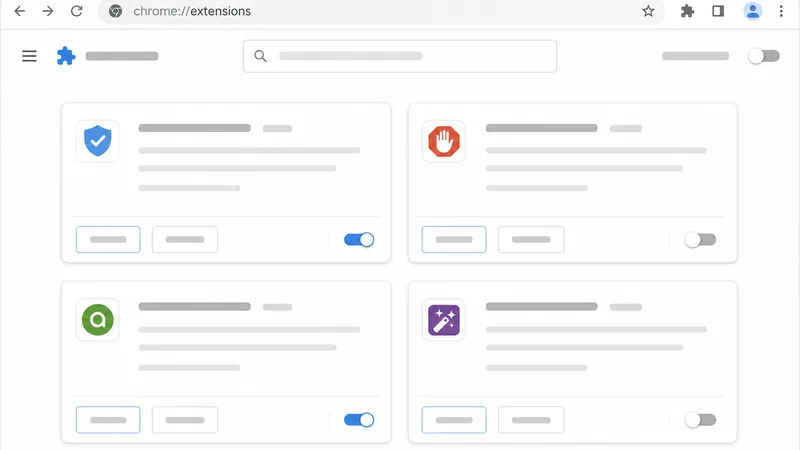
Chrome menu (three dots) > Extensions > Manage Extensions
Type
chrome://extensionsin the address bar
From this page you can:
Toggle any extension on or off
Open Details to see permissions, site access, and the Incognito setting
Allow an extension in Incognito (off by default)
Remove extensions you no longer need
Disable an extension temporarily when you only use it occasionally, when a site breaks after installing it, or when Chrome feels slow and you want to find the cause. Remove it when you no longer need it, no longer trust the developer, or it duplicates another tool.
To see which extensions use the most memory, open Chrome's Task Manager (three-dot menu > More tools > Task manager, or Shift+Esc on Windows). Each extension appears as its own process.
Extension permissions: what they mean and how to limit them
Permissions are what an extension needs to do its job, such as reading the page you're on, showing notifications, or managing downloads. A permission isn't dangerous on its own. The question is whether it fits the feature. Give each extension the least access it needs, and tighten site access after installing if you're unsure.

Summarize your meetings & videos automatically with NoteMeeting
Google Meet, Zoom, YouTube, Podcast — all in one extension.
Common permission warnings, explained
| Warning | What it means | When to be careful |
|---|---|---|
| Read and change all your data on all websites | It can see and modify content on every page you open | Normal for ad blockers, translators, and password managers. A red flag for a simple single-purpose tool. |
| Read and change your data on [specific sites] | Access limited to the listed domains | Usually fine if the sites match the purpose (for example, a Google Meet tool on meet.google.com). |
| Read your browsing history | It can see the sites you've visited | Question it unless history is core to the feature. |
| Display notifications | It can show desktop notifications | Fine for reminders, email, and chat tools. |
| Manage your downloads | It can see and act on downloaded files | Only makes sense for download managers and similar tools. |
| Capture content of your screen / use your microphone | Screen or audio access, prompted when used | Expected for recorders and meeting note-takers. Make sure the publisher is trustworthy. |
How to change site access after installing
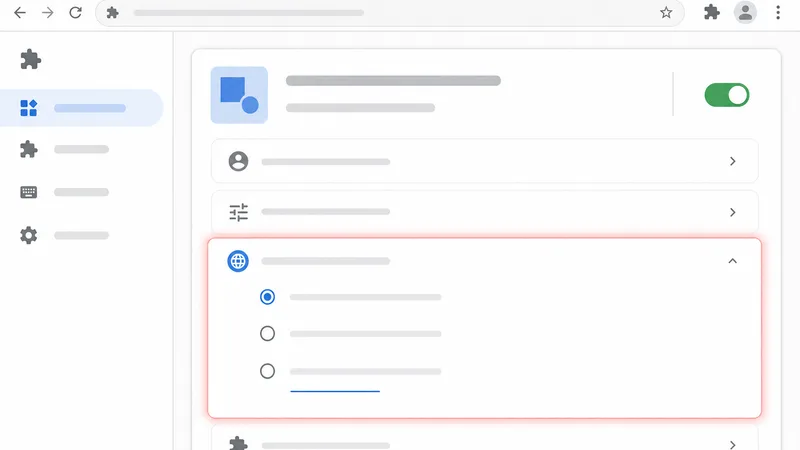
Go to
chrome://extensionsand click Details on the extension.Find Site access.
Choose one of the options:
On click: it only runs on a site when you click its icon.
On specific sites: it runs automatically only on domains you list.
On all sites: it runs everywhere.
You can also do this from the puzzle-piece menu: click the three dots next to an extension, then This can read and change site data. For most extensions you use occasionally, On click or specific sites is the safer choice. Extensions that change network settings (VPNs, proxies) aren't limited by site access.
How to remove, repair, or clean up extensions
Unused extensions add clutter and potential risk. Review your list every few months.
Remove an extension
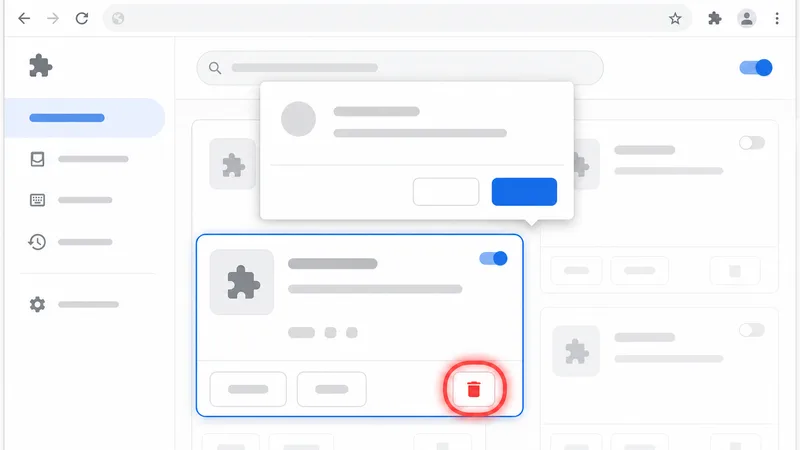
From the toolbar or puzzle-piece menu: right-click the extension icon (or click its three dots) and choose Remove from Chrome, then confirm.
From Manage Extensions: open chrome://extensions, click Remove on the card, and confirm.
Not sure whether you'll need it again? Turn it off instead. Removing an extension may delete its local settings and data.
If an extension is "corrupted" or stopped working
On
chrome://extensions, click Repair if Chrome shows it. Chrome reinstalls the extension from the store.If that doesn't help, remove it and reinstall it from the Chrome Web Store.
Update Chrome (Help > About Google Chrome) and restart.
If extensions keep getting corrupted, scan for malware or security software that may be modifying Chrome files.
Can't install a Chrome extension? 6 common causes
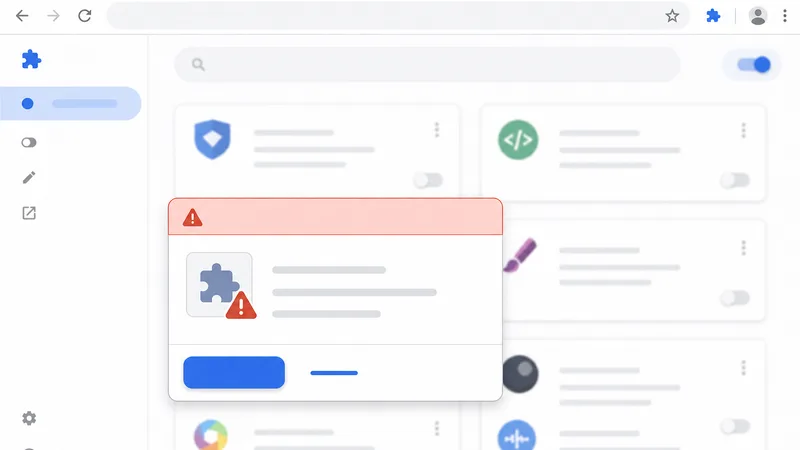
1. You're in Incognito or Guest mode
Chrome blocks installs in both. Close the window, open a normal Chrome window on your own profile, and try again.
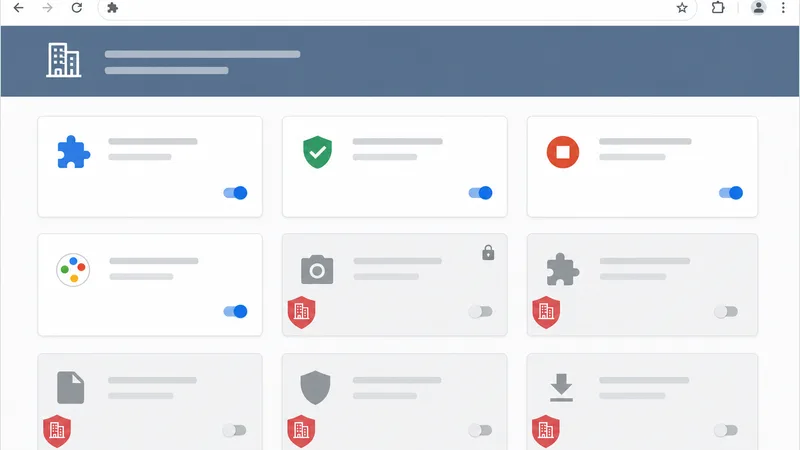
2. Your browser is managed by an organization
If you see "Your browser is managed by your organization" in the Chrome menu, IT policy controls which extensions you can install. Blocked extensions won't install or may show as blocked. Send IT the extension's name and why you need it. Don't try to bypass the policy.
3. The extension uses Manifest V2 or is otherwise unsupported
Google finished phasing out Manifest V2 extensions. They were disabled for all users from Chrome 138 (July 2025), and as of August 31, 2026 all remaining Manifest V2 items have been removed from the Chrome Web Store. If an old favorite is greyed out, shows "This extension is no longer supported," or has disappeared from the store, look for the developer's Manifest V3 version or an alternative. Chrome also disables extensions that violate store policy (for example, ones flagged as malware). Don't try to force those back on.
4. A temporary store or browser glitch
If Add to Chrome does nothing or the button stays greyed out on a supported extension: reload the page, restart Chrome, update Chrome, and make sure you're signed in to the right profile. Clearing the Chrome Web Store site's cookies and cache can also help.
5. Outdated Chrome or a profile/sync problem
Check Help > About Google Chrome and install updates. If one profile keeps failing, try installing in another Chrome profile to see whether the problem is profile-specific.
6. You're on a phone or tablet
The Chrome apps for Android, iPhone, and iPad don't run Chrome Web Store extensions. If you open the store on mobile while signed in, Google's help says you can add the extension to your desktop Chrome instead, and it will install there through sync.
What about installing extensions outside the store?
Developers can load an unpacked extension via chrome://extensions > Developer mode > Load unpacked. For everyday users, extensions from outside the Chrome Web Store skip Google's review. Only do this with code you trust, such as your own company's internal tool.
Checklist: choosing a safe extension
The publisher is clearly identified, ideally with an Established Publisher badge.
Recent reviews describe real use, not generic praise.
Permissions match the feature. Limit site access where you can.
It's been updated recently.
You don't already have another extension doing the same job.
If you have two or three extensions doing the same thing (translation, tab management, screenshots), keep the one that works best and remove the rest. Fewer extensions means a smaller attack surface and a lighter browser.
Example: vetting a meeting note-taking extension
Meeting extensions ask for sensitive access, including your microphone, tab audio, and the meeting page itself. So check three things: the listing links to the vendor's official website, the requested permissions match recording and transcribing on Meet/Zoom/Teams pages (not every site you visit), and recent reviews describe actual meetings. NoteMeeting's Chrome extension transcribes and summarizes Google Meet calls. You can run it through the same checklist before installing. For a side-by-side comparison, see the best Google Meet note-taking extensions or the broader roundup of AI meeting note takers. If you need recordings rather than notes, see how to screen record Google Meet with audio.
FAQ
Are Chrome extensions free?
Most are free to install. Many use a freemium model, with basic features free and advanced features behind a subscription or account sign-up. Paid plans are billed by the developer, not through Chrome.
Why can't I see the extension I just installed?
It's installed but not pinned. Click the puzzle-piece icon at the top right of Chrome, find the extension, and click the pin icon.
Are Chrome extensions safe?
Extensions in the Chrome Web Store go through Google's review, but that doesn't guarantee safety. Stick to well-known publishers, check recent reviews and the last update date, and limit site access. If an extension changes owners and starts behaving differently, remove it.
Why is "Add to Chrome" greyed out?
Usually because the extension is no longer supported (Manifest V2), your browser is managed by an organization that blocks it, or you're in Incognito/Guest mode. Reloading the page or updating Chrome fixes the occasional temporary glitch.
How do I remove a Chrome extension?
Right-click its icon and choose Remove from Chrome, or go to chrome://extensions and click Remove on its card.
Can I use Chrome extensions on Android or iPhone?
Not in the Chrome mobile apps. Extensions run in Chrome on Windows, Mac, Linux, and ChromeOS.
Do Chrome Web Store extensions work in Edge or Brave?
Yes. Edge, Brave, Opera, and Vivaldi are built on Chromium and can install from the Chrome Web Store. Most extensions work the same, but ones that depend on Google-specific services may not.
Do extensions run in Incognito mode?
Not by default. To allow one, open its Details on chrome://extensions and turn on Allow in Incognito. Only do this for extensions you fully trust.
Conclusion
Installing an extension is the easy part. Keeping your setup safe and fast takes a few habits: install only from the Chrome Web Store, check the publisher and permissions before clicking Add extension, pin what you use and manage the rest at chrome://extensions, and limit site access to what each extension really needs. When something won't install, check Incognito/Guest mode, organization policy, and Manifest V2 support before anything else.