
Zoom cloud recording does not record breakout rooms: it captures only the main session, no matter which room the host is in. The only way to record a Zoom breakout room is a computer (local) recording started inside that room from the Zoom desktop app for Windows, macOS or Linux, by the host, a co-host or a participant the host has allowed to record. Each computer recording captures only the room its recorder is in, so to record every room you need one designated recorder per room, with permission granted before the host clicks Open All Rooms. The files are saved on each recorder's computer (by default in Documents\Zoom), not in the host's cloud account, and nobody joining from a phone, tablet or the Zoom web app can make one.
Table of contents
- Does Zoom cloud recording record breakout rooms?
- Who can record in a Zoom breakout room?
- How to record Zoom breakout rooms, step by step
- How to record your breakout room as a participant
- Can you record Zoom breakout rooms on a phone or in the web app?
- Can you transcribe breakout rooms in Zoom?
- Where do Zoom breakout room recordings go?
- Pre-meeting checklist for teachers and facilitators
- Do participants know a breakout room is being recorded?
- Need only what was said in each room? Use a transcript
- FAQ
- Can you record more than one breakout room at the same time?
- Can the host see or monitor breakout rooms?
- Can you save breakout room assignments for next time?
The planning table below is based on Zoom's articles on managing breakout rooms and participating in breakout rooms, checked on October 4, 2026.
| What you want | What Zoom can do | Who must be in the room | Set up before the meeting |
|---|---|---|---|
| The main session (lecture, plenary, debrief) | Cloud recording (paid plans) or the host's computer recording | Nobody extra | Cloud recording on, or automatic recording when scheduling |
| One specific breakout room | Computer recording of that room only | A recorder on the Zoom desktop app (host, co-host or participant with permission) | Record to computer files on; decide who records; pre-assign that person to the room |
| Every breakout room | One computer recording per room, running at the same time | One recorder per room, each on the desktop app | As above, plus a plan for collecting the files |
| A transcript of a breakout room | No Zoom transcript tied to a room recording; captions are live only | Someone in the room with a recording or a transcription tool | Transcribe the room's .m4a afterwards, or run a transcription tool in the room |
| A Zoom AI meeting summary of the rooms | Not available: Zoom says Meeting Summary does not work in breakout rooms | Not applicable | Summarize each room's transcript yourself |
| Recording from a phone, tablet or the Zoom web app | Not possible for breakout rooms | Not applicable | Give the recorder role to someone on a Windows, macOS or Linux computer |
Does Zoom cloud recording record breakout rooms?
No. Zoom's breakout room article says that if a meeting is being cloud recorded, the recording covers only the main meeting and none of the breakout rooms, regardless of which room the meeting host is in. Zoom adds that it is currently only possible to record in breakout rooms with computer recording. The cloud recording does not follow the host into a room, and Zoom does not create one cloud file per room.
Some university guides describe this differently. The University of Iowa (September 2024) reports a blank gap in the cloud recording while the host is out of the main session, and Utah State University says the recording "follows" the host, which is true of a host's computer recording, not a cloud recording. Plan as if the cloud recording holds nothing useful while the rooms are open.
Who can record in a Zoom breakout room?
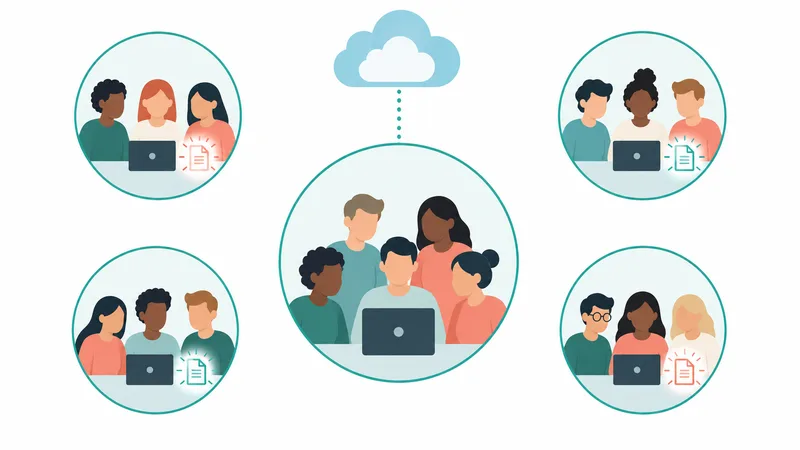
Three roles can start a computer recording in a Zoom breakout room, as long as they joined from the Zoom desktop app on Windows, macOS or Linux:
- The host. Zoom says a computer recording captures only the room the person recording is in, so a host who records to the computer gets whichever room the host is in at that moment, not every room.
- A co-host. Co-hosts can move between breakout rooms and can start a computer recording, according to Zoom's roles table. Limits: the host can turn off co-host computer recording, co-hosts can only be promoted during the meeting, and hosts and co-hosts cannot run cloud and computer recording at the same time.
- A participant with recording permission. The usual setup for classes and workshops: the host grants permission per person or for everyone, and the participant clicks Record in their room.
If the host is cloud recording the main session, use regular participants with recording permission as room recorders rather than co-hosts, because Zoom does not spell out how the cloud-plus-computer rule applies to a co-host in a room; test first. The full participant permission flow, including requests and auto-approve, is in our guide to recording a Zoom meeting without being the host.
How to record Zoom breakout rooms, step by step
To record Zoom breakout rooms, the host turns on computer recording, puts one recorder in each room and grants recording permission before opening the rooms. Steps for the host:

Summarize your meetings & videos automatically with NoteMeeting
Google Meet, Zoom, YouTube, Podcast — all in one extension.
- Turn on computer recording. In the Zoom web portal, go to Settings > Recording and turn on Record to computer files (Zoom's article on enabling computer recording). If the toggle is greyed out, an admin has locked it.
- Turn on breakout rooms. Under Settings > Meeting > In Meeting (Advanced), turn on Breakout room - Meetings and check Assign participants to breakout rooms when scheduling.
- Pre-assign rooms when scheduling. Under Meetings > Schedule a Meeting, check Breakout Room pre-assign, click Create Rooms and place one recorder in each room (or import a CSV). Recorders must sign in with the email you assigned, per Zoom's pre-assigning article.
- Grant permission before opening rooms. In the meeting, click Participants, hover over each recorder's name, click More and choose Allow Record. To let everyone record, open Host tools and, under Allow all participants to, check Record to computer.
- Open the rooms. Click Breakout Rooms > Open All Rooms. Each recorder clicks Record in the meeting controls once their room starts.
- Forgot someone? Click Join next to their room, grant Allow Record there, then click Leave to return to the main session.
- Collect the files. Computer recordings convert after the meeting ends. Ask recorders to keep the laptop awake until conversion ends and then send you the files.
How to record your breakout room as a participant
A participant records a Zoom breakout room by getting recording permission from the host, ideally before the rooms open, and then clicking Record inside the room. If the rooms are already open and you have no Record button, click Ask for Help and then Invite Host; Ask for Help asks the host to join your room, and Zoom says a host who joins an open room can allow you to record there.
Can you record Zoom breakout rooms on a phone or in the web app?
No. Zoom states that computer recording is not supported on iOS, iPad or Android, and that the Zoom web client does not support local recording. Phone, tablet and web app users can join breakout rooms but cannot record them, so the recorder in each room must be on a computer.
Can you transcribe breakout rooms in Zoom?
Not with Zoom's built-in AI or recording transcripts. What each Zoom text feature does in a breakout room (checked October 4, 2026):
- Meeting summary (Zoom AI): Zoom's Meeting Summary article says it is not available within breakout rooms (more in our Zoom AI meeting summary guide).
- Audio transcript: the .vtt file exists only for cloud recordings, so it covers the main session only.
- Captions: available live in breakout rooms, but since May 2026 captions cannot be saved after a meeting (Zoom's captions and transcript FAQ). See how to turn on captions in Zoom.
- Meeting transcript: Zoom's article does not mention breakout rooms, so test it before relying on it.
The dependable route is to transcribe each room's audio-only .m4a file after the meeting, as covered in our guide to Zoom transcription.
Where do Zoom breakout room recordings go?
Zoom breakout room recordings go to the computer of the person who recorded each room, never to the host's cloud account: by default the Documents\Zoom folder on Windows (Documents/Zoom on macOS and Linux), as video[number].mp4 plus an audio-only audio[number].m4a. Zoom does not document the room name appearing in the file name, so ask recorders to add it before sending. For finding files and fixing failed conversions, see where Zoom recordings go.
Pre-meeting checklist for teachers and facilitators
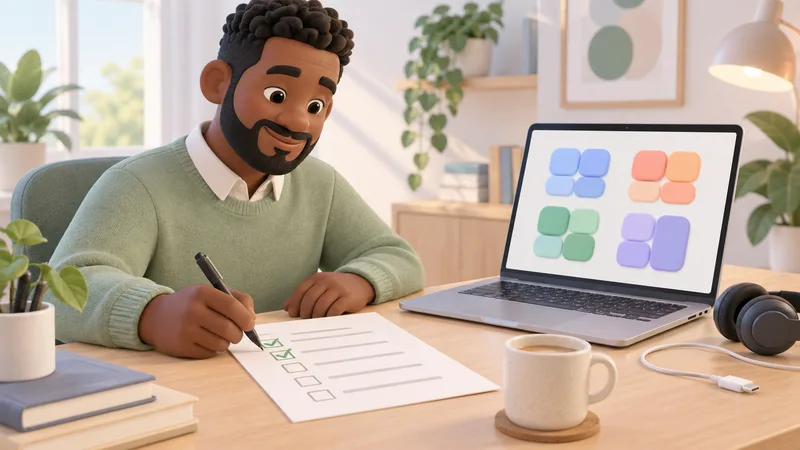
Most failed breakout room recordings come from setup. Run this checklist a day before the session:
- Confirm Record to computer files and Breakout room - Meetings are on and not locked by an admin.
- Pick one recorder and one backup per room, all joining from the Zoom desktop app on a computer, and pre-assign them.
- Ask recorders to free disk space, plug in, and keep the laptop awake until conversion ends.
- Set a return route for files (shared folder, deadline, naming such as room name and date).
- Run a two-minute test with one recorder, especially if you also cloud record the main session.
- Have each recorder tell their room it is being recorded before discussion starts.
For general recording setup, file types and shortcuts, use our main guide on how to record a Zoom meeting.
Do participants know a breakout room is being recorded?
Yes, for Zoom's own recorder. When a computer recording starts, Zoom shows a recording indicator in the top-left corner, phone dial-in participants hear a message, and Zoom's consent article describes a notice when recording begins, with the choice to stay or leave the meeting. Zoom does not describe a separate notice for breakout rooms, so the recorder should still announce it, and teachers should check their institution's recording policy.
Need only what was said in each room? Use a transcript
If you need the words rather than video, a participant in each room can run NoteMeeting for a transcript and AI summary of that room, with no bot joining the meeting. Use the NoteMeeting Chrome extension when joining Zoom in the browser (Zoom web app), or the NoteMeeting Desktop App, included from the Pro plan, with the installed Zoom desktop app. Limits: text only (no video, and it does not download Zoom recordings), no mobile app, and NoteMeeting does not store the meeting audio on its servers, so each person downloads their own transcript. The free trial covers 1 hour of audio, then plans start at $6 a month (NoteMeeting pricing). Whoever runs it should tell the room that the conversation is being transcribed.
FAQ
Can you record more than one breakout room at the same time?
Yes. The host can allow one participant in each room to record, and each recorder gets a separate file of their own room on their own computer. There is no way to get all rooms in one file from Zoom.
Can the host see or monitor breakout rooms?
Partly. The host and co-hosts can join any room to listen in, and with the setting "Allow host to view activity statuses of participants in breakout rooms" turned on, the host can see statuses such as screen sharing and reactions without joining. The host cannot hear a room without joining it.
Can you save breakout room assignments for next time?
Yes, by pre-assigning rooms when you schedule the meeting. Zoom allows one set of pre-assignments per meeting, up to 100 rooms (the maximum capacities need the Large Meeting add-on), and for a recurring meeting the assignment applies to all occurrences.