

Google Meet can automatically take notes during your meetings using AI — but not every account has access. If you're looking for how to turn on auto note-taking in Google Meet, the most important step is to confirm your account actually qualifies before hunting for the button.
Table of contents
- Key takeaways
- Does Google Meet have automatic note-taking?
- How AI notes differ from transcripts and summaries
- Quick checks before turning on auto note-taking
- Does your Google Workspace plan qualify?
- Has your admin enabled the feature in Admin Console?
- Do you have the right role in the meeting?
- Is the meeting using a supported language?
- Are your device and app ready?
- How to turn on Take notes for me in Google Meet
- For Google Workspace admins
- How to enable Take notes for me on desktop
- How to enable Take notes for me on mobile (Android + iPhone)
- Take notes for me in in-person meetings
- How to use auto note-taking effectively during a meeting
- When to use auto note-taking
- What the feature actually captures
- April 2026 update: section toggling (Alpha)
- How to see "Summary so far" when joining late
- How to pause or stop note-taking during a meeting
- Where are Google Meet notes saved after the meeting?
- Notes are stored in Google Docs and Google Drive
- Are notes attached to the Google Calendar event?
- Who receives the post-meeting email?
- Who can view and share the notes document?
- Why don't I see Take notes for me?
- Account isn't on the right plan
- Admin hasn't enabled Gemini features
- You're not the host or don't have the right role
- App version is outdated
- Meeting language isn't supported
- Organization policy restricts AI features
- Quick troubleshooting flow
- Why are my AI notes incomplete or inaccurate?
- The meeting is too short
- Poor network or audio quality
- Overlapping speech or multilingual conversation
- The meeting lacks clear structure
- Checklist to improve AI note quality
- Alternatives if your account doesn't support Take notes for me
- Use the Google Meet transcript or recording
- Manual notes with Google Docs
- Use a third-party AI meeting note taker
- Benefits of automatic note-taking in Google Meet
- Specific benefits for individuals and teams
- Conclusion
- Frequently Asked Questions
- Does Google Meet have an auto note-taking feature?
- How does Take notes for me differ from a transcript or a summary?
- Which Google Workspace plans include auto note-taking?
- How do I turn on Take notes for me in Google Meet?
- Where are Google Meet auto-generated notes saved?
- Why don't I see Take notes for me in Google Meet?
- Does Take notes for me work on iPhone?
- Can the AI take notes for in-person meetings, not just video calls?
- How can I improve the quality of AI-generated notes?
This guide explains whether Google Meet supports automatic note-taking on your account, how to enable Take notes for me, where the notes are saved, why the button is sometimes missing, and what to do if your account doesn't support the feature.
Key takeaways
Google Meet supports automatic note-taking through the Take notes for me feature, powered by Gemini AI.
The feature is now included in Business Standard, Business Plus, Enterprise Standard, Enterprise Plus, and Gemini Education Premium — no separate add-on required as of 2026.
The AI captures the meeting's summary, decisions, next steps, and details — not a verbatim transcript.
Personal Gmail accounts generally don't have access, so always check which account you're signed in with first.
Admins may need to enable the feature in Admin Console → Google Meet → Gemini settings → Google AI note-taking before users see the button.
Your role in the meeting (host, co-host, participant) directly affects whether you can start note-taking, especially when host controls are enforced.
Meeting language, device, and app version can hide the feature or degrade its quality.
Notes are saved as a Google Doc in Google Drive and often attached to the related Google Calendar event.
If you don't see the button, troubleshoot in this order: account, plan, admin, role, app, language.
AI notes need a human review for important meetings — especially when deadlines, numbers, or sensitive content are involved.
If your account doesn't qualify, use Google Meet transcripts, manual notes in Google Docs, or a third-party AI meeting note taker.
Does Google Meet have automatic note-taking?
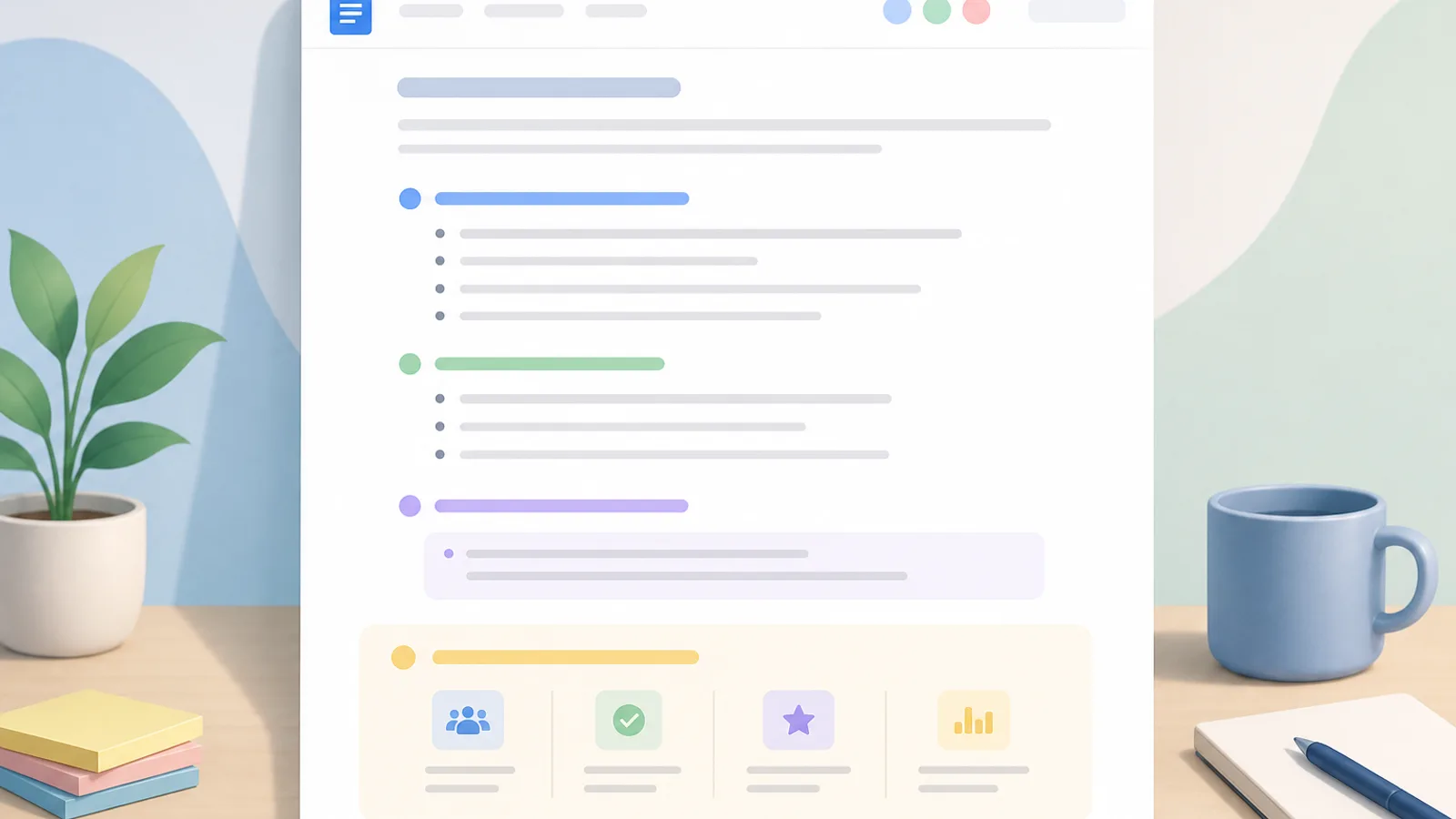
Yes. Google Meet supports automatic note-taking via Take notes for me on eligible Google Workspace accounts. The feature officially launched in August 2024 and has expanded since. As of 2026, advanced features like section toggling and decision tracking are still rolling out to alpha users.
The feature uses Gemini AI to automatically capture the most important parts of a meeting. The output typically contains:
Summary — the key discussion points.
Decisions — the decisions made during the meeting.
Next steps — action items with owners and deadlines (when clearly spoken).
Details — supporting context for each topic.
Screenshots of presented content (Alpha users only).
The biggest benefit: you don't need to type while you participate. For project meetings, internal stand-ups, or any meeting with multiple action items, AI notes help reduce missed items and keep follow-ups visible.
That said, don't treat the output as a perfect record. For important meetings, always review the notes afterward to verify owners, deadlines, and sensitive decisions.
Best fit for:
People who attend lots of meetings and need to track action items.
Project managers, team leads, operations, and assistants.
Distributed teams who need a quick searchable record.
People who often join meetings late and need to catch up.
How AI notes differ from transcripts and summaries
One of the most common confusions: AI notes, transcripts, and summaries are not the same thing. They serve different purposes.
Output type | Main purpose | Detail level | Best for |
|---|---|---|---|
Take notes for me | Key points, decisions, action items | Curated, medium length | Need clean meeting minutes with action items |
Near-verbatim record of what was said | Highest, very close to actual speech | Need to verify quotes or dig into details | |
Summary | Quick recap of the meeting | Shortest | Need a fast brief or executive summary |
Plain English:
AI notes focus on what needs action.
Transcripts focus on what was said.
Summaries focus on what to understand quickly.
Real example:
Need to know who owns what and when it's due? Use AI notes.
Need to verify exactly what someone said? Use the transcript.
Need to send your boss 3 key takeaways? A summary is enough.
None of these features keeps your live captions; for that, see how to save Google Meet captions.
Quick checks before turning on auto note-taking
If you can't find the Take notes for me button, the cause usually falls into one of five categories. Don't waste time poking around the UI without checking these first.
One-minute checklist:
You're signed in with the correct work or school account.
That account is on an eligible Workspace plan.
The admin has enabled the feature in the system.
You have the right role in the meeting.
The meeting uses a supported language and you're on a supported device.
Working through these five points is faster than reinstalling the app or switching browsers repeatedly.
Does your Google Workspace plan qualify?
This is the first thing to verify. Most personal Gmail accounts don't include Take notes for me.
As of 2026 (per Google's official admin documentation), Take notes for me is now included in these Workspace editions without requiring a separate add-on:
Business Standard
Business Plus
Enterprise Standard
Enterprise Plus
Gemini Education Premium (for schools and universities)
Important shift from 2024–2025: the feature used to require a separate Gemini Enterprise / AI Meetings and Messaging add-on. As of the most recent Google update, the feature is bundled directly into the editions above. If you're on a Business Starter plan, you still won't have access.
Quick self-check:
Are you signed in with a personal Gmail or a work/school account?
If it's a work or school account, ask your IT or Workspace admin to confirm your plan.
If it's a personal Gmail, the feature most likely won't appear.
If you have multiple Google accounts open at once, double-check you're in Meet under the correct one.
Field-tested note: many people assume their Meet is broken, but the actual issue is being signed into the wrong account.
Has your admin enabled the feature in Admin Console?
Even on an eligible plan, the feature stays hidden if the Workspace Admin hasn't enabled it in the Admin Console.
The exact path admins follow:
Apps → Google Workspace → Google Meet → Gemini settings → Google AI note-taking
The admin then checks Let people use Google AI note-taking in meetings.
Practical notes:
Admins can enable the feature for only a specific OU (Organizational Unit) or a particular group.
After enabling, the system may need time to propagate.
Some companies disable AI features altogether for security or compliance reasons.
If you're a user, send a clear request to your admin rather than a vague "Meet is broken."
Message template for your admin:
Hi, can you check Google Meet > Gemini settings > Google AI note-taking for my account?
I'm signed in with [your work email] but don't see the Take notes for me button in meetings.
Could you verify whether it's enabled for my OU?
Do you have the right role in the meeting?
Your role inside the meeting controls whether you can start or stop note-taking.
Role | Ability to start/stop notes |
|---|---|
Meeting Organizer | Full control by default |
Co-host | Same permissions as host in most cases |
Regular participant | May be restricted depending on host settings |
What to do:
Check whether you're the host or a co-host.
If not, ask the host to start the notes at the beginning of the meeting.
For client meetings, agree in advance on who turns it on.
A common scenario: you joined via an invite link but aren't the organizer. Other participants see the button, but you don't.
Is the meeting using a supported language?
AI notes don't work equally well in every language. Mixed-language meetings are particularly hard for the model.
Per Google's official documentation, Take notes for me currently supports 8 languages:
English
French
German
Italian
Japanese
Korean
Portuguese
Spanish
Important limitation: as of 2026, only one language at a time is supported. Multilingual meetings — where speakers switch between languages — aren't well supported and accuracy drops noticeably. Pick one primary language for the entire meeting.
Common pitfalls:
Participants switching between languages mid-meeting.
Heavy internal jargon and abbreviations.
Names, numbers, or deadlines spoken unclearly.
Simple ways to improve note quality:
Pick one primary language for the whole meeting.
Restate names, figures, and dates clearly.
When assigning tasks, use the template: who does what, by when.
Are your device and app ready?
Many issues aren't account-related — they're device or version problems.
Quick checks:
Update the Google Meet app or browser to the latest version.
Sign out and back in with the correct Workspace account.
If you're on mobile and don't see the feature, try on a computer.
If your browser has multiple Google profiles, confirm Meet is running on the right one.
Real-world note: people who keep both a personal Gmail and a work account open in the same browser get tripped up the most often.
How to turn on Take notes for me in Google Meet
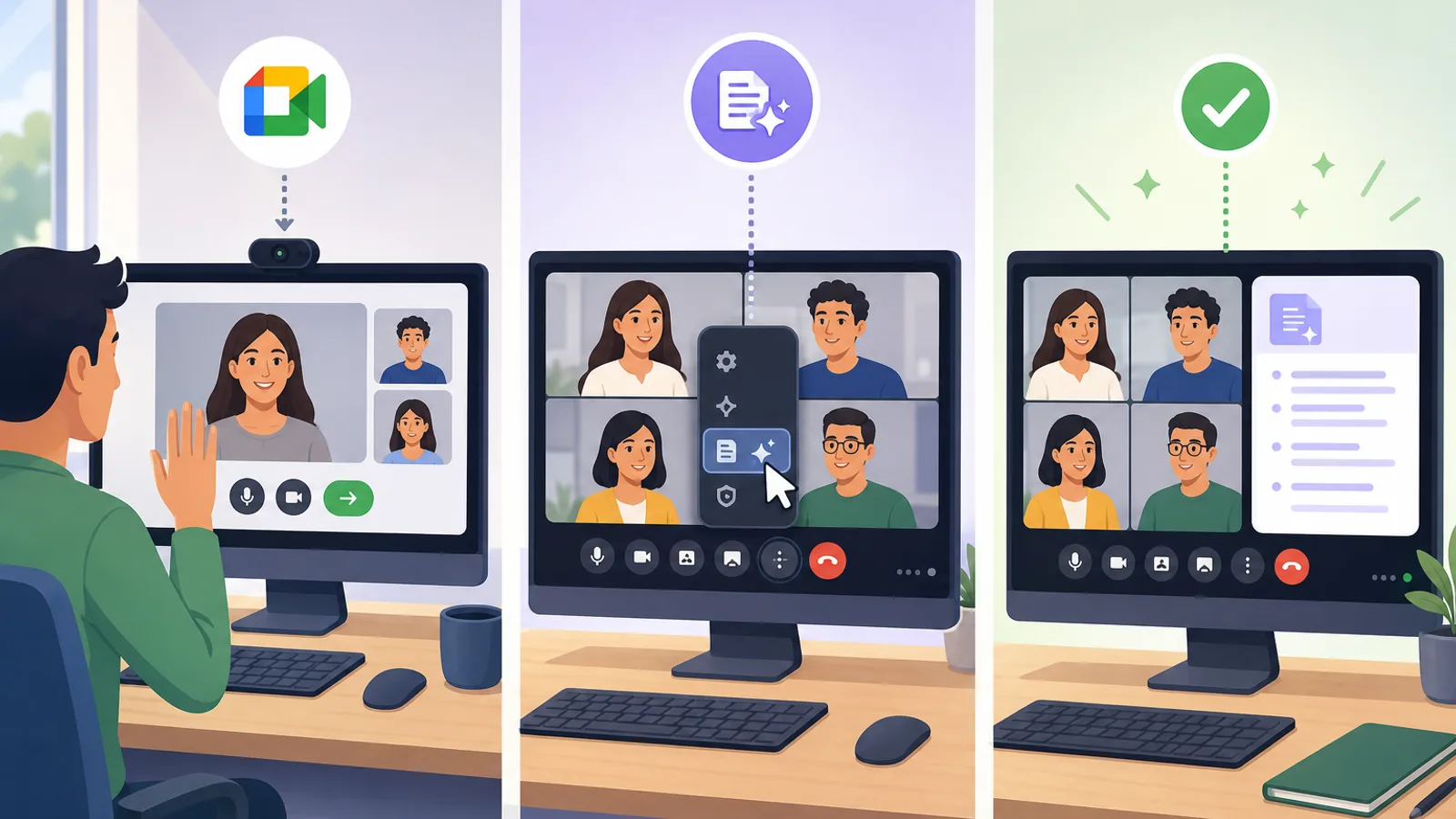
Once you meet the requirements, turning the feature on is just a click or two. The hard part isn't the action — it's confirming your account is eligible.
Three scenarios to know:
Admin enables it at the organization level.
User starts it on a computer.
User starts it on mobile (Android + iOS).
Note: the UI shifts between versions. If you can't find the button, jump back to the requirements section first.
For Google Workspace admins
This section is for admins. Regular users can skip it and forward it to IT instead.
Basic setup:
Sign in to the Admin Console with an admin account.
Go to Apps.
Select Google Workspace.
Open Google Meet.
Click Gemini settings.
Open Google AI note-taking.
Check Let people use Google AI note-taking in meetings.
Apply to the org, OU, or group you want.
Save your changes.
Rollout tips:
Pilot with a small group first.
Auto-enable from Calendar: admins can configure Take notes for me to start automatically for any meeting created via Google Calendar (the host doesn't have to click anything). This is great for recurring team meetings — reduces "I forgot to turn it on" misses. Configure at OU or group level.
Review your storage, sharing, and document-access policies.
Decide whether the feature is allowed in meetings with external guests.
Give the system time to propagate before deciding it's broken.
Post-enable checklist:
One test account sees the button in Google Meet.
A note document is created after a test meeting.
Document permissions match internal policy.
Users know where to find notes after the call.
How to enable Take notes for me on desktop
The most common way to use auto note-taking.
Steps:
Open Google Meet in your browser.
Join or start a meeting.
Click Take notes for me at the top right of the meeting window.
Click Start taking notes.
Confirm the prompt if one appears.
Verify the indicator shows that notes are running.
Quick tips:
Turn it on at the start of the meeting so you don't miss context.
If external guests are joining, let them know AI notes are running.
When you confirm action items, speak the owner and deadline clearly.
If the button is missing, stop and re-check the account, role, and admin settings.
A common situation: you see the button on your work laptop but not on a personal browser signed in with Gmail. The issue isn't the meeting — it's the account.
How to enable Take notes for me on mobile (Android + iPhone)
Unlike the Google Meet transcript feature (which is desktop + Android only), Take notes for me works on both iPhone/iPad (iOS) and Android. This is one of the few Google Meet AI features that runs on iOS — so iPhone users can finally get AI meeting notes without a third-party app.
Basic steps:
Open the Google Meet app.
Join the meeting.
 Try NoteMeeting Free →
Summarize your meetings & videos automatically with NoteMeeting
Google Meet, Zoom, YouTube, Podcast — all in one extension.
Tap the screen to open the meeting controls.
Choose Take notes for me or Notes with Gemini.
Tap Start taking notes.
Notes:
Update the app before testing.
Not every account or device shows the same UI.
For important meetings, I recommend starting from a computer to verify the status more easily.
Take notes for me in in-person meetings
A recent update extended Gemini-powered notes beyond video calls — Google now supports Take notes for me for in-person meetings too. From the Google Meet mobile app, you can capture audio from an in-room conversation and generate the same Summary / Decisions / Next steps / Details document you'd get from a video call.
This is useful for hybrid teams, on-site interviews, or huddle rooms where not everyone is on a video call. Same plan requirements and 8-language support apply. Google also says the same home-screen session can document a call on another platform; see how to use Gemini to take notes in a Zoom meeting for the steps and limits.
How to use auto note-taking effectively during a meeting
Turning it on isn't enough. To get usable notes, you also need to run the meeting in a way the AI can follow.
Three simple but powerful rules:
Turn it on at the very beginning.
When confirming action items, name the owner and deadline clearly.
Don't talk over each other.
Following these three is the difference between notes you can use and notes you have to rewrite.
When to use auto note-taking
Best fits:
Best for | Use with caution |
|---|---|
Project meetings with many action items | Legal or financial calls with sensitive details |
Recurring internal meetings | Meetings dense with industry jargon |
Client meetings where you need commitments captured | Calls heavy on exact numbers |
Meetings where people join late or rotate | Free-form chats without clear structure |
Field-tested observation: AI notes shine when the meeting has structure and the speaker clearly states decisions. The clearer people speak, the better the notes.
What the feature actually captures
Set your expectations correctly to avoid disappointment. The feature typically captures:
Summary — the overall discussion.
Decisions — what was agreed.
Next steps / action items — what needs to happen.
Details — supporting context.
Screenshots of presented content (Alpha users only).
It is not a verbatim transcript of every spoken sentence.
For example, if you say in the meeting:
"Marketing will launch the campaign on the 15th."
"Lan owns the content."
"Draft is due by Friday."
The AI will pick those up much better than vague phrasing like "the team will sort it out soon."
April 2026 update: section toggling (Alpha)
In April 2026, Google began rolling out section controls for Alpha users. From the in-meeting menu, you can now turn individual sections on or off:
Summary
Decisions (with status tags: Aligned, Needs Further Discussion, Disagreed, Shelved)
Next steps
Details
This is helpful for sensitive meetings — you can keep Decisions and Next steps while dropping the verbose Details section, or vice versa. Availability is gradual; not every eligible account sees the toggles yet.
How to see "Summary so far" when joining late
If your account supports it, the Summary so far panel lets you catch up on what happened before you joined.
Quick steps:
Join the meeting.
Open the notes/summary panel if your UI shows it.
Skim the key points captured so far.
If any action items affect you directly, confirm with the host or owner before assuming.
This is a huge time-saver — no more interrupting to ask "what did I miss?". Just remember to verify any critical decisions with a real person.
How to pause or stop note-taking during a meeting
You won't always want notes for the entire call. Situations where stopping makes sense:
Switching to a sensitive discussion.
Casual off-topic chat.
Content you don't want in the final document.
Steps:
Open the notes menu inside Google Meet.
Choose Pause or Stop.
Confirm the action.
Note: content captured before pausing remains; content after stop typically won't appear in the final document. For a clean, readable note doc, keep AI on only during the main meeting agenda.
Where are Google Meet notes saved after the meeting?
Notes are saved as a Google Doc in Google Drive — the same place most people check first after a meeting ends.
In many cases, you'll also find them:
Attached to the Google Calendar event for the meeting.
Linked in an email sent to the organizer.
With document access permissions inherited from the organizer's settings.
Notes are stored in Google Docs and Google Drive
After the meeting, the note doc is created in Google Docs and saved to the organizer's Google Drive (or per your organization's storage policy).
How to find it quickly:
Check your email after the meeting.
Open the meeting event in Google Calendar if it was scheduled.
Go to Google Drive and search by meeting name or date.
Check the Recent view for newly created docs.
Tip: open the doc immediately after the meeting to review accuracy, rename the file for easy retrieval, and fix anything the AI misheard.
Are notes attached to the Google Calendar event?
Often, yes. In many cases the notes doc is linked directly to the Google Calendar event.
Why this is useful:
Quick access via the calendar event.
Easy to navigate back to past meetings.
For recurring team meetings, Calendar is often faster than Drive search.
Who receives the post-meeting email?
Typically the organizer (or someone with appropriate permissions) gets the note link first. Beyond that, it depends on your organization's sharing policy and the share setting picked for the meeting.
Notes:
Not every meeting participant automatically gets access.
The email might only go to a specific subset of attendees.
If you don't see the email, check Drive and Calendar.
Who can view and share the notes document?
Access isn't fixed for every meeting. The organizer can choose one of 3 sharing modes when enabling notes:
All invited guests (including external guests) — good for client and partner calls.
Invited guests in my organization only — good for internal calls that include external guests but where you don't want to share notes externally.
Hosts and co-hosts only — good for leadership meetings or sensitive content.
Important quirk: if the meeting invite was sent to a group email (e.g., [email protected]), members of that group have to request access to the notes file — Google does NOT auto-share with each individual in the group. This is a very common gotcha for teams.
Access also depends on:
The doc's sharing settings.
Internal organization policy.
Whether the recipient is internal or external.
Common situation: external attendees see "a document was attached" but can't open it because they weren't granted access.
Host post-meeting checklist:
Open the Google Doc after the meeting.
Click Share to verify access.
Confirm the right people have view access.
Don't share broadly if the meeting had sensitive content.
Review the doc before sending externally.
For important meetings, never share AI notes externally without reviewing them for sensitive info, numbers, or any AI summary that could be misread.
Why don't I see Take notes for me?
If the button isn't there, the cause is usually account, role, admin, language, or app. It's rarely an actual system bug.
Fast triage in 1–2 minutes:
Confirm the correct work or school account.
Verify with the admin that your plan and config are right.
Check whether you're the host or a co-host.
Update the app or browser.
Check the meeting's primary language.
Account isn't on the right plan
The most common cause. If your account isn't on an eligible plan, the button never shows.
Fix:
Check which account you're signed in with.
Ask IT or your admin to confirm.
Don't reinstall the app before verifying the plan.
Admin hasn't enabled Gemini features
You may be on the right plan but still not see the feature if the admin hasn't enabled it.
Quick fix: contact IT or your admin and share the exact account info.
You're not the host or don't have the right role
Hosts and co-hosts typically have more permissions than regular participants. In the same meeting, one person sees the button and another doesn't.
What to do:
Ask the host to enable notes for you.
Request co-host status if you need to manage the meeting.
Check whether host controls are restricting permissions.
App version is outdated
Especially common on mobile.
3-step checklist:
Update the Google Meet app.
Update the browser if you're on the web.
Sign out and back in to the correct account.
Meeting language isn't supported
If the meeting is in an unsupported language, or speakers switch languages frequently, the feature may not appear or may produce low-quality notes.
Fix: keep one primary language throughout the meeting.
Organization policy restricts AI features
A real but often-overlooked cause. Some organizations:
Block AI features for security reasons.
Don't permit them with external guests.
Limit access to specific departments.
If you're at a regulated enterprise, check internal policy before blaming the tech.
Quick troubleshooting flow
Work through these 5 steps in order:
Confirm you're signed in with the correct work or school account.
Ask your admin whether the account is on an eligible plan and Gemini settings are enabled.
Verify you're a host or co-host.
Update the Meet app or browser.
Check the meeting language.
If you've done all five and still no button, the most likely explanation is that your organization doesn't support the feature yet.
Why are my AI notes incomplete or inaccurate?
AI notes are convenient, but quality depends heavily on audio clarity, meeting structure, language, and how people communicate. Treat the output as a draft, not a perfect record.
Most common causes:
The meeting is too short.
Poor network or audio.
Lots of overlapping speech.
Rambling discussion with few clear decisions.
The meeting is too short
Very short meetings don't give the AI enough context to summarize well.
Official Google limits: the feature is designed for meetings 15 minutes minimum and 8 hours maximum. Meetings under 15 minutes may NOT generate a notes file at all. Meetings longer than 8 hours aren't supported either — split into multiple sessions.
Tips:
If a meeting only needs to confirm one small thing, manual notes might be faster.
For better notes, spend the last few minutes summarizing decisions out loud.
Poor network or audio quality
AI quality depends directly on audio input. Poor audio = poor notes.
Common issues:
Mic too far from the speaker.
Background noise.
Spotty network.
Speakers too quiet or too fast.
Improvements:
Use a clear mic.
Sit in a quiet space.
Restate important assignments.
Speak deadlines and numbers slowly and clearly.
Example: the deadline "15th" can easily be misheard as "50th" if audio is poor.
Overlapping speech or multilingual conversation
Very common in group meetings. When multiple people talk at once, the AI struggles to identify the main idea or owner.
What to do:
Let one person speak at a time.
Avoid interrupting at the moment of confirming action items.
Stick to one language throughout the meeting.
Well-facilitated meetings consistently produce better notes — even if shorter.
The meeting lacks clear structure
Rambling meetings make it hard for AI to identify what's a decision vs background chatter.
Phrasing that helps the AI:
"Lan owns the draft, due Friday."
"Decision: postpone the demo to Monday afternoon."
"Minh sends the quote by 5pm."
Vague phrasing to avoid:
"The team will figure it out."
"Probably done this week."
"Someone should look at that part."
Real talk: same meeting, the teams that confirm tasks clearly get usable notes; teams that ramble need extensive cleanup afterward.
Checklist to improve AI note quality
Turn on notes from the very beginning of the meeting.
Use a reliable mic and connection.
Avoid talking over each other.
When confirming action items, say the owner and deadline clearly.
Review the document after the meeting.
AI works best when meetings have clear structure. The more structured the meeting, the more usable the notes.
Alternatives if your account doesn't support Take notes for me
If you don't have Take notes for me, there are three practical workarounds:
Use a transcript or recording if your organization supports it.
Take manual notes in Google Docs.
Use a third-party AI meeting note taker.
Use the Google Meet transcript or recording
The closest alternative if you don't have AI notes. Best for reviewing exact statements.
Pros:
Close to what was actually said.
Easy to verify quotes.
Cons:
Long.
Takes more time to read than a curated note.
Follow your organization's recording and note-taking policies before using.
Manual notes with Google Docs
Still the most reliable option for high-stakes meetings.
Use a simple template:
Meeting goal:
Key discussion points:
Decisions:
Action items:
- Owner:
- Task:
- Deadline:
Tip: create a shared Google Docs template for the whole team so everyone notes in the same structure.
Use a third-party AI meeting note taker
If your organization permits it, a third-party AI note taker can fill the gap. Popular options:
Tactiq — Chrome extension, no meeting bot, supports 60+ languages, real-time transcription.
Otter.ai — strong on speaker identification and AI summaries.
Notta — solid for live transcript + multiple export formats (TXT/DOCX/PDF).
Other AI meeting note takers with calendar sync, action item extraction, and team-level meeting management.
Pros | Cons |
|---|---|
Provides an option when Workspace doesn't include the feature | Adds cost |
Some tools are strong on transcript and action items | Higher security risk when data leaves your ecosystem |
Useful for teams that use multiple meeting platforms | Check access controls and data storage |
Before adopting, verify:
Where data is stored.
Who has access.
Whether internal policy permits it.
Benefits of automatic note-taking in Google Meet
Auto note-taking does more than save typing effort. It also pushes meetings to be more structured.
Key benefits:
Saves time vs manual minute-taking.
Reduces missed key points and action items.
Helps latecomers catch up quickly.
Supports distributed teams better.
Easy retrieval via Docs, Drive, and Calendar.
Real-world insight: when teams know meetings are being noted by AI, they tend to confirm tasks more clearly. That alone is worth a lot.
Specific benefits for individuals and teams
For individuals | For teams |
|---|---|
Listen without typing | Consistent action item tracking |
Quick review of who got what task | Searchable meeting history |
Better deadline tracking | Fewer misunderstandings between members |
Get a "Summary so far" when joining late | Tight integration with Docs, Drive, and Calendar |
Conclusion
Google Meet can automatically take notes with Take notes for me, but only when your plan, role, admin config, language, and device all line up. After the meeting, notes are saved to Google Docs and Google Drive for review and sharing.
If you're searching for how to enable Google Meet auto note-taking, start with the eligibility checklist. Once you see the button, turn it on at the start of your next meeting and you'll get a clean record of decisions and action items. In the meeting, pair it with Google Meet captions for real-time reading, and review the transcript when you need a near-verbatim record.
Frequently Asked Questions
Does Google Meet have an auto note-taking feature?
Yes. Google Meet supports automatic note-taking through Take notes for me, available on eligible Google Workspace accounts. The feature uses Gemini AI to capture key points, decisions, and action items, so you don't have to type the minutes yourself.
How does Take notes for me differ from a transcript or a summary?
Feature | Main purpose | Detail level | When to use |
|---|---|---|---|
Take notes for me | Key points, decisions, action items | Curated, concise | Need clean meeting minutes |
Transcript | Near-verbatim record of what was said | Detailed, full | Need to verify quotes |
Summary | Quick recap | Very short | Need a fast brief |
Which Google Workspace plans include auto note-taking?
As of 2026, Take notes for me is included in Business Standard, Business Plus, Enterprise Standard, Enterprise Plus, and Gemini Education Premium — without requiring a separate Gemini add-on. Business Starter and free personal Gmail accounts don't include the feature. Confirm with your Workspace admin.
How do I turn on Take notes for me in Google Meet?
If your account is eligible, join the meeting, click Take notes for me at the top right of the meeting window, then click Start taking notes. Admins must enable the feature in Admin Console → Google Meet → Gemini settings → Google AI note-taking for users to see the button.
Where are Google Meet auto-generated notes saved?
Notes are saved as a Google Doc in the meeting organizer's Google Drive. The doc may also be attached to the related Google Calendar event and shared based on the organizer's settings.
Why don't I see Take notes for me in Google Meet?
Common causes: your account isn't on an eligible plan, the admin hasn't enabled Gemini features, you're not a host or co-host, your app or browser is outdated, or the meeting language isn't supported. Walk through the five-step checklist above to diagnose.
Does Take notes for me work on iPhone?
Yes. Unlike the Google Meet transcript feature (desktop and Android only), Take notes for me works on both iPhone/iPad and Android. It's one of the few Google Meet AI features that runs on iOS.
Can the AI take notes for in-person meetings, not just video calls?
Yes. A recent update extended Take notes for me to in-person meetings — use the Google Meet mobile app to capture audio from the room and generate the same Summary / Decisions / Next steps / Details document.
How can I improve the quality of AI-generated notes?
Turn on notes at the start of the meeting, use a clear mic, avoid speaking over each other, pick one primary language for the whole call, clearly state owners and deadlines for action items, and review the document afterward to fix any errors.