
You cannot save or download live captions in Google Meet: the captions are turned on only for you, they disappear when you leave, and Meet has no export button for them. What you can save instead is a Google Meet transcript (a Google Doc, on Business Standard and higher Workspace editions plus Workspace Individual, started from Meeting tools > Transcribe), a recording with captions (select a caption language under Meeting tools > Recording before you start), or a text file made by a caption-capture Chrome extension on a computer. On a phone, none of the extension routes work, so the meeting's own transcript or recording is the only option.
Table of contents
- Can you save captions in Google Meet?
- Option 1: Turn on Google Meet Transcripts instead
- Option 2: Record the meeting with captions
- Can you get the captions out of a recording as a text file?
- Option 3: Use Gemini "Take notes for me" if you want notes, not captions
- Option 4: Save captions with a Chrome extension
- Option 5: Transcribe from the audio instead of the captions
- If I turn on captions in Google Meet, will others know?
- How to save Google Meet captions on a phone
- Which method should you use?
- FAQ
- Can live captions be saved after the meeting ends?
- How do I save a transcript of a Google Meet without recording?
- Does Google Meet save captions in the recording?
- Is there a free Google Meet caption saver?
| Method (checked October 4, 2026) | What you end up with | Who can use it | Works on a phone? | Are others notified? |
|---|---|---|---|---|
| Live captions on their own | Nothing saved; you can scroll back through captions only while you are in the meeting | Everyone | Yes, for viewing | No, captions are only on for you |
| Google Meet Transcripts | Google Doc of spoken words in the organizer's Drive, "Google Meet" folder | Business Standard, Business Plus, Enterprise Starter, Standard and Plus, Education Plus, Teaching and Learning Upgrade, Workspace Individual; host and co-hosts (or anyone in the host's domain if Host management is off) | Android yes, iPhone and iPad no | Yes, a Transcripts icon shows for everyone |
| Recording with "Record captions" | Meeting video with a caption track you can play in Drive, VLC or QuickTime | Editions that can record, plus Google One 2 TB and up; the host, or others if the host allows | Android yes, iPhone and iPad no | Yes, participants get a notification |
| Gemini "Take notes for me" | AI meeting notes in a Google Doc, not a word-for-word record | Eligible Workspace edition or Google AI plan | Yes, Android and iPhone/iPad (Meet app > Menu > Take notes with Gemini) | Yes, a pencil icon shows for everyone |
| Caption-capture Chrome extension | .txt file or Google Doc of the captions your screen showed | Anyone in Chrome on a computer, any Meet account, with captions on | No, Chrome extensions only run on computers | Meet shows nothing; you should tell people |
| Audio-based extension (for example NoteMeeting) | Transcript and summary made from the meeting audio, downloaded to your computer | Anyone in Chrome on a computer, any Meet account | No | Meet shows nothing; you should tell people |
Can you save captions in Google Meet?
No, Google Meet has no setting that saves or downloads live captions. Google's live captions help page says the captions "are turned on only for you" and that you can scroll back to review earlier captions, but "captions only display for the parts of the conversation where you're in the meeting and have captions turned on." The same page covers turning captions on, changing the language and customizing font and color; it describes no download, copy or export option. Our guide on how to turn on Google Meet captions covers those steps if captions are not showing at all.
The question comes up often enough that a Google Meet Community thread titled "Download captions" (April 2023) was answered by a Gold Product Expert with a pointer to the Transcripts feature rather than a caption download. On Web Applications Stack Exchange, the top answer to "Is there a way to record Google Meet live captions" (viewed about 28,000 times) also says there is no built-in feature. Both are right about live captions. One older Stack Exchange answer adds that recordings do not include captions; that part is out of date, as the recording section below shows.
Option 1: Turn on Google Meet Transcripts instead
Google Meet Transcripts is the official way to keep a text record of what was said, and it is separate from live captions. According to Google's Transcripts help page, the feature is included in Business Standard, Business Plus, Enterprise Starter, Enterprise Standard, Enterprise Plus, Teaching and Learning Upgrade, Education Plus and Workspace Individual. Personal Gmail accounts are not on that list. Transcripts work on a computer, laptop or Android device, and only in eight languages: English, French, German, Italian, Japanese, Korean, Portuguese and Spanish.
- Join or start the meeting in Google Meet on a computer.
- At the bottom right, click Meeting tools > Transcribe > Start transcription.
- In the pop-up, click Start. A Transcripts icon appears at the top right for everyone in the meeting.
- To stop, click Meeting tools > Transcribing > Stop transcription. Transcripts also stop when everyone leaves.
A Google Meet transcript is saved in the meeting organizer's Google Drive, in the "Google Meet" folder, with a sub-folder for each meeting. Since July 2026, the old "Meet Recordings" folder is renamed "Legacy Meet Recordings" and moved inside that folder. An email with the link goes to the host, co-hosts and the person who started the transcript, and the transcript is attached to the Calendar event. Finding, opening and downloading that Doc is covered step by step in our article on getting a Google Meet transcript.
A Google Meet transcript is not the same text you saw in your captions. Google's page says only the spoken words are included, and you get a separate file each time Transcripts is started. If the meeting is in a language outside the eight supported ones (Vietnamese, Hindi or Dutch, for example), Transcripts is not available even on an eligible plan.
Option 2: Record the meeting with captions
Recording is the only native Google Meet route that keeps the captions themselves. Google's recording help page says that before you click Start recording under Meeting tools > Recording, you can select a language "to record the meeting captions", and that "Record captions" embeds captions in the clip. The recording goes to the organizer's Drive, in the "Google Meet" folder, and participants get a notification when it starts and stops.
Recorded captions play in three ways, per the same page: in Google Drive by clicking the closed caption (CC) button in the player, or after downloading the video, by turning on subtitles in VLC Media Player or QuickTime Player. Google notes the captions may become playable in Drive a few hours after the recording file itself is ready.
Recording is limited the same way as Transcripts, plus a few extra rules. The editions that can record include Business Standard and Plus, Enterprise editions, Essentials, Workspace Individual and Google One subscribers with 2 TB or more storage. You can record only on a computer or an Android device, and you can record only if the host has permission to record. Recordings stop automatically after 8 hours. If the button is missing, our post on why you can't record Google Meet walks through each cause.

Summarize your meetings & videos automatically with NoteMeeting
Google Meet, Zoom, YouTube, Podcast — all in one extension.
Can you get the captions out of a recording as a text file?
Yes, with a caveat: Google Drive treats captions as a caption track on the video. Google Drive's caption help page says caption tracks are managed by right-clicking the video and choosing File information > Manage caption tracks, and that anyone who can edit the video "can also upload, download, and edit captions." Google's page does not spell out where the download button sits in that panel, so expect to look for it there.
If a meeting was recorded without captions, Drive can still generate them. The same Drive page lists automatic captions in 29 languages, including English, Spanish, Hindi and Vietnamese: right-click the video, choose Manage caption tracks, then Generate automatic captions. Workspace admins can turn this off, so the option may be missing on a work account. Drive's automatic captions come from Drive's own speech recognition, so they will not match the live captions word for word.
Option 3: Use Gemini "Take notes for me" if you want notes, not captions
Gemini "Take notes for me" is the right tool when you want a summary of the meeting rather than the caption text. Google's "Take notes for me" page says the feature needs an eligible Google Workspace edition or Google AI plan, works in the same eight languages as Transcripts, supports one language per meeting, and is recommended for meetings of 15 minutes to 8 hours. The notes Doc has a short "Quick notes" tab and a longer "Full notes" tab and is saved in the organizer's "Google Meet" folder. Because it summarizes, "Take notes for me" does not give you a word-for-word record. Setup, sharing and troubleshooting are covered in our guide to Take notes for me.
Option 4: Save captions with a Chrome extension
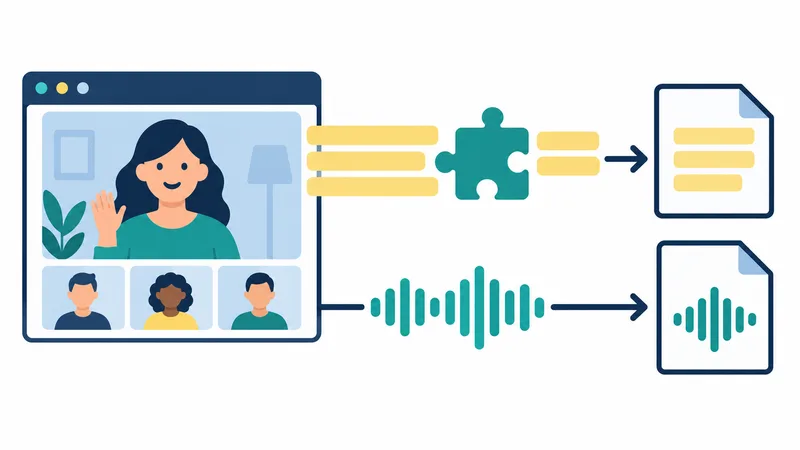
A caption-capture extension is the only way to save the exact caption text you see, and it works on free Gmail accounts too. These extensions run inside Chrome on your computer and read the caption text as Meet draws it on your screen, then write it to a .txt file or a Google Doc. They do not do their own speech recognition, so the result is only as good as the Google Meet captions.
That design gives caption-capture extensions five limits worth knowing before you rely on one:
- Captions must be on. The Google Meet Captions Capture listing says you must open Google Meet and enable captions first. If you turn captions off, capture stops until you turn them back on.
- You only get your own view. The file contains what your captions showed, in the caption language you picked, from the moment you joined until you left. Parts of the meeting you missed are not there.
- Computer only. Chrome Web Store Help says extensions only work on computers and cannot be installed on a mobile device, even in desktop mode.
- They can break. Because they read Meet's page layout, a Meet interface update can stop an extension working until its developer fixes it. Check the "Updated" date on the store listing: on October 4, 2026, Google Meet Captions Capture showed version 1.3, updated May 29, 2023, with about 2,000 users and a 3.0 rating from 13 reviews.
- Some older picks are gone. Two extensions that rank in tutorials for this question, Meet Transcript (from Eric Curts's 2021 video) and CaptionSaver Pro (from a Classwork post), returned an empty Chrome Web Store page when we checked on October 4, 2026.
Before installing any caption-capture extension, read its permissions and privacy section on the store page. An extension that saves captions can read everything said in your meetings, and some send the text to the developer's servers or ask for access to your Google Drive. Our walkthrough on installing Chrome extensions shows where to find those permissions, and the roundup of Google Meet note-taking extensions compares the larger tools such as Tactiq, which also builds its transcript from Meet captions.
Option 5: Transcribe from the audio instead of the captions
An audio-based transcription extension transcribes the meeting audio itself instead of copying captions, so it does not depend on captions being on or on Meet's page layout. NoteMeeting works this way: it is a Chrome extension that runs on Google Meet in the browser, no bot joins the meeting, and you download the transcript and an AI summary to your computer; NoteMeeting does not store the meeting audio on its servers. It supports Vietnamese as well as English, which helps in Vietnamese meetings, a language Google Meet Transcripts does not support. The limits are the same as any extension: it needs Chrome on a computer, it does not work on phones, and it does not record video.
If I turn on captions in Google Meet, will others know?
No. Google's live captions page says captions "are turned on only for you," and Meet shows no indicator to others when you turn them on. Captions are different from the features that do notify people: Transcripts shows an icon for everyone, a recording sends a notification when it starts and stops, and "Take notes for me" shows a pencil icon on all participants' screens. Google also notes that admins can require every participant to give consent before notes, recording or transcription start.
Saving captions with an extension is also invisible to the other participants, because the extension runs only in your browser. Invisible is not the same as permitted: the meeting is still being written down, so tell the other participants, and check your organization's policy and local recording laws before you keep a record of a meeting you do not host.
How to save Google Meet captions on a phone
On a phone, you cannot save live captions at all. The Google Meet app lets you show or hide captions from More > Show captions, but it has no save option, and Chrome extensions cannot run on Android or iPhone. Your choices are:
- Android: start Transcripts or a recording with captions from the Meet app, if your account and role allow it. Google's pages list Android as supported for both.
- iPhone and iPad: you cannot start Transcripts or a recording. Ask the host to start one, then open the Doc or video from Drive on your phone afterwards. If your plan includes Gemini, you can start "Take notes for me" from the screen menu (Take notes with Gemini), which gives you notes rather than captions.
- Any phone: if someone recorded the meeting with captions, play it in the Google Drive app and turn on CC.

Which method should you use?
The right method depends on your plan and your role in the meeting. Use this order:
- You are the host on an eligible Workspace plan and the meeting is in a supported language: start Transcripts. It is free with the plan, everyone can see it is on, and the Doc lands in Drive automatically.
- You need the captions with timing, or a video: record with a caption language selected, then download the video or the caption track from Drive.
- You only need decisions and action items: use "Take notes for me" if your plan includes it.
- You are a guest, on free Gmail, or the language is not supported: use an extension on a computer, either a caption-capture extension for the exact caption text or an audio-based one if captions are unreliable in your language.
If you want a transcript you control from Google Meet without needing the host's plan or role, try the NoteMeeting Chrome extension: the free trial covers 1 hour of audio with transcript and summary, and paid plans start at $6 a month. Tell the other participants before you start.
FAQ
Can live captions be saved after the meeting ends?
No. Google Meet live captions are not stored anywhere, so once the meeting ends there is nothing to recover. If Transcripts or a recording with captions was running, the organizer's Drive has the text or the caption track; otherwise, the words are gone.
How do I save a transcript of a Google Meet without recording?
Start Google Meet Transcripts from Meeting tools > Transcribe, which creates a Google Doc without recording video, on an eligible Workspace edition. Without an eligible plan, use a caption-capture or audio-based Chrome extension on a computer.
Does Google Meet save captions in the recording?
Only if you choose a caption language when starting the recording. Google's recording page says "Record captions" embeds captions in the clip, playable with the CC button in Drive or as subtitles in VLC or QuickTime after download. If no language was selected, Drive can generate automatic captions for the video afterwards.
Is there a free Google Meet caption saver?
Several caption-capture extensions in the Chrome Web Store are free, and they work on personal Gmail accounts. Check each listing's last update date, user count and privacy section before installing, because extensions that are not maintained can stop working after a Meet update.