
A Google Meet translate extension works in one of two ways. Some translate Meet's own captions into subtitles that only you see, for example Google Meet AI Translate Captions, Immersive Translate and the open-source Google Meet Transcript Translator. Others capture the meeting audio and translate the speech itself, sometimes as a spoken voice; JotMe, MeetVoice and NoteMeeting work this way. The difference that matters is who receives the translation: a caption extension helps only the person who installed it, while a voice tool such as NoteMeeting Voice Translator plays the translated voice into the meeting, so the other side hears it without installing anything. If your Google Workspace plan is Business Standard or higher, Meet's built-in translated captions (69 languages) may already be enough, and Gemini Speech Translation covers English paired with six languages, none of them Vietnamese.

Table of contents
- Caption translation vs voice translation: what is the difference?
- Do you need an extension, or is Meet's built-in translation enough?
- Google Meet translate extensions compared
- Caption-translating extensions: what to expect
- Audio and voice translation tools: what to expect
- Who hears the translation?
- Which languages do Google Meet translation extensions support?
- Is there a free Google Meet translate extension?
- Privacy and permissions: what to check before installing
- Which route fits your meeting?
- Using NoteMeeting Voice Translator in Google Meet
- FAQ
- Can other participants see my translated captions in Google Meet?
- Do Google Meet translate extensions work on Android or iPhone?
- Do I need to turn on captions for a translation extension to work?
- Is Google Meet's own translation a Chrome extension?
Everything below was checked on October 10, 2026 against Google Meet Help, the Chrome Web Store listings and each vendor's own pages. Vendor numbers (languages, ratings, free minutes) are reported as each vendor states them; we did not run a hands-on accuracy test of the third-party tools.
Caption translation vs voice translation: what is the difference?
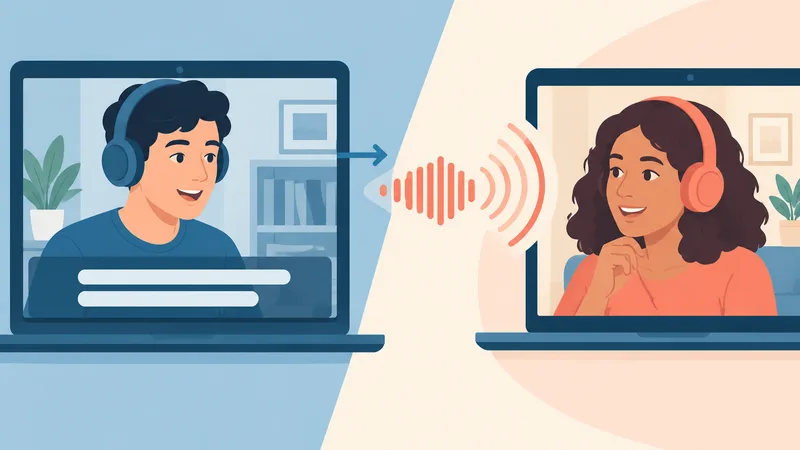
Caption translation and voice translation solve different problems in Google Meet. A caption-translating extension reads the text of Meet's live captions (or its own transcription) and shows a translated subtitle in your browser tab. Nobody else in the meeting sees that subtitle, and the person speaking still hears your original voice when you reply. A voice translation tool listens to the audio, translates it and speaks the result, either into your headphones only or into the meeting itself.
| Question | Caption-translating extension | Audio or voice translation tool |
|---|---|---|
| What goes in | Meet's live captions (they must be turned on) or the extension's own transcription | The meeting audio captured in your browser or on your computer |
| What comes out | Translated text subtitles | Translated subtitles and, in some tools, a translated voice |
| Who gets the translation | Only the person who installed it | Depends on the tool: only you, or also the other participants if the translated voice is played into the call |
| Does the other side understand you? | Only if they install a tool too | Yes, when the tool plays your translated voice into the meeting |
| Typical weak spot | Inherits caption errors; the caption language must match the speaker | Paid plans; usually needs desktop Chrome or a desktop app |
If you only need to follow a speaker, a caption extension can be enough. If the other person also needs to understand you, look at voice tools, and check whether the translated voice reaches the meeting or only your own headphones.
Do you need an extension, or is Meet's built-in translation enough?
Meet's built-in translation is enough when your account is on an eligible plan and your language pair is covered. Google offers two features, and both require a paid plan:
- Translated captions show subtitles in your language. Google Meet Help lists Business Standard, Business Plus, Enterprise Standard, Enterprise Plus and Google AI Pro for Education, with 69 languages to translate to or from, still "gradually rolling out". Free personal Gmail accounts are not on the list. Captions are turned on only for you, per Google's live captions article.
- Gemini Speech Translation speaks the translation in a voice like the speaker's. Google's Speech Translation page lists English paired with French, German, Hindi, Italian, Portuguese or Spanish, one pair per meeting, a 90-minute limit per meeting, no translation in recordings or live streams, and phones listed as unsupported for having your own speech translated. Eligible plans include Google AI Pro, Google AI Ultra and several Workspace Business, Enterprise and Frontline editions. Vietnamese, Japanese, Korean, Chinese and Thai are not on the list.
Google also announced Gemini 3.5 Live Translate on June 9, 2026, with 70+ languages in Meet, but 9to5Google's report says it started as a private preview for select business Workspace customers, so most accounts still get the six-pair version. If your plan includes translated captions, the steps to turn them on are in our guide to Google Meet's built-in translation.
An extension makes sense in four situations: you are on a free Gmail or Business Starter account, your language pair is not covered by Speech Translation (Vietnamese to English, for example), the other person should hear you in their language without paying for a Google plan, or you want a transcript of the translated meeting, which neither built-in feature saves.
Google Meet translate extensions compared
The table below lists the tools that appear in Google's US results for "google meet translate extension", plus NoteMeeting. It is not a ranking: the columns show what each tool translates, who gets the result and what each vendor states about languages and pricing.
| Tool | Translates | Output and who gets it | Languages (as stated) | Free tier | Runs as |
|---|---|---|---|---|---|
| Google Meet AI Translate Captions (TUQ LTD) | Meet subtitles | Translated subtitles for you | "Any language to any language", per the listing | Free to add, in-app purchases (no prices shown) | Chrome extension; 3.3/5 from 40 ratings, about 10,000 users, last updated March 10, 2025 |
| Google Meet Transcript Translator (open source, GitHub) | Meet live captions | Translated captions for you | Target language picked in the popup | Free (MIT license) | Unpacked extension loaded in Developer mode; no store listing |
| Immersive Translate | Meet captions or its own AI transcription | Bilingual subtitles for you; SRT export | 100+ languages, per the vendor | Free tool with a Pro upgrade (Meet limits not stated) | Extension for Chrome, Edge, Firefox, Safari |
| JotMe (Google Meet Translation and AI Note Taker) | Meet captions in the browser or audio on your computer, per the vendor | Captions for you; a "fast mode" speaks translations aloud; transcript and notes saved to your JotMe dashboard | 77 on the Chrome listing; 200+ in the desktop app and 21 core targets in the Meet overlay, per jotme.io | Free plan with live translation minutes (amount not stated) | Chrome extension and desktop app; 4.6/5 from 57 ratings, 10,000 users, updated April 11, 2026 |
| MeetVoice | Tab audio | Subtitles and a voiceover for you; the partner hears your translated voice only if you turn that on (off by default), per MeetVoice | 32, per the vendor | 30-minute trial; paid from €9/month for 5 hours | Chrome extension plus a required desktop app (Windows, macOS 13+ on Apple Silicon) |
| NoteMeeting Voice Translator | Meeting audio, both directions | You hear the translation; the other participants hear the translated voice played into the meeting | 10 languages, any pair (default Vietnamese and English) | No: the 1-hour trial covers transcript and summary only; translation needs Pro or Teams | Chrome extension in Google Meet on desktop Chrome |
Ratings and user counts come from the Chrome Web Store on October 10, 2026; Google notes that it does not verify reviews. Maestra, which also ranks for this topic, sells a live translator that participants join through a link or QR code; its July 2026 guide does not say the tool runs inside Google Meet, so it is not in the table.

Summarize your meetings & videos automatically with NoteMeeting
Google Meet, Zoom, YouTube, Podcast — all in one extension.
Caption-translating extensions: what to expect
Caption-translating extensions depend on Meet's captions, so their quality cannot be better than the captions they read. Three practical consequences follow. First, captions must be on, and the caption language in Meet must match the language being spoken, or the extension translates nonsense. Second, the output is text in your tab only, so a reply in your own language still reaches the other person untranslated. Third, the open-source Google Meet Transcript Translator is installed by turning on Developer mode and choosing Load unpacked, which suits developers more than a sales team; its README warns that accuracy "may not be perfect". The store-listed Google Meet AI Translate Captions has not been updated since March 2025, and its listing does not say what the in-app purchases include.
Audio and voice translation tools: what to expect
Audio translation tools listen to the call rather than the captions, so they do not need Meet's captions or a Workspace plan. JotMe says it translates without depending on the host's Google Workspace or Gemini tier, and that live translation is shown as captions, with a fast mode that speaks translations aloud; its page does not say whether other participants hear that voice. MeetVoice's own comparison says your translated voice reaches the partner only if you enable it. JotMe also advertises translation in your own cloned voice, which we did not test. NoteMeeting Voice Translator is built to send the translated voice into the Google Meet call: you hear the other person in your language, they hear you in theirs, and only one side needs NoteMeeting.
Who hears the translation?
Most Google Meet translate extensions show the translation only to the person who installed them. That is fine for following a presentation, but in a two-way conversation, such as a sales call, a job interview or a supplier negotiation, the other person also has to understand you. There are three ways that happens:
- Everyone installs their own tool. Each participant turns on translated captions or a caption extension in their language. This works inside one company, less well with clients you cannot ask to install software.
- Google's Speech Translation. Listeners hear opted-in speakers in their chosen language, but only for English plus six languages and only on eligible plans.
- One person runs a voice tool that plays into the meeting. With NoteMeeting Voice Translator, the NoteMeeting user hears the partner's speech translated, and the partner hears the NoteMeeting user's speech as a translated voice in the meeting, without installing anything. Either side can be the one who installs it.
Whichever route you use, tell the other participants that their speech is being processed by a translation tool. JotMe's store listing, for example, says users must obtain consent from all participants before using it.

Which languages do Google Meet translation extensions support?
Language counts vary widely and are not comparable, because vendors count different things. JotMe's figures alone range from 21 core target languages in the Meet overlay to 77 on the Chrome listing and 200+ in the desktop app. Immersive Translate states 100+ languages, MeetVoice 32, and NoteMeeting 10 (Vietnamese, English, Japanese, Korean, Chinese, Spanish, French, German, Thai and Indonesian) in any pair, with Vietnamese and English as the best-tuned default.
For Asian language pairs the gap with Google's built-in tools is the main reason people look for an extension. Translated captions do include Vietnamese, Japanese, Korean and Thai, but only as text and only on eligible Workspace editions. Gemini Speech Translation includes none of them yet. Before you commit, run a 10-minute test call in your real language pair with the names, product terms and accents you actually use; a high language count says nothing about how well your pair is handled.
Is there a free Google Meet translate extension?
Free options exist, but almost all are text only. The open-source Google Meet Transcript Translator is free under the MIT license; Google Meet AI Translate Captions and Immersive Translate are free to install with paid upgrades; JotMe has a free plan with an unstated number of live translation minutes; MeetVoice offers a 30-minute trial. Free same-language captions in Meet work on any account, so a caption extension on top of them costs nothing, but neither gives the other participant a translated voice. Voice translation that the other side hears is a paid feature in every tool we checked, including NoteMeeting (Pro or Teams plan).
Privacy and permissions: what to check before installing
A translation extension sees everything said in your meetings, so check four things before you add one to Chrome:
- Data disclosures on the Chrome Web Store. Each listing has a Privacy section. Google Meet AI Translate Captions declares it collects personally identifiable information and website content; JotMe declares personally identifiable information, authentication information, personal communications and website content.
- Where the transcript ends up. JotMe saves transcripts, translations and notes to your dashboard. Immersive Translate sends text to the translation engine you choose (it names ChatGPT, DeepL, DeepSeek and Gemini, among others). NoteMeeting does not store audio on its servers; you download the transcript yourself.
- Who maintains it. Check the publisher name and the "Updated" date. An extension last updated in 2025 may break after a Meet interface change.
- Company rules. Many Workspace admins block unapproved extensions or forbid sending client conversations to third-party AI. Ask first if the meeting is confidential.
For a broader checklist, including the permission prompts Chrome shows, see our comparison of Google Meet note-taking extensions.
Which route fits your meeting?
| Your situation | Route that fits |
|---|---|
| Business Standard or higher, you only need to follow a speaker | Meet's translated captions; no extension needed |
| English plus French, German, Hindi, Italian, Portuguese or Spanish, eligible plan, both sides should hear each other | Gemini Speech Translation |
| Free Gmail account, you only need to read along | A caption-translating extension, with Meet captions on |
| Client or partner should hear you in their language and will not install anything | A voice tool that plays the translation into the meeting, such as NoteMeeting Voice Translator |
| Vietnamese, Japanese, Korean, Chinese, Thai or Indonesian spoken aloud | An audio translation tool; Gemini Speech Translation does not cover these pairs |
| You need a record of the translated meeting | A tool that keeps a transcript (JotMe, MeetVoice, NoteMeeting); Meet's translated captions leave no text file |
Using NoteMeeting Voice Translator in Google Meet
NoteMeeting Voice Translator is a Chrome extension that runs in your Google Meet tab, with no bot joining the call. It translates speech in both directions between any two of 10 languages, with Vietnamese and English as the default pair, with a delay of under 2 seconds. You hear the other person in your language, and the other participants hear your words as a translated voice in the meeting, so only one side needs NoteMeeting. It also produces a transcript you can download, and audio is not stored on NoteMeeting's servers. Limits to know: it runs on desktop Chrome only, with no mobile app; the 1-hour free trial covers transcription and summaries but not Voice Translator; translation needs the Pro plan ($22/month, unlimited Voice Translator) or Teams ($55/month, 400 Voice Translator minutes per month). Feature details are on the Voice Translator page, and new users can follow how to install Chrome extensions.
If your partners should hear you in their own language on your next Google Meet call, add the NoteMeeting extension and compare plans on the pricing page.
FAQ
Can other participants see my translated captions in Google Meet?
No. Meet's captions and translated captions are turned on only for you, and caption-translating extensions also display text only in your own browser tab. If the other person needs the translation, they must turn on their own captions or extension, or you need a tool that plays a translated voice into the meeting.
Do Google Meet translate extensions work on Android or iPhone?
Generally no. Chrome extensions run in desktop Chrome, not in the Meet mobile apps, and NoteMeeting has no mobile app. On a phone, the built-in translated captions are the option for eligible Workspace accounts, and Google lists phones as unsupported for having your own speech translated by Gemini Speech Translation.
Do I need to turn on captions for a translation extension to work?
For caption-translating extensions, yes: the open-source Google Meet Transcript Translator, for example, tells you to enable Live Caption in the meeting. Audio-based tools such as JotMe, MeetVoice and NoteMeeting listen to the meeting audio, so Meet's captions do not need to be on.
Is Google Meet's own translation a Chrome extension?
No. Translated captions and Gemini Speech Translation are built into Google Meet and controlled by your Google plan. Extensions with "Google Meet" in their names on the Chrome Web Store, such as Google Meet AI Translate Captions, are made by third-party developers, not Google.
Related guides: how to turn on Google Meet captions, how to save Google Meet captions and what a voice translator is and how it works.